How to Accept an Invitation to Join a Sirv Account
 By Anne-Marie Fletcher, Customer Success TeamUpdated
Short answer
Open the invitation email from support@sirv.com and click Join the team. New users enter a name and password; existing users click Join account with your login. If you are already signed in, you join with that login, so sign out first to use another email. Invitations expire after 7 days and can be resent.
After reading this you will know
- How to accept an invitation to a Sirv account
- How to fix the common problems when accepting
- How to sign in afterwards and switch accounts
It’s easy to accept an invitation to join a Sirv account. If you hit a problem, this article gives you the solution.
How to accept a Sirv invitation
Section titled “How to accept a Sirv invitation”1. Check your email for an invitation email from Sirv (support@sirv.com) in your inbox:
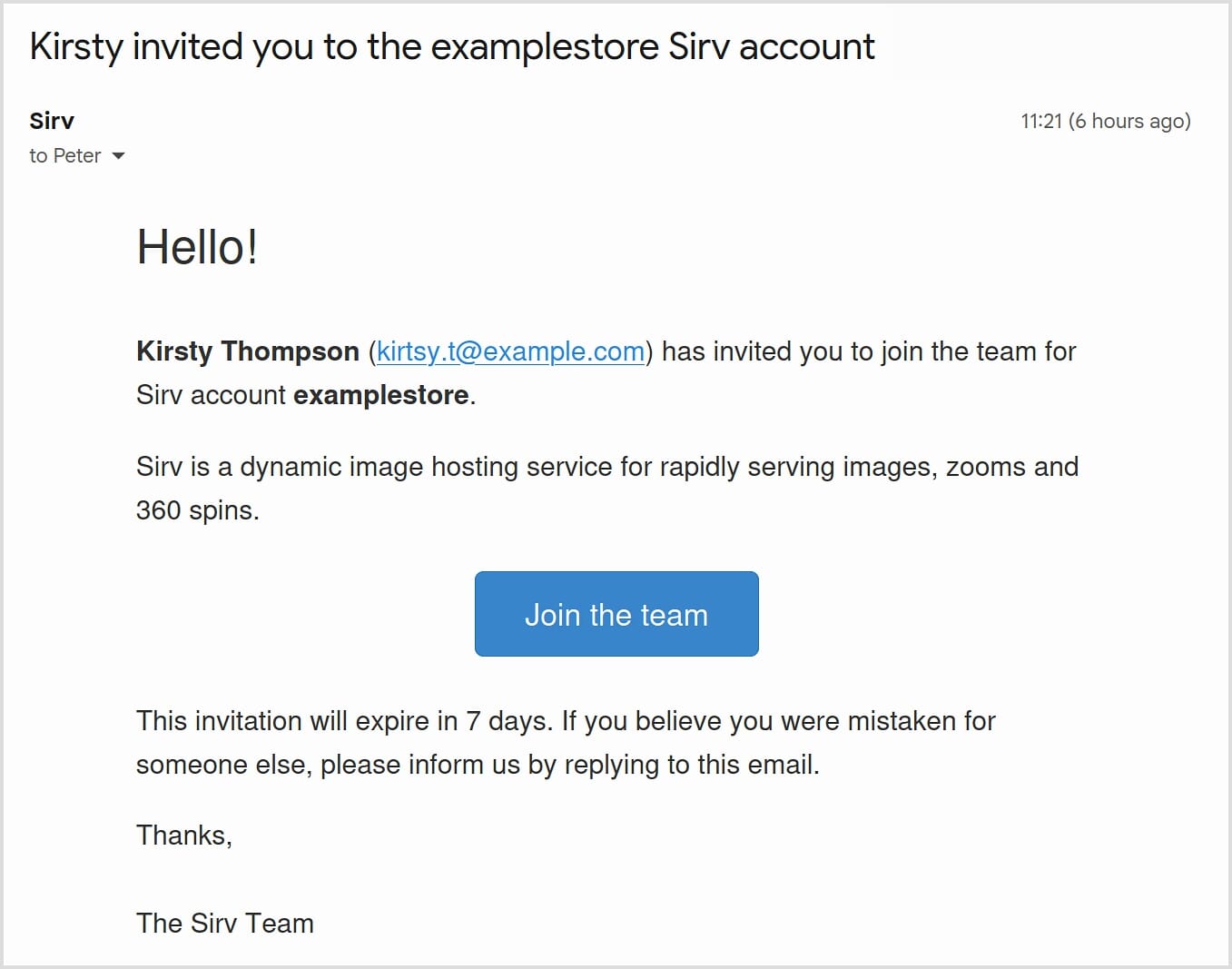
2. Click the button “Join the team” in the email.
3. A web page will open for you to join the account:
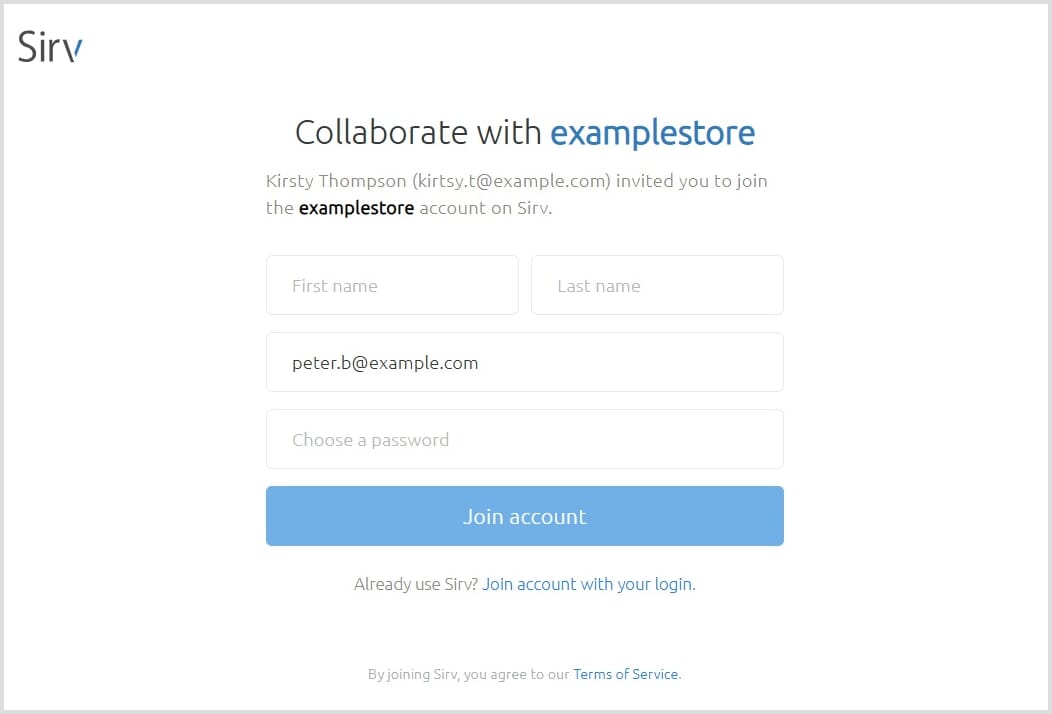
If you are a new user, enter your name and choose a password. You can change the email address to a different one, if you wish.
If you already have a Sirv login, you can accept the invitation with your existing user - click the link “Join account with your login”.
Each Sirv login can access multiple Sirv accounts, so there is no need for you to have multiple logins.
However, if you would prefer to have another login using to a different email address, then you can accept the invitation using that other email address, enter your name and choose a password.
Possible issues and solutions
Section titled “Possible issues and solutions”User is currently logged into Sirv
Section titled “User is currently logged into Sirv”If you are already logged into Sirv when accepting an invitation, you will see a page asking if you want to join the account:
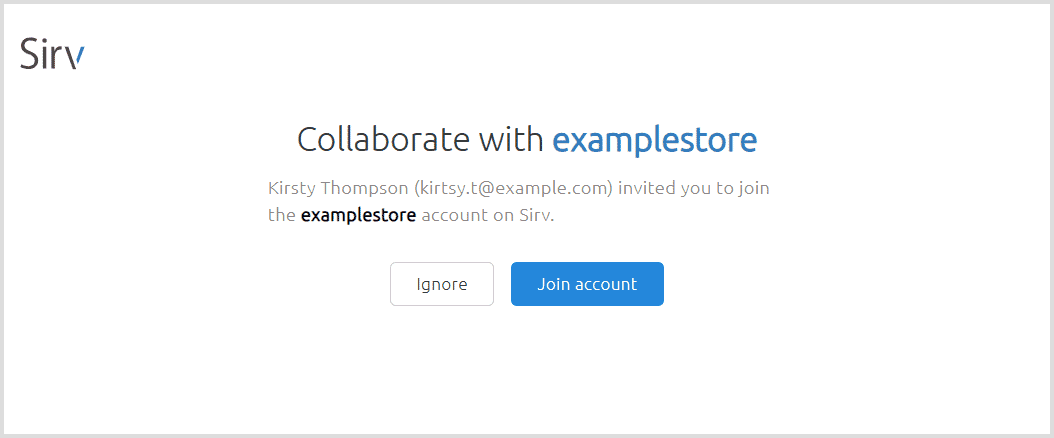
By clicking “Join account”, you will become a user of the account, with whichever login you were currently logged in as.
Logins are tied to your email address, so even if you received the invitation at a different email address, you will join the account using your currently logged in email address.
Solution: If you wish to join the account using a different email address, sign out of Sirv before accepting the invitation. Click your account at the bottom left, then “Sign out”:
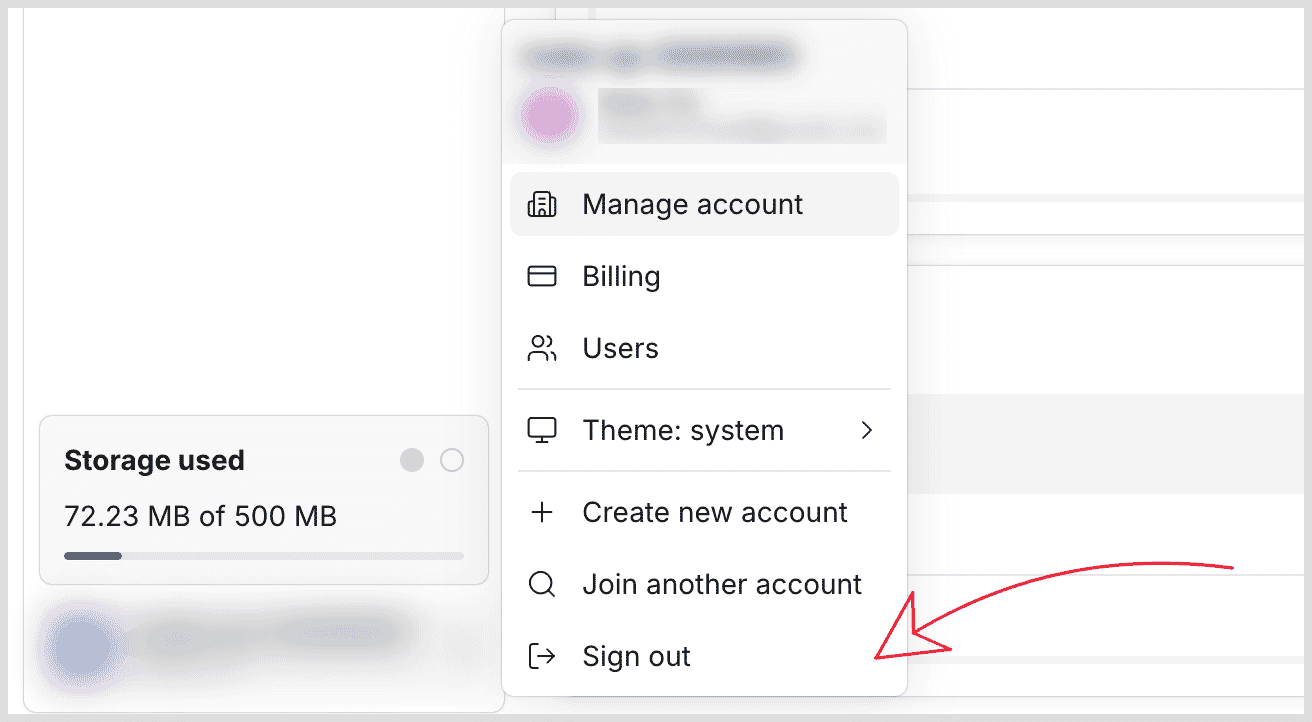
You are already registered
Section titled “You are already registered”If your email address is already registered as a Sirv user and you’re logged out, an error will show if you try to accept the invitation with a wrong password:

Solution: On the web page, click the link ‘join account with your login’, then enter your email and Sirv password.
If you don’t remember your Sirv password, use the “Forgot your password” form to reset it.
Invitation sent to the wrong email
Section titled “Invitation sent to the wrong email”If the invitation was sent to the wrong email, you can specify a different email address when completing the “Collaborate with account” form.
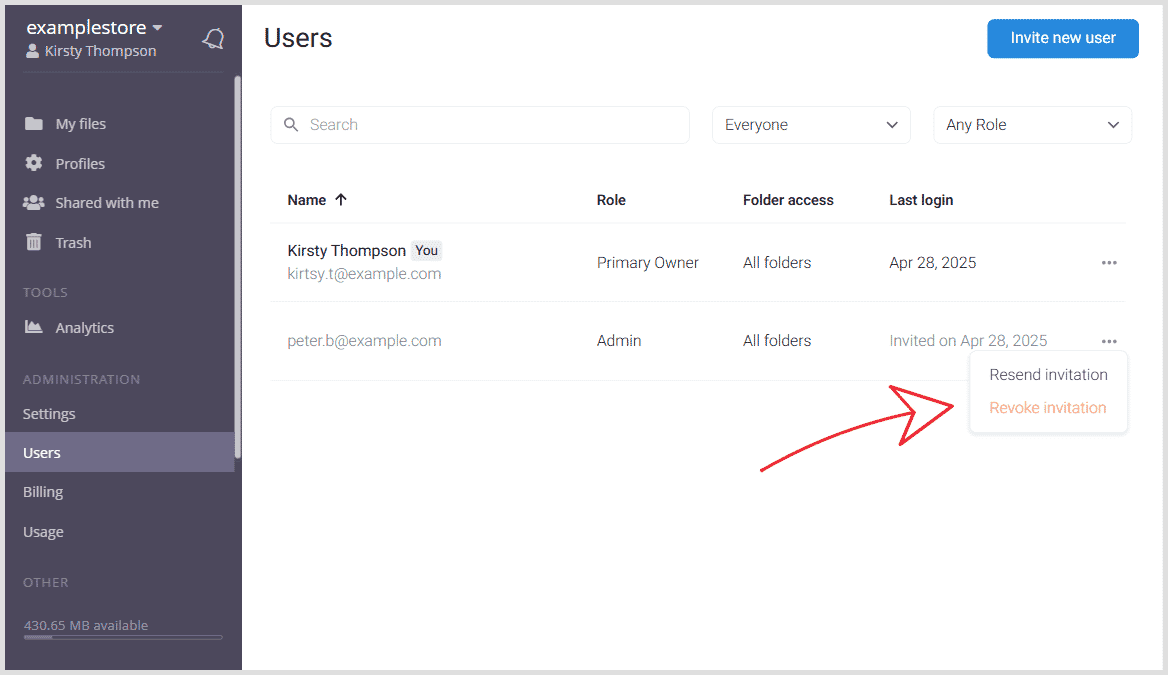
Alternatively, the account Owner or Admin can revoke the invitation in Settings > Users and send a new invitation to the correct email address:
Invitation expired
Section titled “Invitation expired”Invitations expire after 7 days.
If an invitation has expired, the account Owner or Admin can resend it from the list in Settings > Users.
How do I sign in after accepting?
Section titled “How do I sign in after accepting?”Go to app.sirv.com and sign in with the email the invitation was sent to. If your email has access to more than one Sirv account (you can also create one of your own), you can switch between accounts.