Fix Image Colors
 By Jake Brumby, Customer Success DirectorUpdated
Short answer
If colours look washed out after Sirv optimizes an image, the image probably uses a rare colour space such as Adobe RGB or ProPhoto RGB. Add ?info to the image URL to see its colour space. Keep the metadata to fix the colours, or better, save your originals in sRGB, which every device supports.
After reading this you will know
- What colour spaces are and why sRGB suits the web
- How to find an image's colour space with ?info
- How to fix colour problems by keeping metadata or saving in sRGB
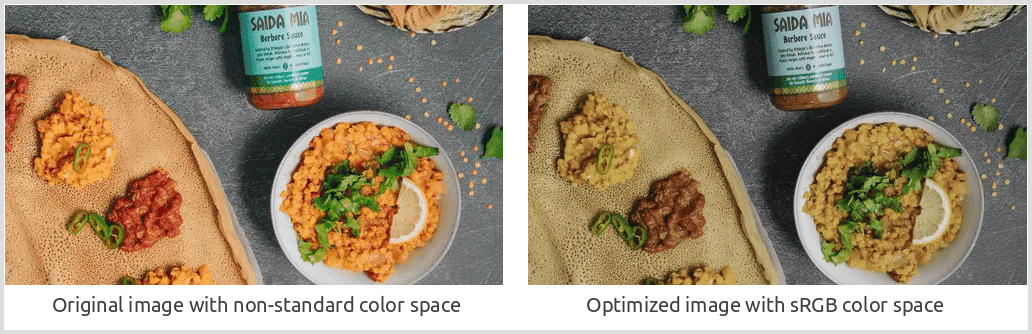
If the colors in your image look wrong, washed out or don’t match the original, it may be because the image uses a rare color space.
This article explains how to check your image color space and what to do if it produces unexpected colors.
About color spaces
Section titled “About color spaces”A color space is a mathematical model that describes how colors can be represented. Each color space has a range of colors it can reproduce.
The vast majority of images seen on the web were created using the sRGB color space. It is the default profile used by web browsers.
Fun fact: 99.983% of images uploaded to Sirv use the sRGB profile. Occasionally, images are created in other color spaces, such as Adobe RGB (1998).
That color space has a wider gamut of colors, making it suitable for CMYK printing (but not optimal for the web).
Color spaces and image optimization
Section titled “Color spaces and image optimization”One of the benefits of Sirv’s image optimization engine is its ability to automatically remove meta data.
Such data adds no value to your website visitors and stripping it can save many KB of data, improving your web page performance.
However, it means the browser will interpret the image using the sRGB color space, so it may look different to the original.
How to fix color space related issues
Section titled “How to fix color space related issues”There are various ways to overcome this issue. First, check what color profile your image uses…
Identify the color space of an image
Section titled “Identify the color space of an image”Identify which color profile your image uses by appending ?info to the image URL. Sirv will return the image meta data, including its color space.
Below are some examples of images with non-standard color spaces. Click the links to see the full image meta.
Meta data for image using Adobe RGB (1998) color space: https://demo.sirv.com/research/color-profiles/example-Adobe_RGB_1998.jpg?info The relevant meta information is:

"ICCProfileName": "Adobe RGB (1998)",Meta data for image using ProPhoto RGB color space: https://demo.sirv.com/research/color-profiles/example-ProPhoto_RGB.jpg?info The relevant meta information is:

"ProfileDescription": "ProPhoto RGB",Sirv automatically disables meta stripping for the color profiles listed below, so your images will match the original (but with meta included, so slightly larger file size):
- Adobe RGB (1998)
- ProPhoto RGB
- Linear Color Space
- sRGB IEC61966-2.1
- sRGB IEC61966-2.1 (Linear)
Preserve meta data to solve color problems
Section titled “Preserve meta data to solve color problems”You can instruct Sirv to disable meta stripping, so that web browsers interpret your images in their original color space.
Simply append ?strip=0 to the image URL. Alternatively, meta stripping can be disabled by applying a Sirv profile:
- On the Profiles page, click Edit on a profile, or New profile.
- Open Image rendering > Format. Switch on “Strip image metadata” with the switch on the right, then choose “Disabled”:

- Click Save changes at the top right.
- Apply the profile by appending ?profile=name to the image URL (unless you edited the Default profile, in which case stripping will be disabled on all images in your Sirv account).
The most optimal solution would be to resave your images in the sRGB color space, then reupload them to Sirv.
Image colors will look correct and the images will receive all the benefits of meta stripping:
- Best possible image optimization, in the best format for each browser
- Faster loading speed
- Helps achieve better SEO
- Lower bandwidth for users
- Lower CDN data transfer (which can impact your Sirv price plan)
Resave in sRGB
Section titled “Resave in sRGB”Either resave the image on your computer, if that’s easy, or follow this process to convert the image to sRGB:
- Open the image and add these options to the URL: ?strip=1&format=original&quality=100
- Save the image to your computer.
- Upload the image back to your Sirv account, overwriting the old image.