Add 360 degree spin to BigCommerce product gallery
 By Anne-Marie Fletcher, Customer Success TeamUpdated
Short answer
To show 360 spins in a BigCommerce product gallery, install the Magic Zoom Plus app and enter your Sirv account name in its settings. Upload each spin to a folder named after the product, such as products/{product-sku}/, and it appears next to the product images. You can also paste a spin into the product description.
After reading this you will know
- How to add 360 spins to the BigCommerce product gallery
- How to name folders so spins match products
- How to add a spin to a product description

BigCommerce retailers use 360 degree product spins to increase conversion rates, decrease product returns, and provide an overall greater online shopping experience to customers, as do Shopify stores built with PageFly.
Add spin to product gallery
Section titled “Add spin to product gallery”Display a 360 spin alongside your BigCommerce product images, which can also be served from Sirv CDN.
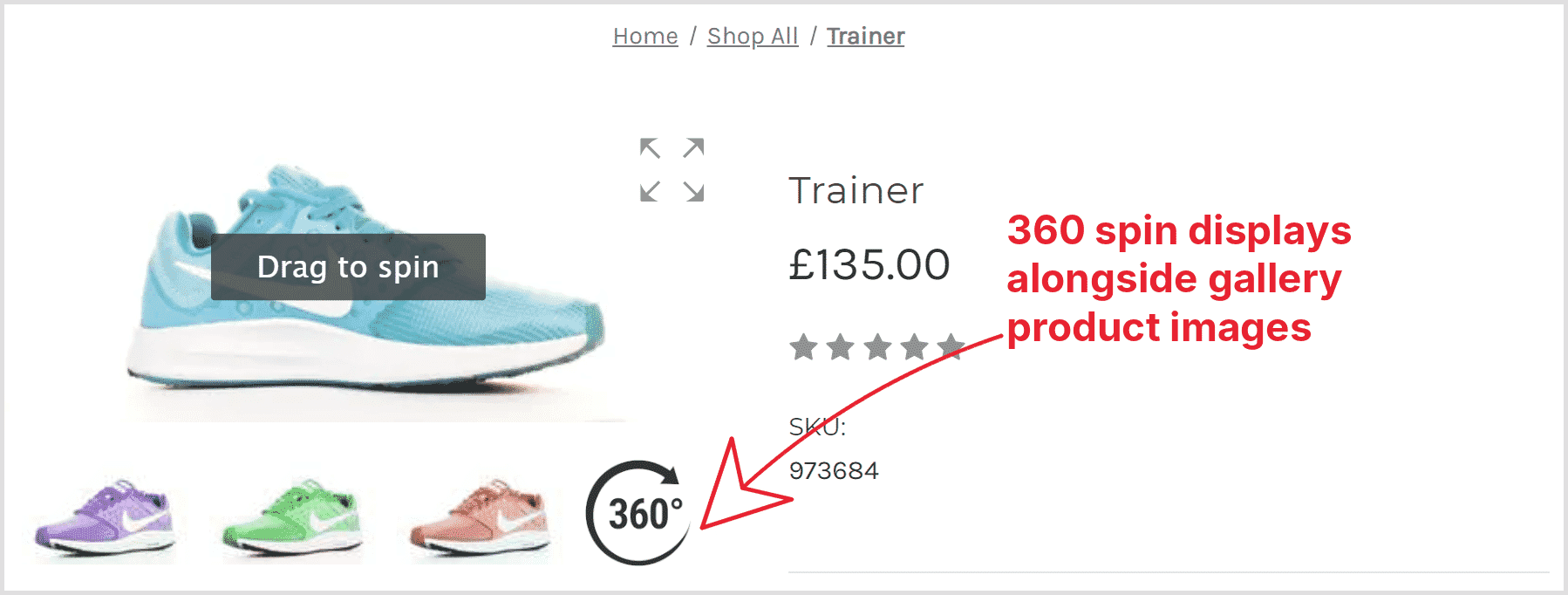
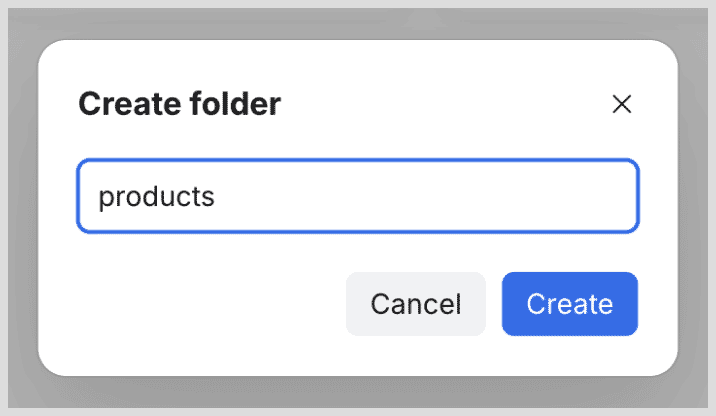
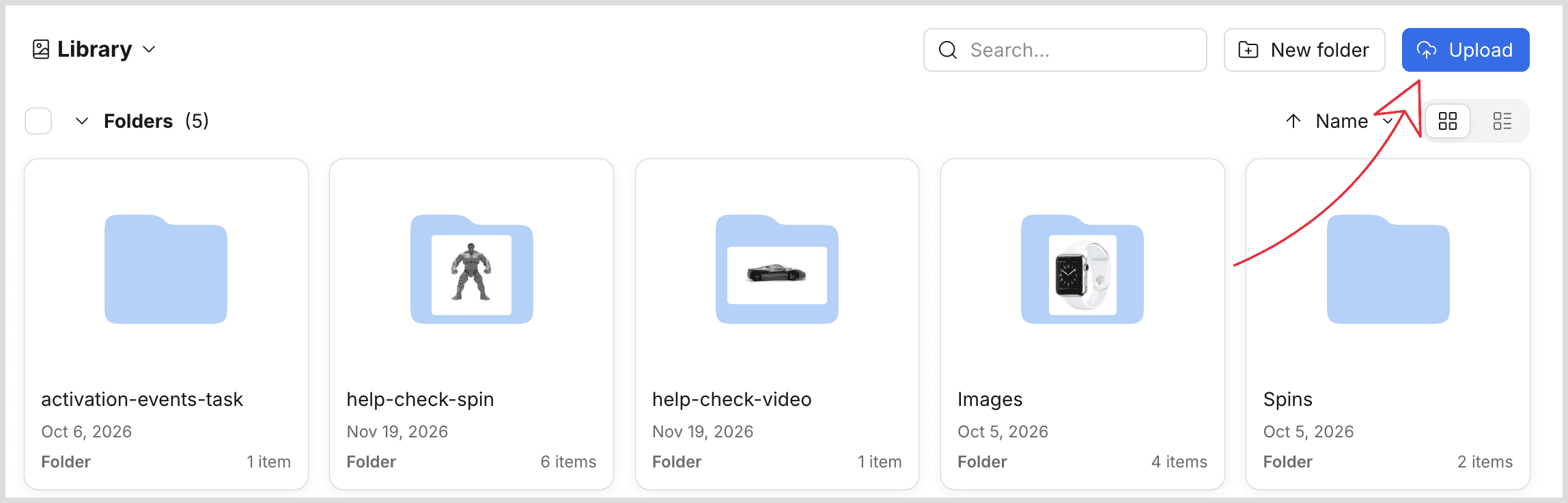
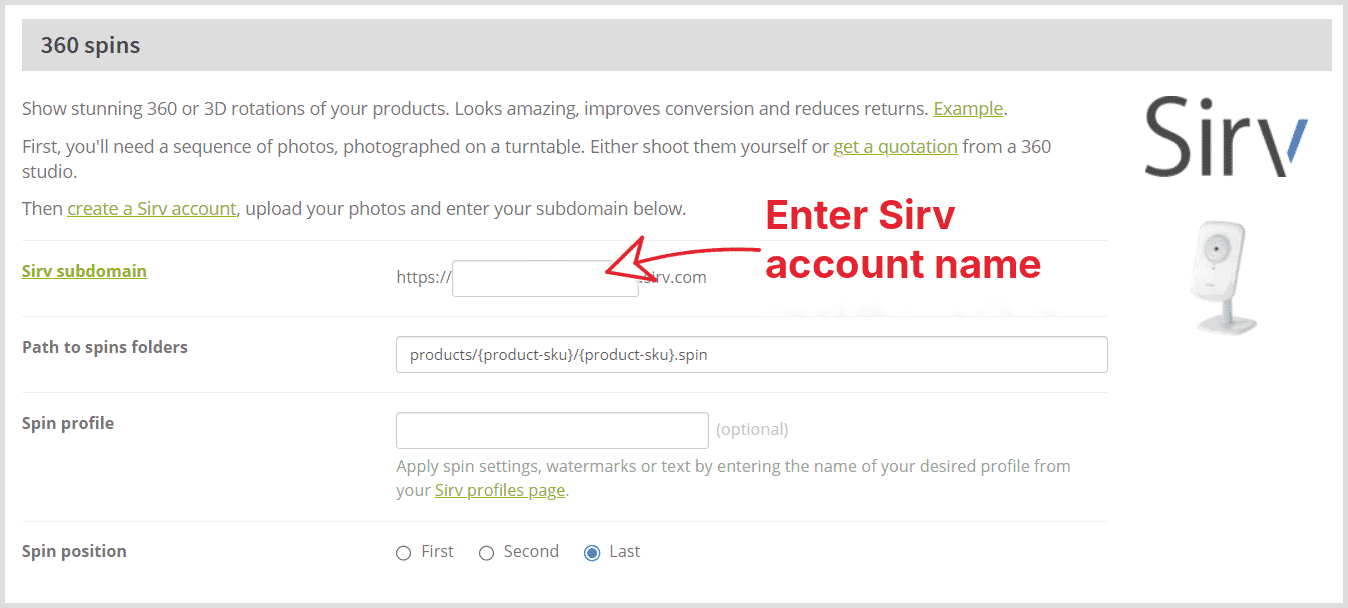
7. Refresh your product web page, and the 360 spin displays as part of your BigCommerce product gallery.
Custom folder structure
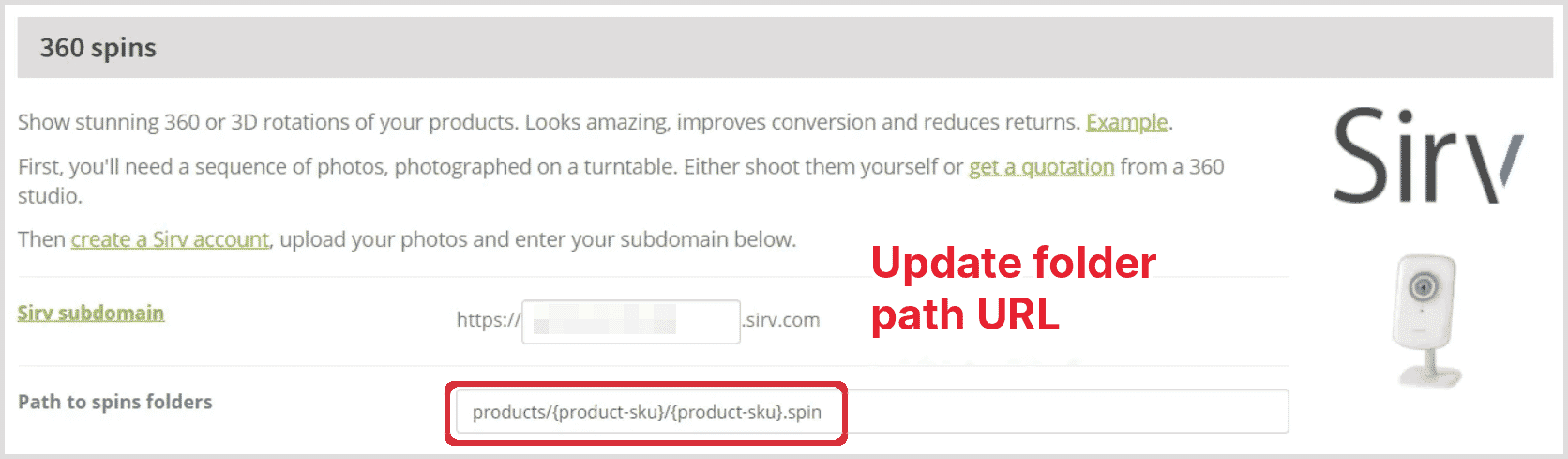
Section titled “Custom folder structure”By default, Product SKU is used and the folder structure URL looks like this: products/{product-sku}/{product-sku}.spin
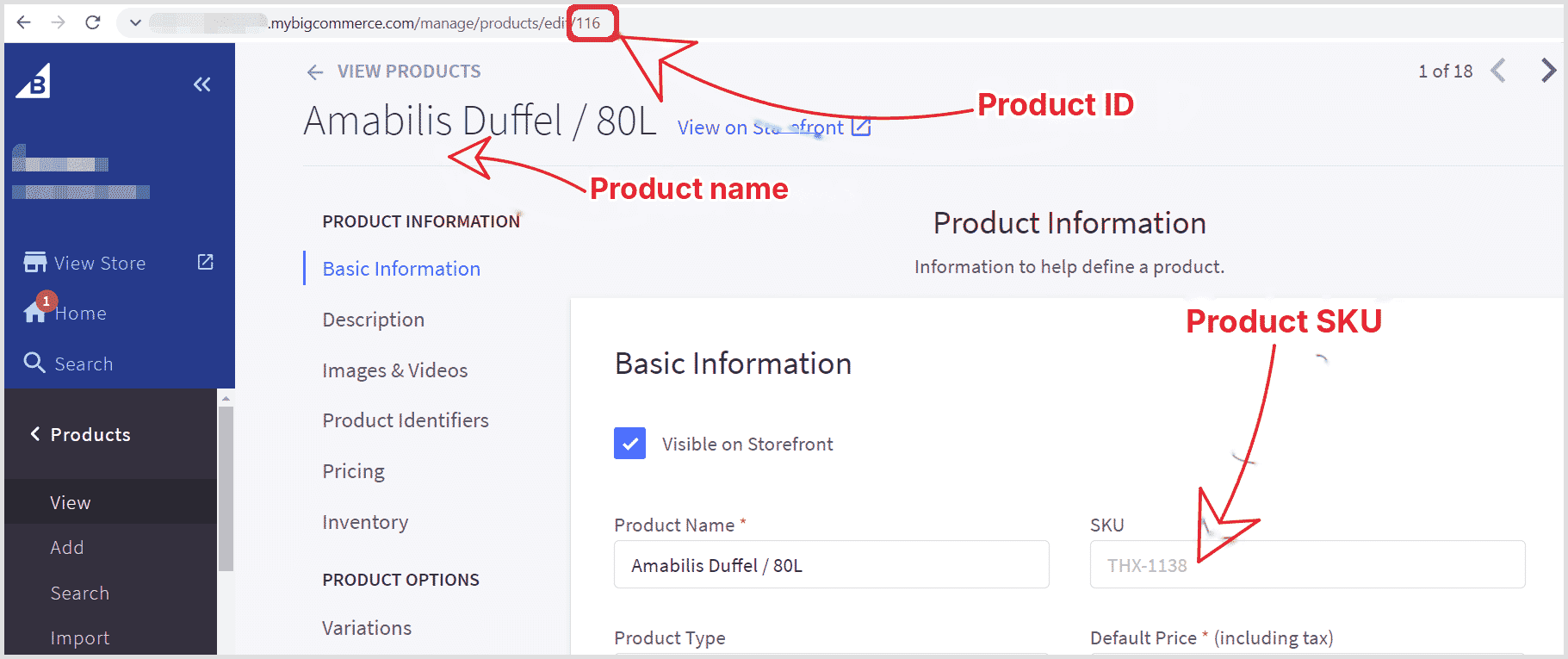
There are 3 BigCommerce product codes to choose from:
- Product SKU:
{product-sku} - Product ID:
{product-id} - Product name:
{product-name}
If you prefer to use Product ID or Product Name, update the folder path URL with the relevant shortcode on the app settings page:
Add 360 spins to a text area
Section titled “Add 360 spins to a text area”You can also display spin(s) in the Description area of your BigCommerce product page. 1. Go to the Description area in your BigCommerce product > Click the ‘Source code’ icon:
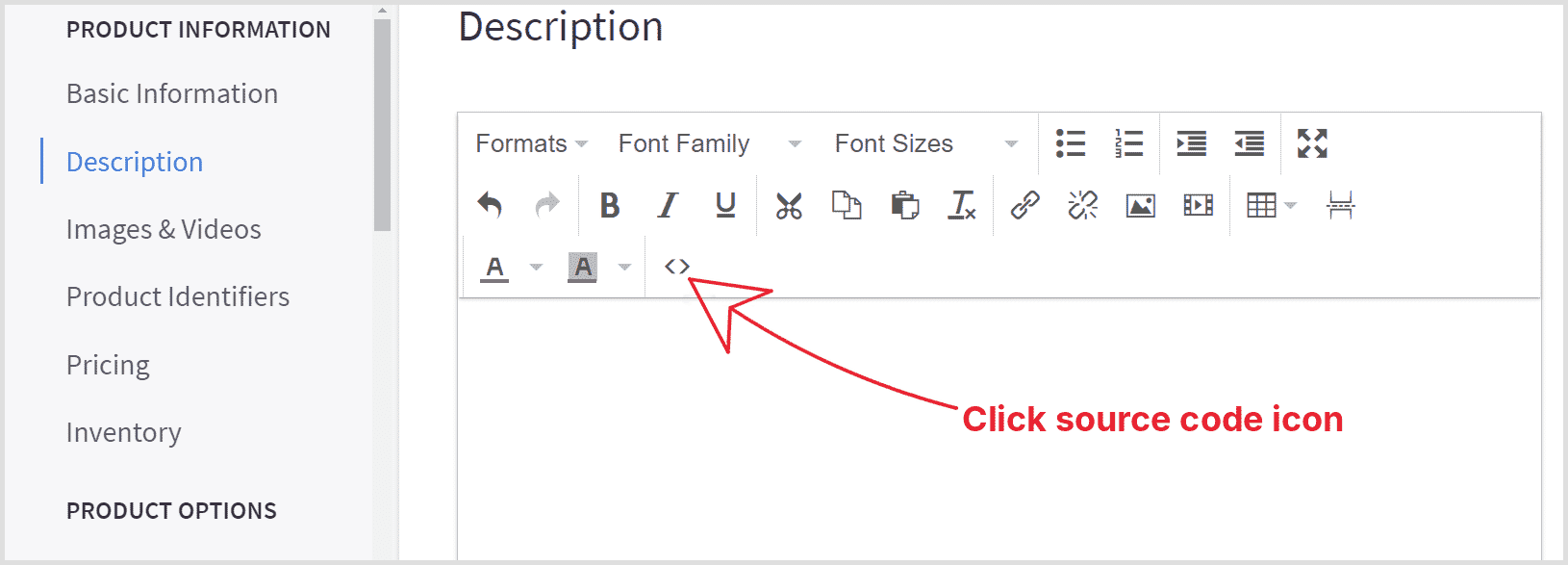
2. Copy and paste the code below into the ‘Source code’ field > Replace ENTER-YOUR-SPIN-URL.spin with your spin URL > Click ‘Ok’ > Click ‘Save’:
<div class="Sirv">  <div data-src="ENTER-YOUR-SPIN-URL.spin"></div>
</div><script src="https://scripts.sirv.com/sirvjs/v3/sirv.js"></script>Tip: To find your spin URL, right click the .spin file in your Sirv account, and then select ‘Copy link’. 3. Refresh your BigCommerce product page and you’ll see 360 spin display in the Description area:

Themes supported
Section titled “Themes supported”Lots of popular BigCommerce themes are automatically supported by the Magic Zoom Plus app.
If there is an issue, contact the Magic Toolbox team and they’ll add support for your theme within 48 hours. Stencil themes are also fully supported.
Below are other BigCommerce themes already supported:
- Arcade
- Brixton
- Clean
- Cornerstone
- Covent
- Eloquence
- Exhibit
- Fortune
- Foundry
- Light
- Merchant
- PartsWarehouse
- Solera
- Supermarket
- Warm
- + many more themes