Create a 360 spin from any set of images
 By Jake Brumby, Customer Success DirectorUpdated
Short answer
Put the images in their own folder, name them with ascending numbers such as sku-123-01.jpg, and upload them to Sirv. With 8 or more images, Sirv builds the .spin file for you. Share it as a URL or embed it on any page with two lines of HTML.
After reading this you will know
- When Sirv builds a spin for you and when it does not
- How to turn any set of images into a spin in 4 steps
- How to embed the spin and how many images to use
How does Sirv make a spin from your images?
Section titled “How does Sirv make a spin from your images?”Sirv builds the spin for you. When a folder holds a sequence of images, Sirv detects it by the ascending digits in the image names, such as shoe-01.jpg to shoe-36.jpg.
Sirv needs two things:
- At least 8 images in the sequence.
- File names with an ascending number, not front.jpg, side.jpg and back.jpg.
If you have lots of products, rename the files once and let Sirv do the rest.
Create a spin file
Section titled “Create a spin file”1. Give the images ascending numbers. Use one prefix and padded numbers, for example sku-123-01.jpg to sku-123-36.jpg.
2. Upload them into their own folder. In Assets > Library, click New folder, name it after the product, then Upload the images into it.
3. The spin file appears at the top of the folder. It takes the folder’s name, for example sku-123.spin.
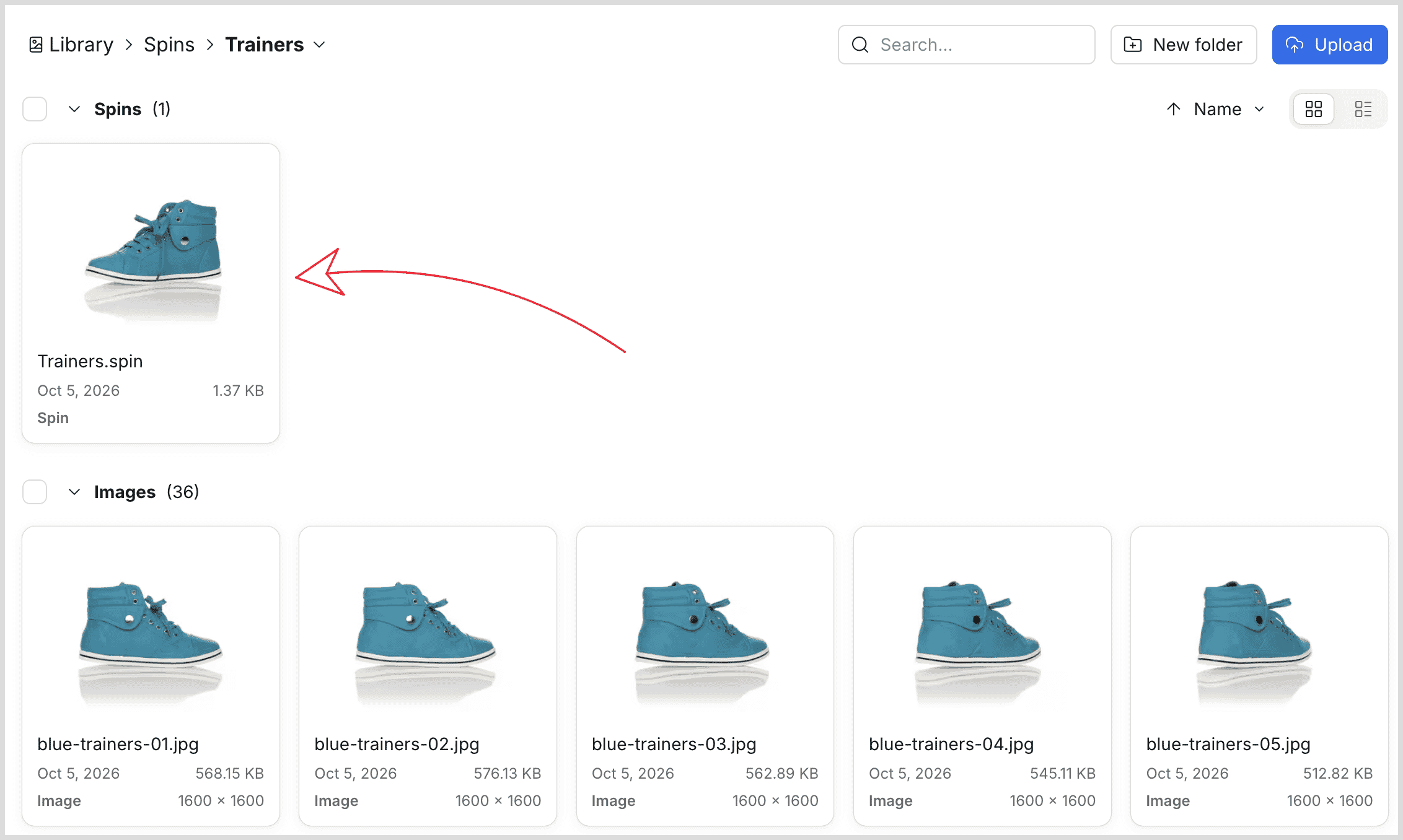
If no spin appears, open Folder settings and check that “Scan for spins” is on.
4. Open the spin and click Embed to copy its HTML code.
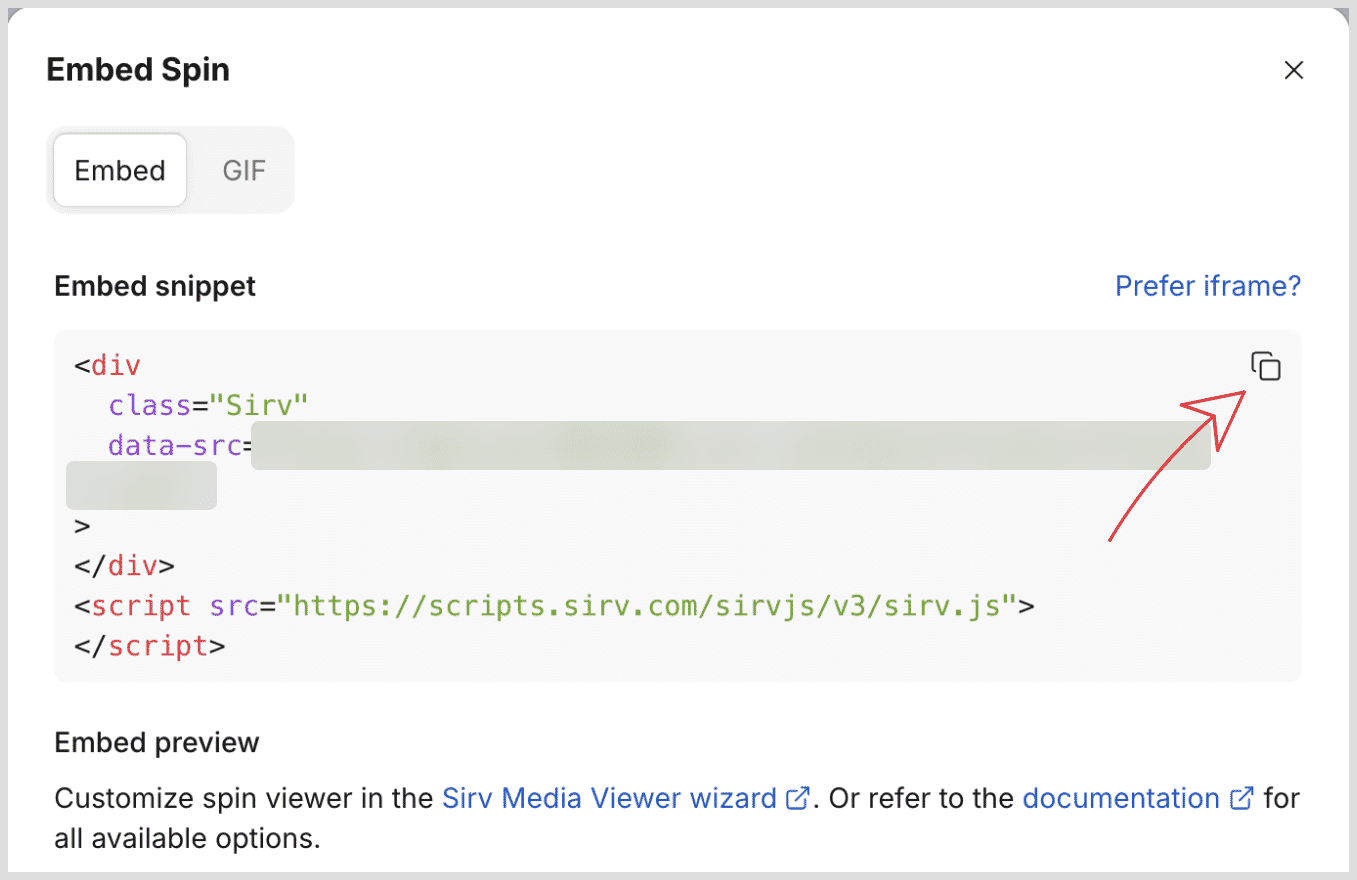
Now you can use the spin. Share its URL, or paste the code into your website.
Embed the spin on your website
Section titled “Embed the spin on your website”Paste this where you want the spin to appear and swap in the URL of your own .spin file. The script only needs adding once per page, however many spins you add.
<script src="https://scripts.sirv.com/sirvjs/v3/sirv.js"></script><div class="Sirv" data-src="https://demo.sirv.com/spins/test/hulk.spin"></div>The spin scales to fit its container, so set the width on the parent element. Viewer options such as autospin, zoom and fullscreen are listed in the 360 spin viewer options.
How should I name and prepare the images?
Section titled “How should I name and prepare the images?”Keep one product’s spin in one folder, so the .spin file is easy to find, share and embed. Give the images the same prefix and padded numbers (a 3D spin with several rows follows the same rule):
sku-123-001.jpgsku-123-002.jpgsku-123-003.jpgUse the same file type, size and crop for every frame, or the spin may jump as it rotates. JPEG is usually best for product spins because it keeps files small.
Use PNG or WebP when you need transparency.
Why does my spin rotate wrongly or not load?
Section titled “Why does my spin rotate wrongly or not load?”| Problem | What to check |
|---|---|
| The spin rotates in the wrong order | Rename the frames with padded numbers (001, 002, 003, not 1, 10, 2), then upload them again into an empty folder. |
| The spin jumps or changes size | Make every frame the same pixel size and crop. Replace any frame with extra white space. |
| No spin appears in the folder | Check that the folder has 8 or more images with ascending numbers, and that “Scan for spins” is on in Folder settings. |
| Some frames are missing | Check the upload notifications for failed images, then upload those files again. |
| The embedded spin does not load | Check that Sirv JS is on the page and that the .spin URL opens in your browser. |
After you fix the images, upload them again into an empty folder, so Sirv builds a new spin.
How many images should a spin have?
Section titled “How many images should a spin have?”More images give smoother rotation but take longer to load. We generally recommend 36 images, while 72 images suit luxury goods or high-impact spins.
Compare them in the best number of images for a 360 spin.
Can I make a spin from a video instead of photos?
Section titled “Can I make a spin from a video instead of photos?”Yes. Upload the video, right-click it and choose Convert to spin. The video to spin guide covers frame counts and limits.