How to Query Sirv - Check if File Exists
 By Anne-Marie Fletcher, Customer Success TeamUpdated
Short answer
To check whether a file exists on Sirv, request it and look for a 404, or send a HEAD request. Add ?info to an image URL to get its details as JSON with JavaScript or jQuery. To list a folder, make its listing public and request it as JSON, or use the Sirv REST API or S3 API.
After reading this you will know
- How to check if a file exists on Sirv
- How to get a file's details as JSON
- How to list the files in a folder
Sometimes you may want to know the contents of a folder or check if a particular file exists. Here are 6 different ways to check what files exist in a certain location or folder.
Method 1: Request a file
Section titled “Method 1: Request a file”You could simply request a file to see if it exists. Sirv will return a 404 response if it doesn’t exist. For example, this missing file serves a 404 with this error message:
{ "name": "ApiNotFoundError", "message": "No such file or directory: /fabricated-folder/nothing-here.spin"}Method 2: Send a HEAD request
Section titled “Method 2: Send a HEAD request”You can send a HEAD request to check if a file exists. The example below requests this real image:

curl -XHEAD --head "https://sirv.sirv.com/Examples/test-girl.jpg"The request will return:
HTTP/2 200date: Thu, 31 Aug 2023 08:05:12 GMTcontent-type: image/jpegcontent-length: 12995last-modified: Thu, 31 Aug 2023 08:05:12 GMTcache-control: max-age=605699etag: "64f049b8-32c3"server: Sirv.Imaginationx-sirv-cdn-server: sirvcdn-gbr-3x-sirv-cdn-cache: MISSx-sirv-server: c1-extra1-fireball-12x-sirv-cache: HITaccess-control-allow-origin: *access-control-allow-headers: *expires: Thu, 07 Sep 2023 08:20:11 GMTx-sirv-meta-width: 400x-sirv-meta-height: 227x-sirv-shard: c1-riak2accept-ranges: bytesYou could use a similar HEAD request to preprocess an image at particular dimensions and then fetch the dimensions and properties. For example:
curl -XHEAD --head "https://sirv.sirv.com/Examples/test-girl.jpg?w=511"That will generate an image of 511px width and return the dimensions like so:
HTTP/2 200date: Thu, 31 Aug 2023 08:25:12 GMTcontent-type: image/jpegcontent-length: 17182last-modified: Thu, 31 Aug 2023 08:25:12 GMTcache-control: max-age=605699etag: "64f04e68-431e"server: Sirv.Imaginationx-sirv-cdn-server: sirvcdn-gbr-5x-sirv-cdn-cache: MISSx-sirv-server: c1-extra1-fireball-12x-sirv-cache: MISSaccess-control-allow-origin: *access-control-allow-headers: *expires: Thu, 07 Sep 2023 08:40:11 GMTx-sirv-meta-width: 511x-sirv-meta-height: 289x-sirv-shard: c1-riak2accept-ranges: bytesNotice the two additional headers in the response: X-Sirv-Meta-Width and X-Sirv-Meta-Height. You can use the width and height for the img in your HTML.
Method 3: Request with JavaScript
Section titled “Method 3: Request with JavaScript”This first example makes a JavaScript AJAX request (GET):
curl -XGET "https://sirv.sirv.com/Examples/test-girl.jpg?w=200&info"The image information is returned in JSON format, like this:
{ "width": 200, "height": 113, "original": { "width": 400, "height": 227, "format": "JPEG", "exif": { "Orientation": "1", "Make": "NIKON CORPORATION", "Model": "NIKON D7000", "Software": "Adobe Photoshop CS6 (Windows)", "DateTime": "2014:05:09 22:07:19", "DateTimeOriginal": "2013:07:03 12:33:12", "SubSecTimeOriginal": "70", "ExposureTime": "1/250", "FNumber": "32/10", "ShutterSpeedValue": "7965784/1000000", "ApertureValue": "3356144/1000000", "Contrast": "0", "Saturation": "0", "Sharpness": "0", "WhiteBalance": "0", "FocalLengthIn35mmFilm": "165", "Flash": "31", "ColorSpace": "65535", "LightSource": "0", "FocalLength": "1100/10", "ISOSpeedRatings": "100", "LensModel": "80.0-200.0 mm f/2.8" } }, "contentType": "image/jpeg", "zoom": {}}This next example also makes a JavaScript AJAX request (GET) but the response is in JSONP:
curl -XGET "https://sirv.sirv.com/Examples/test-girl.jpg?w=200&info&callback=myCallbackFn"This JSONP is returned:
typeof myCallbackFn === 'function' && myCallbackFn({ "width": 200, "height": 113, "original": { "width": 400, "height": 227, "format": "JPEG", "exif": { "Orientation": "1", "Make": "NIKON CORPORATION", "Model": "NIKON D7000", "Software": "Adobe Photoshop CS6 (Windows)", "DateTime": "2014:05:09 22:07:19", "DateTimeOriginal": "2013:07:03 12:33:12", "SubSecTimeOriginal": "70", "ExposureTime": "1/250", "FNumber": "32/10", "ShutterSpeedValue": "7965784/1000000", "ApertureValue": "3356144/1000000", "Contrast": "0", "Saturation": "0", "Sharpness": "0", "WhiteBalance": "0", "FocalLengthIn35mmFilm": "165", "Flash": "31", "ColorSpace": "65535", "LightSource": "0", "FocalLength": "1100/10", "ISOSpeedRatings": "100", "LensModel": "80.0-200.0 mm f/2.8" } }, "contentType": "image/jpeg", "zoom": {}});Request with jQuery
Section titled “Request with jQuery”The following code example uses jQuery to request the information of a particular image. By appending &info to an image URL, you can fetch the meta information of any image (see it here):

$(document).ready(function() { $.ajax({ url: 'https://sirv.sirv.com/Examples/test-girl.jpg?w=200&info', success: function(data){ console.log(data); }, error: function(err){ console.error(err); } })});The image information is returned in JSON format:
{ "width": 200, "height": 113, "original": { "width": 400, "height": 227, "format": "JPEG", "exif": { "Orientation": "1", "Make": "NIKON CORPORATION", "Model": "NIKON D7000", "Software": "Adobe Photoshop CS6 (Windows)", "DateTime": "2014:05:09 22:07:19", "DateTimeOriginal": "2013:07:03 12:33:12", "SubSecTimeOriginal": "70", "ExposureTime": "1/250", "FNumber": "32/10", "ShutterSpeedValue": "7965784/1000000", "ApertureValue": "3356144/1000000", "Contrast": "0", "Saturation": "0", "Sharpness": "0", "WhiteBalance": "0", "FocalLengthIn35mmFilm": "165", "Flash": "31", "ColorSpace": "65535", "LightSource": "0", "FocalLength": "1100/10", "ISOSpeedRatings": "100", "LensModel": "80.0-200.0 mm f/2.8" } }, "contentType": "image/jpeg", "zoom": {}, "account": "zuxrnjgefzys5icyvwwsa9qdy7oma05c", "branded": false}Method 4: Querying a folder
Section titled “Method 4: Querying a folder”If you make your folder listing publicly accessible (see below), then you can get a JSON or JSONP list of its contents, simply via its URL. The following examples will return the contents of the /furniture/ folder:
- JSON: https://demo.sirv.com/furniture/?json=true
- JSONP: https://demo.sirv.com/furniture/?callback=abc
The contents can be sorted by name, size or mtime (date modified) by adding a sort option in the URL:
- Sort by name: https://demo.sirv.com/furniture/?json=true&sort=name
- Sort by size: https://demo.sirv.com/furniture/?json=true&sort=size
- Sort by mtime: https://demo.sirv.com/furniture/?json=true&sort=mtime
Use your preferred programming language to get the listing - this example uses curl to get a JSONP listing sorted by date modified:
curl -XGET "https://demo.sirv.com/furniture/?callback=123&sort=mtime"See the returned JSONP content in your browser, which looks like this:
/**/ typeof 123 === 'function' && 123({ "dirs": [], "files": [ { "name": "Hay-Uchiwa-yellow.jpg", "mtime": "2017-06-28T05:49:43.405Z", "size": 934802, "contentType": "image/jpeg", "meta": { "description": "", "title": "", "tags": [], "approval": {}, "product": {} } }, { "name": "Norman_Counter_Stool_Display_1.jpg", "mtime": "2017-06-28T05:49:45.188Z", "size": 155166, "contentType": "image/jpeg", "meta": { "description": "", "title": "", "tags": [], "approval": {}, "product": {} } }, { "name": "Klismos.spin", "mtime": "2017-12-25T00:00:13.592Z", "size": 2387, "contentType": "text/plain", "meta": { "description": "A black leather chair with a gold frame", "title": "", "tags": [ "chair", "coffee table", "table", "stool", "furniture", "indoor", "seat", "couch", "armrest", "piano", "studio couch", "sofa bed" ], "approval": {}, "product": {} } }, { "name": "green-sofa.jpg", "mtime": "2017-12-25T00:15:35.124Z", "size": 135433, "contentType": "image/jpeg", "meta": { "description": "", "title": "", "tags": [], "approval": {}, "product": {} } }, { "name": "scandinavian-2-seater.jpg", "mtime": "2017-12-25T00:16:57.448Z", "size": 23335, "contentType": "image/jpeg", "meta": { "description": "", "title": "", "tags": [], "approval": {}, "product": {} } } ]There is an ‘Access-Control-Allow-Origin: *’ header, which allows cross-domain requests. To retrieve the folder listing, the directory should be publicly available.
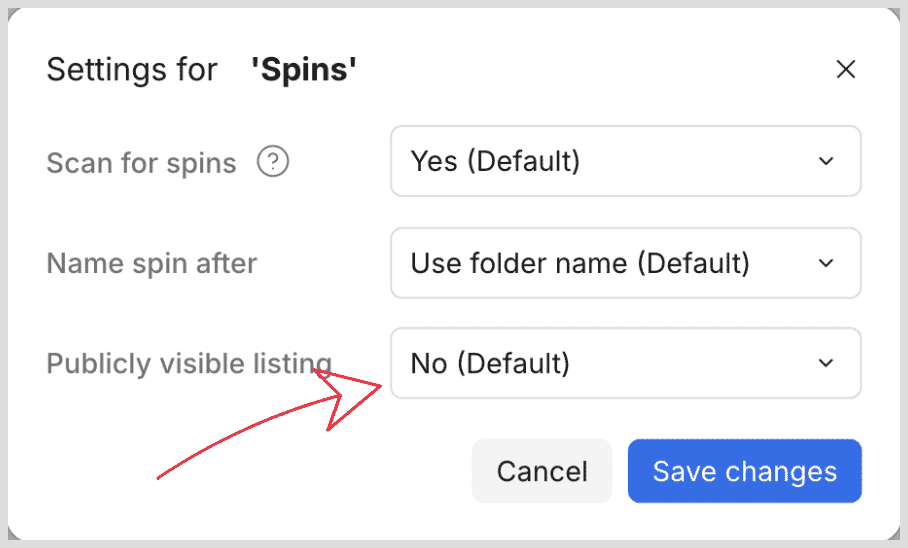
Folders are private by default. To make one public, right-click it, choose Folder settings and set “Publicly visible listing” to Yes:
Method 5: Fetch file list via REST API
Section titled “Method 5: Fetch file list via REST API”You can fetch a list of files using the Sirv REST API. In particular, the following API methods might be suitable:
- Get folder contents: Read folder contents
- Search account: Search files
For example scripts, refer to the REST API guidance and code examples.
Method 6: Fetch file list via S3 API
Section titled “Method 6: Fetch file list via S3 API”You can fetch a list of files per folder by using the S3 API. There are easy-to-use SDKs including JavaScript, Python, PHP, Java, .NET, Ruby and others.
Please refer to the S3 API guidance and code examples on how to do this.