Highlights
 By Jake Brumby, Customer Success DirectorUpdated
Short answer
Add highlights to the image URL to make the bright areas of a photo stronger or softer, for example ?highlights=15 or ?highlights=-15. The scale runs from -100 to 100. Sirv creates the adjusted image instantly from your original, so the file in your account stays unchanged.
After reading this you will know
- How to change the highlights of an image from its URL
- Which values make highlights stronger or softer
Bring out or soften the brightest parts of a photo by adding highlights to its URL, without changing the rest. Try it in the demo below.
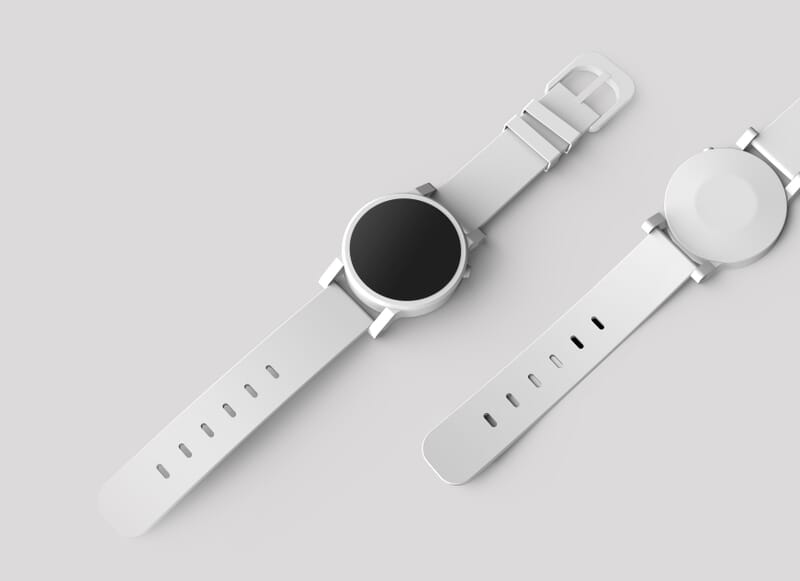
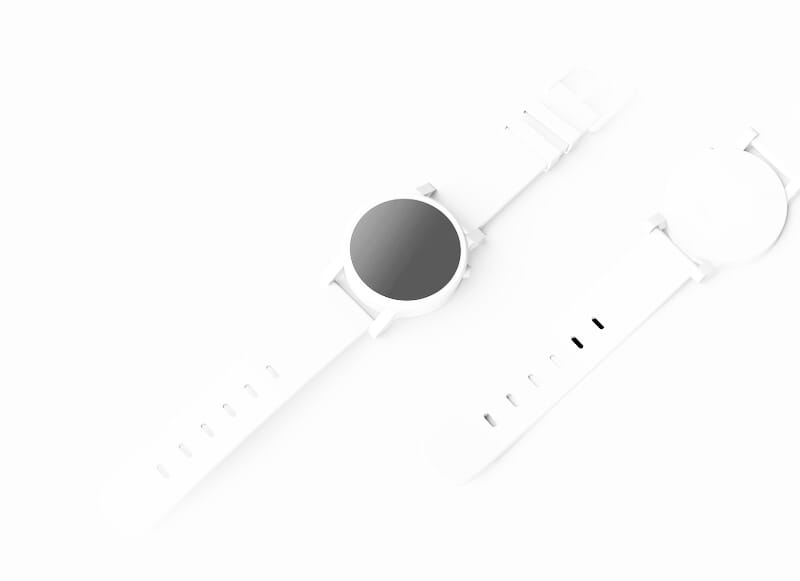
highlights is set on a scale from -100 to 100. The highlights setting can increase/decrease the intensity of highlights in the image.
https://demo.sirv.com/looks.jpg?highlights=15

https://demo.sirv.com/looks.jpg?highlights=-15

Reduce highlights to recover detail in bright areas, or increase them to make bright areas stand out.