Sirv Framer image CDN plugin
 By Igor Varyvoda, Head of Sirv StudioUpdated
Short answer
Install the Sirv plugin from Plugins in Framer's toolbar and sign in to your Sirv account. Browse your Sirv files and click Insert to place them on the canvas, or turn on "Always use Sirv CDN" to serve every Framer image on your published site through Sirv, with no re-uploading. Lazy loading, quality and format can be set too.
After reading this you will know
- How to install the Sirv plugin for Framer
- How to insert Sirv files and serve every image from Sirv
- How to set lazy loading, quality and format

Speed up your Framer site, browse your Sirv media library inside the Framer editor, and deliver every image through the Sirv CDN. One toggle. No re-uploading.
The Sirv plugin for Framer connects your Sirv account to your Framer project.
Browse your full media library inside the editor and insert any asset - images, videos, 360° spins, smart galleries or 3D models - straight onto the canvas.
On the published site, every Framer-hosted image is routed through your Sirv CDN, resized on the fly, served in the optimal format (often WebP or AVIF) and lazy-loaded.
Typical file size is 40-70% smaller than the original images and images load from the nearest of 24 global CDN servers.
Lighthouse scores for “Properly size images”, “Serve images in next-gen formats” and “Defer offscreen images” all improve on the next publish.
Works with a free Sirv account. No code changes required.
Installation
Section titled “Installation”-
Open your Framer project, click Plugins in the top toolbar, then Discover and search for “Sirv” (https://www.framer.com/marketplace/plugins/sirv/).
-
Click Install. The Sirv plugin opens as a panel on the right of the Framer editor.
-
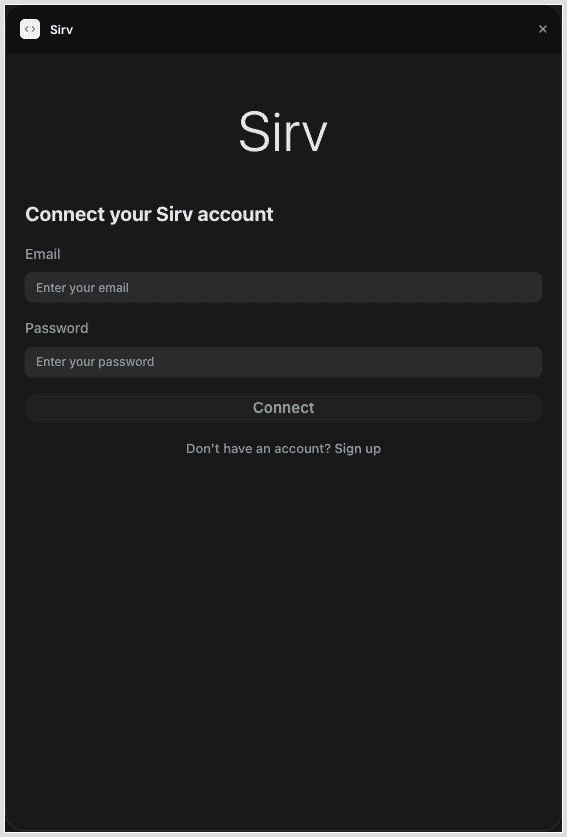
Sign in to your Sirv account using your email and password. If two-factor authentication is enabled on your Sirv account, enter the 6-digit code from your authenticator app.
![Install the Sirv plugin from the Framer Marketplace]()
If you don’t have a Sirv account, create one for free. You start on a free trial - later you can choose a free or paid plan.
-
If your Sirv login is linked to multiple accounts, select the one you want to use for this Framer project.
The connection is saved per project, so each Framer project can use a different Sirv account if needed.
Browse and insert assets
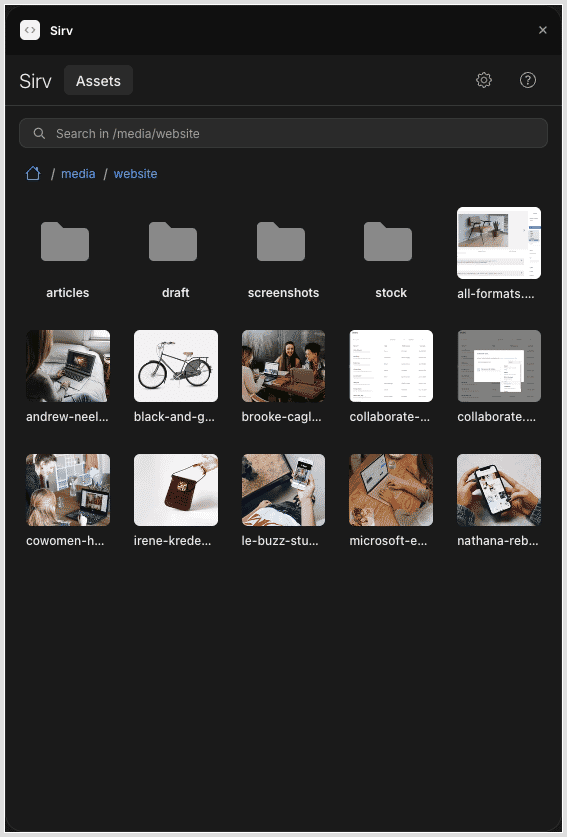
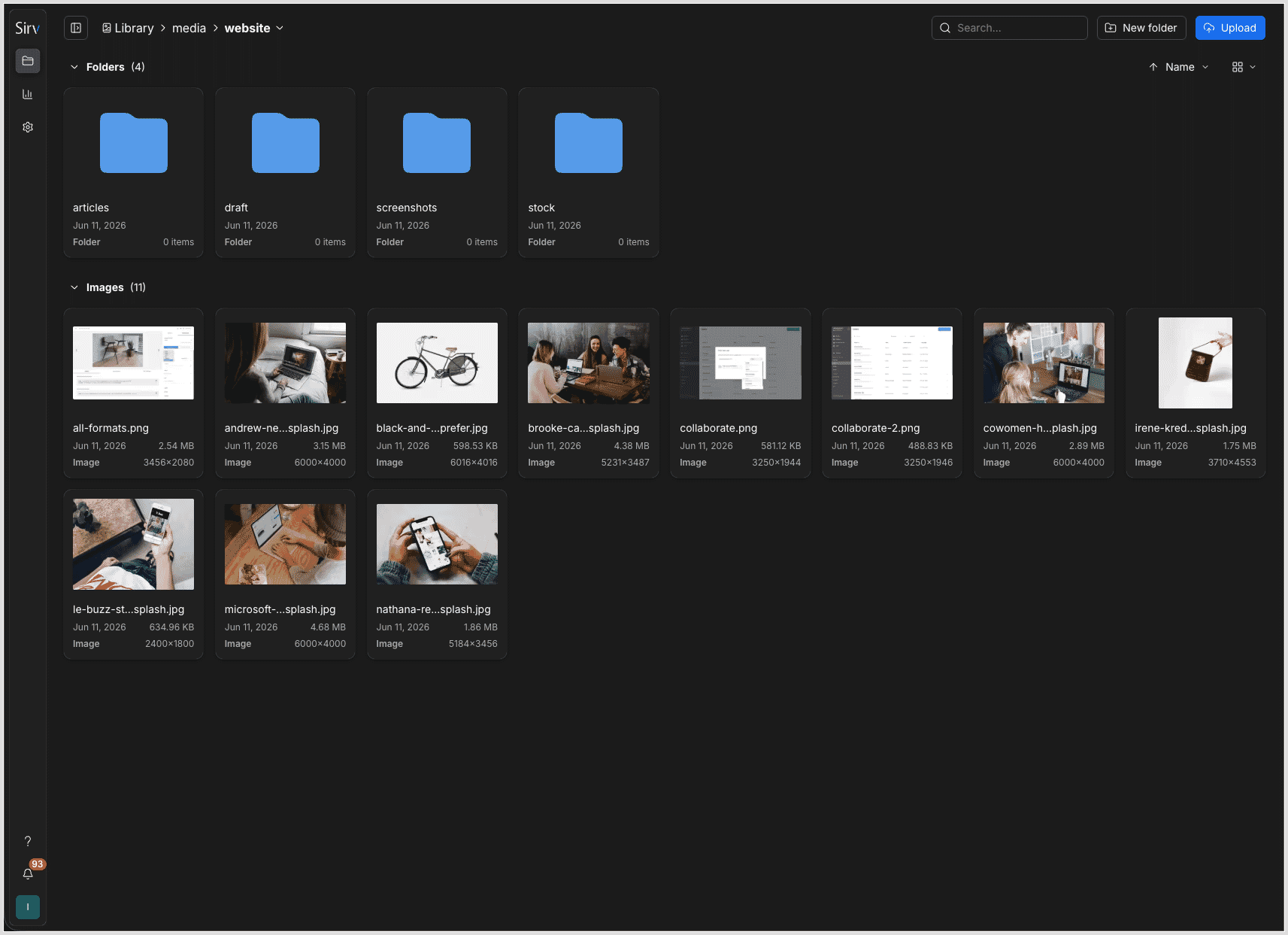
Section titled “Browse and insert assets”The DAM (Digital Asset Manager) browser lists every folder and file in your Sirv account.
Navigate folders, search by name, preview a file at full size, then click Insert to drop it onto the Framer canvas.
The plugin supports every Sirv media type:
- Images - JPG, PNG, WebP, AVIF, GIF, SVG and more. Inserted as a standard Framer image.
- Videos - MP4, WebM, MOV. Rendered through the Sirv Media Viewer with full playback controls.
- 360° spins (
.spin) - interactive 360° product views. - Smart galleries (
.view) - multi-asset galleries with zoom, video and spin in one viewer. - 3D models (
.glb) - rotate, pan and zoom 3D models on the page.
Spins, smart galleries, videos and 3D models are inserted as a code component that references the Sirv URL directly, so the asset stays on Sirv.
Images, by default, are uploaded to Framer’s image storage - but if “Always use Sirv CDN” is enabled (see below), they are still routed back through your Sirv CDN on the published site.
Always use Sirv CDN
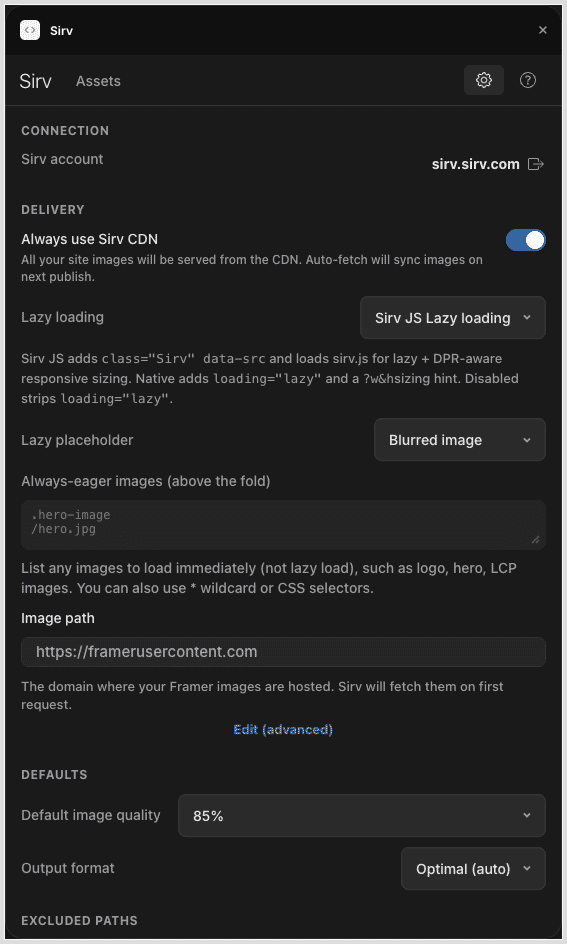
Section titled “Always use Sirv CDN”Enable the Always use Sirv CDN toggle in the plugin settings to route every Framer-hosted image on your published site through your Sirv CDN.
Images are pulled from Framer’s storage the first time they are requested, then cached on Sirv and served from the nearest of 24 global edge servers.
No re-uploading. No URL changes inside Framer. The change applies on the next publish.
Lazy loading
Section titled “Lazy loading”The plugin offers three lazy-loading modes. All three require Always use Sirv CDN to be enabled.
Sirv JS lazy loading - loads sirv.js on the published site and lets it manage every image.
It defers off-screen images, picks the right size for every viewport (DPR-aware) and serves the optimal format (AVIF / WebP / JPEG) for every browser.
This is the recommended mode for best performance.
Native lazy loading - adds the standard loading="lazy" attribute to every image and appends a ?w=...&h=... sizing hint. No extra script is loaded.
Disabled - no lazy loading. Removes any loading="lazy" attribute so every image loads eagerly.
Lazy placeholder
Section titled “Lazy placeholder”When Sirv JS lazy loading is on, you can choose what users see while sirv.js loads the real image:
- Low quality image - the same Sirv URL at quality 30 (fast to load, visually recognizable).
- Blurred image - the same Sirv URL at quality 30 and 30px wide (tiny, upscaled, blurred).
- Grey background - a 1×1 inline grey pixel. No extra network requests.
Always-eager images
Section titled “Always-eager images”To protect your LCP (Largest Contentful Paint), list any hero / above-the-fold images that should load eagerly.
You can use a URL fragment (e.g. /hero.jpg) or a CSS selector (e.g. .hero-image).
These images stay as standard eager <img> tags. Every other Sirv image is handled by sirv.js.
Image quality and format
Section titled “Image quality and format”Set the default image quality once and Sirv applies it to every delivered image. We recommend 80% - visually indistinguishable from the original with significant file size savings.
The image format is auto-negotiated per browser: AVIF for modern browsers, WebP for most browsers, JPEG / PNG as a fallback.
Per-image overrides are supported via Sirv dynamic imaging URL parameters.
Sirv Media Viewer
Section titled “Sirv Media Viewer”Inserted spins, smart galleries, 3D models and videos render through the Sirv Media Viewer - the same viewer used on millions of product pages worldwide. Here is a live demo:
Customize image zoom, 360 spin and video options using our live interactive demo.
Copy the option string from the “Script” tab and paste it as the data-options attribute on the inserted component on the canvas.
On the published site
Section titled “On the published site”After enabling “Always use Sirv CDN” and republishing, image URLs on your published site change from framerusercontent.com to your Sirv account:
Sirv pulls each original image from Framer the first time it is requested, then caches and resizes it. Subsequent requests are served from the nearest CDN edge.
Disconnect
Section titled “Disconnect”To disconnect a Sirv account from a Framer project, open the plugin settings and click the disconnect icon next to your Sirv account name.
The plugin clears its injected Custom Code, so the published site goes back to serving Framer-hosted images on the next publish. Nothing is permanently modified.
Common questions
Section titled “Common questions”Do I need to upload my images to Sirv first?
No. With "Always use Sirv CDN" enabled, Sirv pulls each image from Framer the first time it is requested on your published site, then caches it. You can also browse and insert assets that are already on Sirv directly from the plugin's DAM browser.
Will the plugin slow down the Framer editor?
No. The Sirv plugin runs as a side panel and does not modify the Framer editor's rendering. Asset thumbnails are loaded on demand from your Sirv account.
Can I use a different Sirv account for each Framer project?
Yes. The Sirv connection is stored per Framer project, so each project can use a different Sirv account. To switch accounts on a single project, disconnect first and then sign in with the other account.
What happens to my images if I uninstall the plugin?
The plugin clears its injected Custom Code when disconnected or uninstalled, so your published site reverts to serving images directly from Framer's storage. Images already on Sirv stay on Sirv and can be reused later.
Are my Sirv credentials safe?
Yes. Sirv credentials never reach the browser. Sign-in happens server-side and the per-account access token is stored encrypted (AES-256-GCM) on the Sirv backend. The plugin in Framer only ever sees public Sirv URLs.
Why is the Lazy loading dropdown disabled?
Lazy loading requires "Always use Sirv CDN" to be enabled first. Turn that on and the Lazy loading and Lazy placeholder dropdowns become editable.
Changelog
Section titled “Changelog”v0.1.4 - June 17, 2026
- Added
.glb3D model support. - Videos now render through the Sirv Media Viewer for consistent controls.
- Permission guards (
useIsAllowedTo) added across the plugin, withtry / catchand user-facing notifications on every Framer API call. - Fixed an issue where folders past the first 100 entries were hidden from the DAM browser.
v0.1.3 - June 16, 2026
- Lazy loading split into three modes: Sirv JS, Native, Disabled.
- New Lazy placeholder option: low-quality image, blurred image, or grey background.
- Origin-side query parameters are stripped on rewrite;
width/heighthints are carried through as Sirvw/h.
v0.1.2 - June 11, 2026
- Image quality control redesigned as a dropdown with Sirv-recommended bands (Extreme, Very high, High, Medium, Low, Very low, Lowest).
- Disconnect button replaced with an inline icon.
- Settings copy refreshed.
All versions
v0.1.1 - June 3, 2026
- Added insertion support for 360° spins, smart galleries (
.view) and videos via a dedicated code component. - Hydration-safe rendering for Sirv Media Viewer assets.
- Lazy-load attribute is reapplied after Framer’s React hydration so
sirv.jsretains control. - Connect screen and DAM browser polished for the narrow Framer panel.
v0.1.0 - June 2, 2026
- First version. Sirv DAM browser inside Framer, “Always use Sirv CDN” delivery toggle, lazy loading and responsive imaging via
sirv.js.