Sirv for Webflow
 By Jake Brumby, Customer Success DirectorUpdated
Short answer
Install the Sirv app from the Webflow Marketplace or the Apps panel, then turn on "Always use Sirv CDN" in its Settings tab. Your published images are then served from Sirv, scaled to the size they're shown and lazy loaded. The Sirv asset browser also inserts 360 spins, videos, galleries and 3D models into your pages.
After reading this you will know
- How to install the Sirv app for Webflow
- How to serve your Webflow images from the Sirv CDN
- How to insert spins, videos, galleries and 3D models

Speed up your Webflow site with the official Sirv app for Webflow.
Faster loading leads immediately to happier users and higher conversions. Making your pages load faster will also improve your SEO.
Google ranks faster websites higher, so you’ll soon receive more visitors from search engines.
The Sirv app for Webflow installs from the Webflow Marketplace and starts working in two clicks.
It serves every image on your published site from Sirv’s global image CDN at the perfect dimensions, in the optimal image format (usually WebP or AVIF), with lazy loading.
Typical file size is 40-70% smaller than the original. Images are served from the nearest of 20 global CDN servers, for very fast load anywhere in the world.
There is nothing to upload and nothing to re-link. Your images stay exactly where they are in Webflow.
Sirv fetches each original from Webflow’s CDN the first time it is requested, caches it and serves it optimized from then on.
Turn the app off and republish, and your site is back to exactly how it was.
The app also puts your Sirv account’s asset library inside the Webflow Designer, so you can search, browse and insert images, 360 spins, videos, galleries and 3D models straight onto the canvas. A smart gallery shows whatever is in a folder.
Installation
Section titled “Installation”-
Install the Sirv app from the Webflow Marketplace, or from the Apps panel in the Webflow Designer (press
E, then search for “Sirv”). Authorize the app for your workspace when Webflow asks. -
Open the site you want to speed up in the Webflow Designer, open the Apps panel and launch Sirv.
-
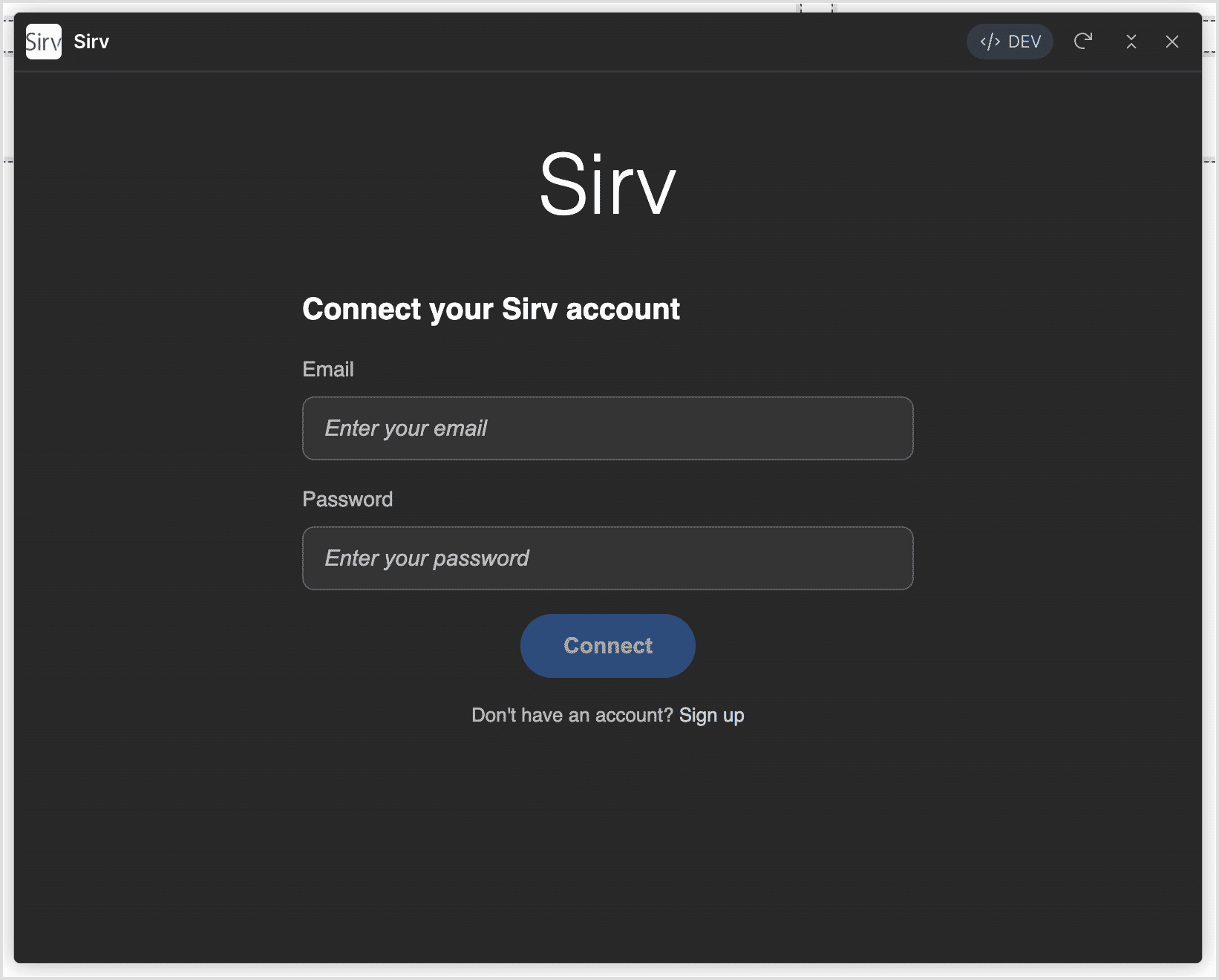
Connect your Sirv account.
If you’re a new user, click “Create account” to sign up for a free Sirv account (later you can choose a free or paid plan).
If you’re an existing user, enter your Sirv email and password:
![Connect your Sirv account in the Webflow app]()
If your Sirv login uses two-factor authentication, you’ll be asked for the one-time code from your authenticator app.
If your login has access to more than one Sirv account, choose the account to connect to this site:
![Choose which Sirv account to connect]()
-
That’s it. The Assets tab shows your Sirv library, and the Settings tab (gear icon) is where you turn on CDN delivery.
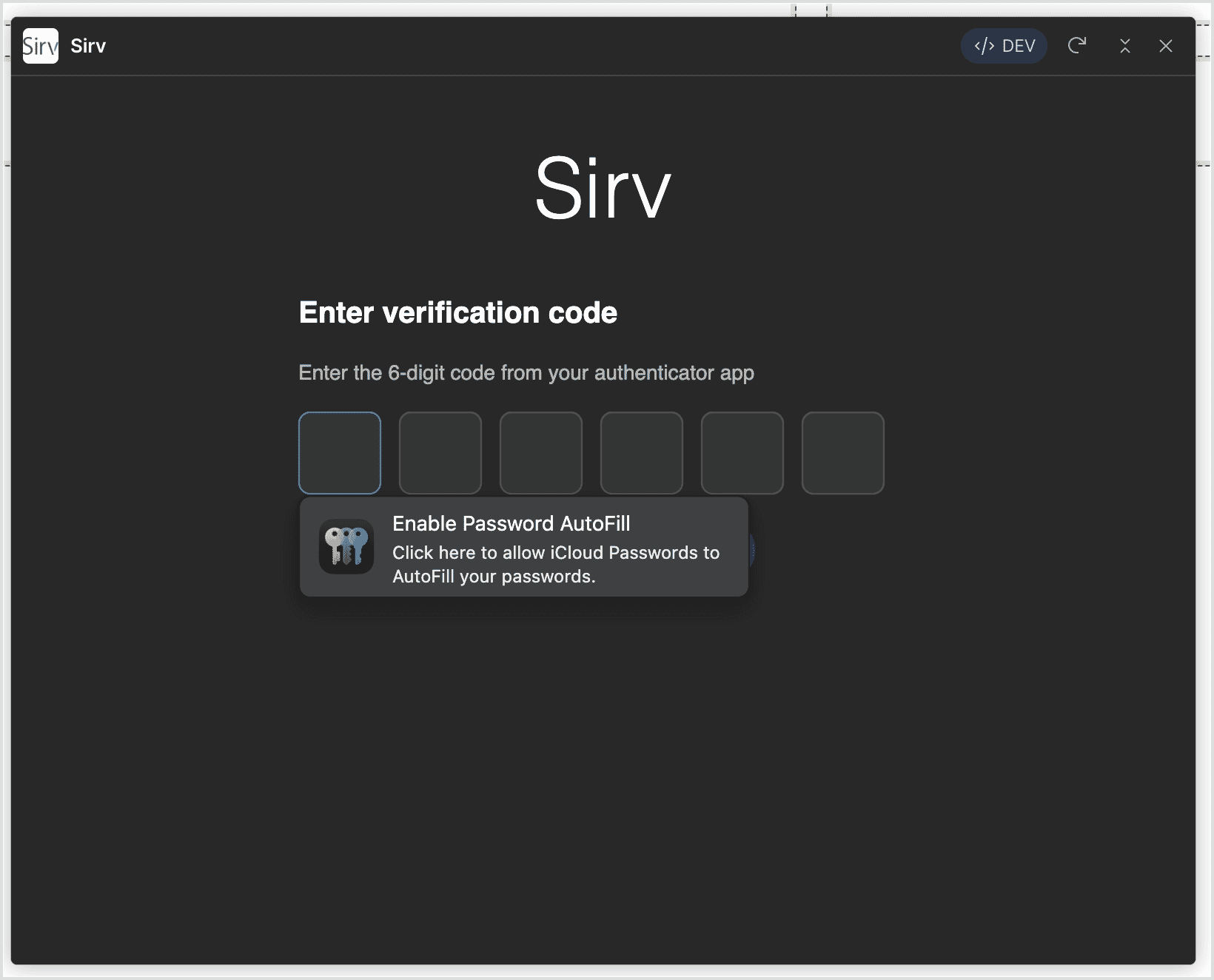
How your login is handled. You type your Sirv email, password and (if enabled) one-time code into the app’s panel in the Designer.
They are held in the panel’s memory only until the form is submitted. They are sent once over HTTPS to Sirv’s app server and used there once, in memory, to sign in.
They are not saved in your browser (no local storage, no cookies), and not stored or logged on the server.
The server keeps only an API key for the connected account, encrypted at rest, and that key is never sent to your browser.
Sirv does not offer OAuth sign-in, so this is the only supported way to connect.
One Sirv account connects to one Webflow site; you can connect the same Sirv account to as many sites as you like.
Serve images from the Sirv CDN
Section titled “Serve images from the Sirv CDN”Open the Settings tab. The settings page looks like this:
- Turn on Always use Sirv CDN. The app explains what it is about to add to your site and asks you to confirm. Click Enable delivery.
- Choose your Image scaling option (see below).
- Publish your site.
From the next publish, every image on your site loads from your Sirv domain (for example https://youraccount.sirv.com/...).
Sirv fetches each original from Webflow’s CDN on first request, then caches it. Newly found images are typically fetched within a second, ready to serve to every future visitor.
What the app adds to your site
Section titled “What the app adds to your site”Nothing, until you turn on Always use Sirv CDN.
Then it registers one small Sirv runtime script (under 3 KB compressed, served over HTTPS with a Subresource Integrity hash) plus a one-line per-site configuration as Webflow Custom Code.
In each visitor’s browser, the script rewrites image URLs to your Sirv domain as the page loads.
That change exists only in the visitor’s browser: your Webflow pages, styles and CMS content are not edited, which is what makes it fully reversible.
When a page contains a Sirv 360 spin, video, gallery or 3D model, the script also loads Sirv’s viewer library (sirv.js) from scripts.sirv.com.
360-spin viewers report view statistics to Sirv for the spin statistics in your Sirv account (see the privacy policy).
What the app changes, and where
Section titled “What the app changes, and where”-
In your design (saved): only when you click Insert in the Sirv asset browser. The app adds one image or viewer element to the page you’re editing, via Webflow’s Designer API.
You see it immediately and can undo it. The app never edits pages, styles or CMS items in any other way.
-
On your published site (not saved anywhere): when Always use Sirv CDN is on, the Sirv runtime runs in each visitor’s browser.
It rewrites image addresses from Webflow’s CDN to your Sirv domain and sets up lazy loading. The changes stay in that browser for that page view; your site data is unchanged.
-
In your site’s custom code: the two entries described above, added only when you turn on Always use Sirv CDN and removed when you turn it off or disconnect.
-
Cleanup that needs you: turning off or disconnecting before uninstalling (see Turn off or remove the app).
Deleting any inserted images or viewers you no longer want is also up to you, since those are part of your design.
Image scaling and lazy loading
Section titled “Image scaling and lazy loading”The Image scaling option controls how images are sized and loaded:
-
Scale images and lazy load, with Sirv JS (recommended) - each image is scaled to the exact size it is displayed at, for the visitor’s screen and pixel density.
Images are lazy loaded as they scroll into view. This uses the Sirv responsive imaging script.
Choose a Lazy placeholder to show while each image loads: a low quality version of the image, a blurred version, or a plain grey box.
-
Native lazy loading - adds the browser’s own
loading="lazy"attribute. Images are optimized and served from the CDN, but not scaled to the display size. -
Disabled - images are optimized and served from the CDN, with no lazy loading.
Your hero image and any other image above the fold should load immediately, not lazily, so your LCP (Largest Contentful Paint) score is protected.
List them in Always-eager images, one per line, as an image path or a CSS selector. Wildcards are supported:
.hero-image/images/homepage-banner*.jpg#logoDefaults and exclusions
Section titled “Defaults and exclusions”- Default image quality - JPEG/WebP/AVIF quality for every delivered image. 80% is Sirv’s recommended default: visually identical to the original at a fraction of the size.
- Output format - “Optimal” lets Sirv choose the best format each browser supports (AVIF, WebP or the original). You can also force a specific format.
- Excluded paths - any image URLs the app should leave untouched, one per line.
- Image path - the Webflow CDN domain your images are hosted on. This is detected automatically and rarely needs changing.
Every setting is saved per site. If CDN delivery is on, changes are applied to your site’s Sirv configuration straight away and take effect on the next publish.
Once delivery is on, there is nothing more to do. Keep designing and publishing as usual.
Sirv automatically fetches, resizes, optimizes and delivers every image from the Sirv CDN or direct from the Sirv primary datacentre in Germany.
When you upload a new image in Webflow, it is fetched by Sirv the first time a visitor requests it.
When you replace an image in Webflow, the new file gets a new URL, so Sirv fetches the new version automatically.
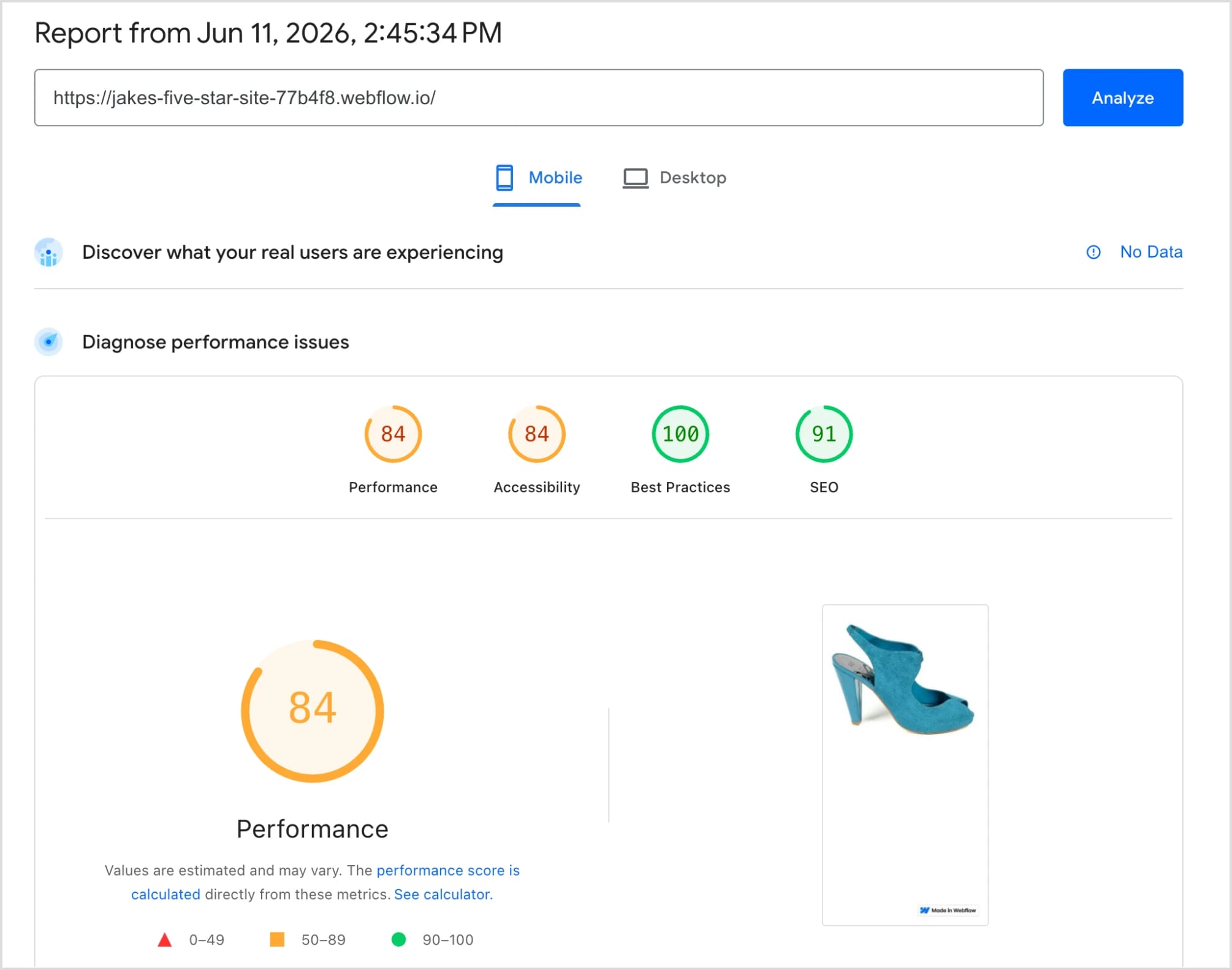
Here is the same test page before and after enabling the app, measured with Google Lighthouse:

Sirv asset browser
Section titled “Sirv asset browser”The Assets tab shows the files in your Sirv account, with the same workflow as the Sirv plugins for Photoshop, Figma, InDesign and Illustrator:
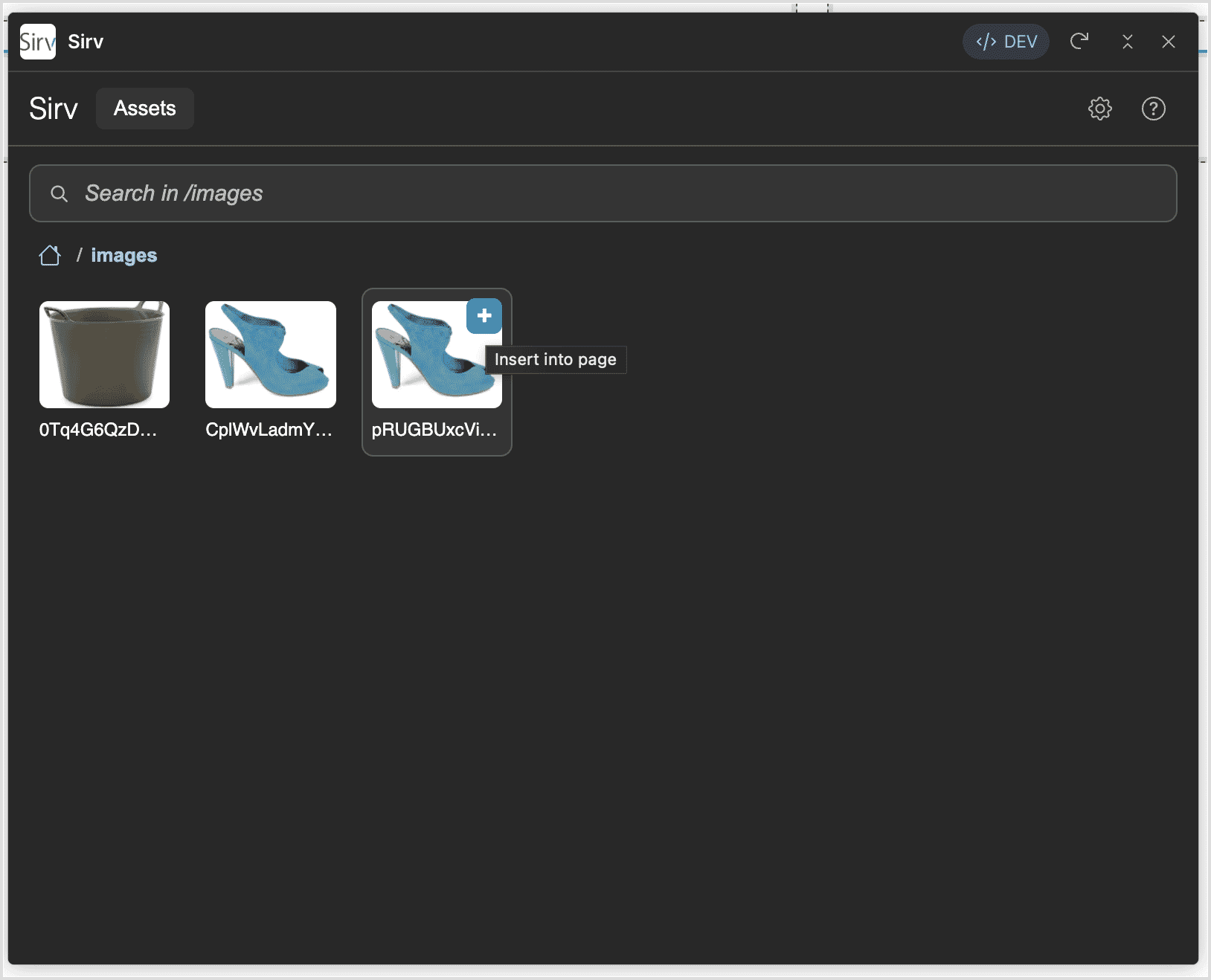
-
Select an element on the canvas where you want the asset to go (or select nothing to add it to the end of the page).
-
Browse folders using the breadcrumb, or type in the search box. Search looks through your whole account, or just the current folder when you’re inside one.
-
Click an asset to preview it, then click Insert. Or click the insert icon on the thumbnail to add it straight away:
![A Sirv image inserted on the Webflow canvas]()
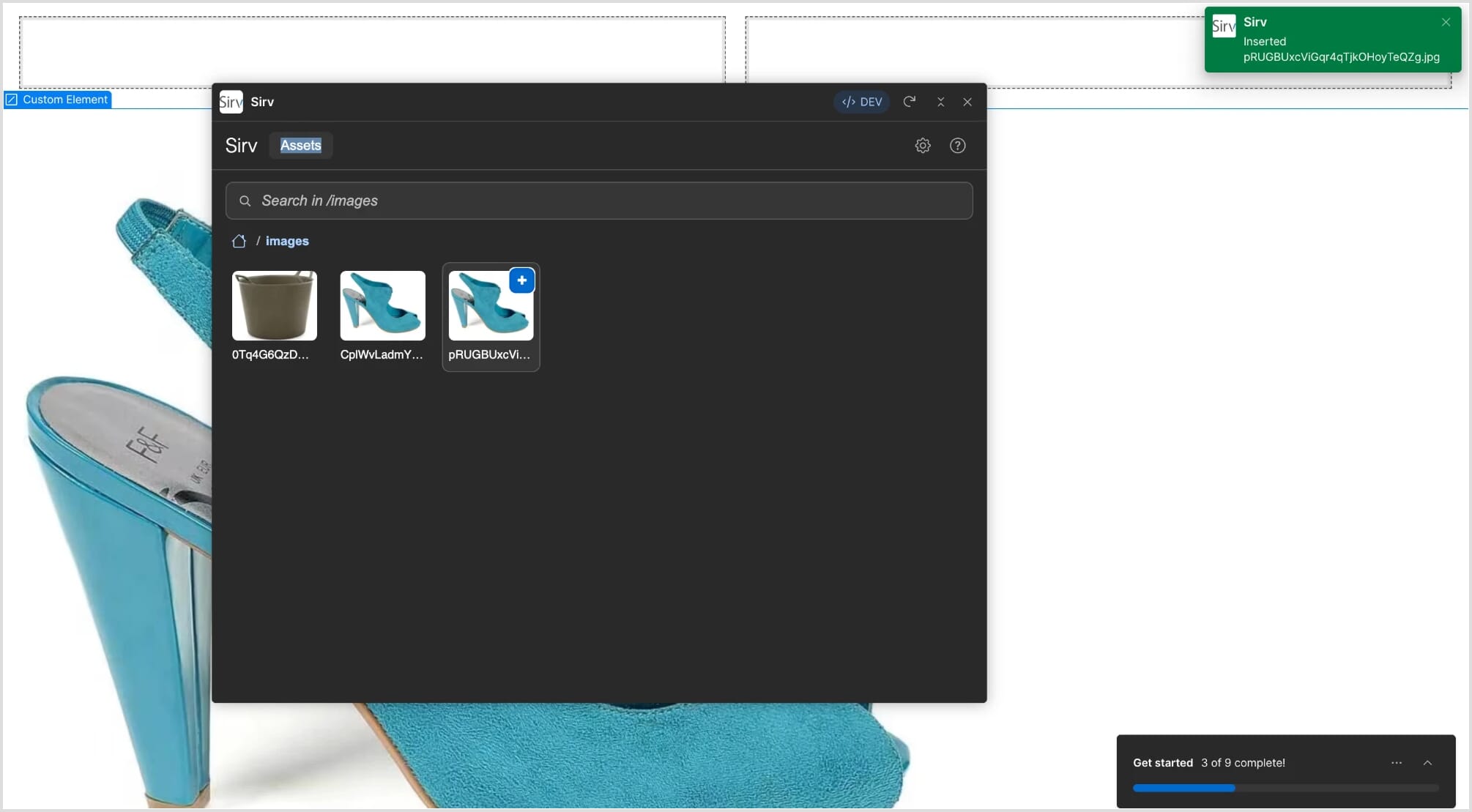
Inserted images stay on Sirv.
Insert is a Designer edit: it adds an image element pointing at your Sirv URL to the page you are editing, exactly as if you had added it yourself, and you can undo or delete it like any other element.
This is the only way the app changes your design, and it happens only when you click Insert. The image is optimized and delivered by Sirv even if Always use Sirv CDN is off.
The image’s Sirv description is used as its alt text.
Custom image URLs
Section titled “Custom image URLs”Click Customize in the preview to build a dynamic imaging URL before inserting: set the width and height, choose fit or fill cropping, set the quality and format, and apply effects such as grayscale or blur.
The preview updates live and the finished URL is inserted onto the canvas. For example, a 600px wide, filled crop at 70% quality:
https://youraccount.sirv.com/products/shoe.jpg?w=600
360 spins, videos, galleries and 3D models
Section titled “360 spins, videos, galleries and 3D models”The asset browser also shows your 360 spins (.spin), videos, smart galleries (.view) and 3D models (.glb, .gltf). Insert one and it is added as a Sirv Media Viewer element:
<div class="Sirv" data-src="https://youraccount.sirv.com/products/shoe.spin"></div>Sirv Media Viewer renders it on your published site, with zoom, spin, video streaming or the 3D viewer as appropriate.
The Sirv runtime loads the viewer library (sirv.js) only on pages that contain a Sirv viewer element.
Turn on Always use Sirv CDN in Settings so the runtime is on your site; nothing needs to be pasted anywhere.
Here’s a live example of what your visitors will see:
Viewers use your Sirv account’s default viewer settings.
To change how spins, zooms or videos behave (for example autoplay, zoom mode or thumbnail position), edit the viewer settings in your Sirv account (see Sirv Media Viewer for the available options).
Those settings are applied by Sirv when the viewer loads, so there is no code to add to your Webflow site.
Turn off or remove the app
Section titled “Turn off or remove the app”The app adds exactly two entries to your site’s custom code when you turn on Always use Sirv CDN: the Sirv runtime script and a one-line configuration.
The app removes those two entries itself in two cases, and in one case you must act first:
-
Turn off Always use Sirv CDN in Settings, then publish. The app removes its two entries (other apps’ custom code is untouched).
Your site goes back to loading images from Webflow’s CDN, exactly as before. The script never edited your pages, styles or CMS content, so there is nothing to undo.
-
Disconnect (the icon next to your account name in Settings), then publish. This removes the same two entries and deletes the stored connection for the site.
-
Uninstall the app from your workspace’s Apps & Integrations page after doing one of the above.
Webflow does not remove an app’s custom code when the app is uninstalled, and does not tell the app it was uninstalled.
So uninstalling alone leaves the two entries in place, and the app can no longer reach the site to remove them. If you already uninstalled, follow the steps below.
Images or viewers you inserted from the Sirv browser are elements in your design, not app code; they stay on your pages (and keep working, served by Sirv) until you delete them in the Designer.
Removing the script after an uninstall
Section titled “Removing the script after an uninstall”Webflow does not remove an app’s scripts when the app is uninstalled, and does not notify the app, so if you uninstalled first the two Sirv entries stay on the site. To remove them:
- Reinstall the Sirv app from the Webflow Marketplace and authorize it for your workspace.
- Open the site in the Designer, launch Sirv and connect a Sirv account (any account with owner or admin access; it is only needed to open Settings).
- In Settings, click Disconnect. This removes the two Sirv entries from the site’s custom code and leaves every other script in place.
- Publish the site, then uninstall the app again if you no longer want it.
Images that Sirv has cached remain in your Sirv account until you delete them, so you can turn delivery back on at any time without re-fetching.
Requirements
Section titled “Requirements”- A Webflow site on a paid Site plan. Webflow only publishes custom code, which the Sirv runtime script uses, on paid Site plans.
- A Sirv account. Any plan works, including the free plan. Owner or admin access on the Sirv account is needed to connect it.
- Your images served from Webflow’s own asset CDN (the default for every Webflow site).
Common questions
Section titled “Common questions”Does the app copy or move my images?
No. Your images stay in Webflow. Sirv fetches a copy of each image the first time it is requested from your Sirv domain and caches it. Nothing is uploaded from Webflow and no image URLs in your CMS or pages are changed.
Will lazy loading hurt my Largest Contentful Paint score?
Not if your above-the-fold images are listed in "Always-eager images". Those images load immediately with a scaled, optimized version, while everything below the fold lazy loads. Lighthouse usually reports a better LCP after enabling the app because the hero image is much smaller.
How much traffic and storage will this use on my Sirv account?
Storage is the size of the original images Sirv fetches from Webflow, usually far less than 1 GB for a typical site. Transfer is the optimized images served to your visitors, typically 40-70% less than the originals. Check usage at any time on your Sirv account's Usage page.
Can I use one Sirv account with several Webflow sites?
Yes. Install the app on each site and connect the same Sirv account. Settings are saved per site, so each site can have its own quality, scaling and exclusion options.
What happens to my site if I stop using Sirv?
Turn off "Always use Sirv CDN" (or disconnect) and publish. Your site loads images from Webflow again, exactly as it did before, because the runtime only changed image URLs in visitors' browsers and never edited your pages, styles or CMS. Any images or viewers you inserted from the Sirv browser remain on your pages as normal elements until you delete them.