How to Add Image Zoom to a Shopify Store
 By Anne-Marie Fletcher, Customer Success TeamUpdated
Short answer
Upload your images to Sirv, select one and choose "Embed as", then "Sirv Zoom", with the width and height you want. Open the HTML view of a Shopify page, blog post or product description and paste the script code and then the image code. Sirv Zoom doesn't work in product descriptions when the Magic Zoom Plus app is installed.
After reading this you will know
- How to add a zoomable image to any Shopify page or description
- Why the zoom may not work in product descriptions

Transform static images into incredible interactive pictures. Your Shopify visitors will be delighted by the difference.
Embed gorgeous deep zoomable images on any Shopify page, blog post or product description area with Sirv Zoom. It’s easy as 1, 2, 3…
Completely dynamic, Sirv Zoom displays images perfectly no matter how many times your Theme is changed.
Step-by-step guide
Section titled “Step-by-step guide”Follow the simple steps below to enjoy responsive image zooming on all text areas.
1. Log in to Shopify and pick any page, blog post or product description. (This example uses the product description).
2. Click “Show HTML icon” in Description area.

3. Upload images to your Sirv account. If you don’t have an account yet, register here.
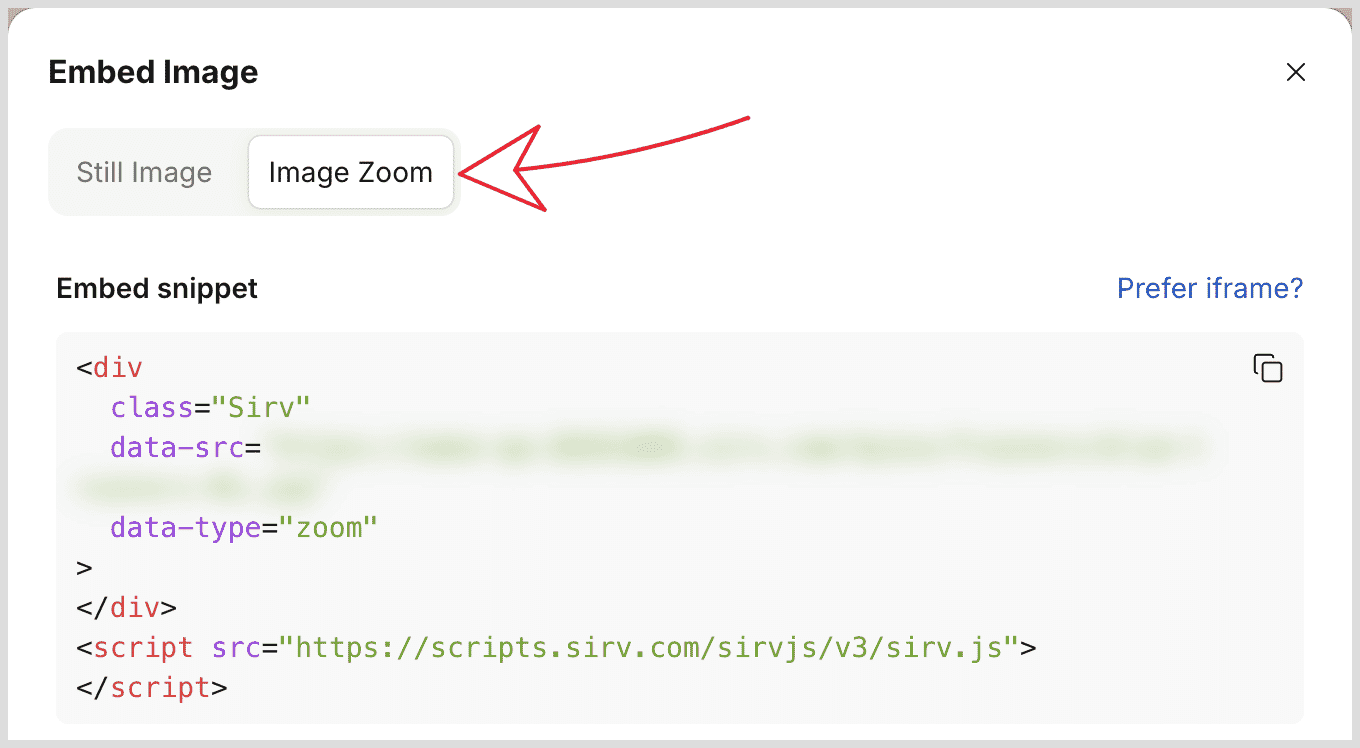
4. Click … on an image and choose Preview, then click Embed at the top right.
5. Open the Image Zoom tab and copy the snippet with the copy button. It holds the <div> for the image and the Sirv JS <script>:
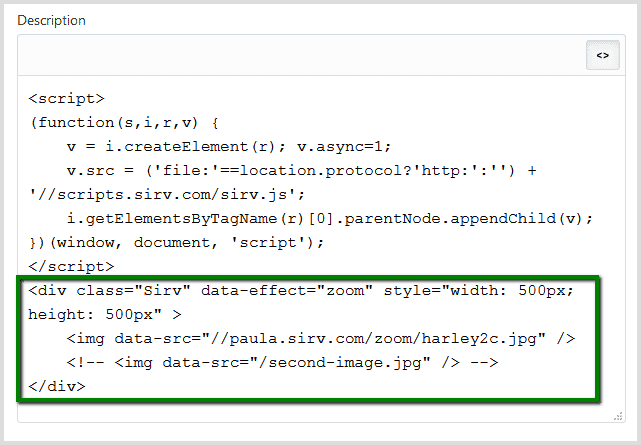
6. In Shopify, paste the snippet into the Description HTML and click Save:
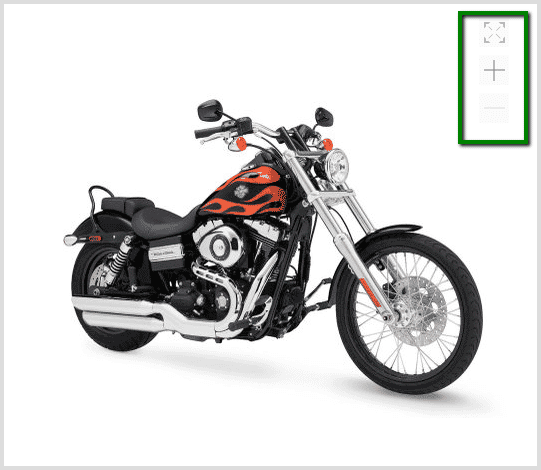
7. Preview your web page. An image is zoomable when the buttons are displayed:
8. Add as many images to the <div> code you want to appear in your image gallery (example below):
<div class="Sirv" data-effect="zoom"> <img data-src="//ACCOUNT-NAME.sirv.com/FOLDER/FILE-NAME.jpg" /> <img data-src="//ACCOUNT-NAME.sirv.com/FOLDER/FILE-NAME.jpg" /> <img data-src="//ACCOUNT-NAME.sirv.com/FOLDER/FILE-NAME.jpg" /></div>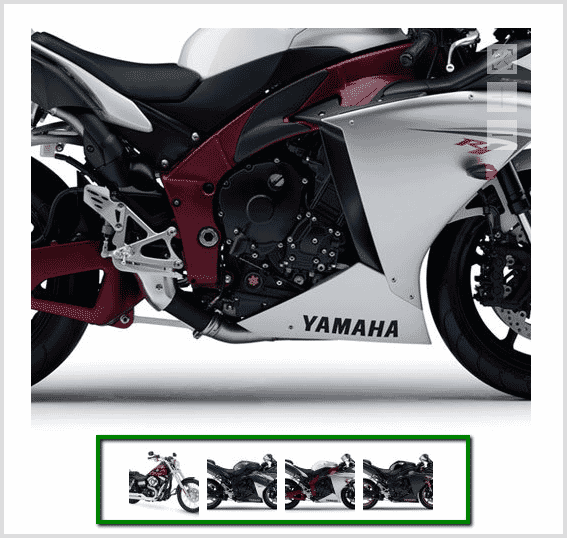
Troubleshooting
Section titled “Troubleshooting”Sirv Zoom will not work in a product page description area if Magic Zoom Plus app is installed.
Add 360 spins to Shopify
Section titled “Add 360 spins to Shopify”Check out our step-by-step guide for adding 360 spins to Shopify product pages, blog or description areas. Your store will look awesome with the help of Sirv.