Sirv for Payload
 By Igor Varyvoda, Head of Sirv StudioUpdated
pnpm add @sirv/payload-plugin2. Add sirvPlugin() to payload.config.ts, regenerate the import map and start your app.3. Click Sirv in the admin sidebar and paste your Client ID and Client Secret from Account › Settings › API. No account yet? Create one freeOpen on npmShort answer
Install @sirv/payload-plugin, add sirvPlugin() to your Payload config and add Sirv fields to any collection. Connect your Sirv account with its REST API Client ID and Client Secret, and editors can browse, search and pick images, videos, spins and more in the Payload admin. It needs Payload CMS v3 with React 19 and Next.js 15.
After reading this you will know
- How to install the Sirv plugin for Payload CMS
- How to add Sirv fields to a collection
- How to show the picked media on your frontend

Browse, search and pick media from your Sirv account without leaving the Payload admin panel.
The Sirv plugin for Payload CMS adds a full Sirv DAM browser to your admin.
Editors pick images, videos, 360 spins, Sirv Media Viewer assets and 3D models (glTF/GLB) from Sirv.
Your frontend delivers them through Sirv’s global CDN, resized, optimized and in the best format for every visitor.
Alt text and captions are filled in automatically from your Sirv asset metadata, and galleries support multi-select and drag-to-reorder.
Your Sirv secret never reaches the browser. It is stored encrypted on your own server and used only to mint short-lived access tokens.
Requirements
Section titled “Requirements”- A Sirv account (free or paid) and its REST API Client ID and Client Secret from Settings > API access.
- A Payload CMS v3 project (React 19 / Next.js 15).
Installation
Section titled “Installation”The plugin is a standard Payload plugin published on npm. Install it, add it to your config, regenerate the import map and import the stylesheet - once.
-
Install the package:
pnpm add @sirv/payload-plugin -
Add
sirvPlugin()to your Payload config and drop the field factories into any collection:payload.config.ts import { buildConfig } from 'payload';import {sirvPlugin,sirvMediaField,sirvMediaListField,sirvAssetUrlField,} from '@sirv/payload-plugin';export default buildConfig({plugins: [sirvPlugin()],collections: [{slug: 'posts',fields: [{ name: 'title', type: 'text' },sirvMediaField({ name: 'hero' }),sirvMediaListField({ name: 'gallery' }),sirvAssetUrlField({ name: 'attachment' }),],},],}); -
Regenerate Payload’s import map so the admin can resolve the plugin’s components. Run this after installing and after any upgrade that changes the component set:
pnpm payload generate:importmap -
Import the admin stylesheet once, in your app’s
src/app/(payload)/custom.scss:@import '@sirv/payload-plugin/styles.css';
Start your app - a Sirv link now appears in the admin sidebar.
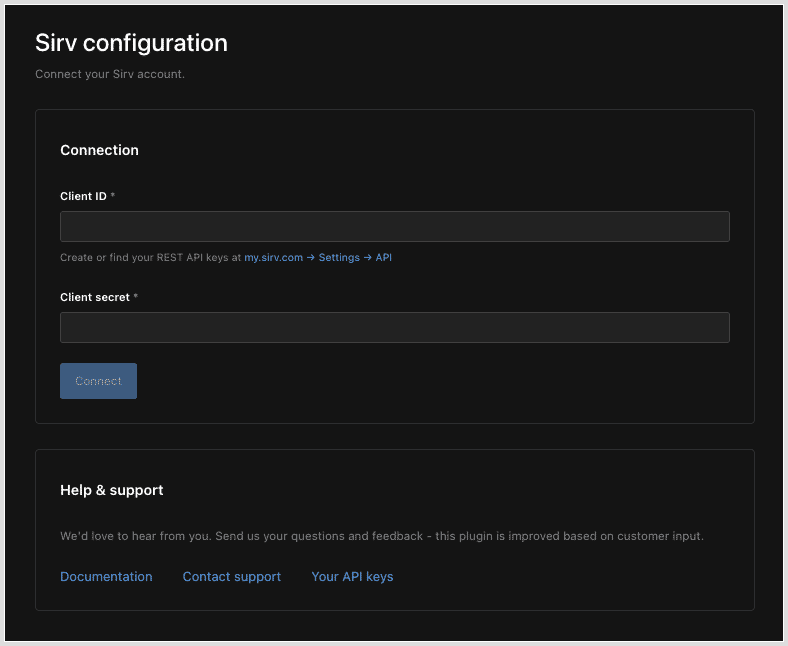
Connect your Sirv account
Section titled “Connect your Sirv account”-
In the Payload admin, click Sirv in the sidebar (or visit
/admin/sirv). -
Paste your Client ID and Client Secret from app.sirv.com > Settings > API access and click Connect.
-
Choose the delivery domain to serve assets from (if your account has more than one).
![Connect your Sirv account in the Payload admin settings view]()
Once connected, the settings view shows your account and the chosen delivery domain, with a button to disconnect.
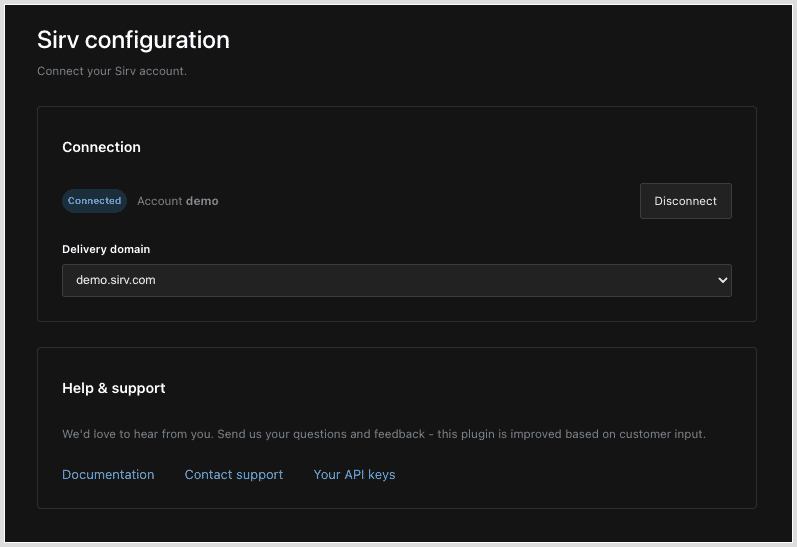
The credentials are stored in an admin-only sirv-settings global.
The secret is encrypted at rest (AES-256-GCM, keyed by your PAYLOAD_SECRET) and never returned to the browser or the REST/GraphQL API.
When editors browse the DAM, the plugin mints a short-lived 20-minute token on your server; the admin talks to Sirv directly with that token only.
Add Sirv fields to a collection
Section titled “Add Sirv fields to a collection”The plugin exports three field factories. Each returns a standard Payload field config, so you can add them to any collection or global.
sirvMediaField({ name })- a single asset, stored as a JSON object.sirvMediaListField({ name })- a gallery: multi-select with drag-to-reorder, stored as a JSON array.sirvAssetUrlField({ name })- a plain delivery URL string to any Sirv asset, including generic files such as PDFs and ZIPs.
All three accept the same options:
-
name- the field’s stored key (required). -
label- a display label (optional). -
required- mark the field required (optional). -
allowedTypes- restrict the picker to a subset ofimage,video,spin(360 spins),view(Sirv Media Viewer files) andmodel(glTF/GLB 3D models).The URL field additionally allows
filefor generic documents. Default: the five media types.
Example - a hero image, a video/image gallery, a spin-only field and a PDF link:
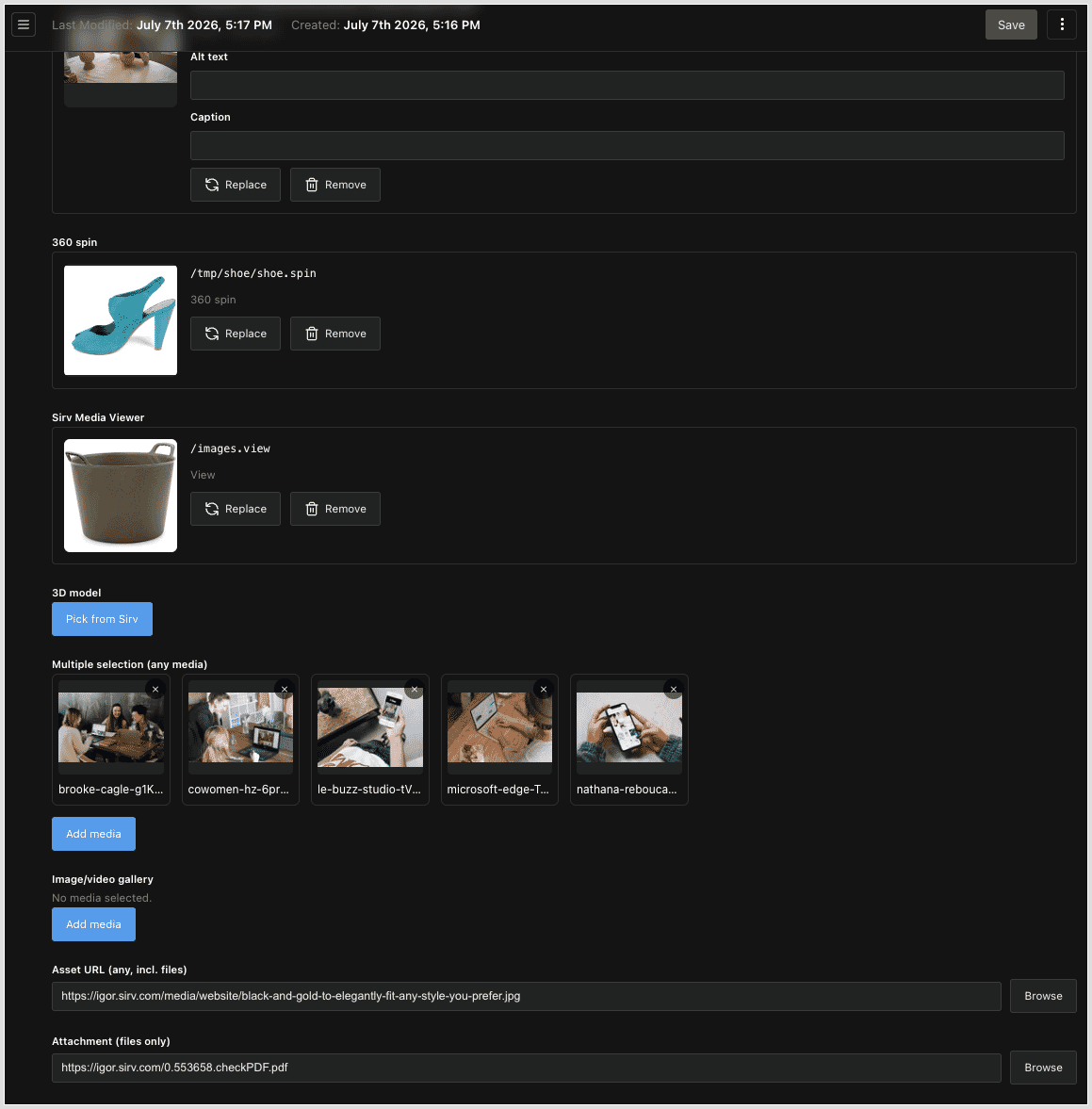
fields: [ sirvMediaField({ name: 'hero', allowedTypes: ['image'] }), sirvMediaListField({ name: 'gallery', allowedTypes: ['image', 'video'] }), sirvMediaField({ name: 'spin', allowedTypes: ['spin'] }), sirvAssetUrlField({ name: 'datasheet', allowedTypes: ['file'] }),]Each field type renders in the document editor with a thumbnail preview, alt/caption inputs and its own picker:
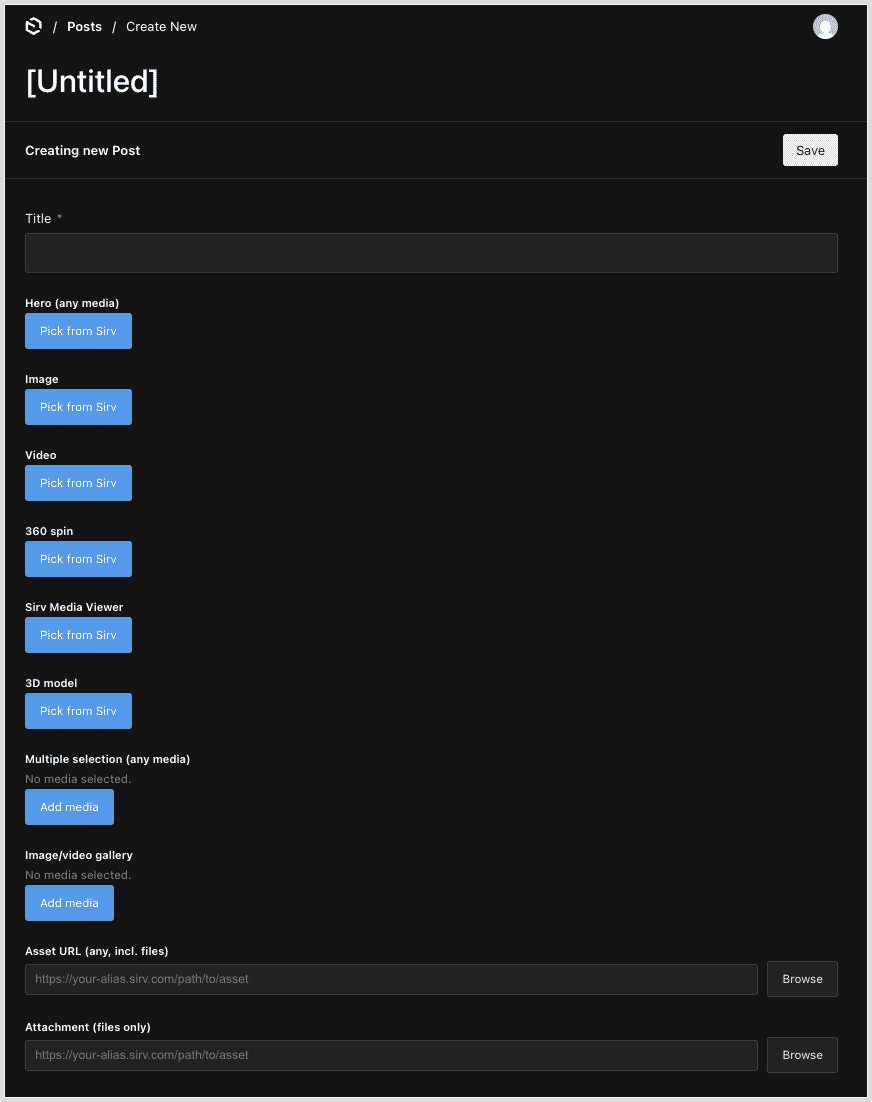
Using the picker
Section titled “Using the picker”Editing a document, each Sirv field shows a Pick from Sirv button that opens the media library:
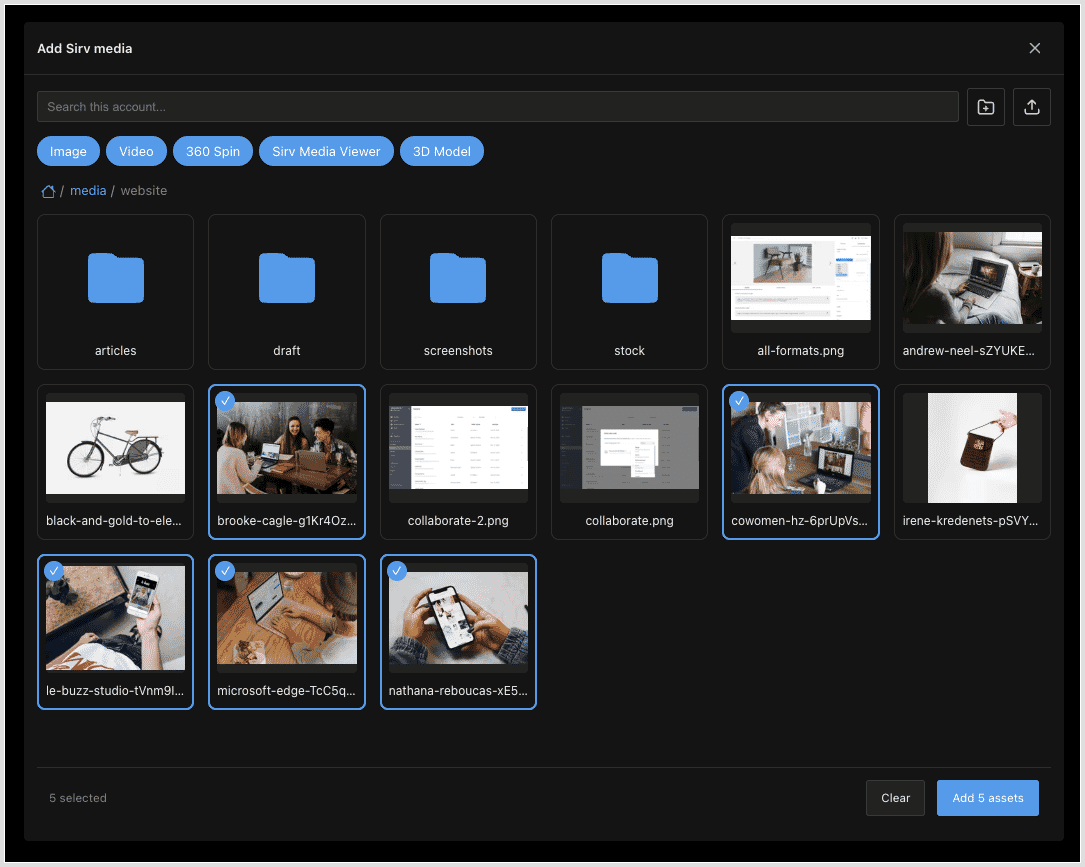
- Browse folders with the breadcrumb trail, or search your entire account by filename.
- Filter chips narrow results to images, videos, 360 spins, viewer files or 3D models.
- Click an asset to preview it - spins, viewer files and 3D models load live, videos play - then confirm. In a gallery field, keep picking to add several assets, then drag to reorder them.
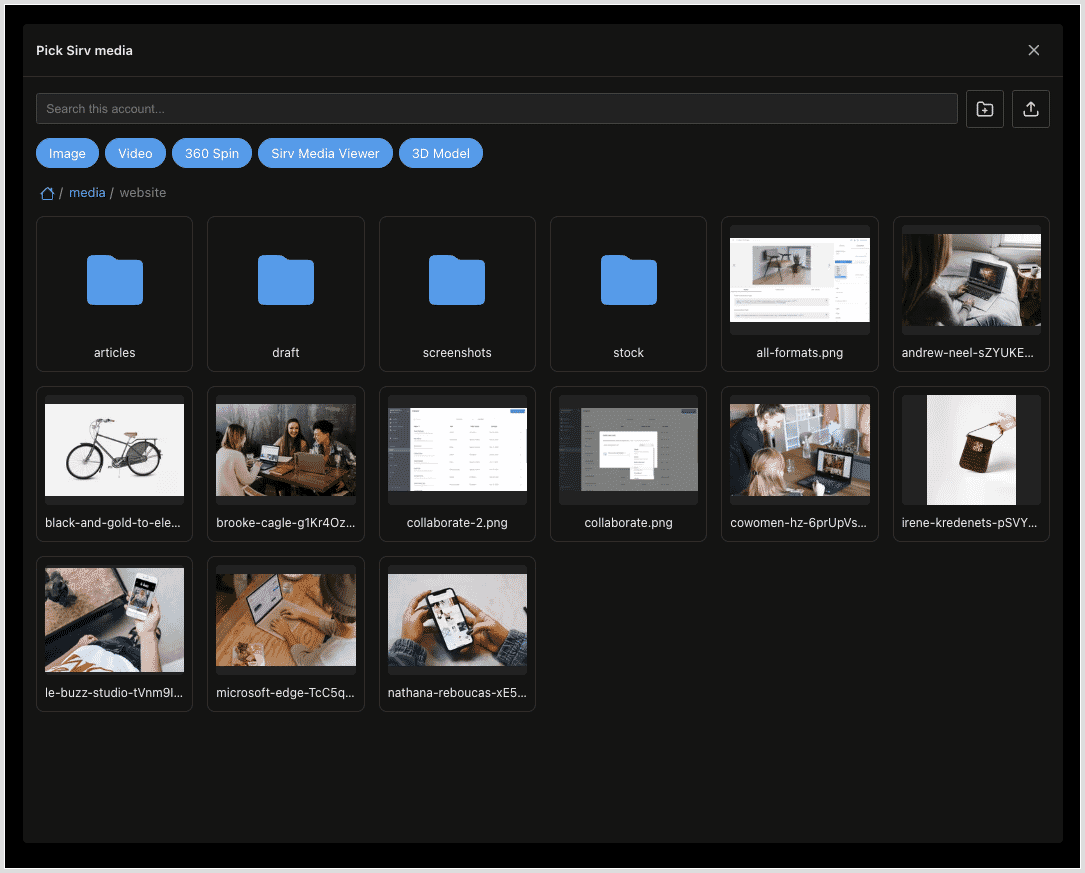
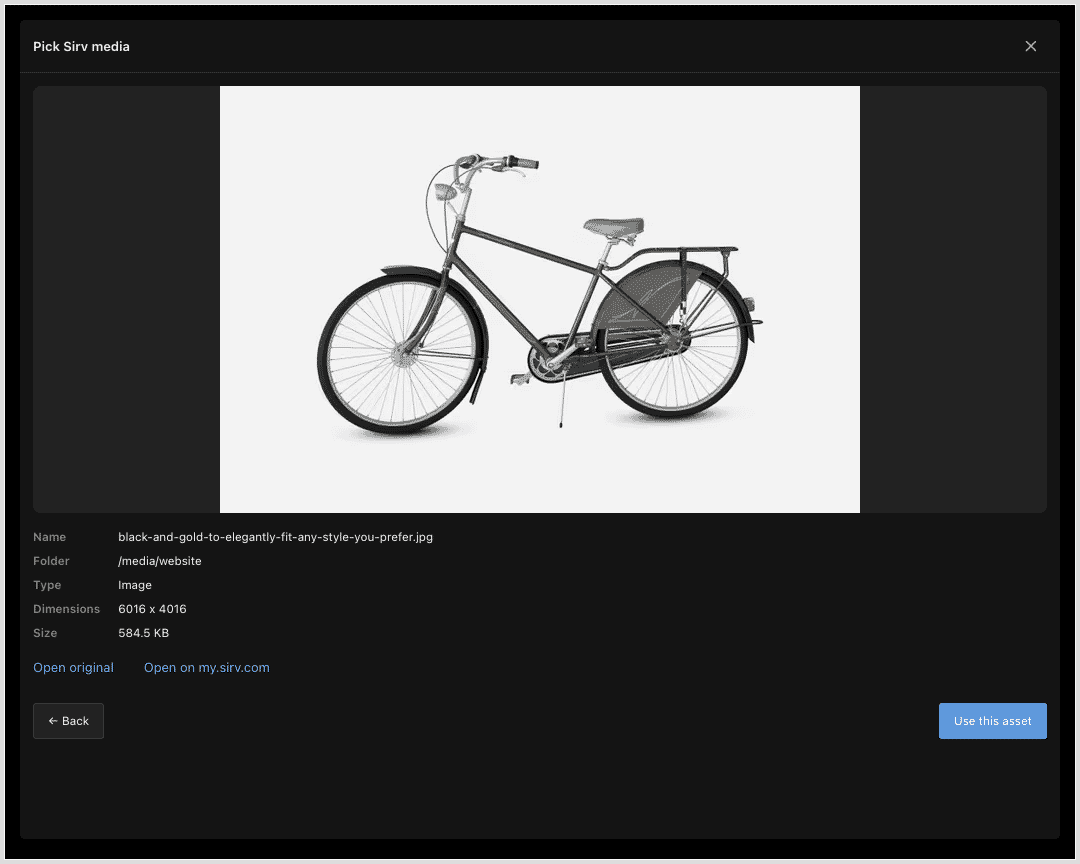
Click an asset to open its details: a live preview, its dimensions and size, and links to open the original or manage it on Sirv.
For a gallery field, select several assets across folders and searches, then add them together and drag to reorder.
When an image or video is picked, its alt text and caption are filled in automatically from the asset’s title and description in Sirv. Editors can adjust them right in the field.
A completed document with several Sirv fields filled in:
What gets stored
Section titled “What gets stored”The field saves plain JSON in your document - no file duplication, the media stays on Sirv:
{ "_type": "sirvMedia", "mediaType": "image", "sirvPath": "/products/shoe.jpg", "sirvAlias": "yourcompany.sirv.com", "originalUrl": "https://yourcompany.sirv.com/products/shoe.jpg", "width": 2000, "height": 1890, "alt": "Red running shoe", "caption": "Side view"}The gallery field stores an array of these objects; the URL field stores a plain URL string.
This is the same flat shape used by the Sirv plugins for Sanity, Storyblok, Contentful and Strapi.
Rendering on your frontend
Section titled “Rendering on your frontend”Because Payload v3 runs inside Next.js - the native home of @sirv/react - rendering is trivial.
The @sirv/react components are Client Components, so render them from a 'use client' component and pass the stored value across the boundary:
'use client';import { SirvMedia, fromSanityMedia as fromStoredMedia } from '@sirv/react';
// `post.hero` is the stored sirvMedia object from your Payload document.<SirvMedia value={fromStoredMedia(post.hero)} />
// A gallery:{post.gallery.map((item, i) => (  <SirvMedia key={i} value={fromStoredMedia(item)} />))}
fromStoredMedia reads the flat sirvMedia shape directly, so no conversion layer is needed.
The @sirv/react components build responsive, optimized Sirv URLs and load sirv.js automatically for spins, viewers and 3D models.
A complete Next.js + Payload example is in the examples/payload folder of the repository.
Common questions
Section titled “Common questions”Does the plugin store my Sirv secret in the browser?
No. The Client Secret is stored in an admin-only global, encrypted at rest with a key derived from your PAYLOAD_SECRET, and its read access is denied so it is never returned to the admin UI or the API. The browser only ever receives a short-lived 20-minute access token, minted server-side, which it uses to browse the Sirv DAM directly.
Which media types does the plugin support?
Images, videos, 360 spins, Sirv Media Viewer (.view) files and 3D models (.glb/.gltf), plus generic files such as PDFs and ZIPs when "file" is added to allowedTypes (typically in the URL field).
My Sirv fields or settings view do not appear in the admin.
Run "payload generate:importmap" and restart the app. Payload resolves custom admin components through a generated import map, which is not re-run automatically after a production build, so it must be regenerated after installing or upgrading the plugin.
Does it replace Payload's built-in upload storage?
No. This plugin is a DAM picker: your media stays on Sirv and the field stores a small JSON reference. It does not change where Payload's native uploads are stored. A Sirv storage adapter for native uploads is a separate, future package.