Export Files as CSV
 By Anne-Marie Fletcher, Customer Success TeamUpdated
Short answer
Right-click a folder and choose Export file list to CSV for a spreadsheet of your files, or click CSV on search results. On paid plans you can filter by file type and date added. You can also list a public folder over HTTP or read it with the REST API.
After reading this you will know
- How to export a list of files as a CSV
- Which filters and columns the export has
- Other ways to list a folder: over HTTP, as JSON or with the API
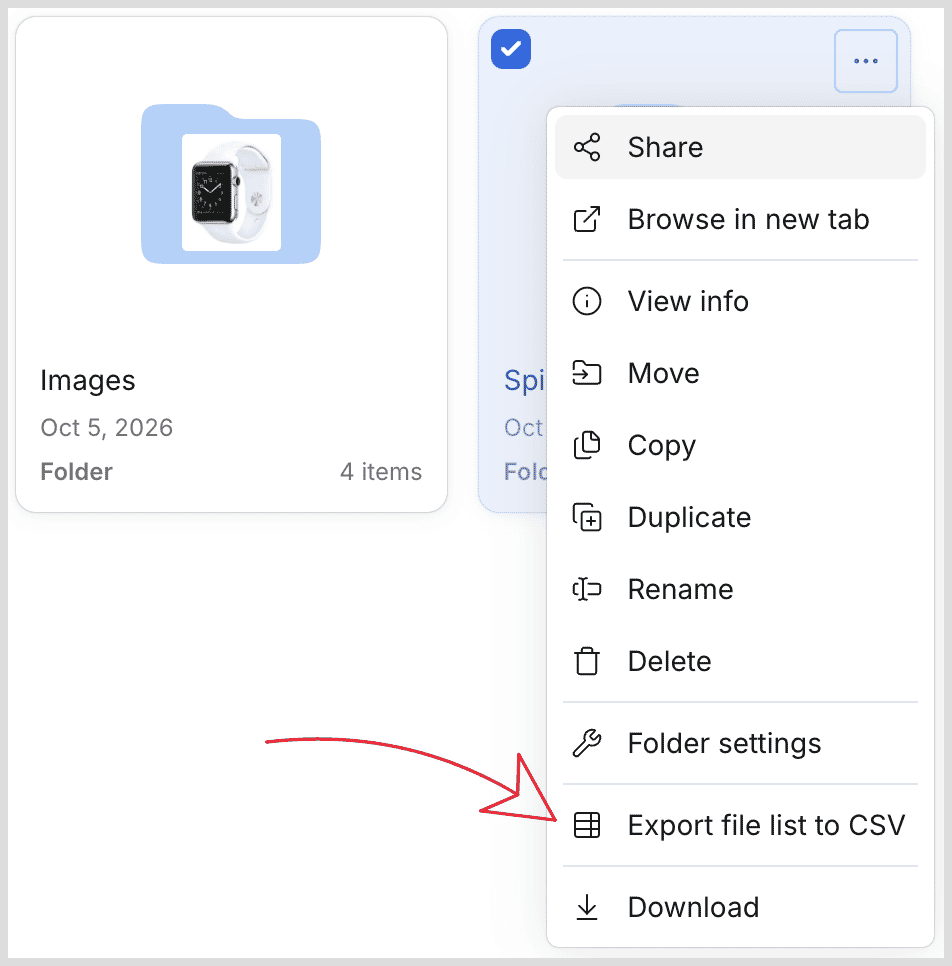
Easily create a list of files in CSV format from your Sirv account. Right-click a folder (or click its ”…” menu) and choose “Export file list to CSV”. Inside a folder, right-click an empty space for the same item:
Filtering options
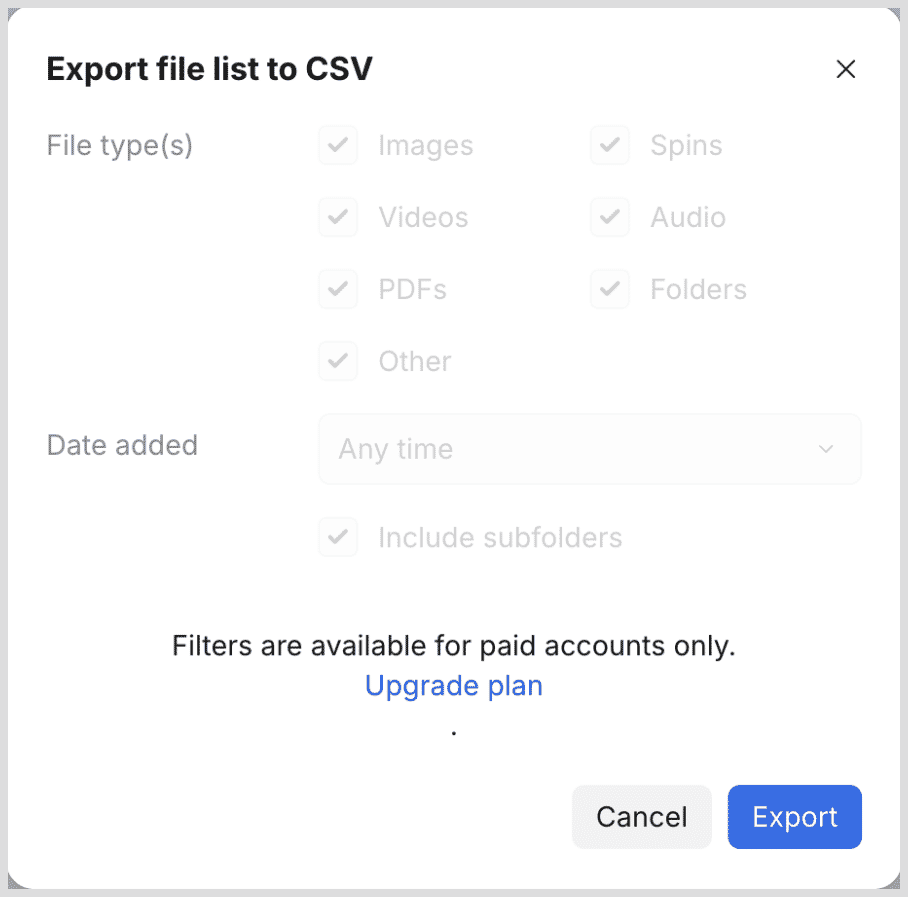
Section titled “Filtering options”When performing an export, you can specify certain file types or dates:
- File type(s) - images, spins, videos, audio, PDFs, folders and other files. All are ticked by default.
- Date added - any time, today, yesterday, the last 24 hours, 7 days or 30 days, on, before or after a date, or a date range.
- Include subfolders - ticked by default.
The filters need a paid plan. On the Free plan, the export lists every file in the folder.
CSV export result
Section titled “CSV export result”The CSV file will contain the following columns:
| Field title | Example content |
|---|---|
| File | /folder-name/file-name.spin |
| URL | https://your-account.sirv.com/folder-name/file-name.spin |
| Name | file-name.spin |
| Type | spin |
| Size (bytes) | 2837 |
| Date created | 2022-06-07T17:13:52.686Z |
| Date modified | 2022-06-07T17:14:30.056Z |
| Title | My image title here |
| Description | My image description here |
| Tags | tag1,tag2,tag3 |
CSV of search results
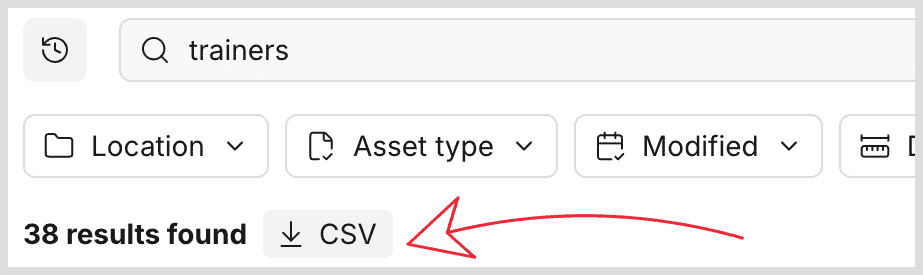
Section titled “CSV of search results”To create a CSV from search results, search with the box at the top of your library. Then click the CSV button next to the number of results:
Query a folder
Section titled “Query a folder”An alternative to downloading a CSV is to get a list of files by HTTP. Simply request the folder location, for example: https://demo.sirv.com/my-folder/
Or get the contents in JSON format via a callback: https://demo.sirv.com/my-folder?callback=hello
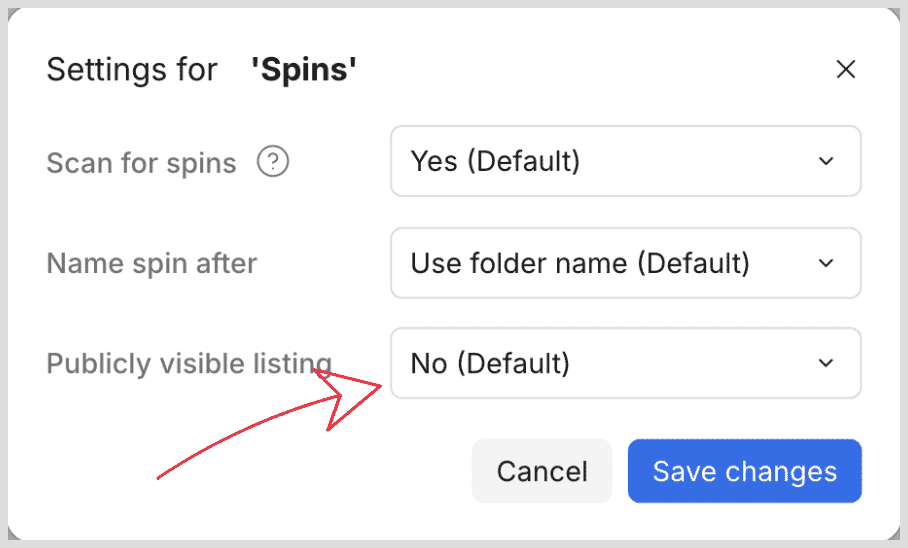
Folder listings are hidden by default. Follow these steps to permit folder listing:
- Go to https://app.sirv.com/assets/library
- Right-click the folder (or click its ”…” menu) and choose “Folder settings”.
- Set “Publicly visible listing” to Yes and click Save changes.
Get folder contents with Sirv API
Section titled “Get folder contents with Sirv API”You can also use the Sirv REST API to check the contents of a folder.
The read folder contents API method will return the filename, mimetype, content type and file size. Depending on your needs, you may also wish to consider other ways to query Sirv.