How to create a 3D spin
 By Marc Bonne, Customer Success TeamUpdated
Short answer
A 3D spin turns left, right, up and down, so it shows more angles than a 360 spin. Photograph the product in several rows on a turntable, or render images of a 3D model. Name the files by row and column, such as Bag-02-01.jpg, and upload them to Sirv, which creates the .spin file for you.
After reading this you will know
- What a 3D spin is and how it differs from a 360 spin
- How to photograph and name the images
- How to upload, set up and embed the spin
A 3D spin can be rotated in any direction: left/right/up/down. It shows a product from more angles than a 360 spin, which can only be rotated left/right.
3D spins can be created either by photographing a product on a turntable or by rendering JPEG/PNG images of a 3D computer designed model.
Example 3D spins
Section titled “Example 3D spins”Any number of rows and columns can be used. The more images, the smoother the rotation.
48 images
Section titled “48 images”| Rows | 4 |
|---|---|
| Columns | 12 |
| Total | 48 |
50 images
Section titled “50 images”| Rows | 5 |
|---|---|
| Columns | 10 |
| Total | 50 |
Photographing your spin
Section titled “Photographing your spin”Those examples were photographed on a turntable. The camera was placed on a tripod for the first row, then the photographs were captured every 30 or 36 degrees as the turntable rotated.
Then the camera was moved upwards (in an arc) to a new position, for another set of photos. This process was repeated until all rows had been captured.
Uploading your 3D spin to Sirv
Section titled “Uploading your 3D spin to Sirv”Follow this guide to embed a 3D spin into the HTML of your website.
1. Rename your images
Section titled “1. Rename your images”Sirv will create your 3D spin by detecting a sequence in your image file names e.g. name-rownumber-columnnumber.jpg
Below is the file name of the 1st image in the 2nd row of the spinning bag above: Bag-02-01.jpg
The screenshot below shows how the 50 images of the bag could be named:
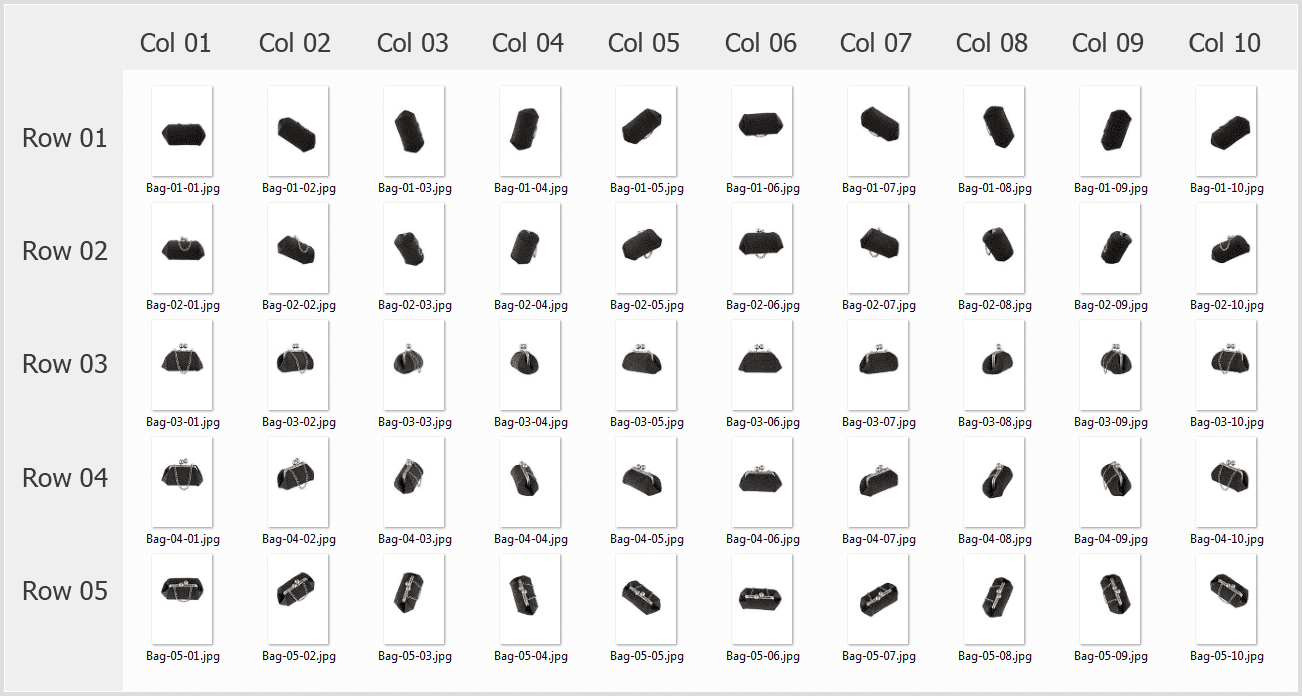
Always put your row digits before your column digits to ensure Sirv generates your spin correctly.
2. Upload your images
Section titled “2. Upload your images”Once you’ve named your files, login to your Sirv account (or create an account). Upload your images via your Sirv account or upload them via FTP or S3.
3. View your spin
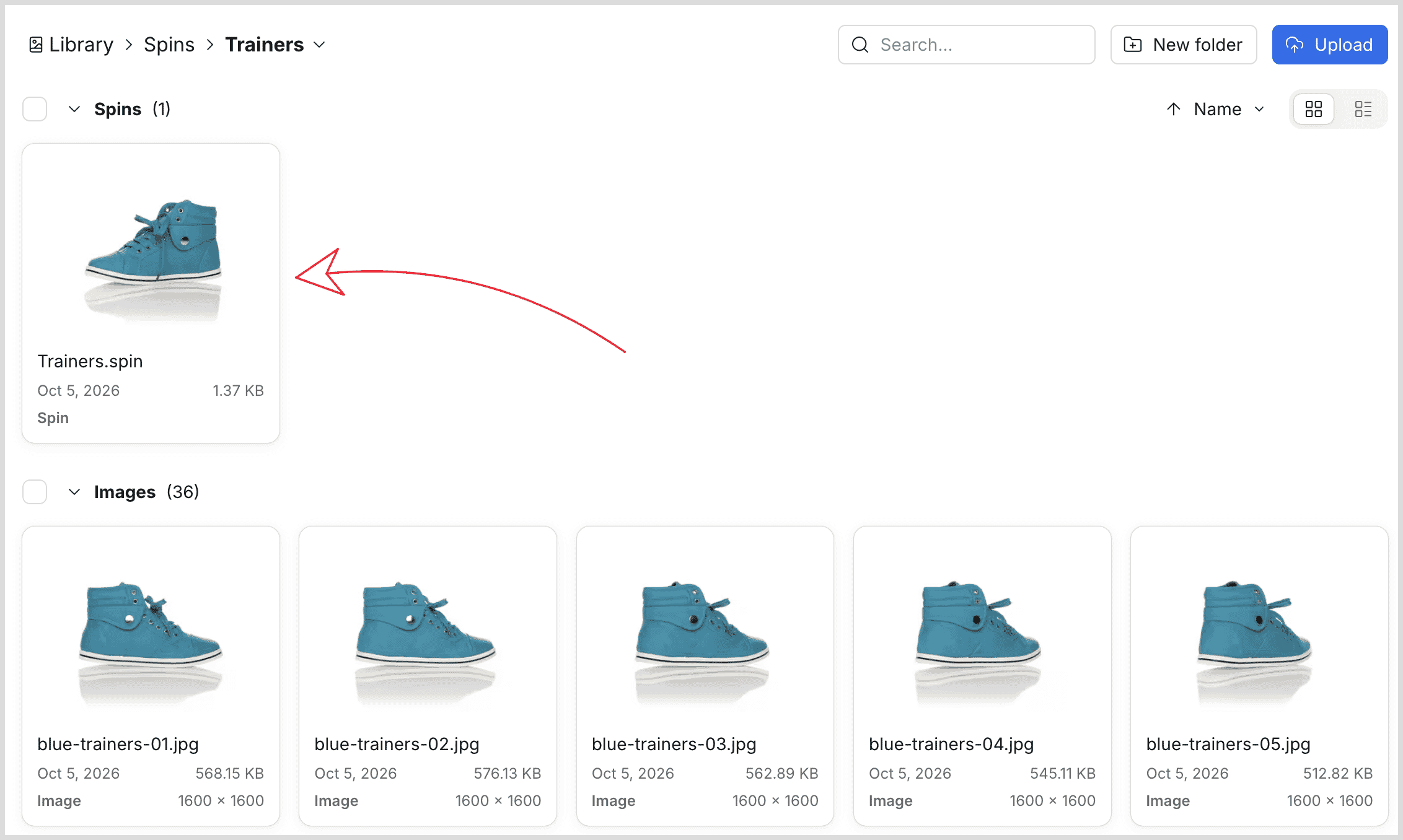
Section titled “3. View your spin”Your images will show in your Sirv account, along with a .spin file automatically generated by Sirv.
The file references all the images in your animated 3D spin, plus any custom settings you choose:
4. Change how your 3D spin behaves
Section titled “4. Change how your 3D spin behaves”Either embed your spin as it is, or add options to its embed code. This one starts on row 3, column 2:
<div class="Sirv" data-src="https://sirv.sirv.com/website/demos/Bobble Bag/bag.spin" data-options="spin.row.start:3; spin.column.start:2"></div>Speed, autospin, zoom and the other settings are in the 360 spin viewer options. The Sirv Media Viewer wizard, linked from the spin’s Embed window, writes the code for you.
To change every spin at once, edit a profile: open Assets > Profiles, edit the profile and choose Spin options.
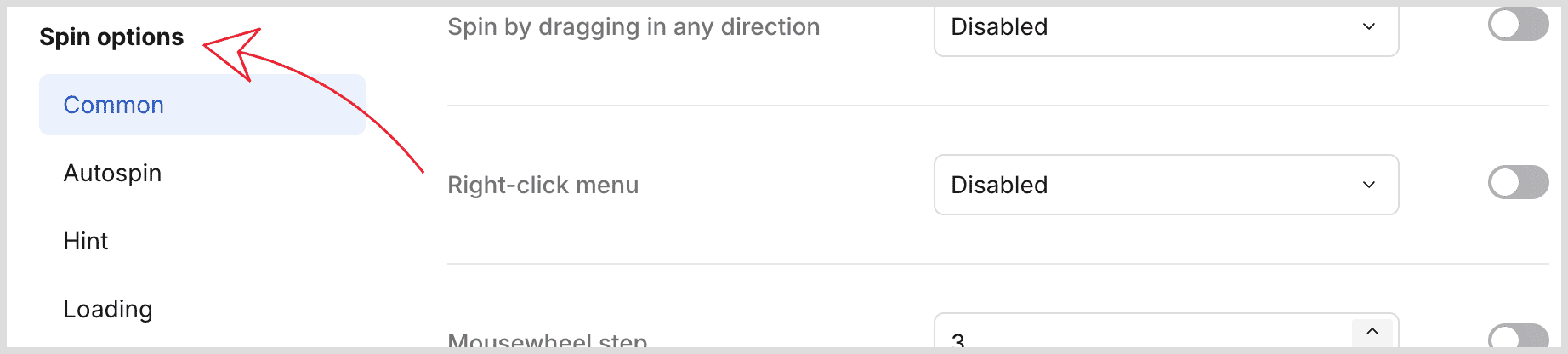
A profile can also add a watermark or a background to your spins.
5. Embed the spin in your website
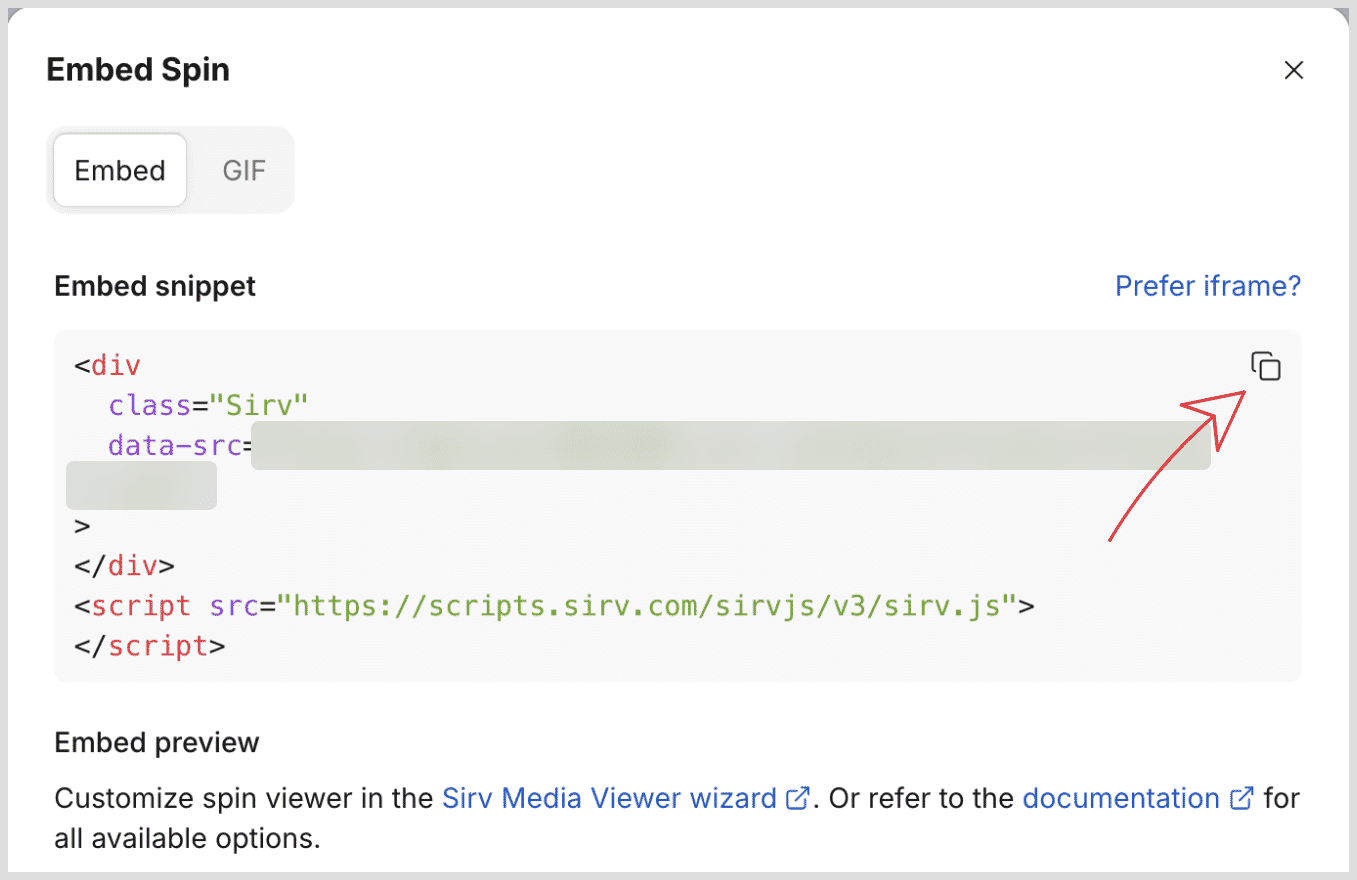
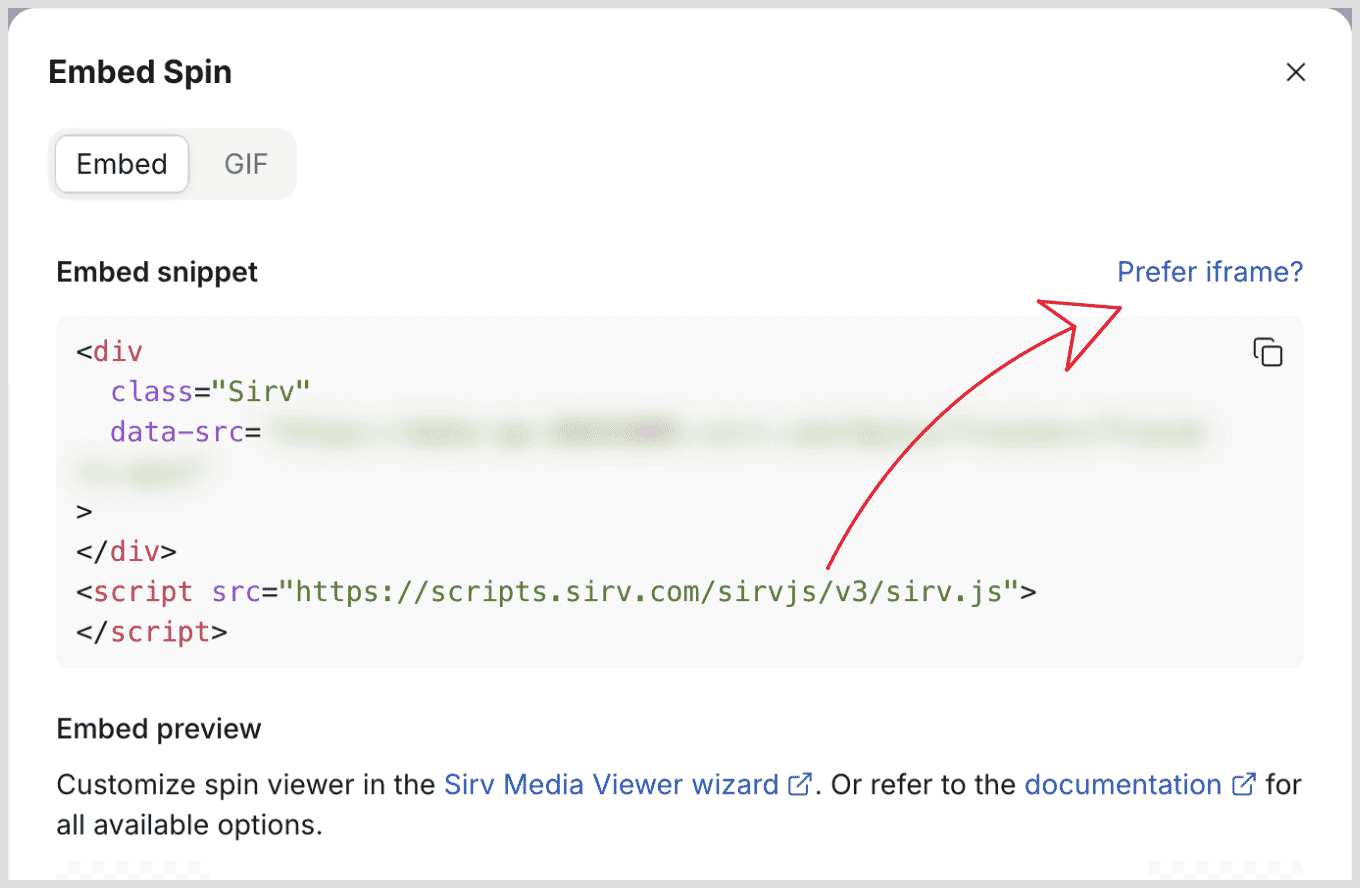
Section titled “5. Embed the spin in your website”Open the spin and click Embed. Copy the two lines of code into your web page: a div, and a script that loads the Sirv spin viewer.
Resizing your spin
Section titled “Resizing your spin”Sirv automatically generates images to fit perfectly inside the content area where you’ve pasted the spin.
Images are responsive, so all your visitors will receive scaled images suited to their screen and browser.
To change the size of a spin, change the size of its container (usually inside a div).
Alternatively, add a style attribute to the Sirv div and specify the width or height the you would like. The example below will create a spin of 360px max-width:
<div class="Sirv" data-src="https://sirv.sirv.com/website/demos/Bobble Bag/bag.spin" style="max-width:360px"></div>Embed 3D spin in an iframe
Section titled “Embed 3D spin in an iframe”If your CMS or website control panel restricts how you can embed spins, consider using an iframe. In the spin’s Embed window, click “Prefer iframe?” to see the iframe code.
Iframes should only be used as a last resort. They don’t support fullscreen and the spin is released while dragging if dragged beyond the edge of the spin (making it less controllable).
Copy the iframe code and paste it into your page where the spin should appear.