WordPress Media Management with Sirv
 By Anne-Marie Fletcher, Customer Success TeamUpdated
 Sirv for WordPress1. In WordPress, go to Plugins › Add New, search “Sirv”, then Install and Activate.2. Open the Sirv settings page and log in with your Sirv account, or create a free one right there.3. Click Enable, then Sync to copy your media library to Sirv.Open on WordPress.org
Short answer
Open Sirv > Media Library in your WordPress admin to upload, rename, copy, move and delete files and folders in your Sirv account. You can also search your files and use tags to find them. Everything you change there is the same library you see in your Sirv account.
After reading this you will know
- How to upload files to Sirv from WordPress
- How to rename, move and delete Sirv media in WordPress
- How to search your Sirv files from WordPress
Sirv can help you get your media asset management to the next level with powerful tools like easy copy/move files and folders, search and tagging, while it speeds up your WordPress site, CSS images included.
Uploading media
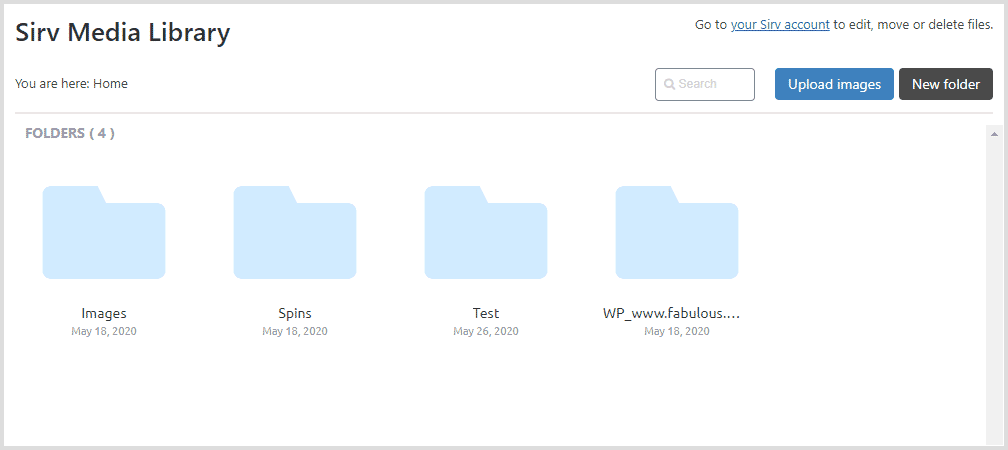
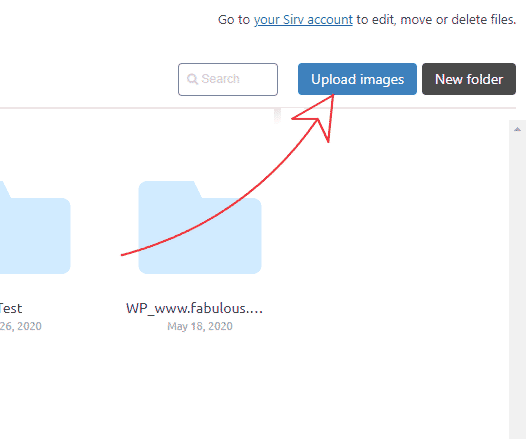
Section titled “Uploading media”Upload files to Sirv either from your Sirv account or via your WordPress admin panel: “Sirv” > “Media Library”, this is how it looks:
Renaming and deleting media
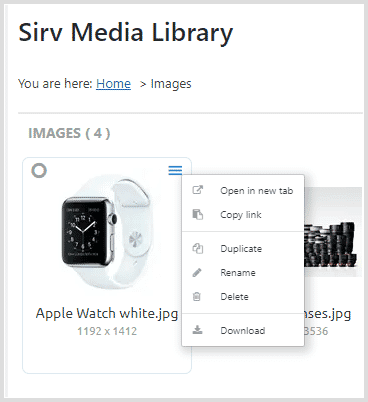
Section titled “Renaming and deleting media”You can rename and delete media in your Sirv media library. Simply right-click a file, or click the dropdown menu icon and choose the action you want to do.
Using search
Section titled “Using search”Use the search box to quickly find the files you need, to add them to posts and pages, WooCommerce products or Elementor pages.
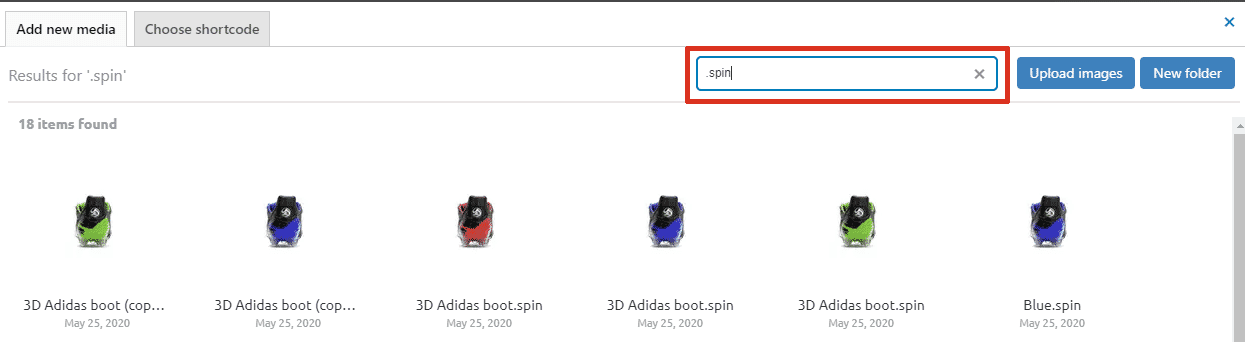
Keep in mind that you can tag your images in your Sirv account and they will be used for search purposes too. You can also use AI to tag your images automatically.
Use the advanced search to filter your files by name, type, size or date. If files don’t appear, try these WordPress fixes.