How to Add 360 Spins to OpenCart
 By Anne-Marie Fletcher, Customer Success TeamUpdated
Short answer
Upload each product's images, videos and spins to a folder named after its SKU inside a products folder in your Sirv account. Then send the Sirv team your store URL and OpenCart login, and they'll add a free script that replaces your gallery with Sirv Media Viewer. Or keep your gallery and add 360 spins to it.
After reading this you will know
- How to replace your OpenCart gallery with Sirv Media Viewer
- How to add 360 spins to your existing gallery

The popular ecommerce platform OpenCart has been used by online retailers since 2010. With Sirv, you can add 360 spins to your OpenCart product page gallery, as you can on Shopify, BigCommerce and WooCommerce.
Or go one step further and replace your product gallery with Sirv Media Viewer - the modern gallery that supports 360 spins, zoomable images, videos and 3D models.
Replace gallery with Sirv Media Viewer
Section titled “Replace gallery with Sirv Media Viewer”To give your users a really impressive experience, upload all your images, videos, 360 spins and 3D models to your Sirv account.
Then you can replace your existing product page gallery with Sirv Media Viewer. Sirv’s smart gallery feature will automatically generate a gallery of all assets in a particular folder.
You just need to organize your assets into folders, named by the SKU of that product. Example gallery:
Follow the steps below to create a gallery.
1. Go to your Sirv account.
2. Click New folder, name it products and click Create:
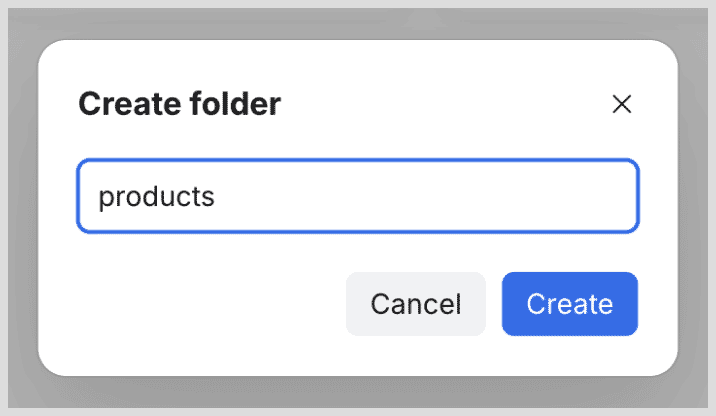
3. Open the products folder and create a folder named after the SKU of your product, the same way.
4. Upload your product assets (images, spins, video etc.) to your new folder with the Upload button:
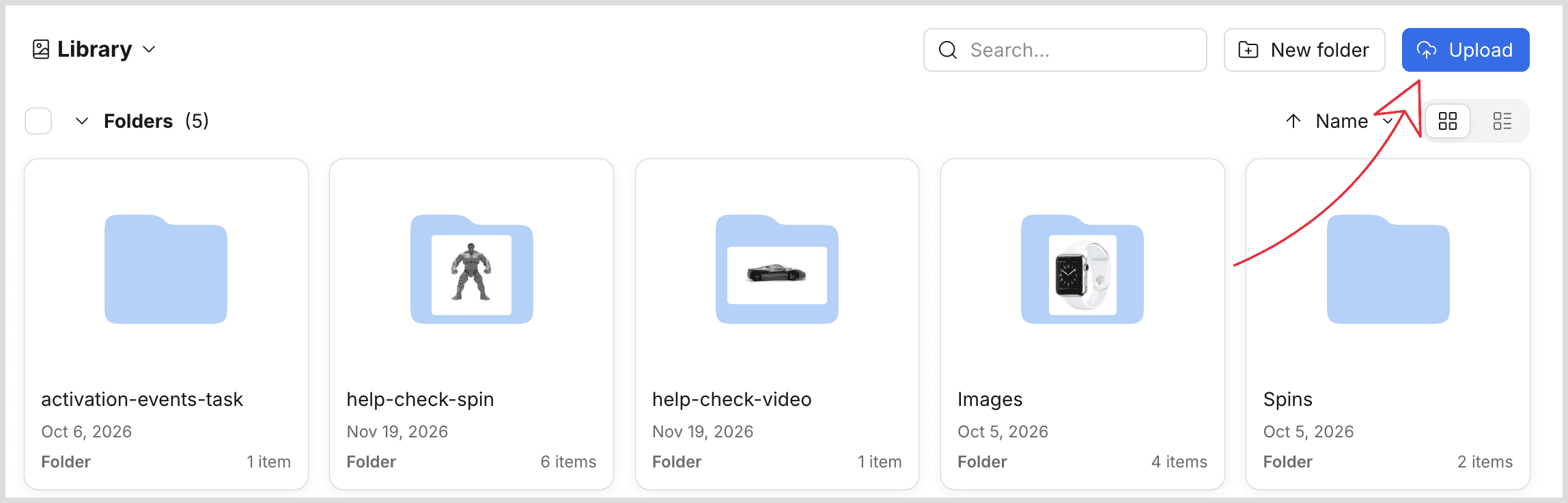
5. Send the Sirv team a message with the URL of your store and your OpenCart login details (Admin & FTP).
6. We will add a script to your OpenCart store (free of charge) that replaces your current gallery with Sirv Media Viewer.
(You can easily switch back to your previous gallery any time, if you wish.)
7. To publish new product images/videos/spins, simply upload them to the appropriately named SKU folder any time.
Change the size, style and experience of the gallery however you wish - try more than 100 options.
Add 360 spins to an OpenCart gallery
Section titled “Add 360 spins to an OpenCart gallery”Alternatively, you can keep your existing OpenCart product gallery and add 360 spins to it.
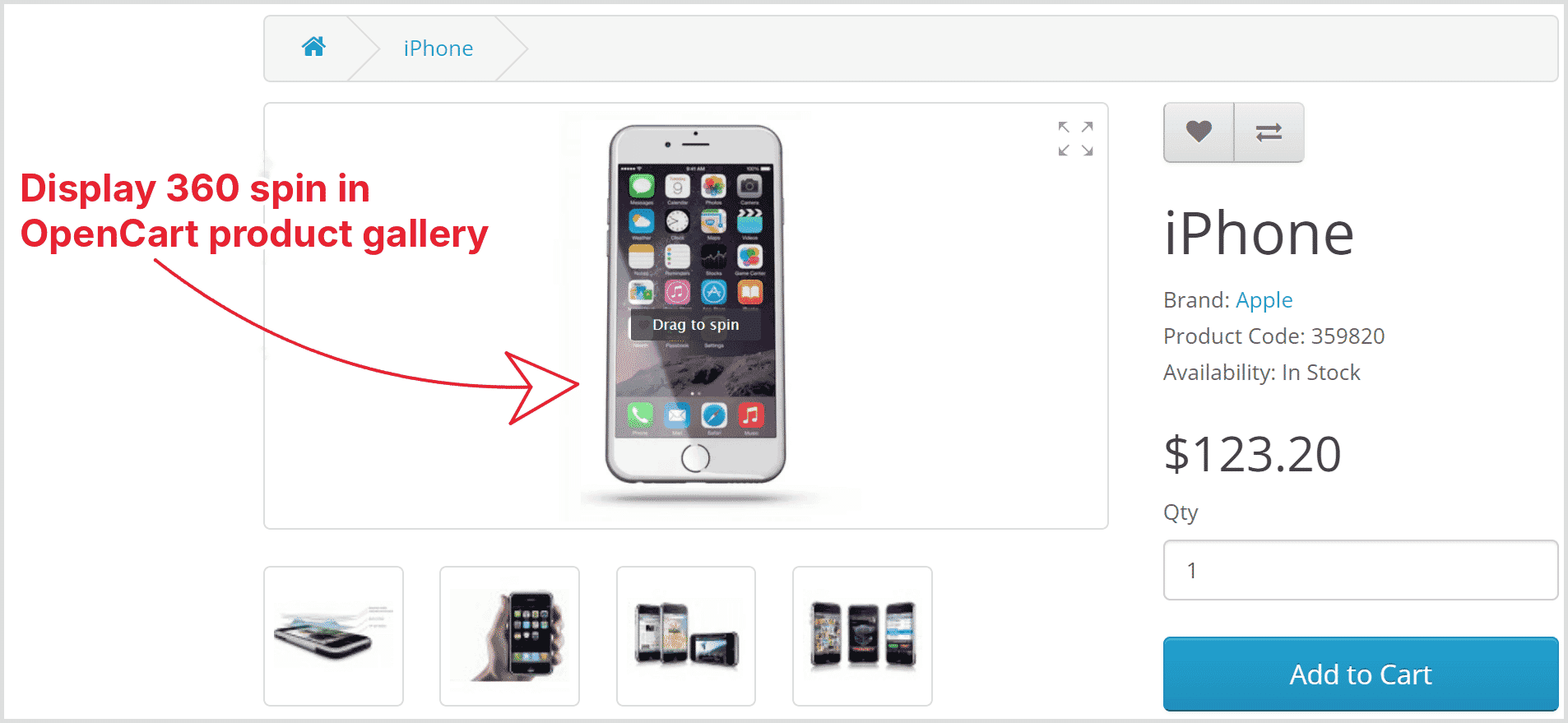
1. Create a Sirv account (or log in to your Sirv account if you already have an account). You get a free 30 day trial, after which plans start from $19/month.
2. Click New folder, name it products and click Create:
3. Open the products folder and create a folder named after the product SKU, the same way.
4. Upload your set of 360 spin images to the new folder:
5. Contact us with your OpenCart login details (FTP & Admin).
6. We will create a script (free of charge) for your OpenCart store that will display your 360 spins on your product pages.