Change 360 Spin Background with Transparent PNG / WebP images
 By Anne-Marie Fletcher, Customer Success TeamUpdated
Short answer
Start with transparent PNG-24 images of your product and a background image, both uploaded to Sirv. Add the background to the spin as a watermark in a profile, and Sirv renders it into every image, served as AVIF, WebP or JPEG. You can also set the background with CSS on your page, or place a video behind the spin.
After reading this you will know
- How to make product images with a transparent background
- How to add a background image to a 360 spin
- How to place a video behind a spin
A different background can radically alter the experience of a product.
Transparent background images are often used by fashion and luxury brands for still imagery but they can also be used for 360 spinning product photography.
Files are typically in PNG format and automatically served in AVIF or WebP format by Sirv, for the fastest speed and optimization.
Follow the tutorial below to learn how to create a 360 spin with any background on your website.
One spin, 4 experiences
Section titled “One spin, 4 experiences”The original spin is to the left, made from alpha PNG-24 images with a transparent background. The other 3 show the same spin in front of a background image.
Background from Sirv or CSS
Section titled “Background from Sirv or CSS”There are two ways to apply a background image:
- Background can be rendered on your images by Sirv, on-the-fly.
- Background can be served as a CSS background image in your HTML.
Using Sirv, every image is processed to include the background layer, which has these advantages:
- Optimal format - output images as JPEG or AVIF/WebP, which load much faster than PNG.
- Responsive - perfectly scales to any size.
- Goes fullscreen - choose whether to apply the background to full-screen and zoom images.
The tutorial below shows how to configure a 360 spin with background.
Before you start
Section titled “Before you start”You’ll need these images:
- Set of PNG transparent product images (PNG-24 format, alpha transparency)
- Background image
How to create PNG transparent images
Section titled “How to create PNG transparent images”There are 4 common ways to create images with a transparent background:
-
Manual clipping - backgrounds can be manually removed by drawing a clipping mask around the product in Photoshop or other image editing software.
This manual process is often outsourced (contact Sirv if you need a clipping agency recommendation).
-
Automatic clipping - some 360 photo studios and photography machines can automatically remove backgrounds during the capture process (contact Sirv if you need an introduction).
-
Green screen - photos can be captured against a green screen, then automatically removed in post-production. (Tip: if your item contains the color green, shoot against a blue screen.)
-
3D model - a professional 3D CGI modeller can design your product in 3D, then render a set of PNG image frames (contact Sirv if you need a 3D modeller recommendation).
Upload the PNGs to your Sirv account and a 360 spin (or a 3D spin, if you shot several rows) will be automatically created.
How to create a background image spin
Section titled “How to create a background image spin”Behind your 360 spin, you’ll add a background image as a watermark, by applying a profile.
- Upload your background image to your Sirv account. It can be saved in any folder of your account. (New users can create a Sirv account). We will use this background image:

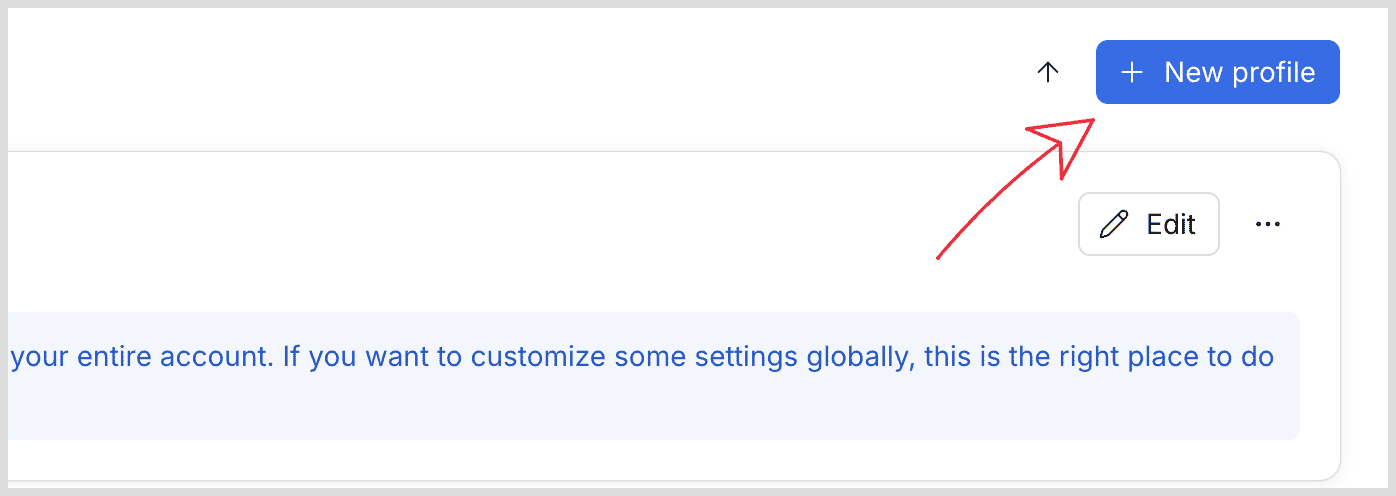
- Go to the Profiles page and click New profile.
- Give your profile a descriptive name that you’ll recognize.
- Click “Add image or spin” in the preview panel on the right and pick a spin. The preview updates as you change the profile.
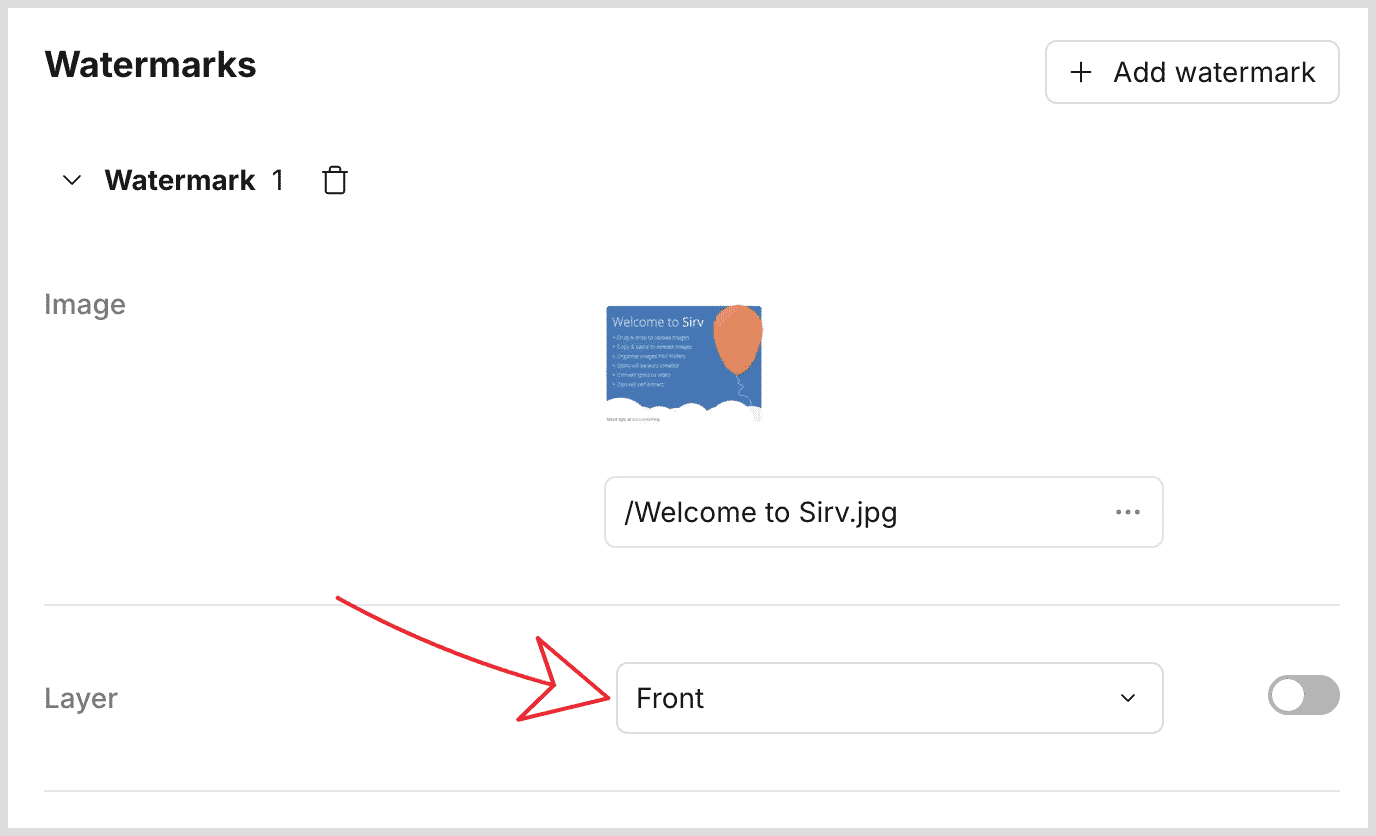
- Under Spin options, open Image rendering > Watermarks and click Add watermark. Pick the background image and click Select.
- Switch on Layer and set it to Back. You can choose any other options you wish, for example the background size.
- Click Save changes, and the profile is ready to use.
- Apply the profile to a spin by appending ?profile=Example to the spin url, where Example is the name of your profile.
These URLs render the same spin with each background built into its images, delivered as AVIF/WebP or JPEG:
- https://sirv.sirv.com/website/demos/gin-bottle-alpha/gin-bottle-alpha.spin
- https://sirv.sirv.com/website/demos/gin-bottle-alpha/gin-bottle-alpha.spin
?profile=background-beach - https://sirv.sirv.com/website/demos/gin-bottle-alpha/gin-bottle-alpha.spin
?profile=background-ice - https://sirv.sirv.com/website/demos/gin-bottle-alpha/gin-bottle-alpha.spin
?profile=background-clubbing
How to create a background video spin
Section titled “How to create a background video spin”You can also place a video behind your spin, for a particularly dramatic effect.
Video backgrounds engage visitors and can create an even deeper connection between your customer and your product.
Credit: Martini Studios
Recreate this spectacular effect with your own video background and 360 degree spin:
<script src="https://scripts.sirv.com/sirvjs/v3/sirv.js"></script><div class="video-container">  <video autoplay="" loop="" muted="">      <source src="https://your-account.sirv.com/Path/To/Video.mpg">  </video>
  <div class="Sirv" data-options="spin.autospin.enable:true">    <div data-src="https://your-account.sirv.com/Path/To/Spin.spin"></div>  </div></div>
If you need help configuring 360 spin with background, please contact the support team using your account support form.
If you’re a 360 photographer offering spins with PNG with alpha transparency, please get in touch and let’s talk about how we can work together.