Image Crop
 By Jake Brumby, Customer Success DirectorUpdated
Short answer
Add cw for the crop width and ch for the crop height to the image URL, in pixels or percent, for example ?cw=300. Cropping starts at the top left unless you move it with cx and cy, or set both to center. Combine crop with w and h to make an image of any size and shape.
After reading this you will know
- How to crop an image from its URL
- How to choose where the crop starts
- How to combine cropping with resizing
Crop any part of an image by choosing a new width and height plus starting point for the crop.


Choose the new width and/or height - if you omit one, it will default to 100% of the image. Use cw to specify the new width in pixels or percent (%).
The example below was 400px and has been cropped to 300px width:
https://demo.sirv.com/looks.jpg?cw=300

Use ch to specify the new height in pixels or percent (%). The example below has been cropped to 100px height:
https://demo.sirv.com/looks.jpg?ch=100
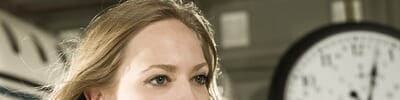
Unless explicitly stated, cropping will start from the top left of the image. This can be adjusted with cx and cy options.
These 2 options will move the point of the crop in a specified number of pixels from the top left. For example, the cropping starts at 107 pixels across and 17 pixels down:
https://demo.sirv.com/looks.jpg

You can crop around the center of the image by setting cx and cy to ‘center’:
https://demo.sirv.com/looks.jpg?ch=250

This image is cropped around the center of the image to 50% of its original height, 100% of its original width:
https://demo.sirv.com/looks.jpg?ch=50%

Cropping can be combined with resizing to create an image of any size and shape:
https://demo.sirv.com/looks.jpg?w=50%

Change the crop values to show exactly the part of the image you need.