Sync WordPress CSS Images
 By Anne-Marie Fletcher, Customer Success TeamUpdated
 Sirv for WordPress1. In WordPress, go to Plugins › Add New, search “Sirv”, then Install and Activate.2. Open the Sirv settings page and log in with your Sirv account, or create a free one right there.3. Click Enable, then Sync to copy your media library to Sirv.Open on WordPress.org
Short answer
Tell the Sirv plugin where your external CSS files are, often your active theme folder. Sirv scans those files and syncs the background images they use, then serves them resized, optimized and in next-gen formats from the Sirv CDN, like the rest of your WordPress images.
After reading this you will know
- How to sync CSS background images to Sirv
- Which images the CSS sync picks up
- Which advanced options you can set

The Sirv plugin for WordPress will sync as many images as possible to your Sirv account and deliver them resized, optimized and in next-gen formats from Sirv CDN.
Background CSS images can also be served from Sirv, by telling Sirv where your external CSS files are located. Follow the steps below.
How to sync background images
Section titled “How to sync background images”Your external CSS files are located somewhere on your WordPress server. We need to find that location, so the files can be scanned.
Your CSS files might be in your active theme folder (or in a page builder’s folder, such as Elementor), which makes this really simple. Otherwise, you must identify the folder location of the files. Here’s how to do it:
1. Click the Synchronization tab on the Sirv plugin Settings page.
2. Click Scan CSS for images to check if your CSS files are being served from your active theme.
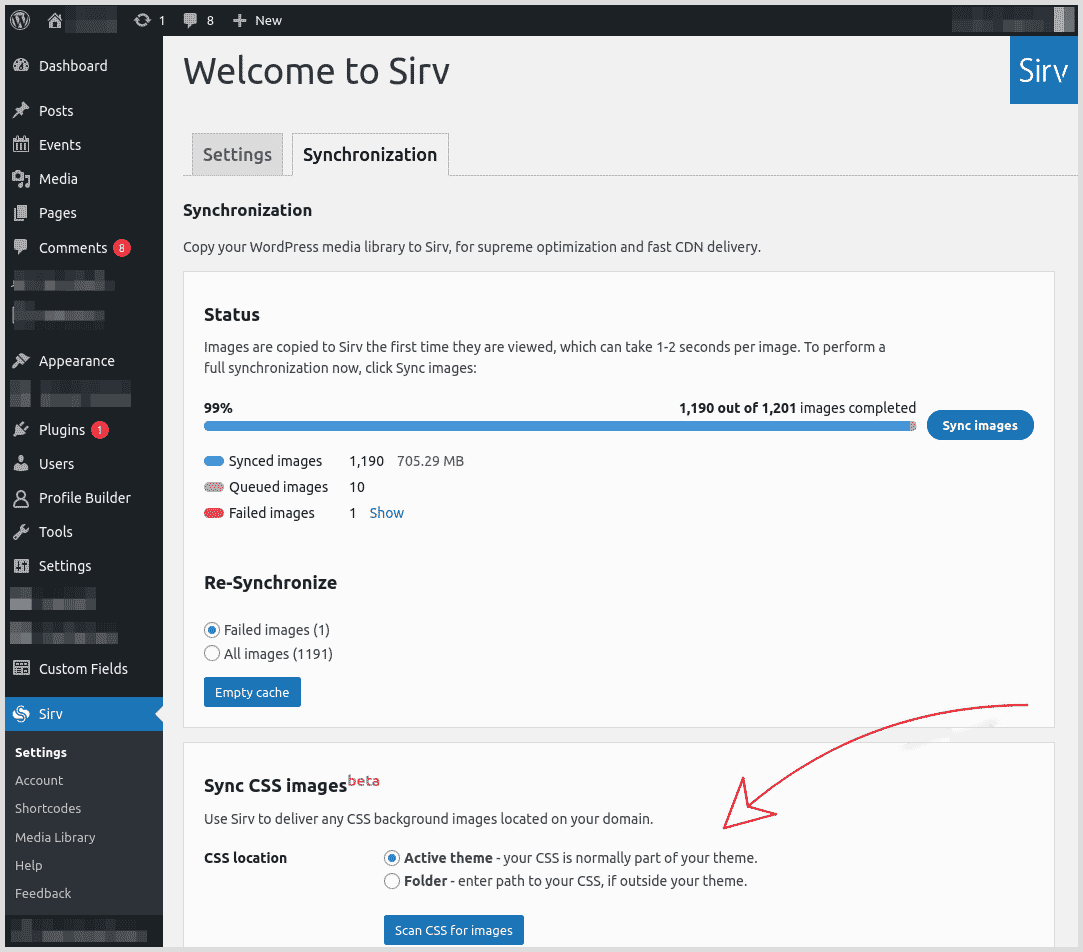
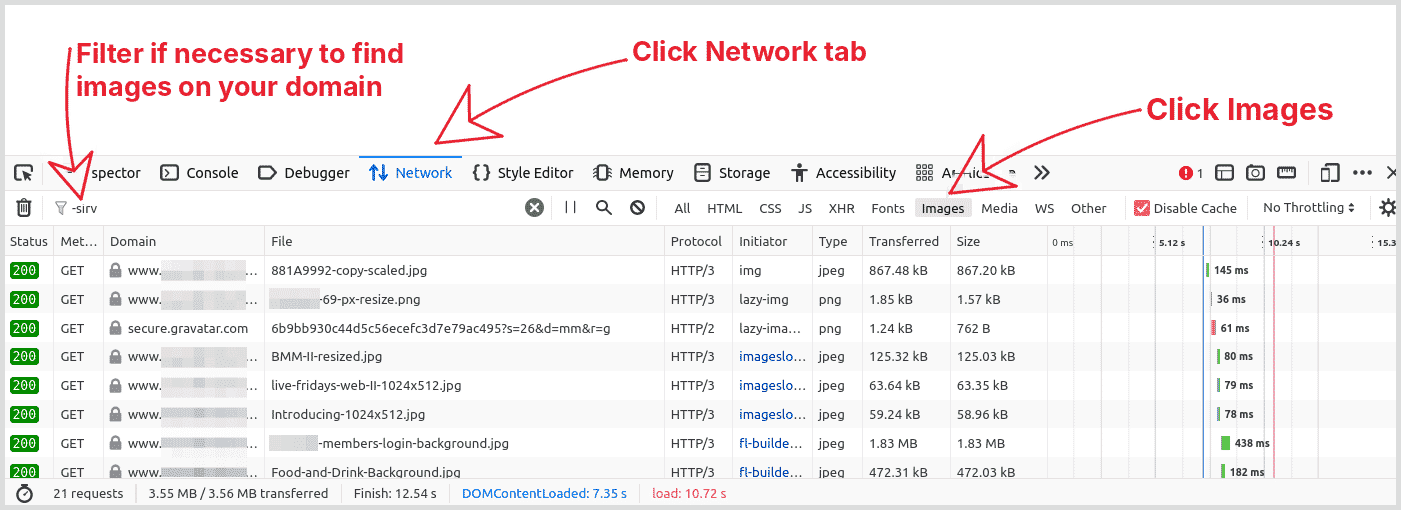
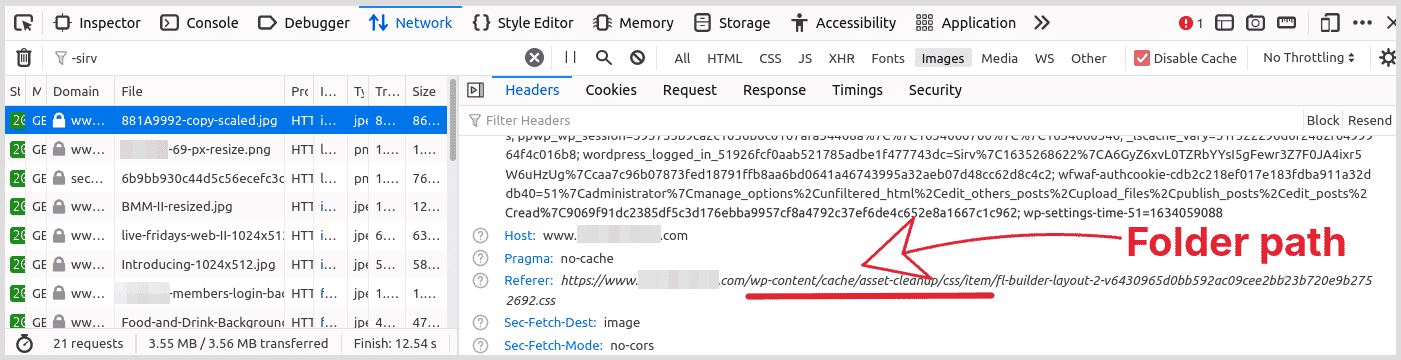
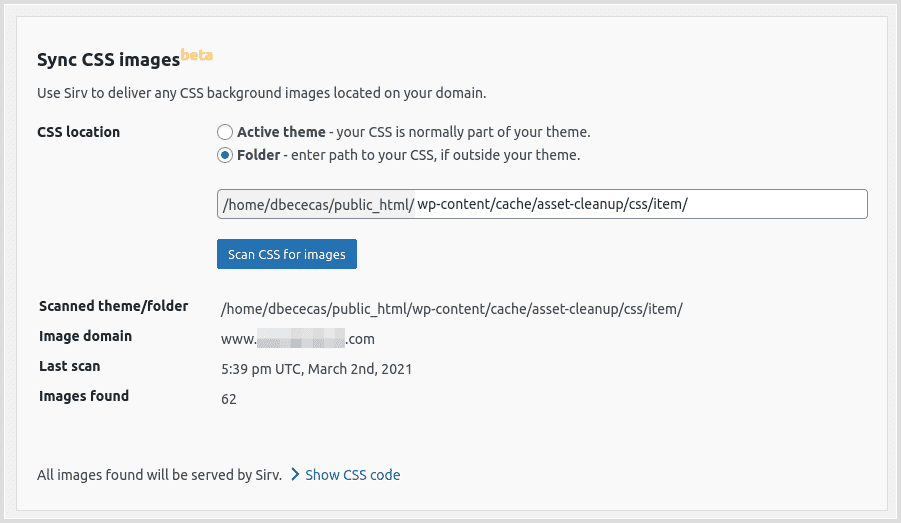
In this example, the path is: wp-content/cache/asset-cleanup/css/item/
5. Click the button to “Scan CSS for images” and if that was the correct folder location, your background images will be successfully synced to Sirv.
In the screenshot above, 62 images were synced to Sirv.
Images to be synced
Section titled “Images to be synced”All images on your domain will be synced to your Sirv account. Images will not sync if they are:
- On another domain
- Inaccessible
- Access denied
Features of background CSS sync
Section titled “Features of background CSS sync”Benefits of serving your CSS background images from Sirv:
- Image optimization - best possible image optimization, will maximize your PageSpeed score.
- Next-gen formats - Sirv automatically serves formats such as WebP (recommended by Google).
- Sirv CDN - images served from the nearest CDN location, for faster loading.
- HTTP/2 & TLS1.3 - the latest technologies for fast and secure file transfer.
- Browser caching - choose how long browsers cache your images for.
Features not available to CSS background images:
- Lazy loading - images will load on page load, not lazily (unlike images in your posts and pages and Media Library).
- Automatic scaling - images won’t be scaled, so add w or h to the URL to scale an image.
Advanced options
Section titled “Advanced options”To add/edit/remove any CSS images, click to show the CSS code, perform your edits, then click Save CSS code once you’ve finished:
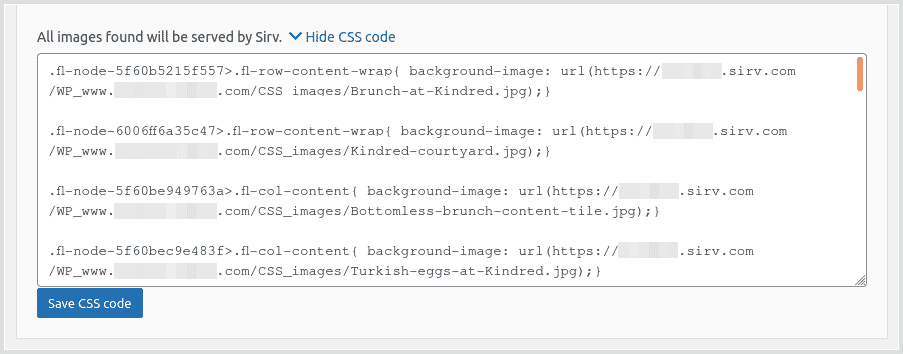
Your CSS background images then load from Sirv like the rest of your WordPress images.