How to make animated GIFs from 360 spins
 By Olha Kersting, Head of MarketingUpdated
Short answer
Create a spin in Sirv, then add ?image to the spin URL to get an animated GIF. Sirv optimizes the GIF and serves it as WebP where possible. You can add text, resize it with w or h in the URL, crop it, change the number of frames and set its speed in the spin's settings.
After reading this you will know
- How to turn a 360 spin into an animated GIF
- How to resize, crop and add text to a GIF
- How to change GIF speed, frames and file size
Sirv is the ideal platform for hosting animated GIFs. It automatically applies lossy optimization and serves GIF as WebP where possible, delivered very quickly from its CDN.
Sirv even lets you resize GIFs instantly to any width/height via the image URL.
Sirv gives you two GIF solutions:
- Create new animated GIFs, from a spin (series of images).
- Host existing animated GIFs.
This guide describes how to create new animated GIFs. If you’re already creating spins with Sirv, this guide is for you.
If you’re uploading existing GIFs to Sirv, read the guide to hosting animated GIFs on Sirv.
First, create a spin
Section titled “First, create a spin”Simply upload a set of images (or a video) to your Sirv account and a spin will be generated. Any spin can instantly be displayed as a GIF. Learn how to create spin files.
Here’s what spin GIF generation looks like:
ORIGINAL SPIN
SPIN GIF
What’s unique is that you have total control over your GIFs, on-the-fly. Just tweak the speed, text, size or other options and you’ll get a new GIF, simply by adding options to the URL.
Typically, you’ll want to serve spins rather than GIFs (because spins are interactive). But sometimes you need to make animated GIFs for places where JavaScript isn’t permitted, for example:
- Emails
- Forums
- Facebook, Twitter, Google+ and LinkedIn
- Classified ad sites (Gumtree, Craigslist etc)
- Or when you specifically want a GIF instead of a spin (a spin can also be turned into a video)
Create animated GIFs
Section titled “Create animated GIFs”Once you’ve created a spin, you’re ready to create a GIF.
Simply append ?image to the spin URL like so:
https://demo.sirv.com/PinkBoot/PinkBoot.spin?image
Sirv automatically generates GIFs of up to:
- 72 frames
- 640px width, 500px height
If your spin has more than 72 frames, Sirv will drop some frames, automatically calculating the optimal space between frames for a smooth animation.
If you specify dimensions greater than 640px width or 500px height, Sirv will scale down the GIF to fit within those dimensions.
Customize your GIFs
Section titled “Customize your GIFs”You can use the entire range of Sirv dynamic imaging options to adjust the speed, watermark, text, frame, scale, crop and optimization of your animated GIF.
Add text to a GIF
Section titled “Add text to a GIF”The example below shows a 400px height GIF with two text overlays:
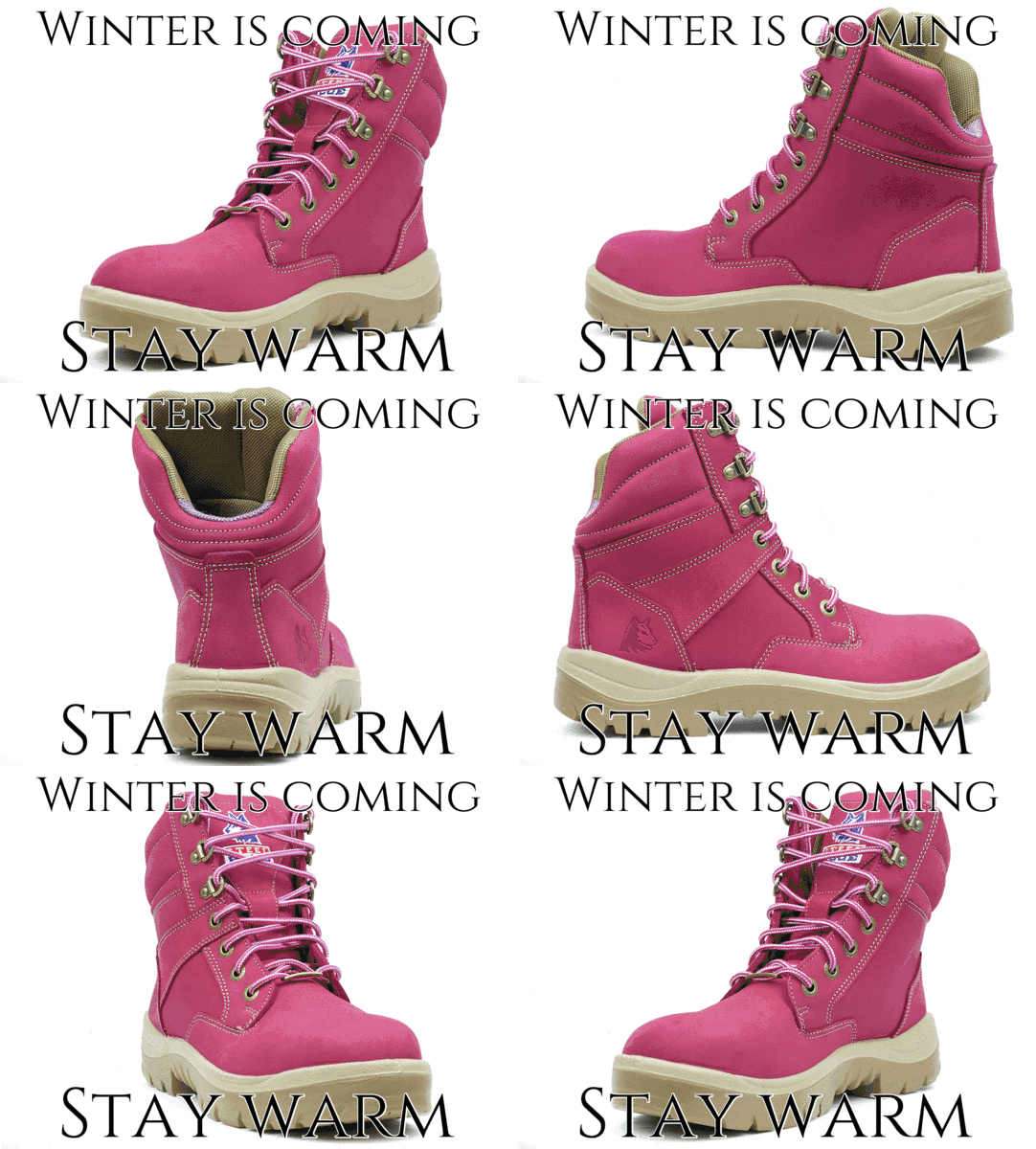
The image URL looks like this:
https://demo.sirv.com/PinkBoot/PinkBoot.spin
Resize a GIF
Section titled “Resize a GIF”Resize a GIF by adding w (width) or h (height) to the URL.
This GIF has been scaled to 250px width:
https://demo.sirv.com/PinkBoot/PinkBoot.spin
This GIF has been scaled to 150px:
https://demo.sirv.com/PinkBoot/PinkBoot.spin
Lossy compression
Section titled “Lossy compression”Sirv generates high-quality GIFs by default, with 5% of lossy compression. This helps reduce the file size while maintaining image clarity.
For smaller file size, increasing the lossy compression will reduce file size by up to 30-40%.
Simply add gif.lossy to the URL, with a value between 0 and 100, where 0 is no compression (highest quality) and 100 is maximum compression (smallest file size).
This is how to apply 80% compression:
https://demo.sirv.com/PinkBoot/PinkBoot.spin
Compare three images with different compression:
10% compression
1191 KB
40% compression
937 KB
80% compression
819 KB
The quality differs depending on the images, so there’s no single ideal compression value for all GIFs. Try a few variations to see how much compression suits your images.
Number of frames
Section titled “Number of frames”You can specify the number of frames of your GIF to reduce file size. For this, add the desired number of frames after ?image= like so:
https://demo.sirv.com/PinkBoot/PinkBoot.spin
Here’s a comparison of file sizes of spin-created animated GIFs with different frame numbers:
72 FRAMES
3125 KB
36 FRAMES
2380 KB
18 FRAMES
1217 KB
Image file size
Section titled “Image file size”GIF file size can easily get out of hand - as much as 3 MB or 5 MB is not uncommon. Be conscious of what size is acceptable for your users - often that may be below 1 MB in size.
File size is determined by image dimensions, number of frames and lossy compression. See how different dimensions can affect file size:
| Width | Frames | File size without compression | File size with 80% compression | Reduction |
|---|---|---|---|---|
| 120px | 36 | 103 KB | 65 KB | 37% |
| 256px | 36 | 368 KB | 201 KB | 45% |
| 350px | 36 | 625 KB | 316 KB | 49% |
| 500px | 36 | 1220 KB | 577 KB | 53% |
Change GIF speed
Section titled “Change GIF speed”Speed up or slow down your GIF by changing the “Autospin speed” option in your Sirv account. It’s set at 3600ms by default (3.6 seconds) for one full rotation.
Increase this to slow down the spin, decrease the number to speed it up.
Compare these three GIFs with different speed:
3600ms
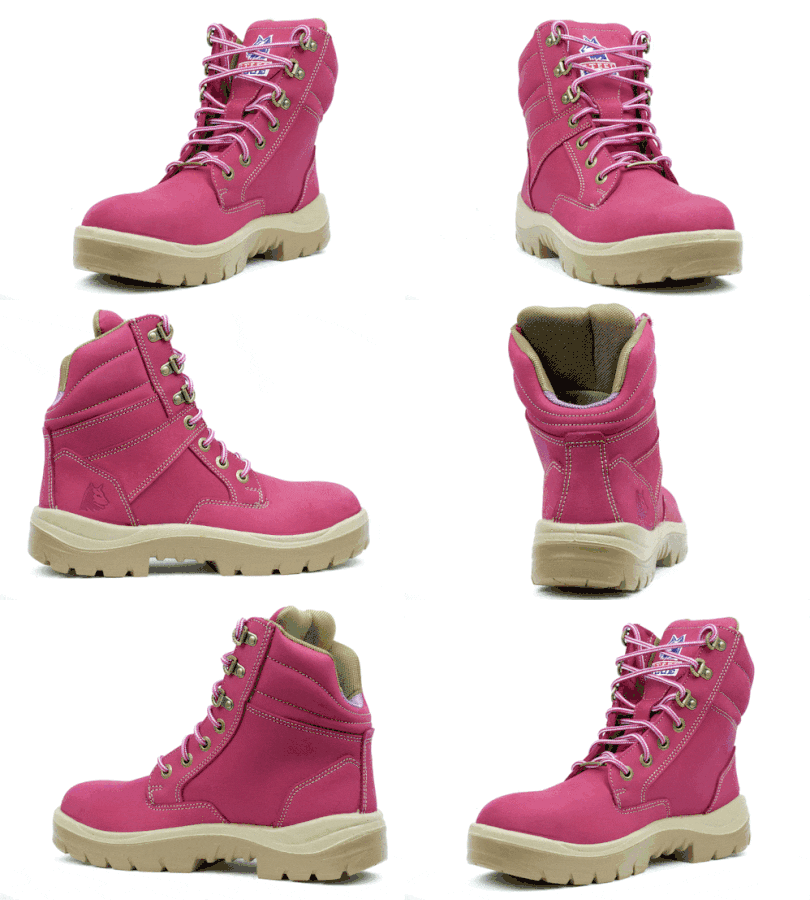
5000ms
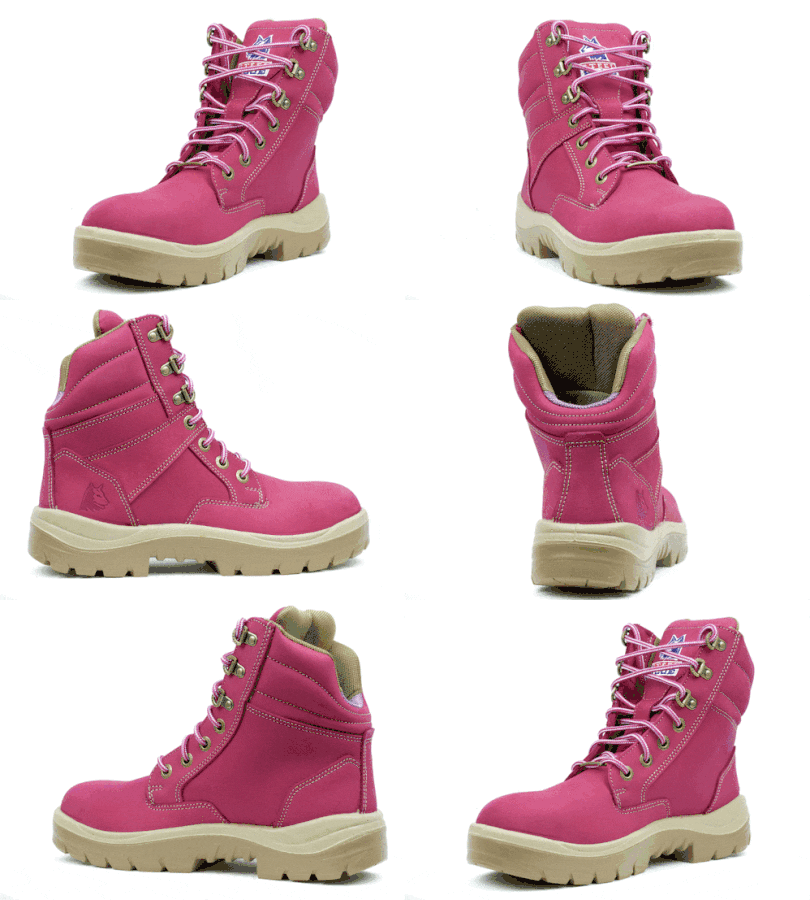
2500ms
Use a profile to change GIF speed. Create a profile and open Spin options > Autospin. Switch on Speed, type the time in milliseconds and click “Save changes”:
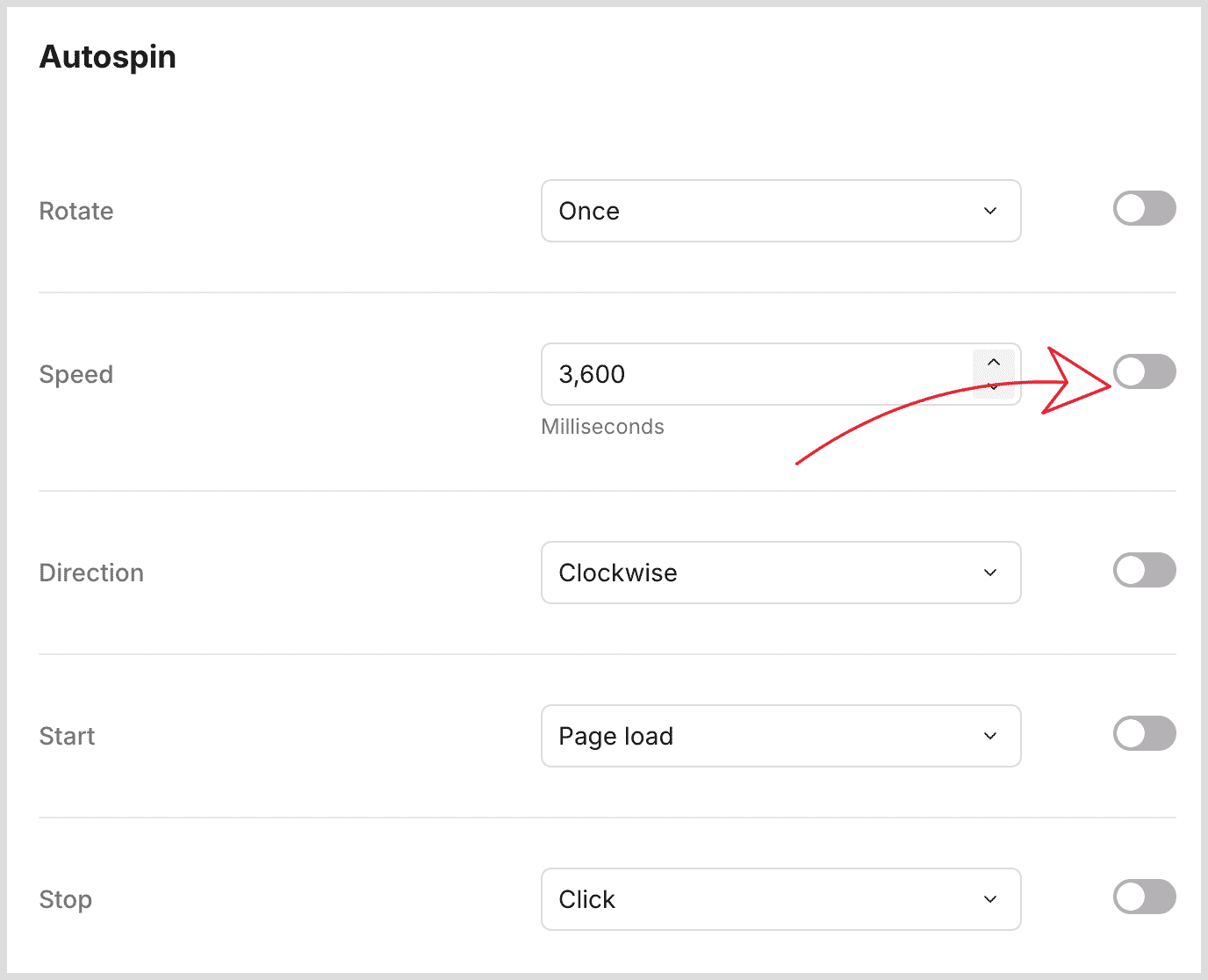
The default value of autospin speed is 3600 ms. This is the time in milliseconds needed for one full rotation of the spin.
You can slow down the spin by setting a bigger number in a profile, e.g. 10000:
https://demo.sirv.com/PinkBoot/PinkBoot.spin
Or make it go faster by setting a smaller number in a profile, e.g. 1800:
https://demo.sirv.com/PinkBoot/PinkBoot.spin
Using profiles to change the speed is useful if you need to adjust the speed of multiple GIFs. Another benefit of using profiles is the possibility to change the speed of the original spins.
Note that the speed should be set in a profile, not in the autospinSpeed option within the spin URL itself.
Crop a GIF
Section titled “Crop a GIF”Crop your GIFs by applying ch (crop height) and/or cw (crop width) to the URL.
The crop starts from the upper left corner. Alternatively, set cx (width) and cy (height) to either center or a value in px or %.
GIFs can be can resized and cropped at the same time, like in this example for removing the background:
Original
Cropped
The cropped GIF URL looks like this:
https://demo.sirv.com/spins/basket/basket.spin
Cropping is also useful if you want to focus on one part of your image:
https://demo.sirv.com/spins/pink-boot/pink-boot-3.spin
Create square thumbnails
Section titled “Create square thumbnails”Sirv has a thumbnail parameter for quickly creating square thumbnail images. Regardless of the aspect ratio, your images will be cropped square from their central point.
The dimensions can be up to 1000px. This example creates a 150px square thumbnail:
https://demo.sirv.com/spins/basket/basket.spin
Change the thumbnail value to create a square thumbnail of any size up to 1000px.