Bulk Upload Images from CSV
 By Anne-Marie Fletcher, Customer Success TeamUpdated
Short answer
To import many images at once, list their URLs in a CSV or XLS file and use Sirv's bulk upload tool at tools.sirv.com. It reads the file from your computer, a URL or FTP, fetches each image into the folder you choose, and can rename files and add descriptions, SKUs and titles from your columns.
After reading this you will know
- How to import images from a list of URLs in a CSV or XLS
- How to rename files with safe characters as they upload
- How to do the same with the REST API
It’s easy to import a list of image URLs into your Sirv account, as well as uploading files from your computer. A CSV or XLS file can contain your image URLs, plus additional information used to rename files or add meta data.
Sirv’s powerful batch upload tool is described below.
How to upload file URLs in a CSV
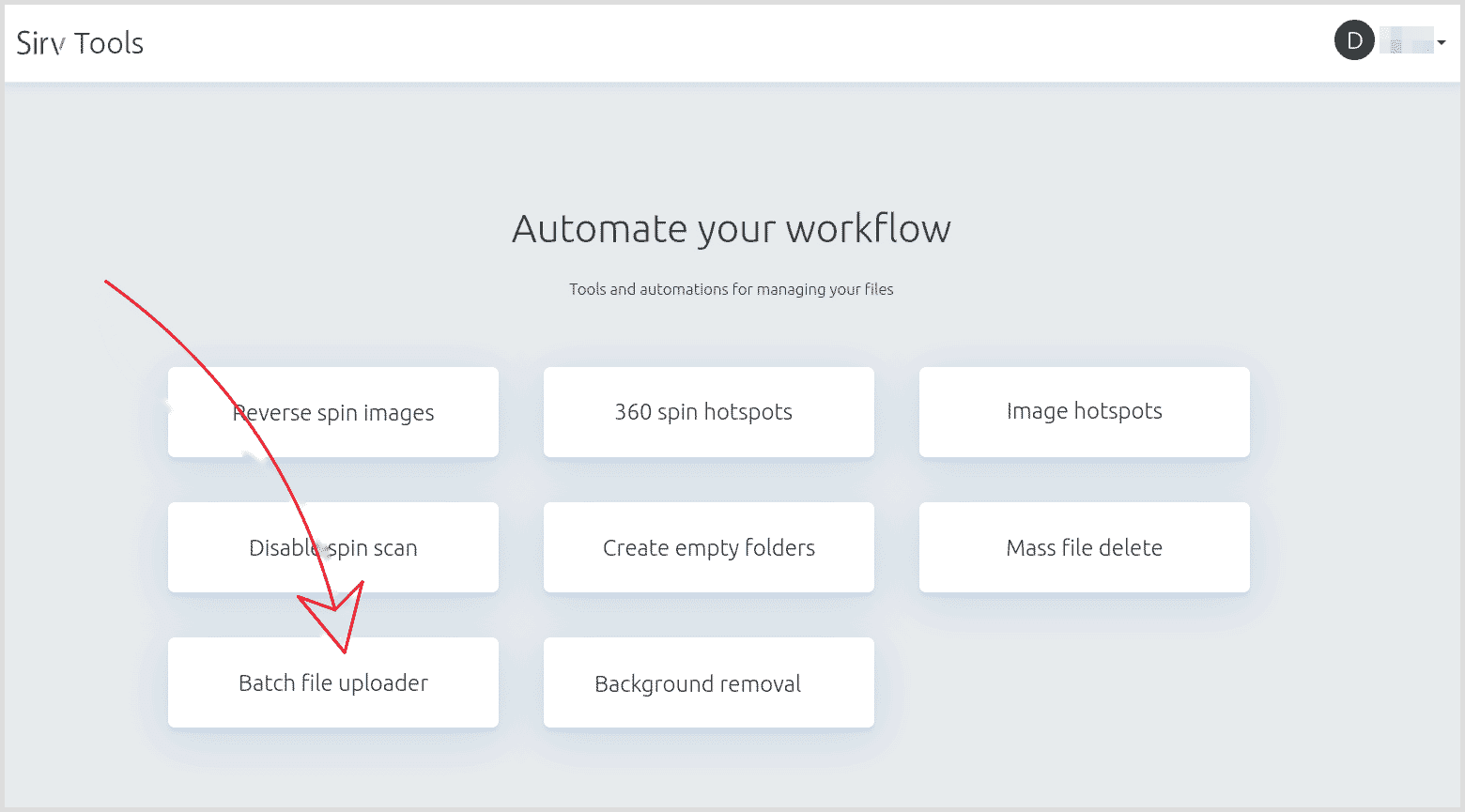
Section titled “How to upload file URLs in a CSV”The easiest way to upload a list of files is with Sirv’s bulk upload tool. 1. Go to tools.sirv.com and login. If you don’t already have a Sirv account, create a free account. 2. Click the “Batch file uploader”.
If you don’t see it in your list, ask the Sirv team to enable it for you.
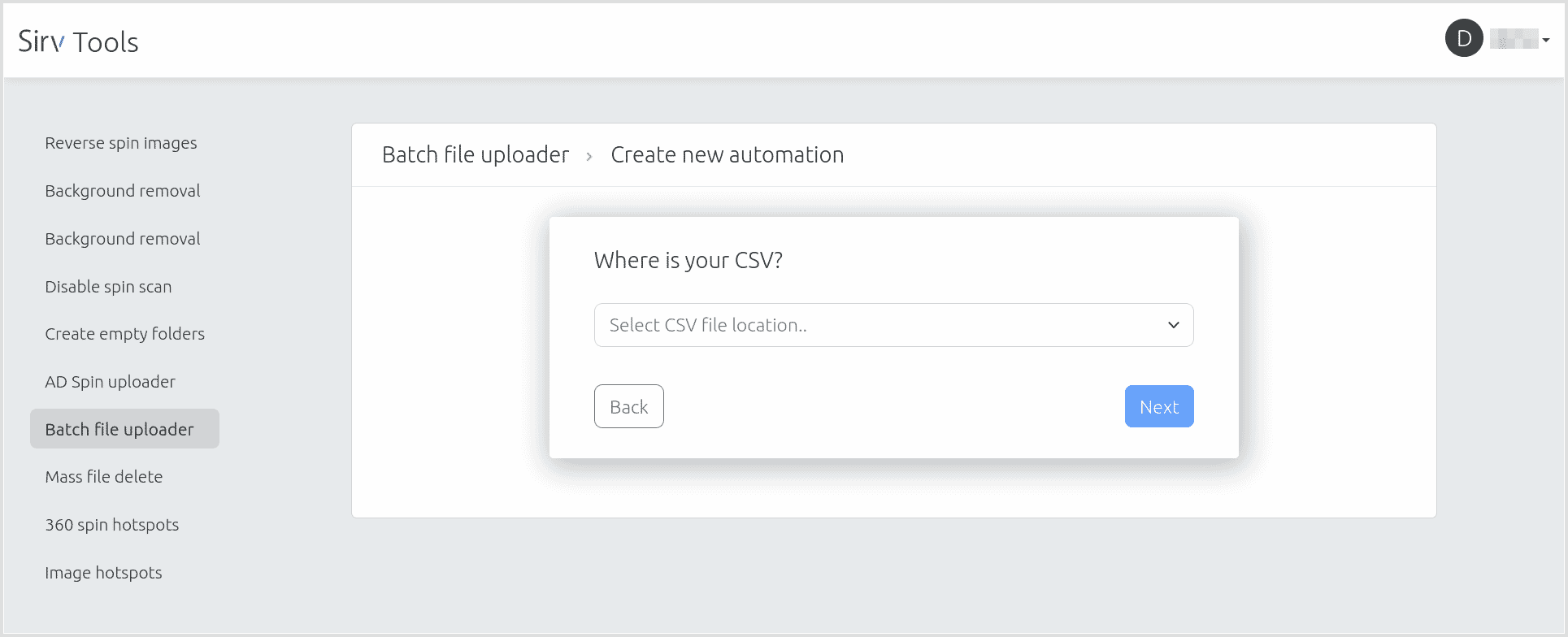
3. Choose your CSV location - it can be on your computer, at a URL or on an FTP server:
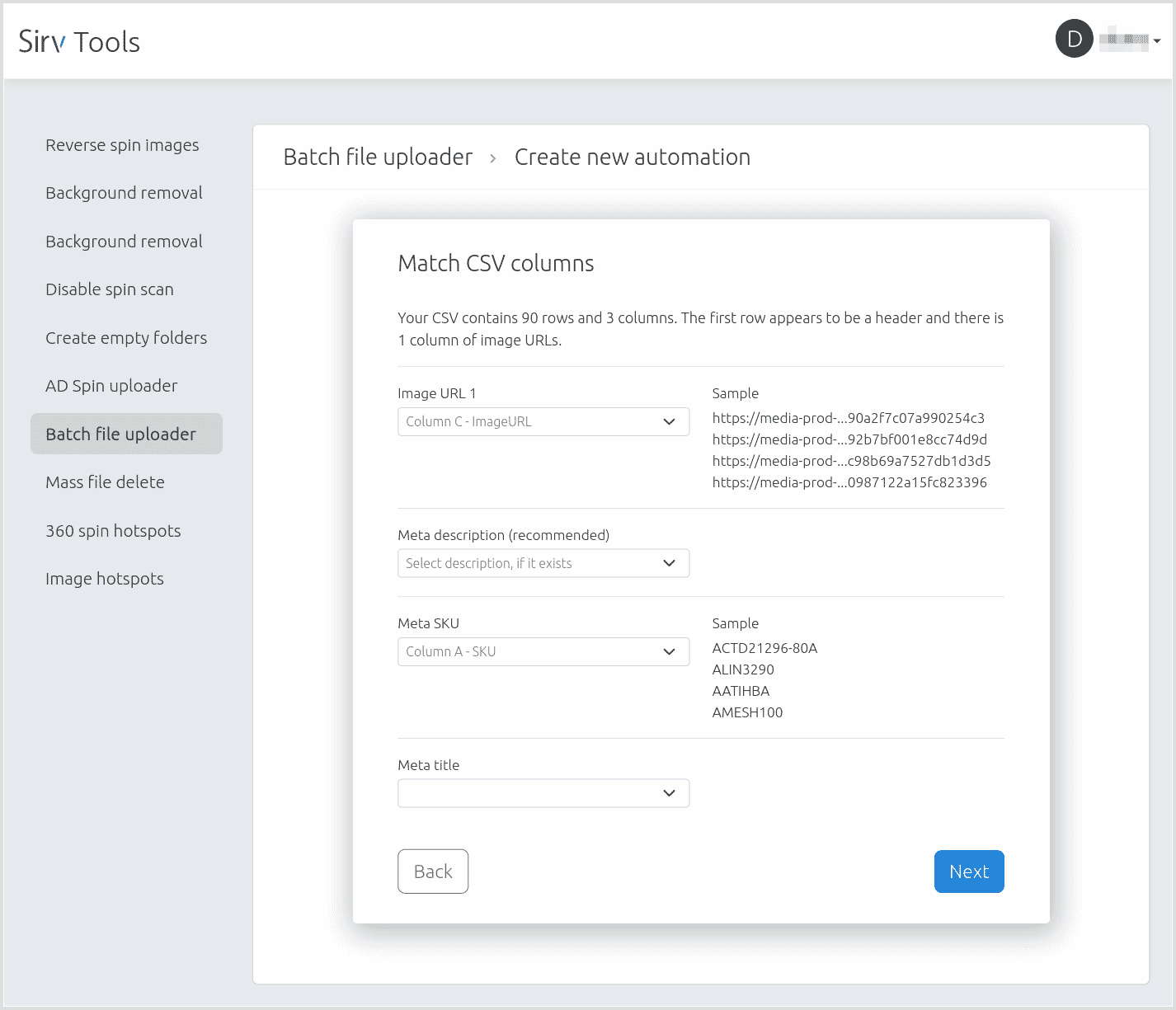
4. Work through each step. Start by identifying the image URL column(s), plus any additional meta data you’d like to import (image description, SKU and title):
5. Choose the folder and naming structure. Also choose whether to rename your files - this is an opportunity to achieve any naming convention you require.
Names can contain data from your CSV, making all kinds of names possible. 6. Run the import and a report will be generated to confirm which files were uploaded and which failed, if any.
Replace filename characters
Section titled “Replace filename characters”For a reliable file naming convention, the best practice is to use only safe characters.
It’s OK to use other characters but web URLs do not support them, so they must be encoded. For example, a space in a URL will become encoded as %20.
This is fine when handled correctly. But you might use your URLs in emails, social media, CMSs, CSVs, third-party services, internal systems etc.
Any of those systems might not properly handle the URLs, e.g. by double encoding or stripping characters. Safe characters are:
a b c d e f g h i j k l m n o p q r s t u v w x y zA B C D E F G H I J K L M O N P Q R S T U V W X Y Z0 1 2 3 4 5 6 7 8 9-_Only use those characters and you will ensure a simple, predictable URL structure, which is easy for you and your web developers to work with.
It will avoid the possibility of misinterpretation by CMS platforms or any other systems you might submit your URLs to, now or in the future.
Dot . is also a safe character but ideally should only be used to preceed the filename extension. Tilde ~ is also safe but ideally you would use hyphen - instead.
Some other characters also do not require encoding + ’ $ ( ) ! but they are not recommended because they’re intended for use in query strings, not filenames.
To learn more, you could dive into the official Uniform Resource Identifier (URI) memo published by the IETF in 2005.
Recommended filenames
Section titled “Recommended filenames”To help you achieve a reliable filenaming convention, the Sirv batch upload tool provides the following configurations for character replacement. Keep a-z A-Z 0-9. Remove others:
Before: A~B~c d#@^%$£12.---3.jpgAfter: ABcd123.jpgKeep a-z A-Z 0-9 hyphen. Remove others:
Before: A~B~c d#@^%$£12.---3.jpgAfter: ABcd12---3.jpgKeep a-z A-Z 0-9. Replace others with hyphen (max one):
Before: A~B~c d#@^%$£12.---3.jpgAfter: A-B-c-d-12-3.jpgKeep a-z A-Z 0-9. Replace space with hyphen (max one). Remove others:
Before: A~B~c d#@^%$£12.---3.jpgAfter: ABc-d123.jpgExample CSVs
Section titled “Example CSVs”Many kinds of CSV layout can be used. The only requirement is that there is at least 1 column of image URLs, which are publicly accessible (don’t require a login).
A first row header is recommended but not required. Download these example CSV files, to see common layouts:
- 4 columns, 5 images:

- 5 columns, 15 images:
- 12 columns, 49 images:
Upload with the API
Section titled “Upload with the API”Alternatively, you can write your own script that utilises the REST API to fetch images from their URLs: Documentation: Fetch URL