Delete Files
 By Marc Bonne, Customer Success TeamUpdated
Short answer
Deleted files go to the Trash for 30 days (120 on Enterprise), then are deleted for good. Files in the Trash don't count towards your storage, and you can restore them with a right-click. This applies however you delete, in the web app or by FTP, S3 or the REST API. Only Owners and Admins can empty the Trash.
After reading this you will know
- What happens to a file when you delete it
- How to restore files from the Trash or delete them permanently
- Who can delete files, and how to delete them with the API
When you delete a file, it will be sent to Trash for 30 days (120 days on Enterprise plans). After that, it will be permanently deleted.
Files in Trash do not count towards your storage usage.
If the same file (or same filename) is deleted several times, a numerical suffix will be added e.g. diamond-ring.jpg, diamond-ring.jpg.1, diamond-ring.jpg.2 etc.
You can delete files through the web app at app.sirv.com or by FTP, S3 or REST API.
In all cases, files will go to Trash, so you can’t permanently delete files in a single operation by mistake.
Recovering files from Trash
Section titled “Recovering files from Trash”To recover files, open Assets > Trash, right-click a file or folder and click “Restore”. To restore everything in the Trash, click “Restore all” at the top:
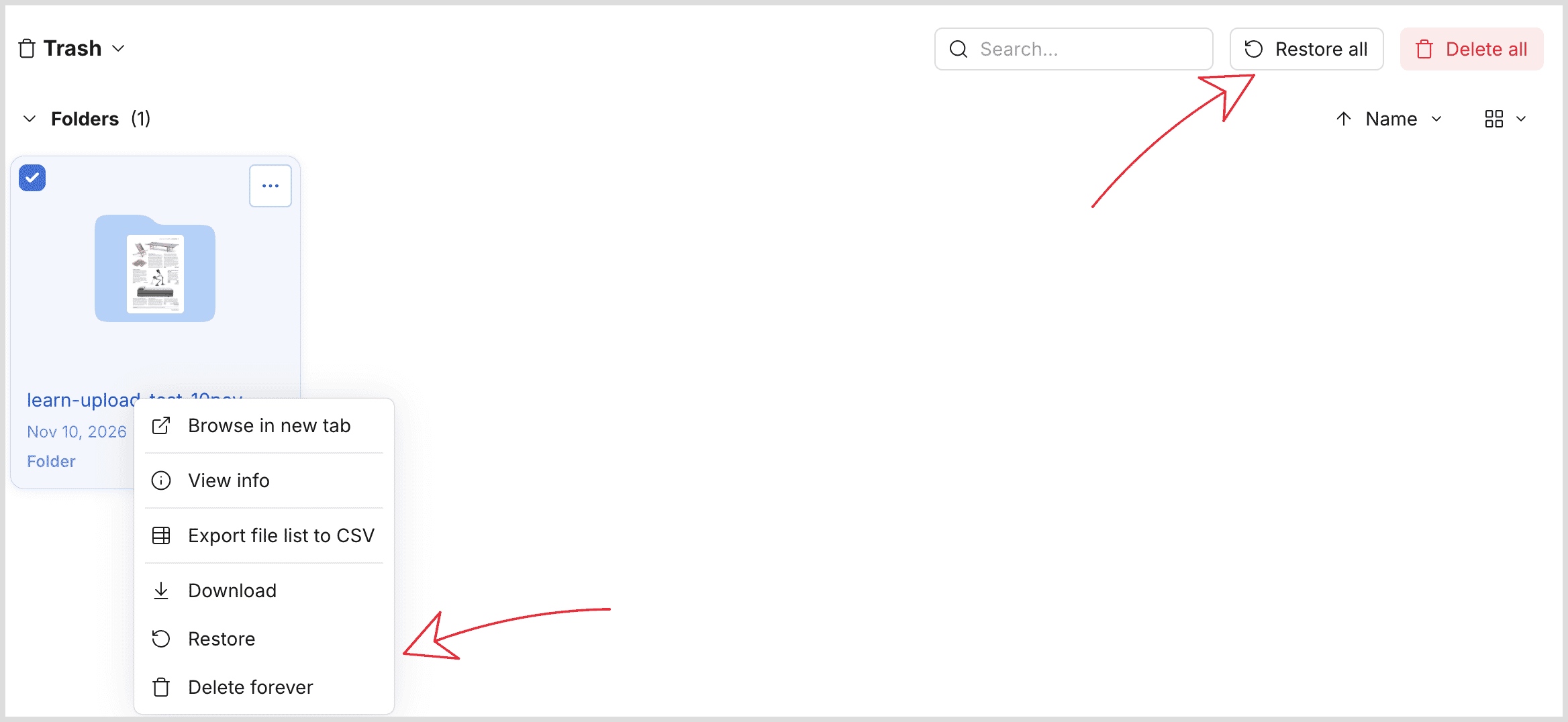
You can tick several files and folders, then click “Restore” in the bar at the bottom of the page.
You can also use FTP to drag the file out of the Trash to wherever you would like to store it.
Permanently deleting files
Section titled “Permanently deleting files”To delete a file from the Trash, right-click it and click “Delete forever”. “Delete all” at the top empties the whole Trash. Either way, the files are permanently deleted.
Deleting files from Trash will not reduce your storage usage, because files in the Trash are not counted.
Permission to delete files
Section titled “Permission to delete files”Only account owners and admins have complete rights to delete files, empty Trash in the Sirv web app or by FTP.
To protect files against erroneous moving or deletion of files, ensure that users have the most appropriate roles for their needs - refer to the table of roles and permissions.
Also consider upgrading to an Enterprise plan to take advantage of folder lock, to further protect against accidental deletion/modification of folders/files.
Delete files with the API
Section titled “Delete files with the API”You can build automatic file deletion into your workflow by using the Sirv REST API: