Why aren't my Sirv images showing?
 Answered by Jake Brumby, Customer Success DirectorLast checked 20 Nov 2026
Short answer
Open the image URL on its own in a browser tab. If it loads, something on your page is blocking it, often a script. If it doesn't, the error code tells you why: 403 means the account is frozen or the site isn't allowed, 404 means there's no file at that path, and 415 means Sirv can't process the file.
If images from Sirv are missing on your site, first find out whether the problem is the image or your page.
What do I do now?
-
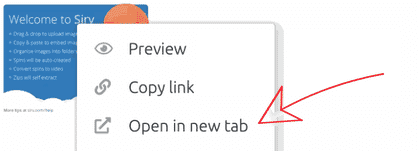
Open the image on its own in a new browser tab: right-click the file in your Sirv account and choose “Open in new tab”.
-
If the image opens, the problem is on your page. Look for red errors in your browser’s Console.
-
Images with
class="Sirv"anddata-srcneed the Sirv JS script on the page. Without it, nothing loads:<script src="https://scripts.sirv.com/sirvjs/v3/sirv.js"></script><imgclass="Sirv"data-src="https://demo.sirv.com/look.jpg"alt="Model in a summer look"/> -
A lazy-loading plugin or theme script can also block Sirv JS, so turn them off one at a time.
-
If the image doesn’t open, the tab shows an error code. Each code has its own fix below.
-
A 403 error most often means the account is frozen: an invoice is 30 days overdue, or it stayed over its allowance.
Read how to fix a frozen account.
-
A 403 can also come from domain protection, which shows images only on the domains you listed. Add any new one.
-
A 404 error means there’s no file at that path. The folder and file name must match the URL exactly:
Shoe.jpgandshoe.jpgare different. -
A file deleted in the last 30 days can be restored from the Trash.
-
A 415 error means Sirv has the file but can’t process it. To see what Sirv thinks the file is, add
?infoto the URL. -
Usually the upload stopped part way, or the file isn’t the type its name says. Upload the original again, under 33.55 MB.
What if the image still doesn’t show?
Check status.sirv.com, which shows any incident on Sirv’s 24 CDN locations.
If you replaced a file and still see the old one, reload the page with the browser cache cleared.
To show a placeholder instead of an error, set a fallback image.
If none of this helps, send Sirv support the image URL and the page where it’s missing.
Still stuck?
Our support team replies within 24 hours. For plans and pricing, talk to sales.
Was this answer helpful?