



Short answer
Put the product on a turntable, fix the camera on a tripod, and take 24 or 36 photos, turning the product the same step each time. Upload the photos to an image CDN such as Sirv, which joins them into one spin file. Then paste two lines of code that load the spin viewer on your product page.
After reading this you will know
- What equipment you need, and what you can skip
- How many photos to take, and what that does to load time
- Which camera settings keep every photo matching
- How to turn the photos into a spin shoppers can drag
- Which mistakes make a spin wobble or flicker
What equipment do you need to shoot a 360 product photo?
You need a turntable, a tripod, a camera or smartphone, and two soft lights. A white backdrop and a remote shutter help, but you can start without them.
A manual turntable with degree marks is enough for a handful of products. A motorized one that also fires the camera saves hours on a large catalog.
Any camera works if you can lock exposure, white balance and focus, including most recent phones in their “Pro” mode.
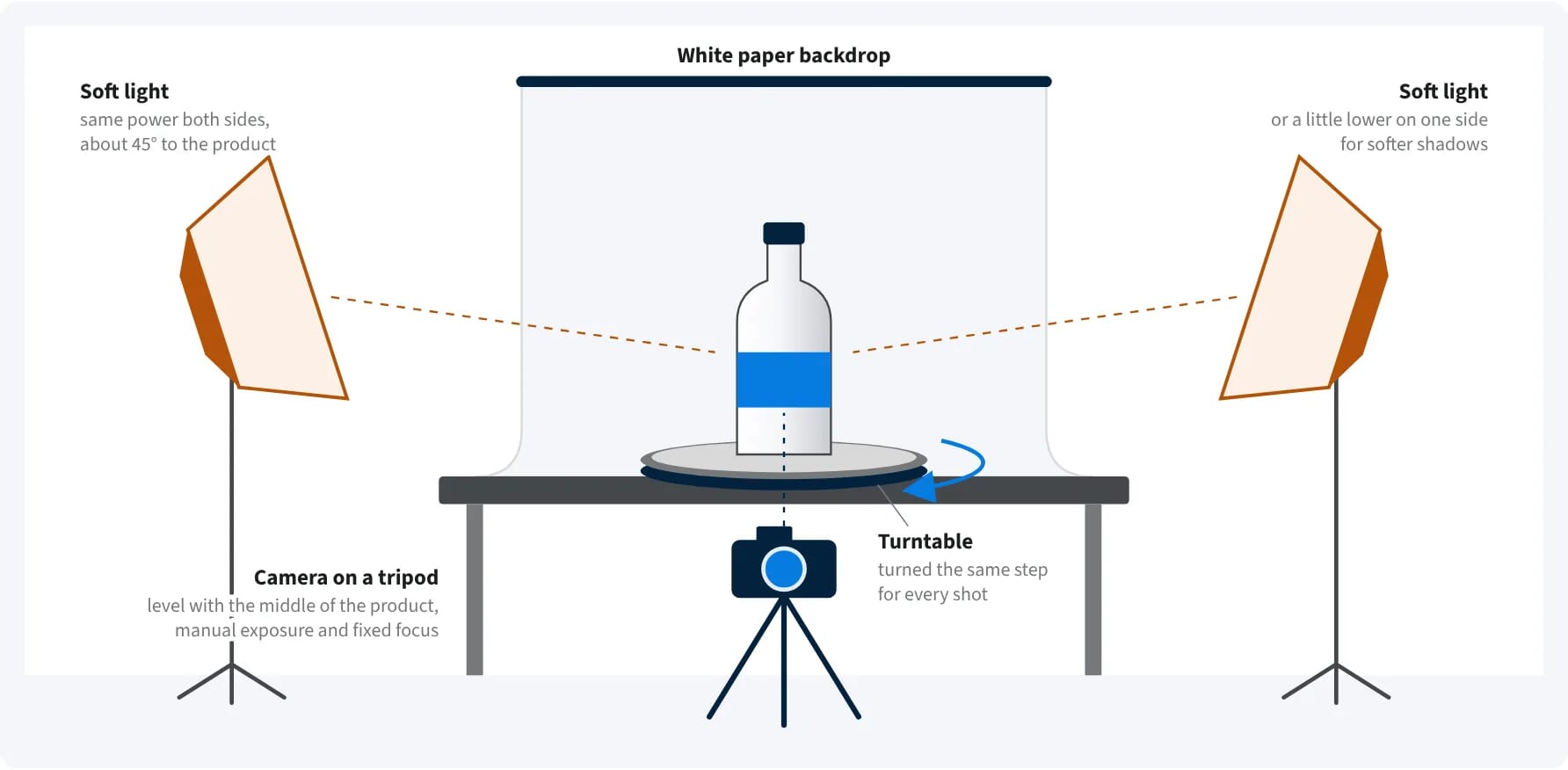
The camera, lights and settings stay the same for every photo. Only the turntable moves.
How many photos should you take for a smooth 360 spin?
Take 36 photos, one every 10°, for most products.
Take 24, one every 15°, for simple shapes or when page speed matters most, and 72, one every 5°, for watches, jewelry and other detailed products.
Each extra photo makes the turn smoother and adds to the download, and our own test further down shows how much. Sirv accepts 8 to 1,000 photos in one spin.
| Photos per turn | Turn between shots | Good for |
|---|---|---|
| 24 | 15° | Simple shapes such as boxes, bottles and shoes |
| 36 | 10° | Most products |
| 72 | 5° | Watches, jewelry and products with fine detail |
The skateboard below comes from one of Sirv’s 72-photo demo spins. A 36-photo version of it would use every second photo, and a 24-photo version every third.
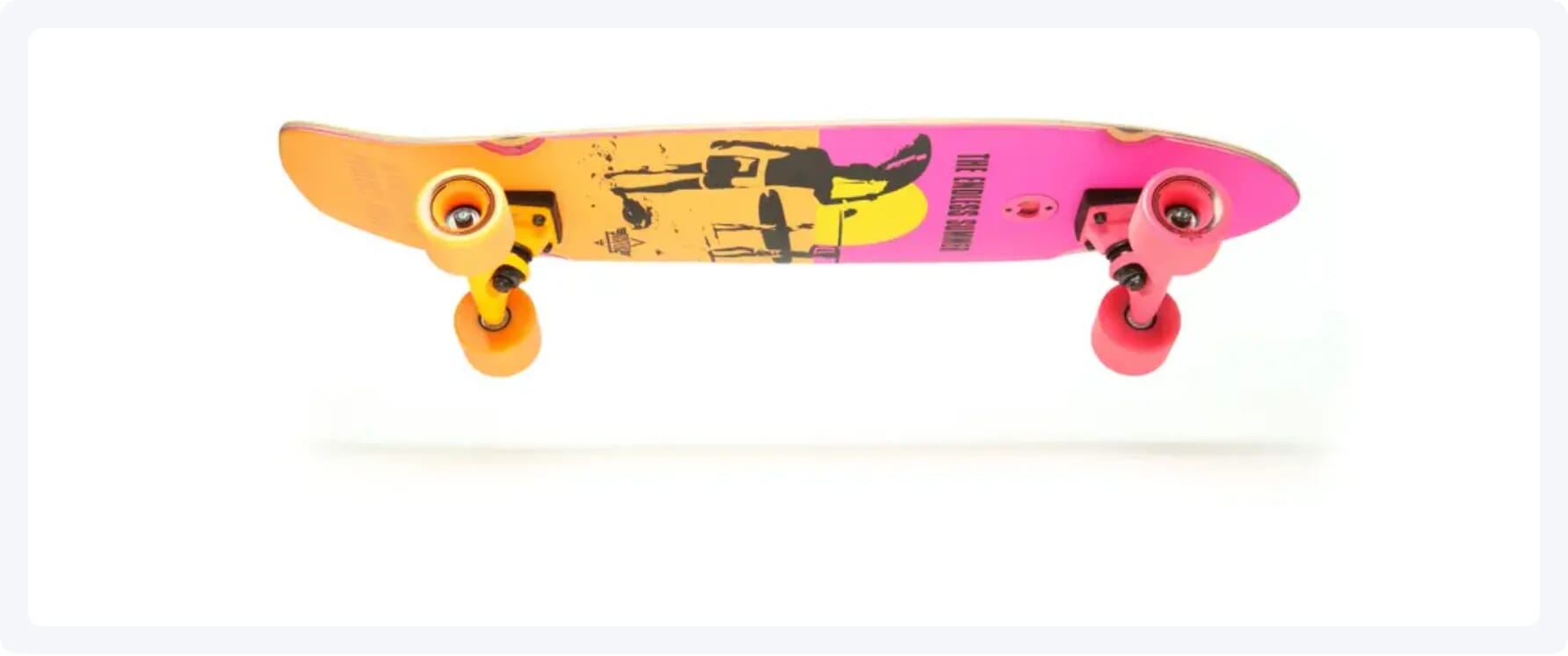
With 24 photos the board jumps 15° at a time. With 72 it moves 5° at a time, but you shoot and upload three times as many files.
Photos: Sirv’s skateboard demo spin (demo.sirv.com/skateboard/skateboard.spin), 72 photos at 800 × 400 px, 595 KB in total as WebP. This spin turns the board over as well as around.
For most products, start with 36 photos and move to 72 only when shoppers need to see fine detail as the product turns.
How do you set camera settings and lighting for 360 photography?
Set the camera to manual exposure, a fixed white balance and manual focus, and light the product with two matching soft lights, so nothing changes from one photo to the next.
In auto modes the camera measures every shot again, and the spin flickers as the product turns.
| Setting | Starting value | Why |
|---|---|---|
Mode | Manual (M) | Brightness stays the same in every photo |
Aperture | f/8 to f/11 | The front and back of the product are both sharp |
Lens | 50 mm or longer (full-frame equivalent) | Less distortion as the product turns |
ISO | 100, or the lowest your camera has | Least noise |
| Shutter speed | 1/125 s, then adjust for brightness | Any speed is sharp on a tripod. With flash, stay at or below your camera’s flash sync speed, often 1/200 s |
| White balance | A fixed value that matches your lights, such as 5500 K for daylight LEDs | Colors stay the same as the product turns |
Focus | Manual, set once on the front of the product | The lens doesn’t refocus between photos |
Lighting | Two soft lights at about 45°, same type and power | Even light without hard shadows |
| Camera height | Level with the product, or 5 to 15° above it | The most common angle in Sirv’s spin photography brief |
Framing | 5 to 10% space between the product and the nearest edge | The product stays in frame through the whole turn |
| Photos per turn | 24 or 36 | See the table above |
Export | JPEG at quality 92, sRGB, 2,500 to 4,000 px wide | Enough detail for zoom. Sirv makes the smaller sizes |
Image width from Sirv Spin documentation. Angle, framing, JPEG quality and color space from Sirv’s spin photography brief. Camera values are starting points, so shoot a test turn before the full set.
Turn off room lights and keep daylight out, because window light changes while you shoot. Then shoot a test turn of 8 photos and check that the product stays in the same spot.
How do you convert individual frames into an interactive 360 spin viewer on your website?
You upload the numbered photos to a viewer that shows one photo at a time and swaps them as the shopper drags. Name the files in order first, for example shoe-01.jpg to shoe-36.jpg.
Then pick a route. You can write your own script that swaps images on drag, and handle image sizes, loading and zoom yourself.
Desktop 360 software exports a viewer that you host on your own server. A hosted service such as Sirv builds the spin from your upload and serves it from a CDN.
On Sirv, upload the photos into one folder and Sirv creates a .spin file for that folder automatically. File names need numbers that go up in order (How to create a 360 spin file).
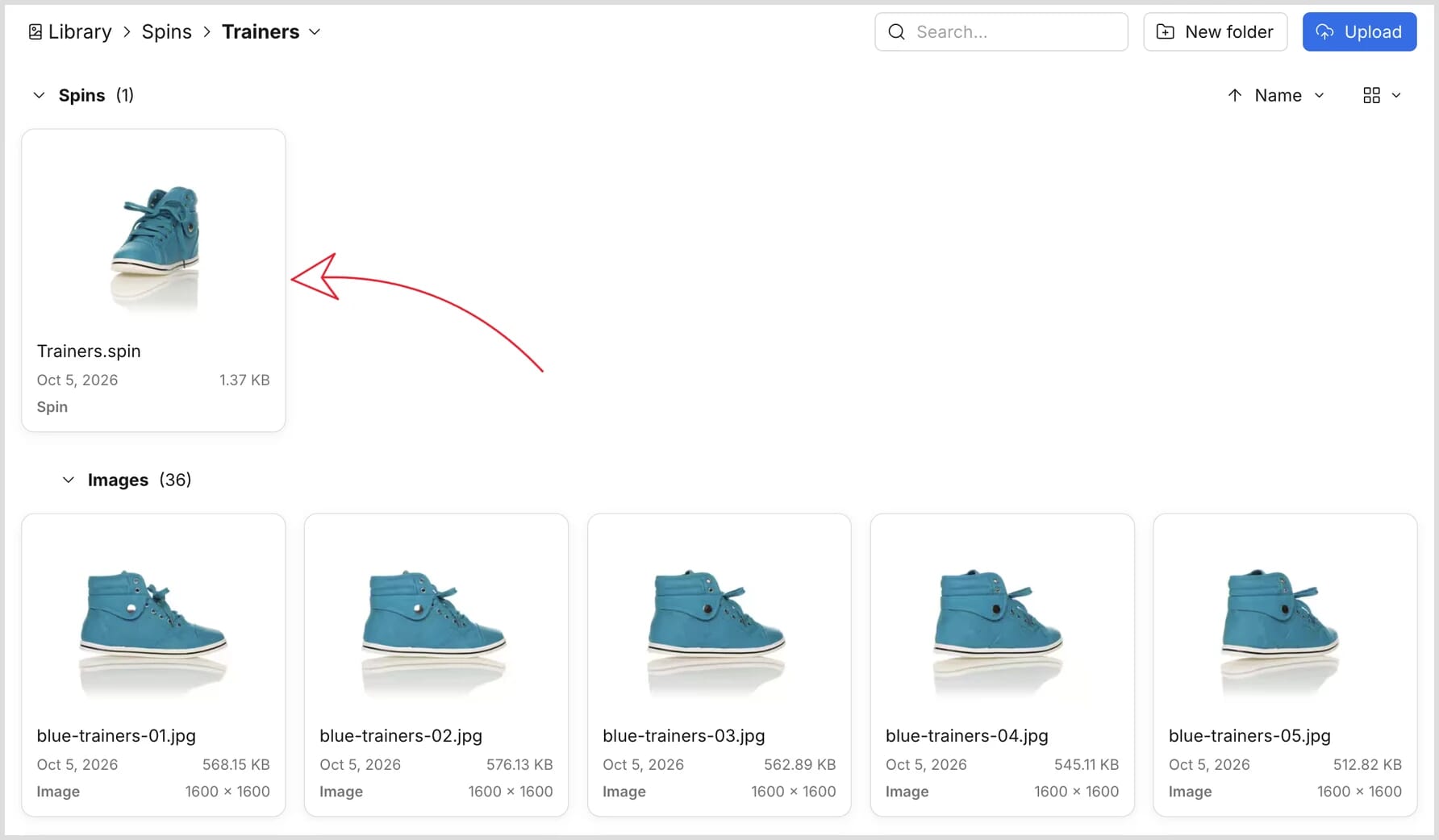
A folder of 36 numbered photos, and the Trainers.spin file Sirv made from them.
To show it on your site, open the spin’s menu in Sirv, choose Embed and copy the code, or paste this code with the address of your own .spin file in data-src:
<script src="https://scripts.sirv.com/sirvjs/v3/sirv.js" async></script><div class="Sirv" data-src="https://demo.sirv.com/tshirt-aqua.spin"></div>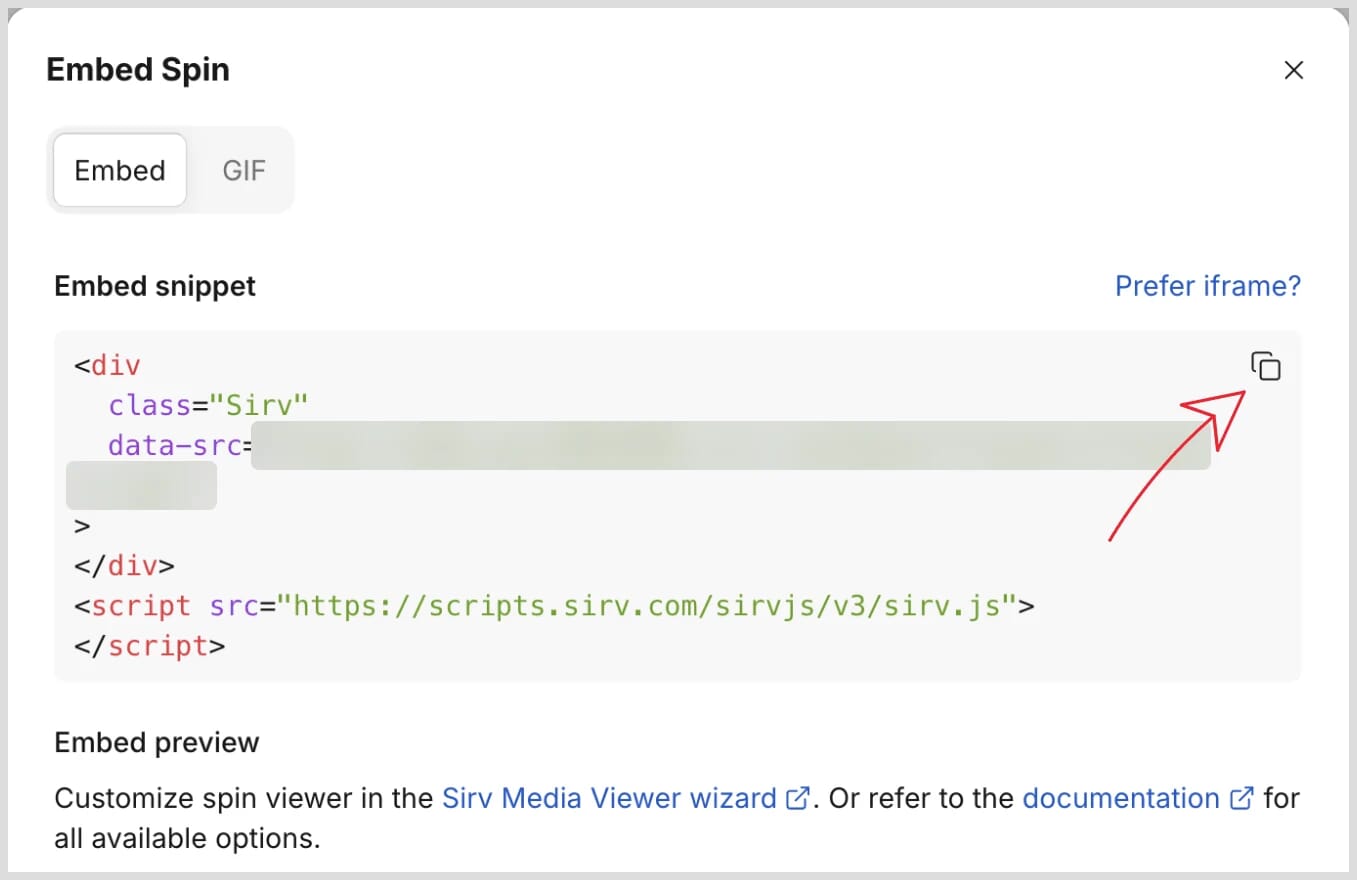
The Embed Spin window in Sirv, with the embed code ready to copy.
Add the script once per page and one div per spin. The async word lets the page keep loading while the script downloads.
On WordPress, WooCommerce, Magento and PrestaShop, Sirv’s plugins add spins without code. For Shopify, follow Sirv’s Shopify guide.
How does Sirv host, combine, and serve 360 product spins without slow load times?
Sirv joins your uploaded photos into one .spin file, sends only the first photo until the spin scrolls into view, and then sends the rest at the size and format each screen needs (Sirv 360 spin documentation).
Sirv resizes each photo on request, rounding the width up to the nearest 100 px so more requests come from the CDN cache.
Browsers get AVIF or WebP where they support it, from the nearest of 24 CDN locations.
We tested this on 28 Oct 2026 with three of Sirv’s demo spins, shown 600 px wide in Chrome with an empty cache.
Every photo arrived as AVIF and had loaded within 3 seconds of opening the page. With the spin placed lower down the page, only the first photo loaded until we scrolled to it.
| Demo spin | Photos | Downloaded |
|---|---|---|
| T-shirt | 24 | 320 KB |
| Drill | 36 | 563 KB |
| Skateboard | 72 | 340 KB |
Sirv test, 28 Oct 2026: demo.sirv.com/tshirt-aqua.spin, drill/drill.spin and skateboard/skateboard.spin, median of 3 loads at 600 px wide.
The product matters as much as the photo count. The 72-photo skateboard came to less than the 36-photo drill, because plain white space compresses well.
On a Retina screen the viewer asked for photos twice as wide, 1,200 px, and the T-shirt spin came to 569 KB.
The T-shirt spin from our test, embedded with the two lines above. Shoppers drag to turn it.
What are the most common 360 photography mistakes to avoid?
Most problems come from something changing between photos, such as the camera position, the light or the focus. The other common one is taking too few photos.
- A product that sits off-center swings from side to side, so mark the turntable center.
- Auto exposure or auto white balance shifts brightness and color, and the spin flickers.
- One bump of the camera moves every photo after it. Use a remote shutter or a 2-second timer.
- Turning by eye gives uneven steps, so the spin speeds up and slows down.
- With fewer than 24 photos, most products turn in visible jumps.
- Photos edited one by one stop matching. Edit the set as one batch.
Once the basics are right, shadows, reflections and the background color can make a spin look more polished. Sirv’s blog has 5 simple ways to improve your 360 spins.
What should you check from shoot to publish?
Check the setup, a test turn, the edited photos and the live spin, in that order, before you move to the next step.
| Step | Done when |
|---|---|
| 1. Clean the product and mark the turntable center | The product sits on the mark, free of dust and fingerprints |
| 2. Set up the backdrop and two soft lights | Room lights are off and no daylight reaches the product |
| 3. Fix the camera on the tripod | The product fills the frame with 5 to 10% space at the edges |
| 4. Set manual exposure, white balance and focus | A test photo looks sharp and even at 100% zoom |
| 5. Shoot an 8-photo test turn | The product stays in the same spot in every photo |
| 6. Shoot the full set, 24 or 36 photos | The file count matches your plan |
| 7. Edit all photos as one batch | Crop, color and brightness match across the set |
| 8. Export numbered JPEGs | shoe-01.jpg to shoe-36.jpg, at least 2,500 px wide |
| 9. Upload the folder to Sirv | A .spin file appears in the folder |
| 10. Paste the embed code and test on a phone | The spin turns smoothly when dragged |
Once the first spin works on a phone, keep the same tripod marks and settings for the next product. Every spin in your store will then match in size and framing.
Was this article helpful?