Using Sirv on WordPress - Installation and configuration
 The standard media options for WordPress websites can be quite limiting. The Sirv plugin changes that, giving you instant control over your media library, helping you deliver images perfectly optimized for the web. Sirv removes the hassle of image management, with a single media library to embed images anywhere online (not just in WordPress). With WooCommerce support, you can leverage Sirv's most powerful features: amazing 360 spins, multiple image zoom effects and product videos to help you increase sales.
Install Sirv on WordPress
Simply install the plugin from your WordPress admin, with the following steps. Alternatively, download the zip from our official WordPress CDN plugin page. 1. Go to the Plugins section of your WordPress admin and click "Add New": 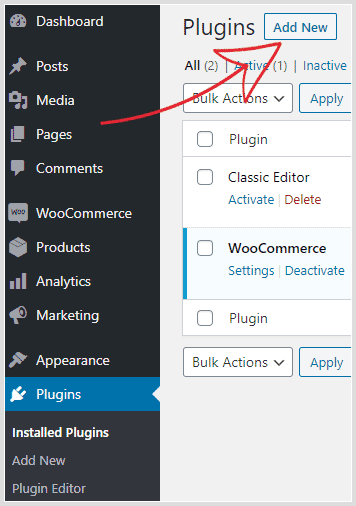 2. Search for "Sirv":
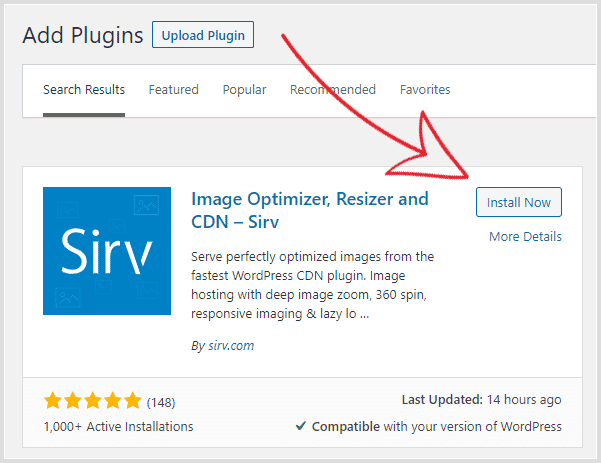
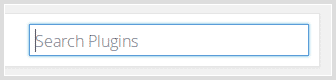 3. Install and then activate the plugin:
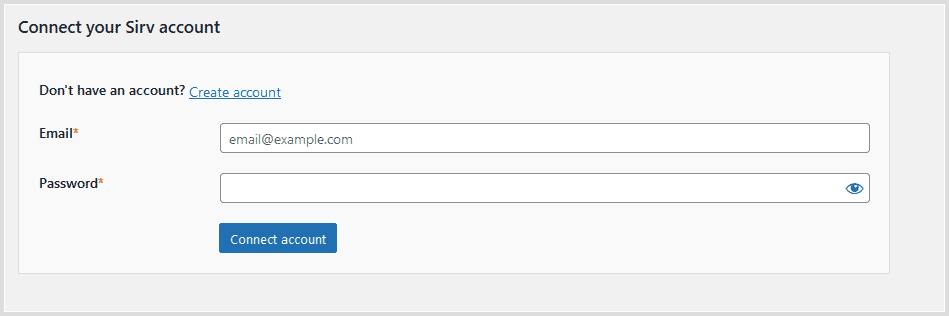
 4. Go to the "Settings" page for Sirv:

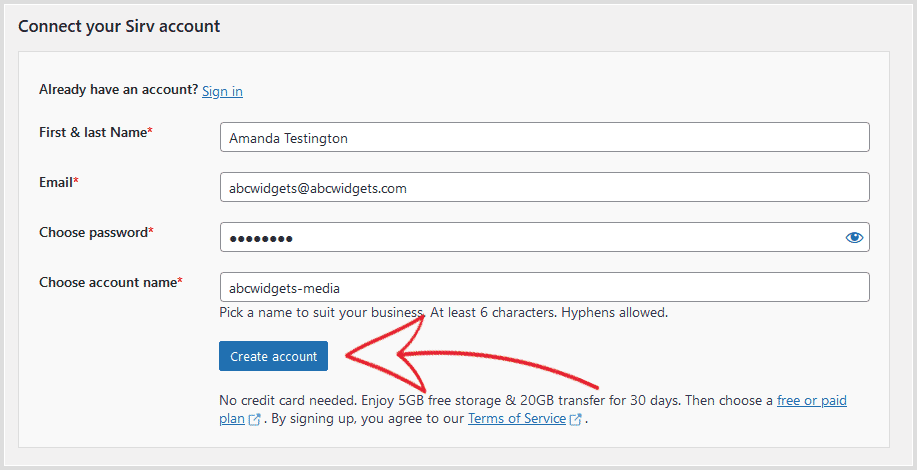
Configure Sirv for WordPress
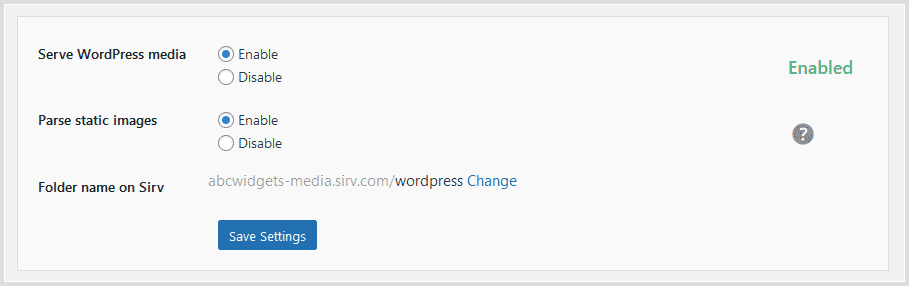
Enable Sirv
To start serving WordPress media with Sirv, enable it in the settings. Sirv will automatically fetch images from your server, when they are requested. It's very fast - each image usually syncs within 1 second - but if your server is slow, the initial load for the first ever user might feel delayed. To avoid this, run a manual sync for the perfect user experience.
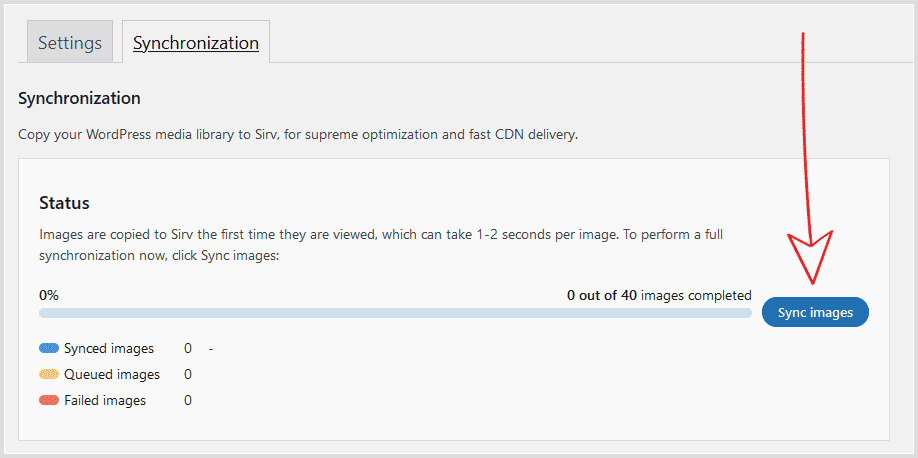
Sync your media library with Sirv
Synchronize your media library in advance, for a faster user experience:
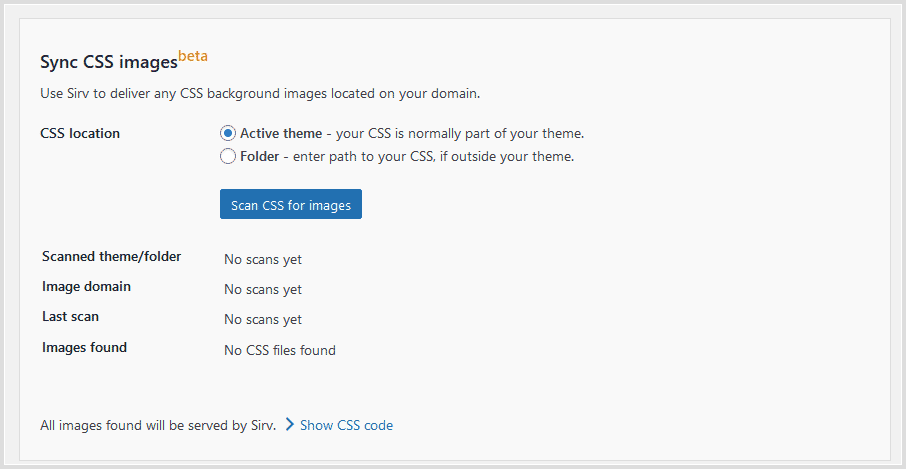
Sync your theme files with Sirv
If you'd like to speed up the delivery of your theme files too, you can sync CSS images with Sirv. Choose the active theme or a folder for Sirv to scan for the images.
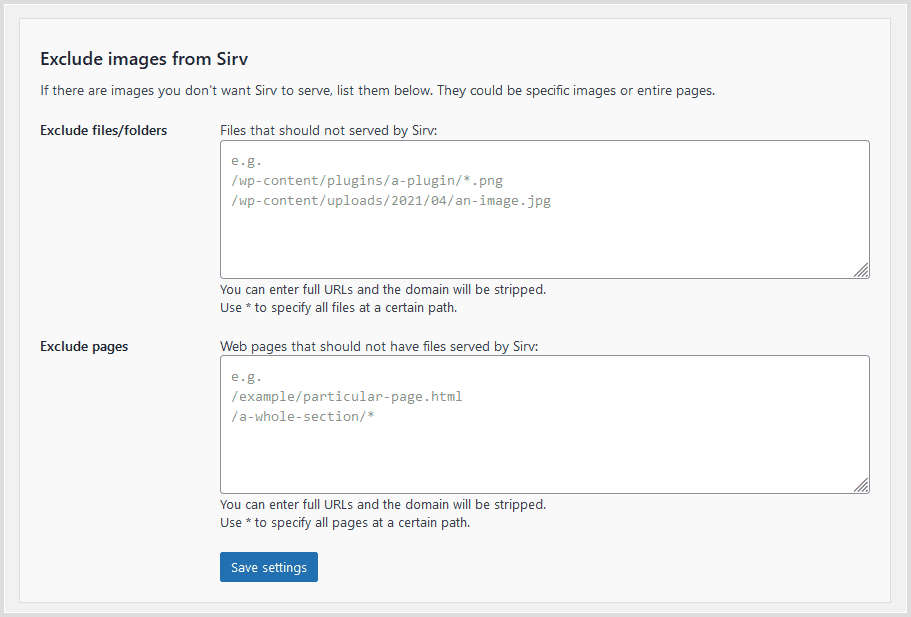
Exclude files from Sirv
If you don't want some images to be served by Sirv, you can exclude them:
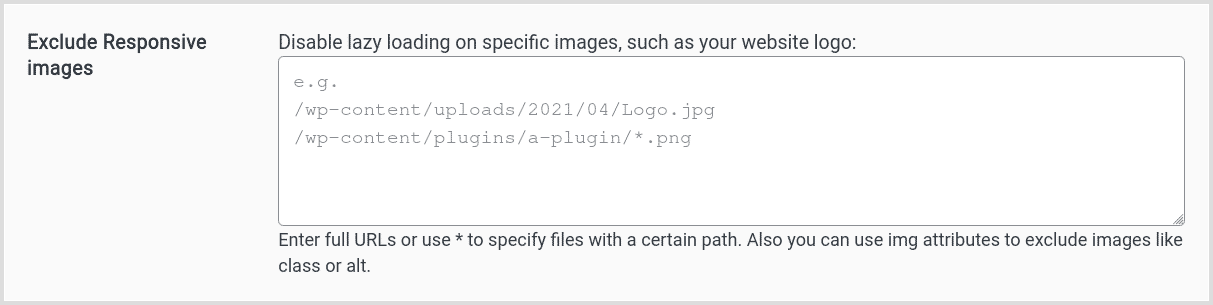
Disable lazy loading and responsive scaling
Sometimes you may want to serve an image from Sirv CDN but not apply automatic scaling and lazy loading from Sirv JS. There are multiple ways to disable lazy loading and image scaling:
- URL - simply add the path to the image, starting with a forward slash and the WP folder e.g. /wp-content/uploads/....
- URL + wildcard - add the image path, with a * character to exclude images in a certain folder or with a certain file name pattern. For example, this would exclude all PNG images in the Example folder /wp-content/uploads/Example/*.png.
- img attribute - exclude files with a particular class, alt or data in the img. For example, MyLogo would exclude this image
 .
Choose how to load Sirv
Sirv JS is responsible for lazy loading, responsive imaging, and Sirv media (spin, zoom, video). You have several options to choose from on how to load it.

Custom domain
During registration, you have the option to choose a custom Sirv sub-domain that will be associated with your account, like abcwidgets.sirv.com. If you'd like to use your own domain, for example - media.abcwidgets.com, follow these instructions.
Make use of custom profiles
Sirv has a neat feature called profiles, which allows you to change your image settings in bulk. You can apply different settings (quality, watermarks, overlay text and many more) to your images, as well as any other Sirv shortcodes you create:

Image optimization
The Sirv plugin automatically serves as many images as possible. The number of best-practice optimizations depends on the source of the image:
| Optimized | Next-gen formats | Scaled | Lazy loaded | CDN | |
|---|---|---|---|---|---|
| Synced images |  | | | | |
| Parsed images | | |  | | |
| CSS background images | | | | | |
| Sirv Media images | | | | | |
Filter items in the product gallery
Many options existing for configuring a Sirv media gallery on your WooCommerce product page. If you need even greater control of the gallery, that is also possible, by adding a filter to add, remove or modify items.
This technique requires a script which should be written by a web developer. In general:
apply_filters("sirv_pdp_gallery", array $items, int $product_id )
In that filter, $items should be an array of objects and $product_id should be the WooCommerce product ID (integer).
Items in the gallery can be any of these values:
- image
- spin
- video
- model
- youtube
- vimeo
Each item has these fields:
- url - item URL e.g. https://demo.sirv.com/tshirt-aqua.spin or https://demo.sirv.com/video.mp4
- type - item type: image, spin, video, model, online-video, wc_placeholder_image
- provider - where file is hosted: Sirv or WooCommerce
- viewId - WooCommerce product ID or variation product ID
- caption - item caption (empty by default)
- order - order of item in the gallery thumbnails
Except for videos from YouTube or Vimeo, which have some differences:
- url - URL of image thumbnail for the video
- videoID - video id e.g. svK_DnHu-7I
- videoLink - URL of video page e.g. https://www.youtube.com/watch?v=svK\_DnHu-7I
Example:
add_filter("sirv_pdp_gallery", "callback_func", 10, 2);

function callback_func($items, $product_id){
  //do something with items
  return $items;
}
In some cases, the WooCommerce placeholder wc_placeholder might be the first item in the gallery. That placeholder should have item type wc_placeholder_image. If you want to modify the gallery, you may wish to remove the placeholder by checking if wc_placeholder_image is the first item, so you can remove it.
The order field can be filled with 0. After applying the filter, the order will be recalculated.
Product CSV export
The Sirv plugin saves meta information into a database, to track which images are associated to which products. This data can be seen in the WooCommerce product export CSV. The plugin adds these meta fields:
- sirv_woo_product_image - Image URL of the Sirv product image.
- sirv_woo_product_image_attachment_id - Attachment ID for each image URL.
- _sirv_woo_gallery_data - Data about Sirv assets in the product gallery, (JSON string).
- _sirv_woo_viewf_status - Parse status of whether .view request returned an image.
- _sirv_woo_viewf_data - Data about the last attempted .view request (JSON string).
FAQ
\
Help from a Sirv expert
If you have any questions about how to use the Sirv for WordPress plugin, please contact our support team from your Sirv account.