Using the Sirv extension for Magento (and Adobe Commerce)
The Sirv CDN extension for Magento (also called Adobe Commerce) is the best way to optimize and deliver your images rapidly. It can also replace your default media gallery with Sirv Media Viewer, to conveniently showcase 360 spins, videos and zoomable images.
Use the Sirv CDN extension to:
- Optimize product images, WYSIWYG images, JS, CSS and static files.
- Deliver these files rapidly in next-gen formats (e.g. WebP) from Sirv's CDN.
- Resize images on-the-fly and lazy load them.
- Use Sirv Media Viewer for 360 spins, product video & image zoom.
Learn more about the Magento CDN extension key features.
Installation
- Install the extension using composer:
    composer require sirv/magento2
    php -f bin/magento setup:upgrade
    rm -rf var/generation
    php -f bin/magento setup:di:compile
    php -f bin/magento setup:static-content:deploy
- Or download the Sirv Magento 2 extension as a zip, copy files to the server and install it from the command line:
    php -f bin/magento module:enable Sirv_Magento2 --clear-static-content
    php -f bin/magento setup:upgrade
    rm -rf var/generation
    php -f bin/magento setup:di:compile
    php -f bin/magento setup:static-content:deploy
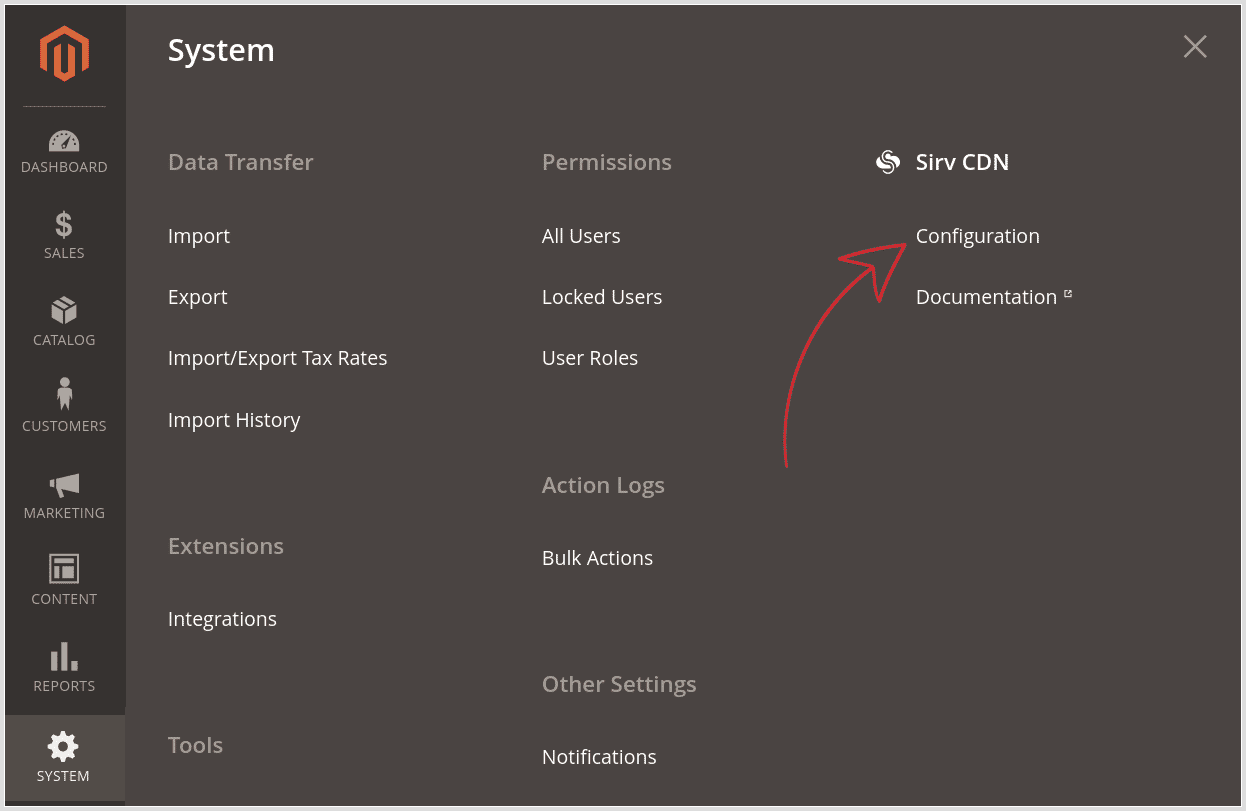
- Go to the Sirv extension options, via System > Sirv CDN > Configuration:
![Sirv Settings navigation]()
- Log in to an existing Sirv account or create a new one:
![Magento Sirv registration]()
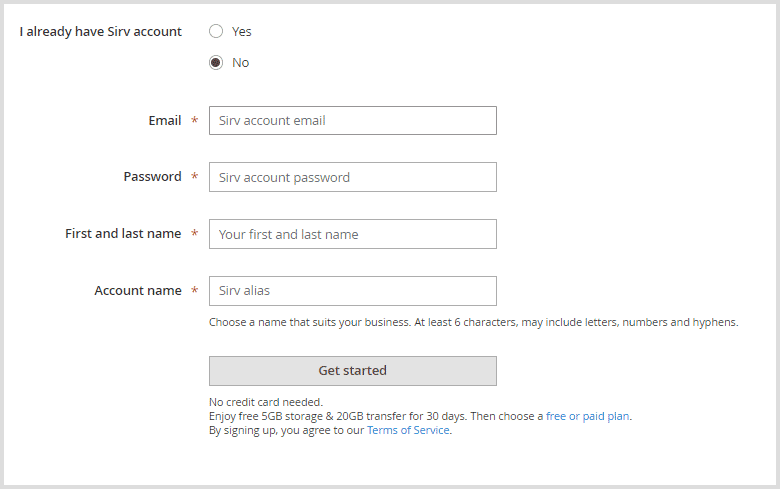
You'll receive 5 GB storage and 20 GB bandwidth for 30 days. After your free trial expires, you may choose either a paid plan or a free one (500 MB storage, 2 GB bandwidth and branding on Sirv Media Viewer).
How to set up your CDN in Magento 2
- Enable Sirv on the configuration page:Click to view all the settings (screenshot).
![Sirv settings in Magento 2]()
- Enter a folder name where images should be copied to, or keep the default name.
![Choose folder name for Magento image sync]()
- Choose to serve JS, CSS and associated files. If Sirv serves your JS, CSS and static files too, they will be minified and delivered rapidly from Sirv's CDN, benefitting from HTTP/2 and TLS 1.3.
![JS & CSS file CDN for Magento 2]()
- Enable lazy loading, to load images only when they enter in the viewport and to scale images to the correct dimensions:
![Enable Magento lazy loading images]()
- Choose a profile (optional):Profiles are one of Sirv's powerful features, to apply transformations to images. You can tweak image quality, format, text overlays, watermarks and many other options, without altering your original images.
![Profile optons in Magento 2]()
- Click the "Save Settings" button:
![Sirv M2 extension save settings button]()
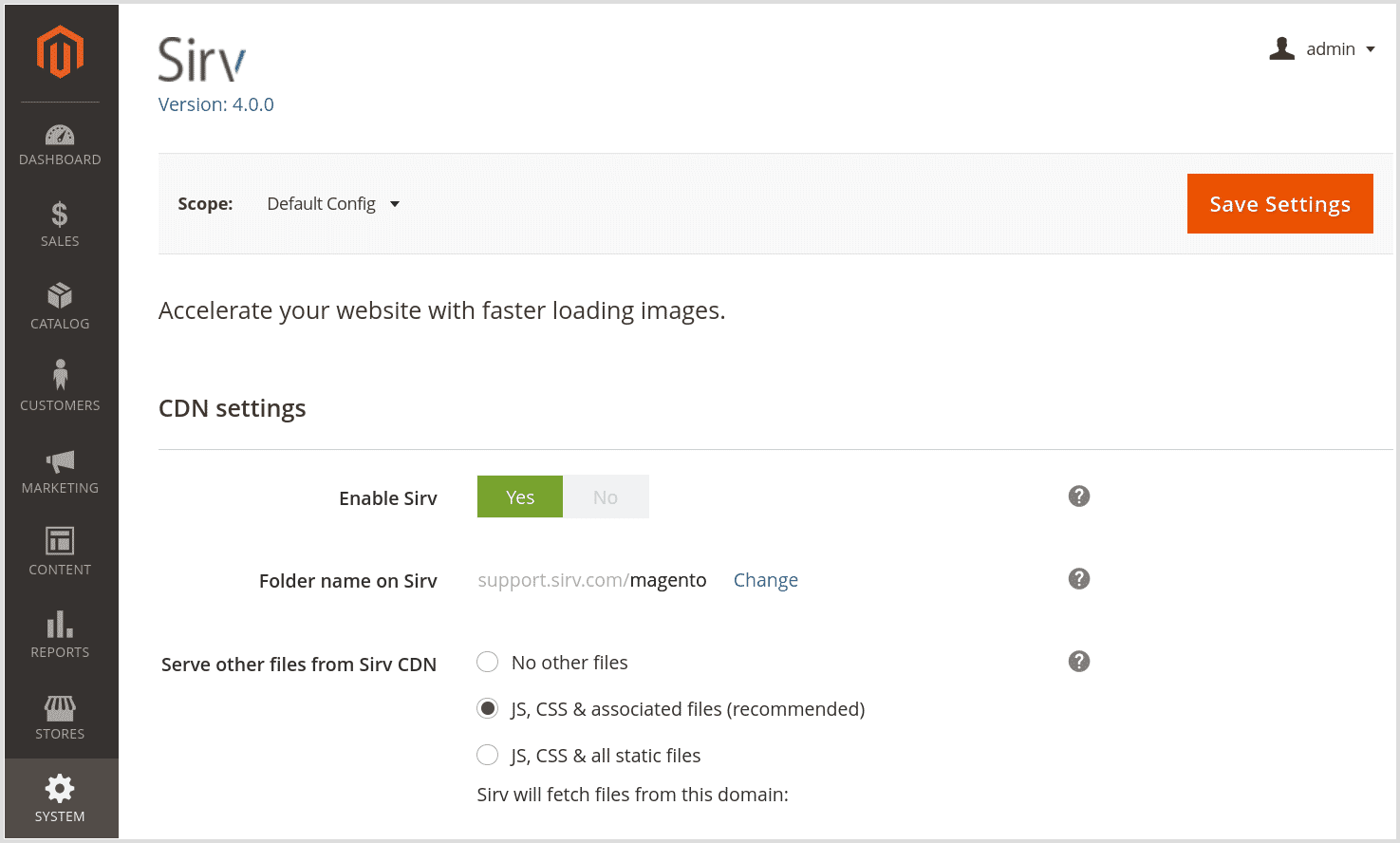





Refresh your Magento page cache after modifying settings, to ensure you see the latest changes.
Congratulations, Sirv is now running on your Magento store! Enjoy the best possible image optimization, next-gen image formats and lightning-fast CDN page loading.
Image synchronization
Sirv will automatically copy your Magento images to Sirv, the first time they are requested. Visitors will receive images from Magento until they have synced, then future requests will be returned by Sirv - resized, optimized, cached and rapidly delivered from our Magento CDN.
The image sync status is shown on your settings page:
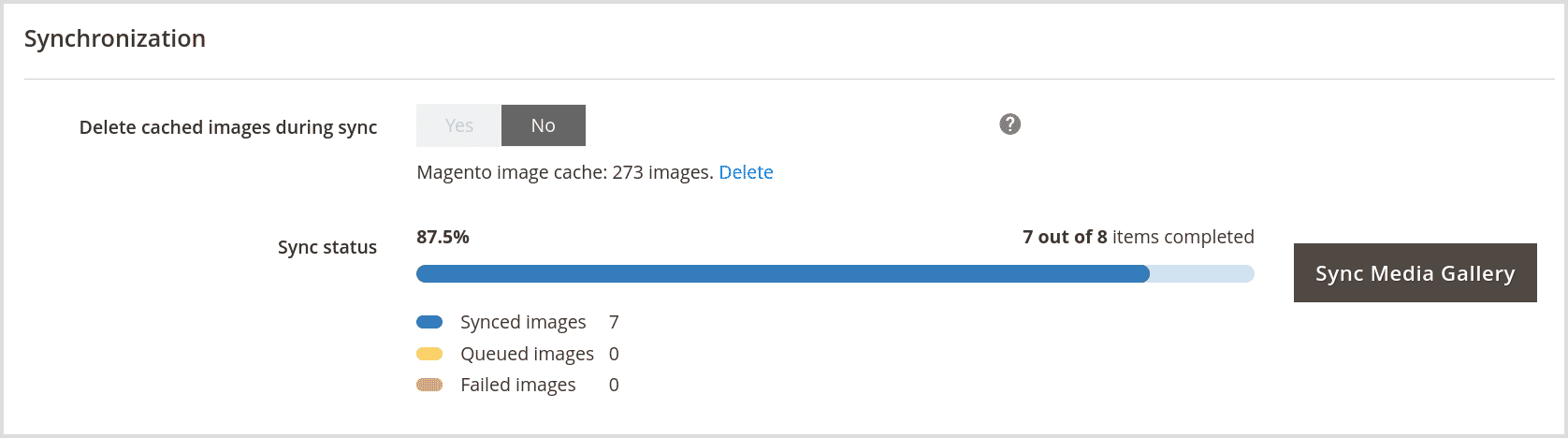
The Sirv CDN extension for Magento will automatically stay in sync by copying new images to your Sirv account upon first request. You can also pre-sync your entire media gallery. It's a heavy process, so not suitable when testing but great before going live, for fastest possible loading. Click the "Sync Media Gallery" button.
Sirv Media Viewer
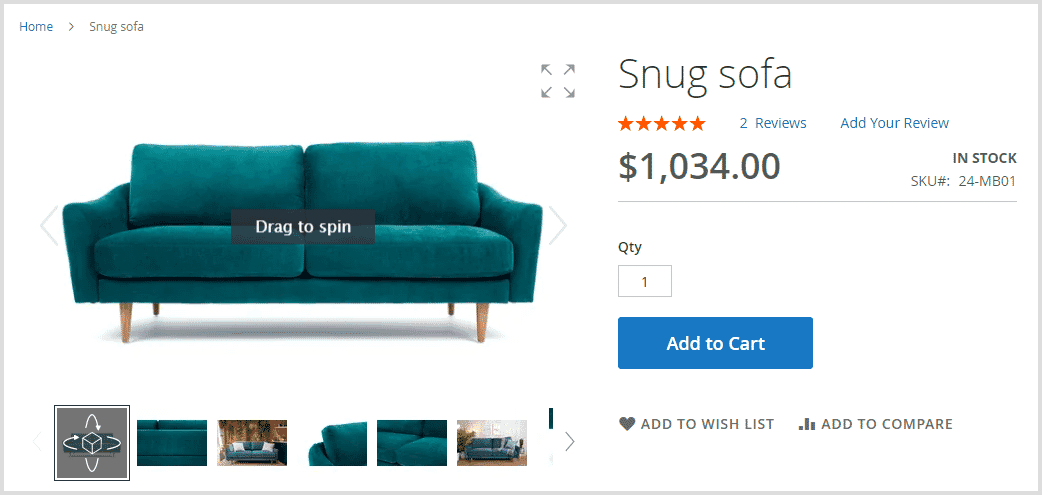
You can replace your default Magento product gallery with the sophisticated Sirv Media Viewer, enabling you to add 360 spins, videos and additional images to your product gallery. It's highly customizable, optimized for speed and provides an outstanding mobile experience. Here's a live demo:
How to add zoom, 360 spins and videos to Magento 2
- Choose the Sirv Media Viewer option:
![Sirv Media Viewer in Magento 2]()
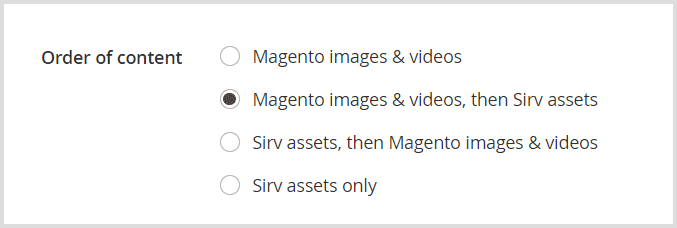
- Select the source for the media to be included in your gallery - either Magento, Sirv or both:Uploading directly to Sirv is popular because it's fast and easy. Unlike Magento, Sirv supports all types of media - 360 spins, streaming videos and 8 types of image zoom.
![Sirv Media Viewer order of content in Magento 2]()
- Select the folder naming convention that you will use to upload media directly to Sirv. Use either
{product-sku}or{product-id}convention:Create a master folder in your Sirv account, for example, a folder named 'products':![Sirv Media Viewer assets folder setting in Magento 2]()

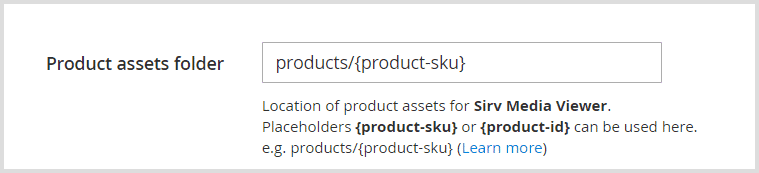
/products/
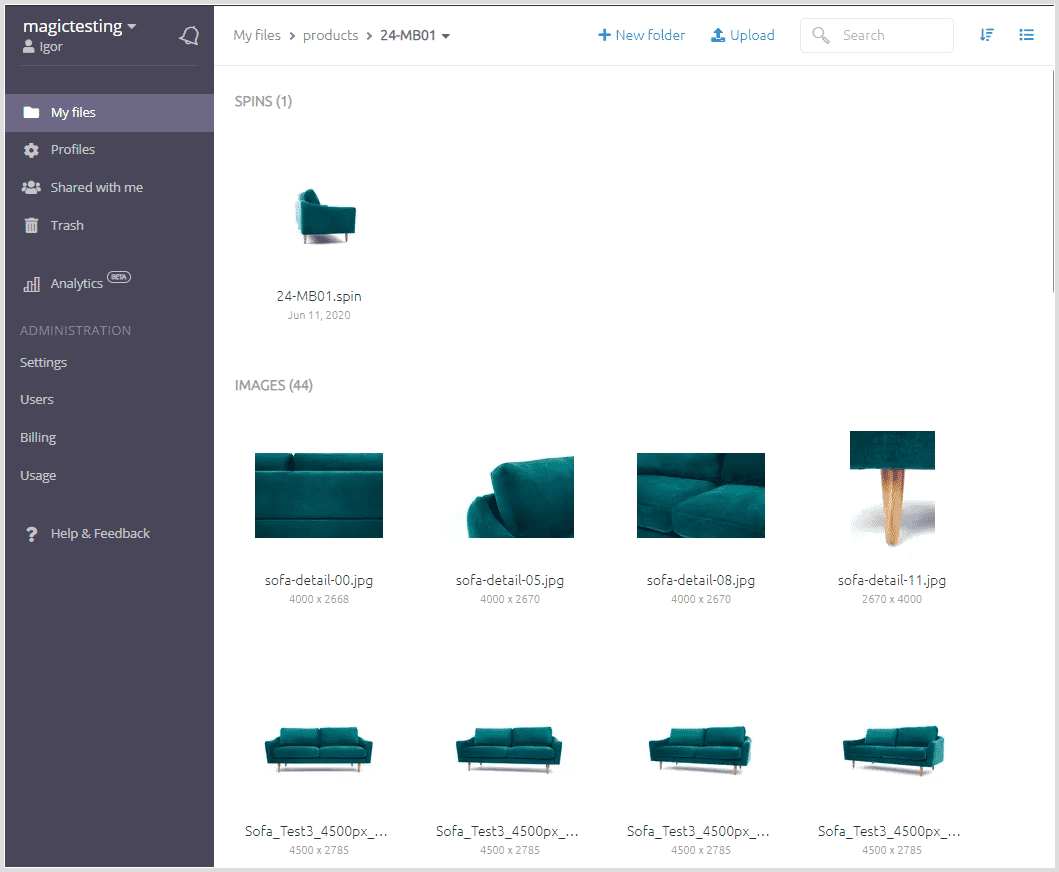
Then create subfolders for each product, naming each one to match your SKUs or product IDs. A product with SKU 24-MB01 would be:
/products/24-MB01/
Then upload the 360 spins, videos and images for that product, for example:
    /products/24-MB01/an-image.jpg
    /products/24-MB01/another-image.jpg
    /products/24-MB01/a-video.mp4
Use the Sirv REST API or the S3 API to upload and manage files programmatically.
Here's how the folder might look in Sirv:
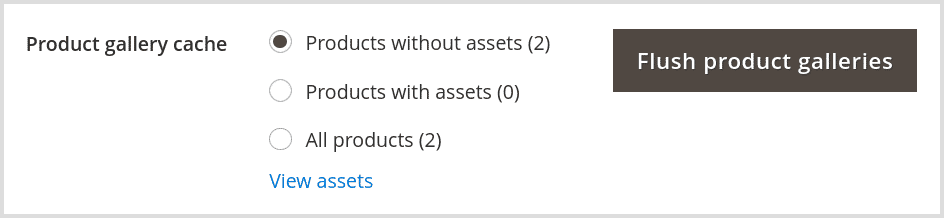
- Flush the asset info cache in Sirv settings and remember to refresh Magento's page cache too:
![Flush product asset cache]()
Job done! Here's how Sirv Media Viewer might look on the front-end:
Customization
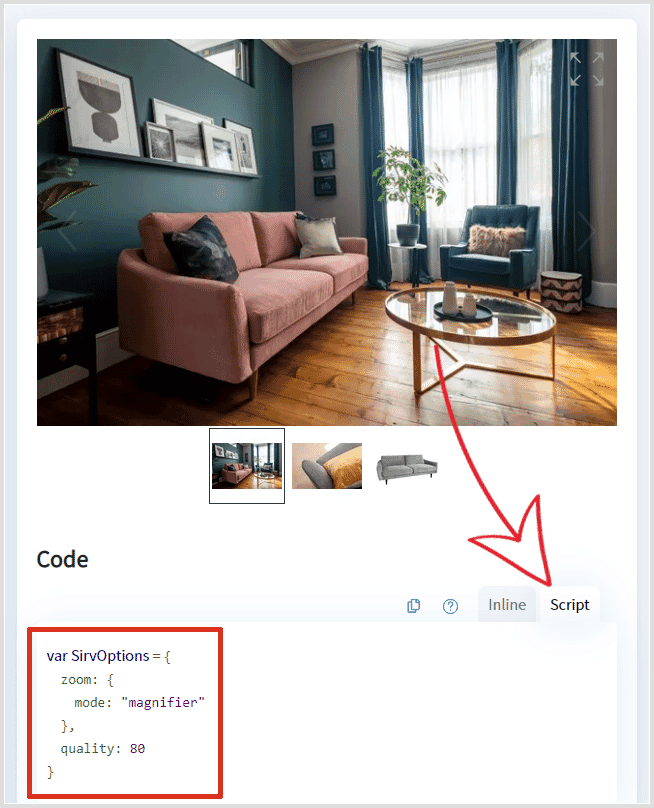
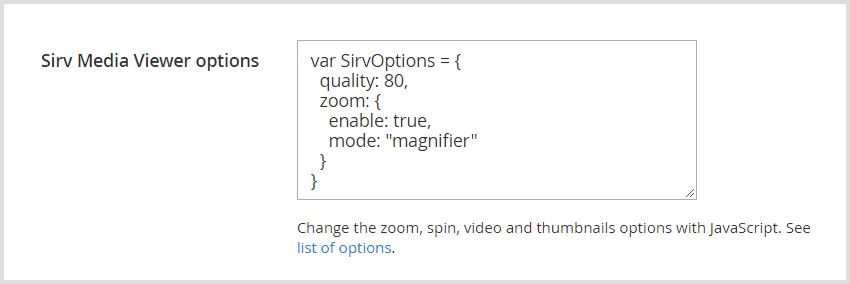
Sirv Media Viewer is very customizable. You can change plenty of zoom, 360 spin, video options, as well as viewer options. For really easy configuration, we've created a live interactive demo, for you to tweak every single option and copy the configuration code.
Localization
You can translate text into other languages by applying different settings per store view.
English language is used by default for hints and buttons. To change the language, use the interactive demo to choose your text, then copy and paste the settings into the Sirv Media Viewer options box for that store view.
The options below would change "Click to zoom" and "Hover to zoom" to French:
SirvOptions = {
  viewer: {
    zoom: {
      hint: {
        text: {
          click: 'Cliquez pour zoomer',
          hover: 'Survolez pour zoomer'
        }
      }
    }
  }
}
Multi Site
You can use the same Sirv extension on multiple websites when you're using Magento Multi Store. Some of the options can be configured per store, while other options will be shown on all stores. It depends how those assets are being added to the gallery. Your product gallery can have assets from 3 sources:
- Magento product images - images uploaded to your Magento library will be shown on all sites.
- Sirv automatic product images - images uploaded to the SKU folder on Sirv can either show on all sites or differently per site. To configure different rules per site, choose the folder path in the setting "Product folder names on Sirv". You can also use
{attribute:attribute_code}pattern to further customize each product and that pattern can use the Magento store e.g.{store_id:2}. - Manually added Sirv assets - if you manually add additional Sirv images/videos/spins/models to a particular product, those assets will be shown on any store that displays that product. If you need to manually add different assets for different stores (for the same SKU), please request this feature from the Sirv team.
Usage stats
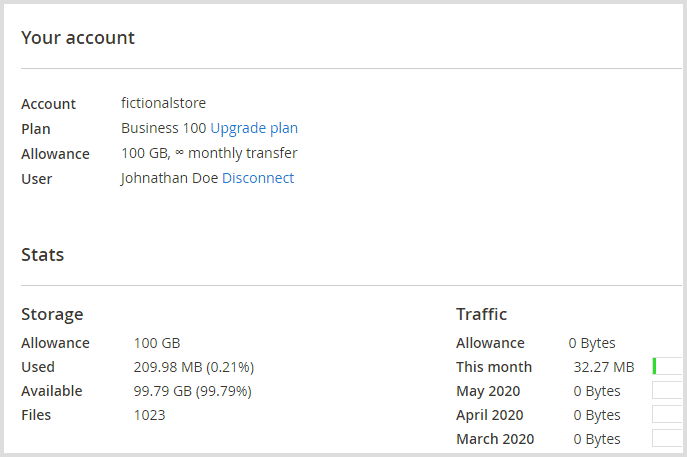
A summary of your storage, transfer and API usage is shown on your Sirv settings page:
FAQ
\
Support
The Sirv support team is ready to help you. As Magento experts, they can install the extension for you, assist you with customization, or configure Sirv on highly customized Magento sites. Contact the team with your requirements.
Changelog
[changelog platform="magento2"]
How to set up a CDN for Magento 1
We continue to provide support for our Magento 1 extension, though new feature development is focused on Magento 2, so we recommend migrating to Magento 2.
- Download the Sirv Magento 1 extension (zip).
- Unpack the zip file to your computer, then upload it to your Magento server.
- Refresh the Magento cache.
- Create your Sirv account.
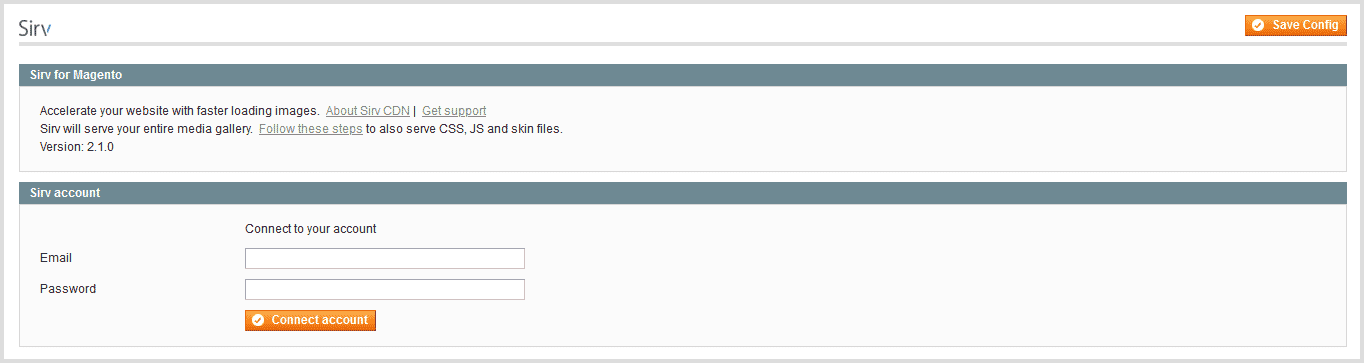
- Go to System > Sirv CDN and connect your Sirv account.
![Sirv login in Magento 1]()
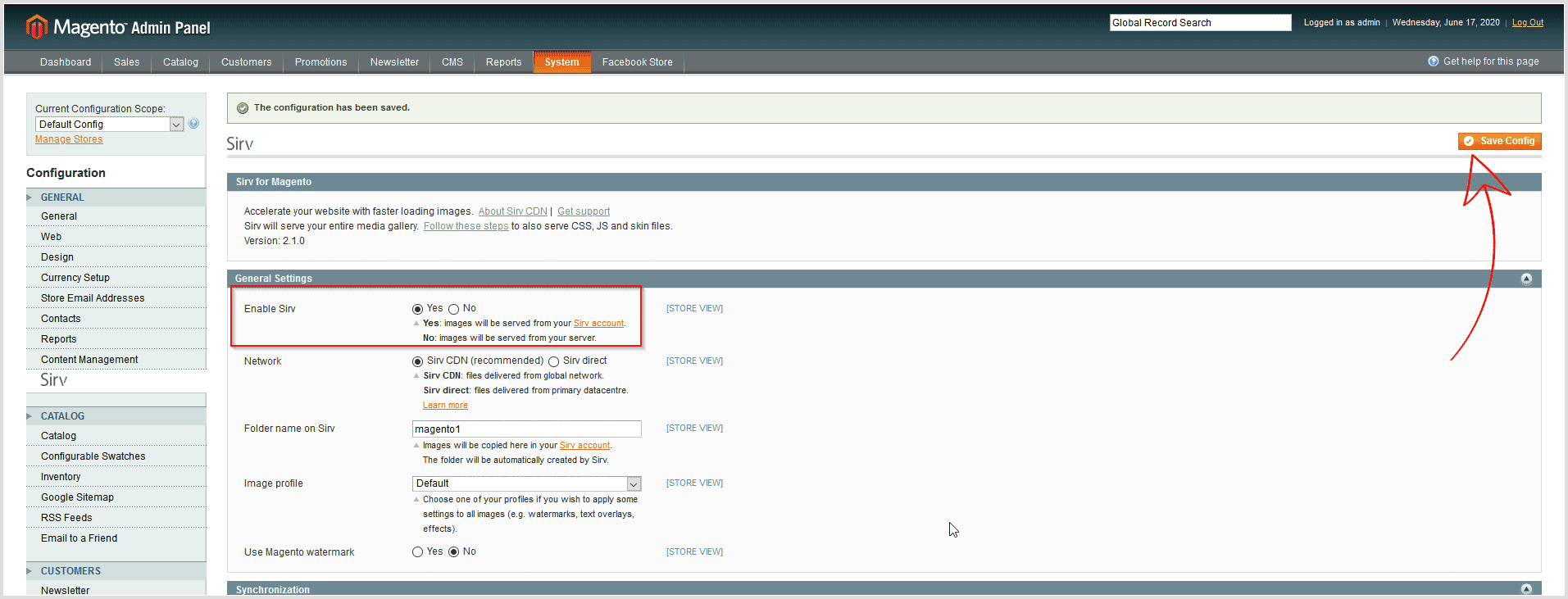
- The extension will start working as soon as you have set "Enable Sirv" to "Yes" and saved your settings.
![Sirv settings in Magento 1]()