Add Sirv Media to posts and pages
Sirv supports plenty of media you can embed in your pages or posts:
You can also organize your media by using shortcodes.
Gutenberg vs Classic Editor differences
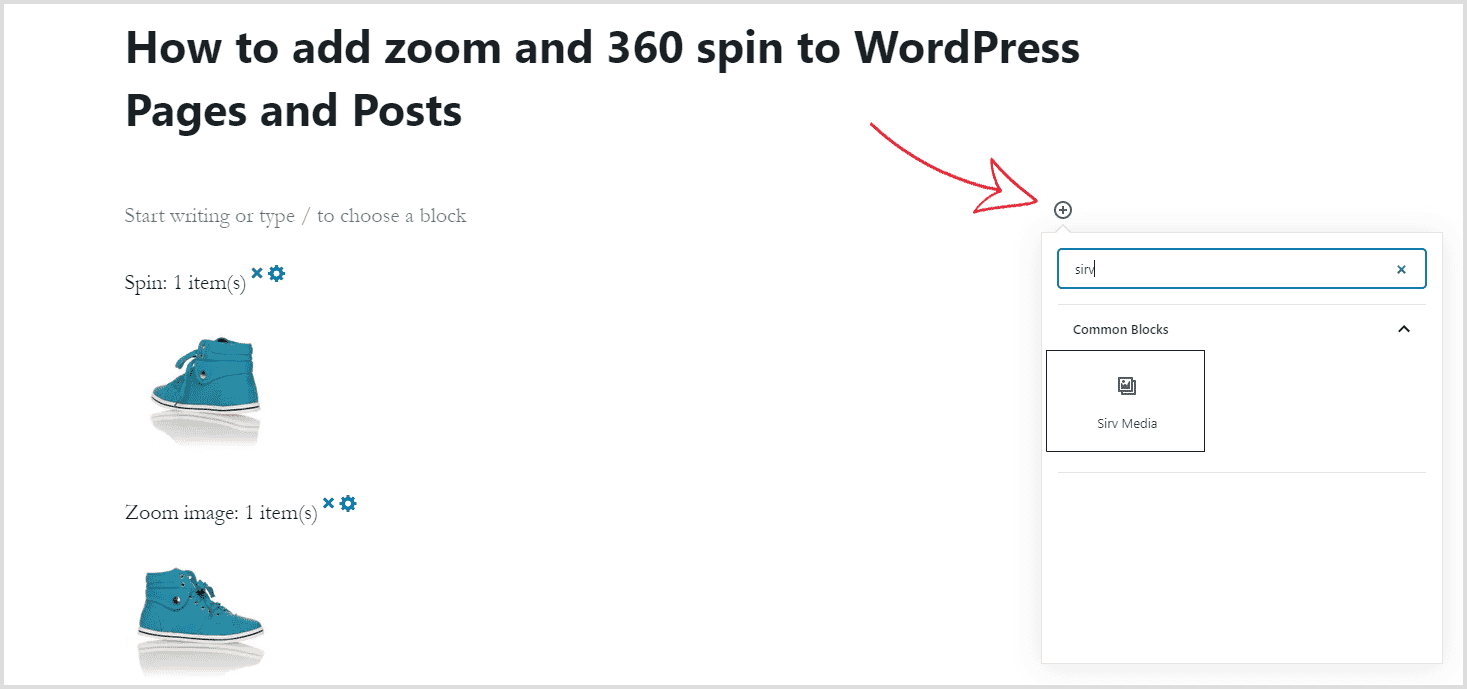
Sirv fully supports both Gutenberg and Classic Editor. Here's how to add a Sirv media block in Gutenberg:
Add 360 degree spin to a WordPress page or post
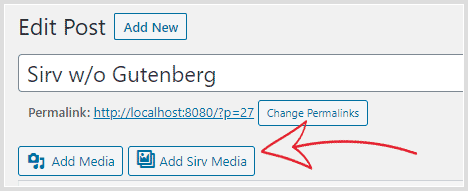
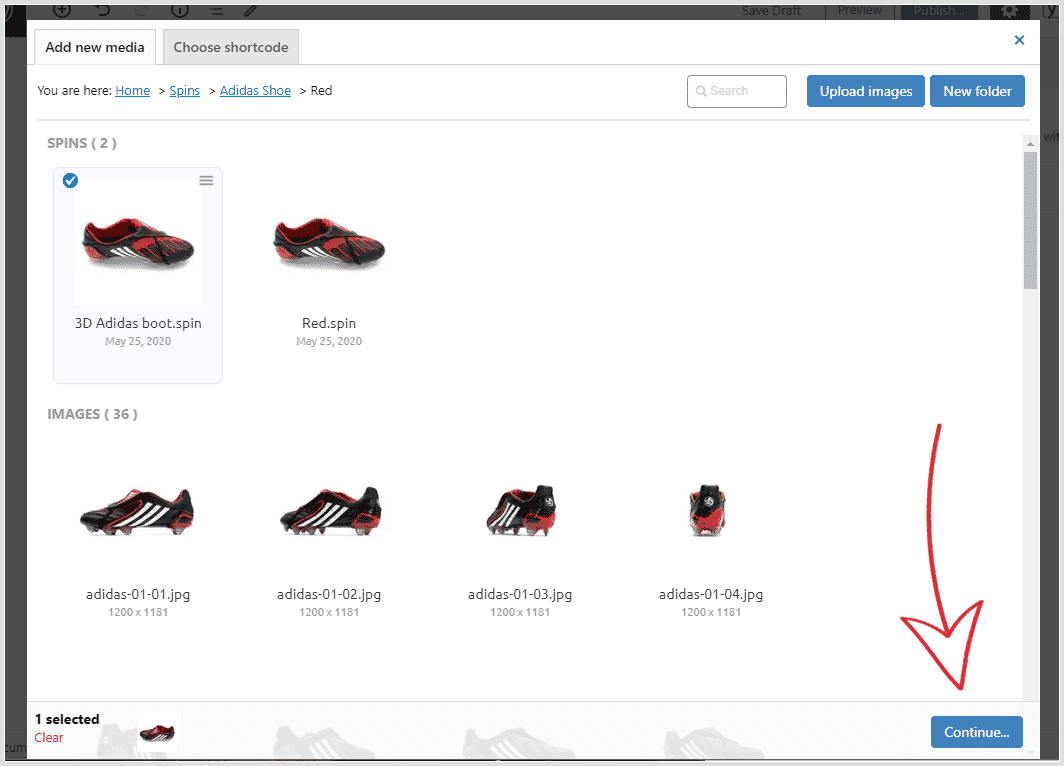
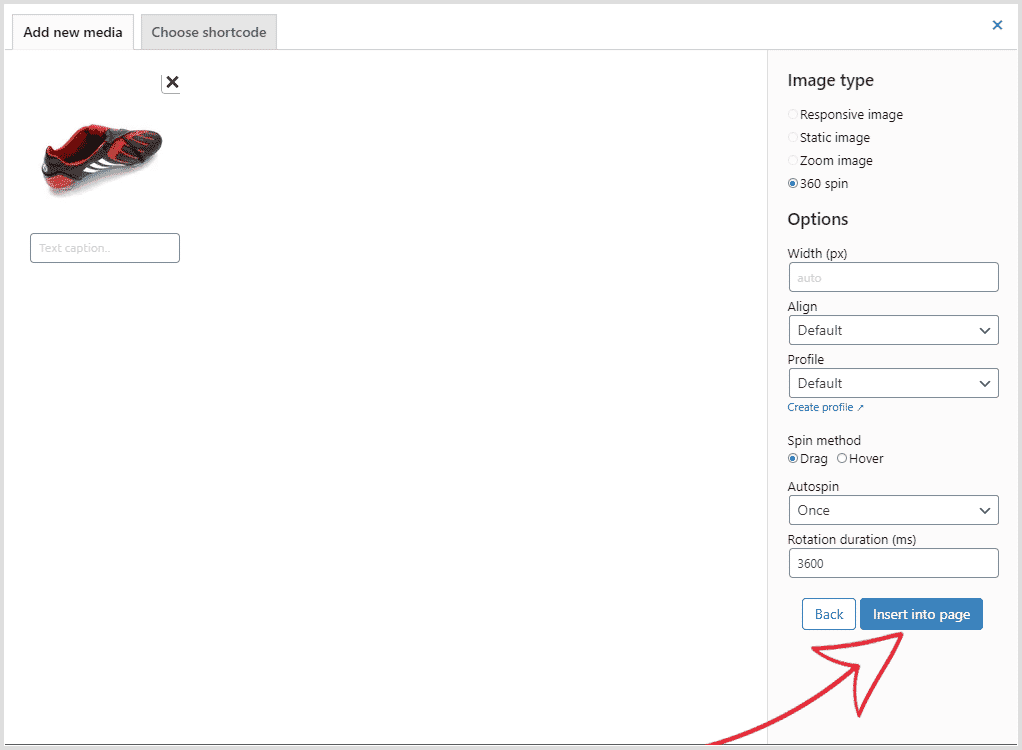
Enjoy life-like 360 spins. Display spins on its own or as part of an image gallery. 1. Install the Sirv plugin on your WordPress site. 2. Click "Add Sirv Media" button in your page or post: 3. Select 360 spin image in your Sirv Library > Click "Continue":
Add zoomable images to a WordPress page or post
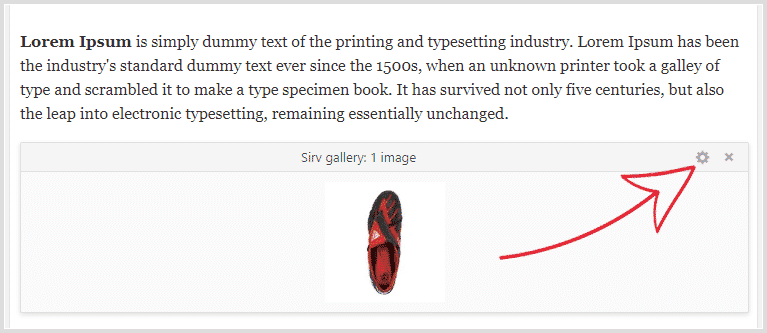
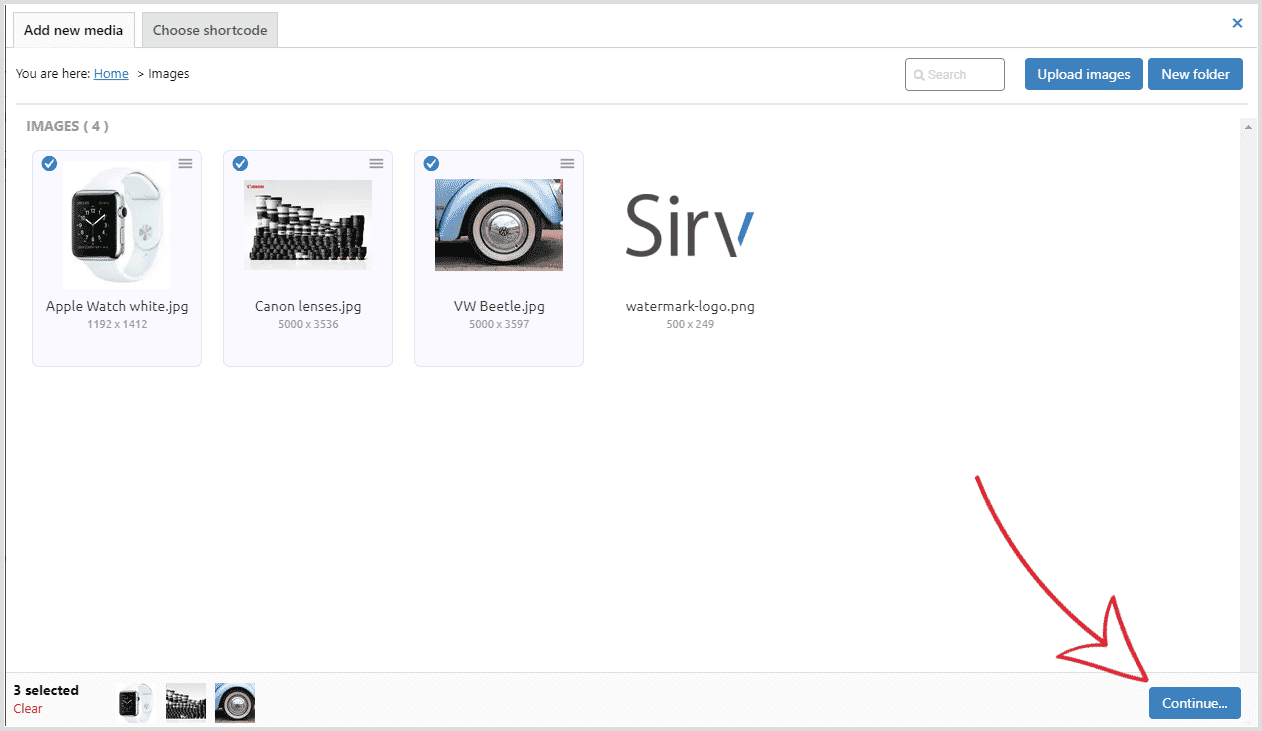
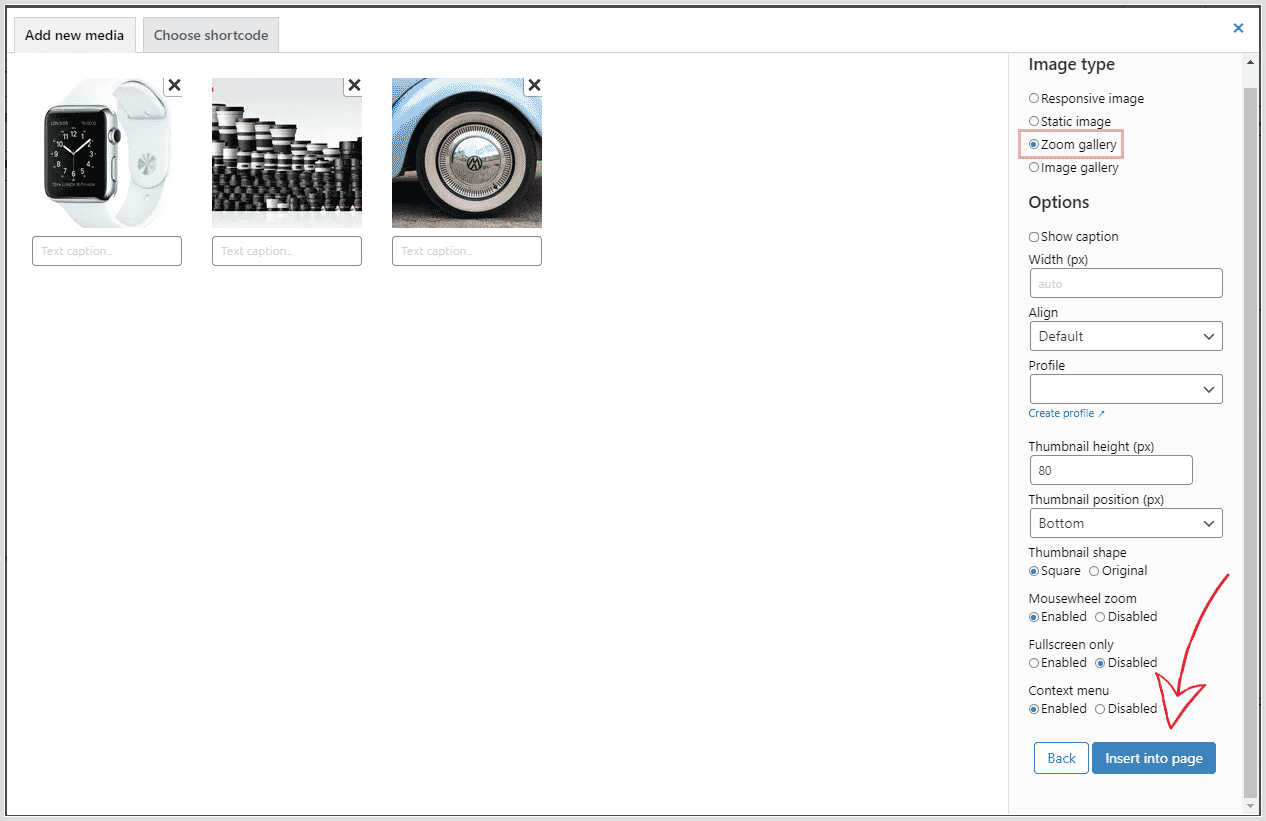
Visitors love seeing close-up detail of any image. The larger your original images are, the deeper the zoom. 1. Install Sirv plugin on your WordPress site. 2. Click the "Add Sirv Media" button in your page or post. 3. Select images to be zoomed, then click "Continue":
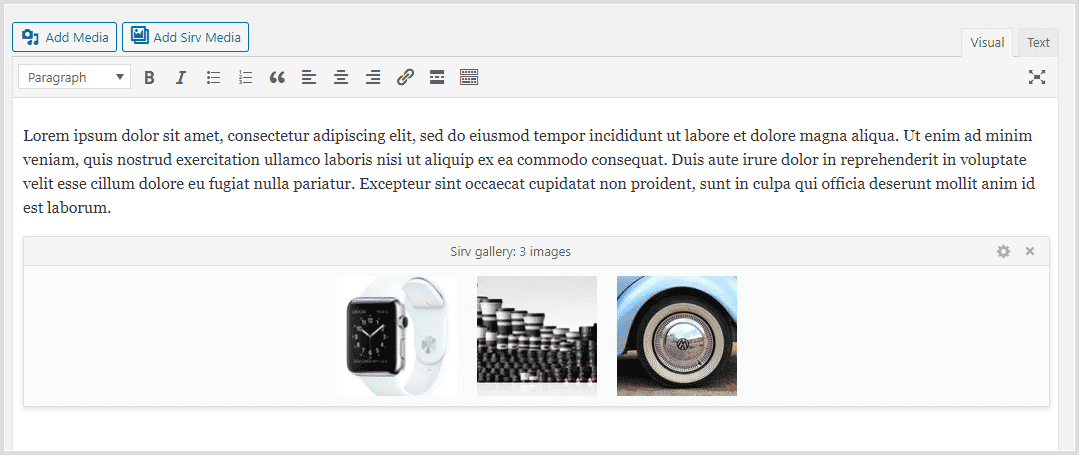
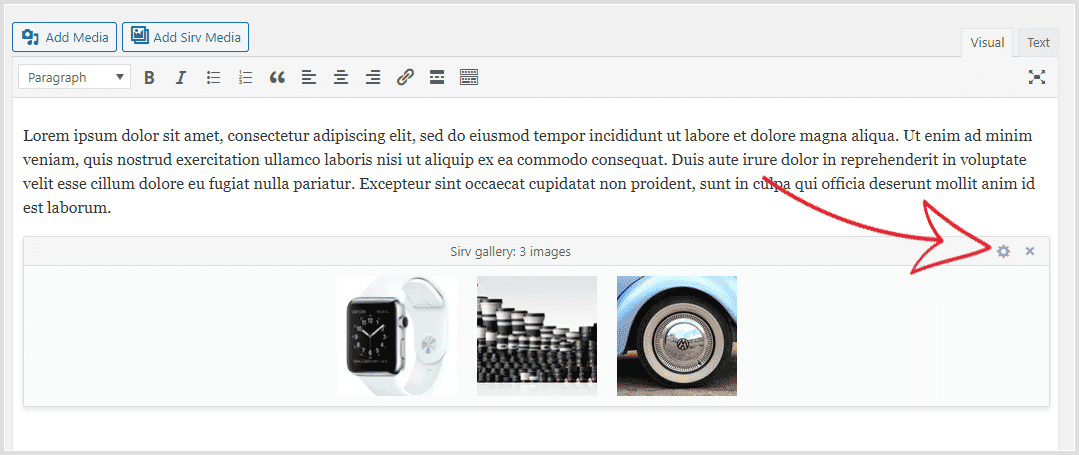
Add responsive images to WodPress page or post
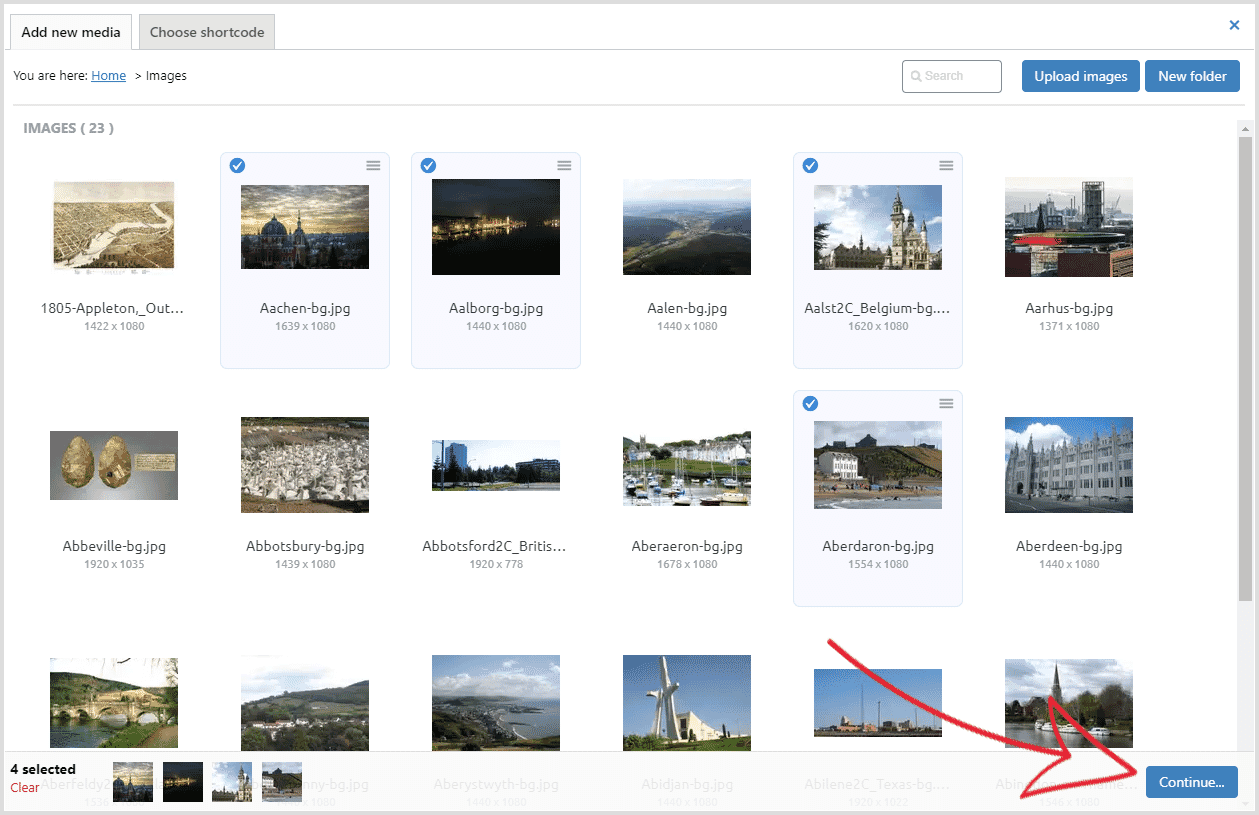
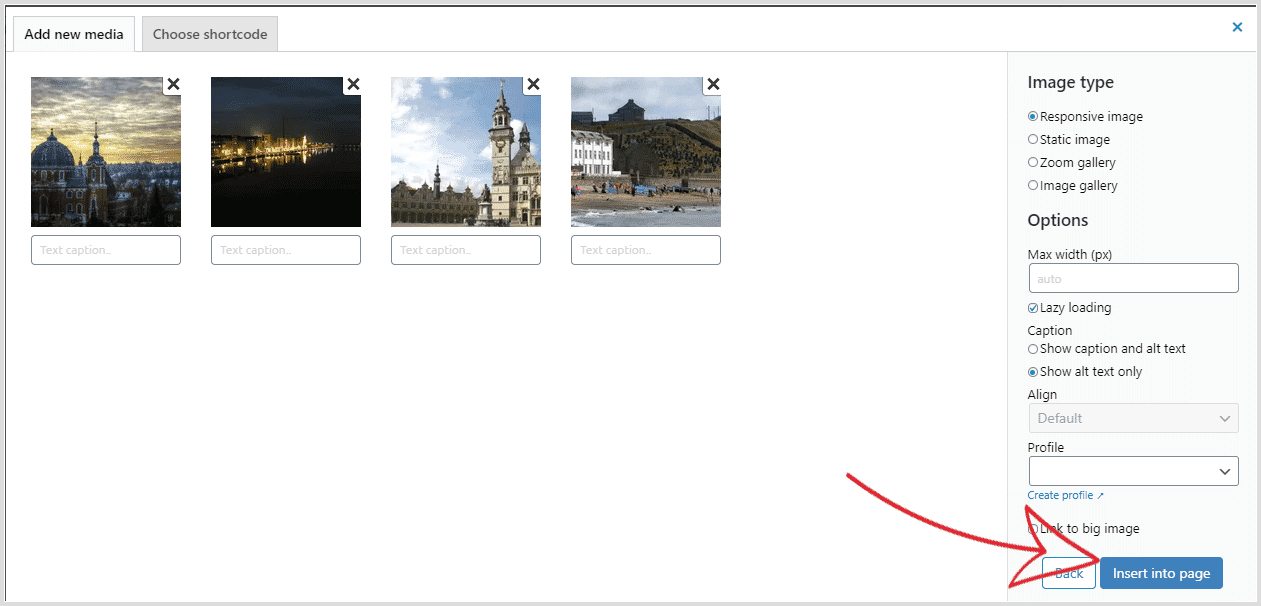
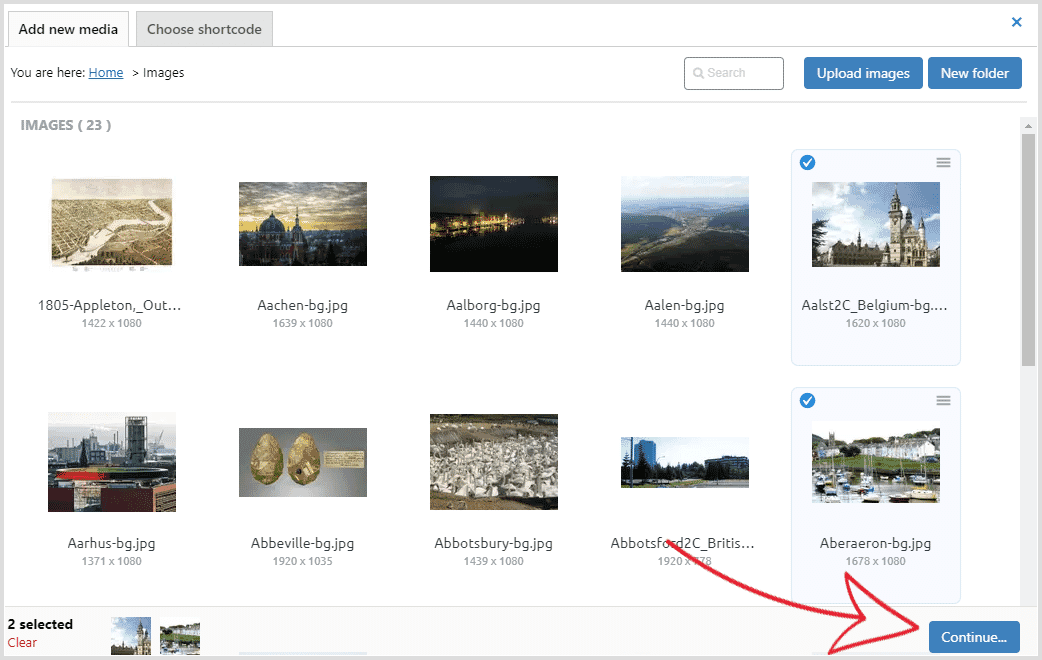
A single image or a gallery of images can be added without the zoom effect. The image(s) will be optimized and resized on-the-fly. They will load fast and will look perfect on any viewing device. 1. Install Sirv plugin on your WordPress site. 2. Click "Add Sirv Media" button in your page or post. 3. Select images you want to be responsive > Click "Continue":
Add a static image to a WordPress page or post
If you'd like more control over your images, you can load regular static images from Sirv. 1. Install Sirv plugin on your WordPress site. 2. Click "Add Sirv Media" button in your page or post. 3. Select image from your Sirv Library > Click "Continue":

Add a video to a WordPress page or post
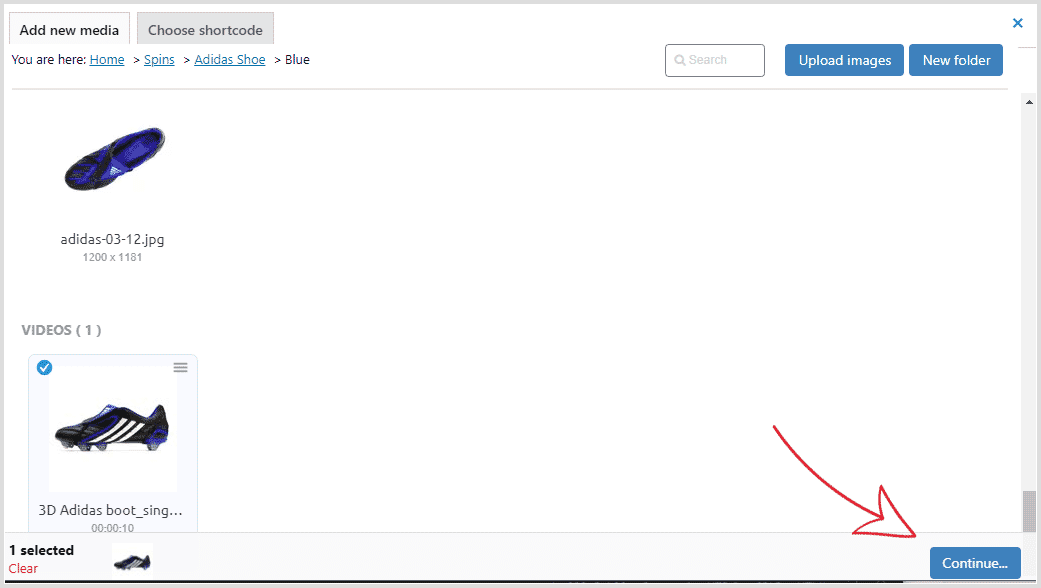
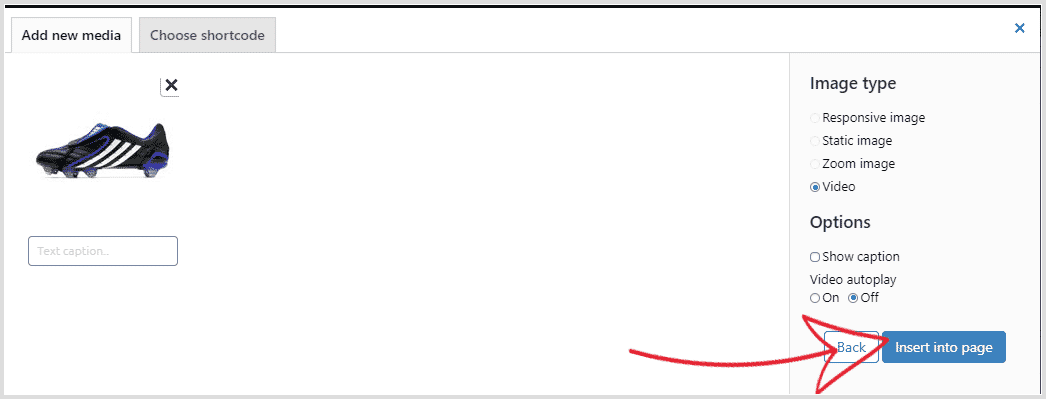
1. Install Sirv plugin on your WordPress site. 2. Click "Add Sirv Media" button in your page or post. 3. Select your video (or videos) and click 'Continue':
Sirv shortcodes explained
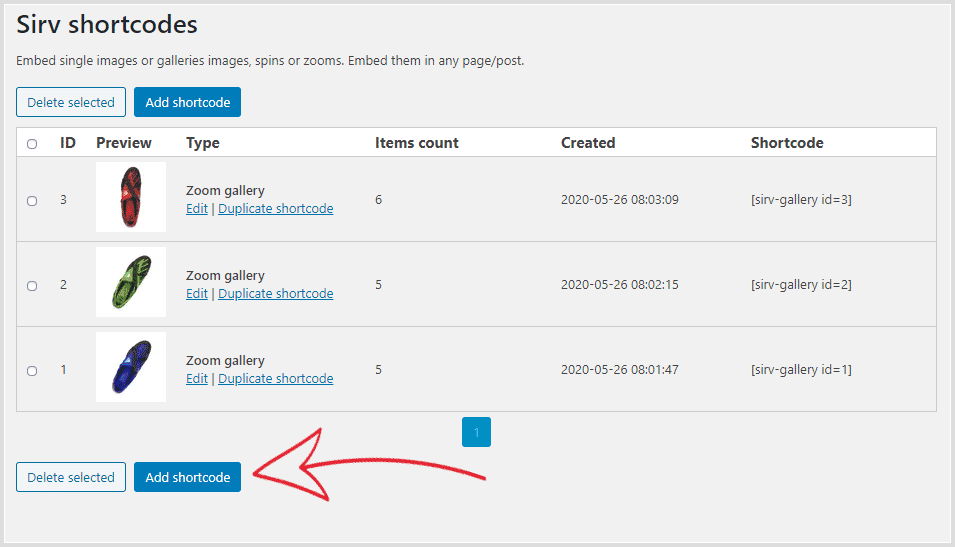
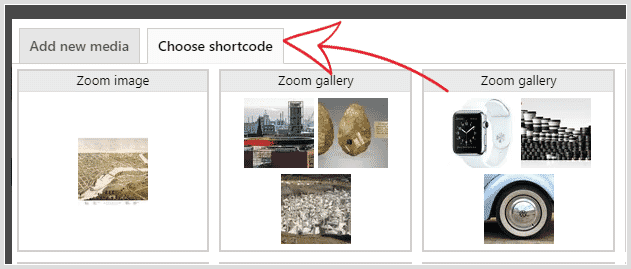
Sirv shortcodes are a convenient way to reuse and embed image/video galleries and 360 spins. Whenever you add Sirv media and create an image gallery, 360 spin, image zoom, or a 'zoom gallery', they will be saved in the 'shortcodes section' of Sirv settings.
Featured images and Sirv
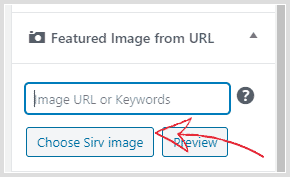
By default, WordPress asks you to choose featured images from your Media Library. You can use the 'Featured image from URL' plugin to choose featured images from your Sirv account or by simply entering the image URL.
Help from a Sirv expert
If you have any questions about how to use the Sirv for WordPress plugin, please contact our support team from your Sirv account.