Sirv PrestaShop image CDN addon
 Speed up your website with the official Sirv PrestaShop CDN addon. Faster loading leads immediately to happier users and higher conversions. Making your pages load faster will also improve your SEO. Google ranks faster websites higher, so you'll soon receive more visitors from search engines. The PrestaShop CDN addon for Sirv is easy to install and starts working immediately. It synchronizes your PrestaShop product images to your Sirv account, then delivers them at the perfect dimensions, in the optimal image format (often WebP). Typical file size is 40-70% smaller than your original images. They're served from the nearest of 20 global CDN servers, for very fast load, anywhere in the world. Your PrestaShop store can also expect more page views per user and a lower bounce rate. Test your results by comparing your website statistics before and after. Let us know how much difference it makes! The Sirv addon automatically renames images from meaningless file names such as 1.jpg to keyword rich, meaningful names such as hummingbird-printed-t-shirt.jpg.
Installation
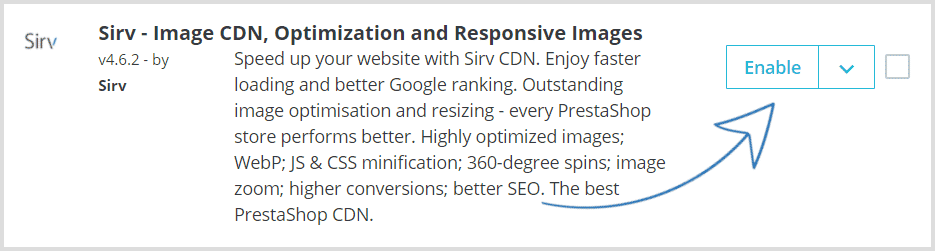
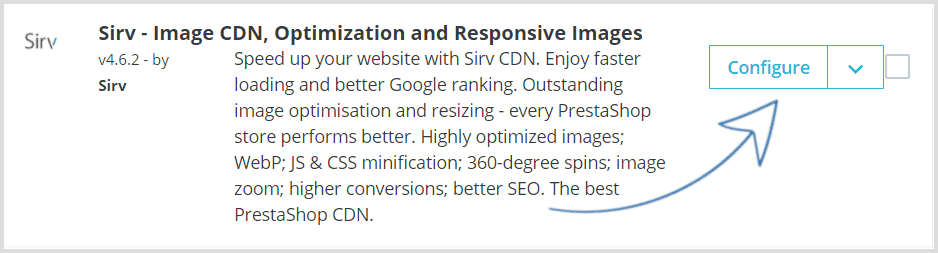
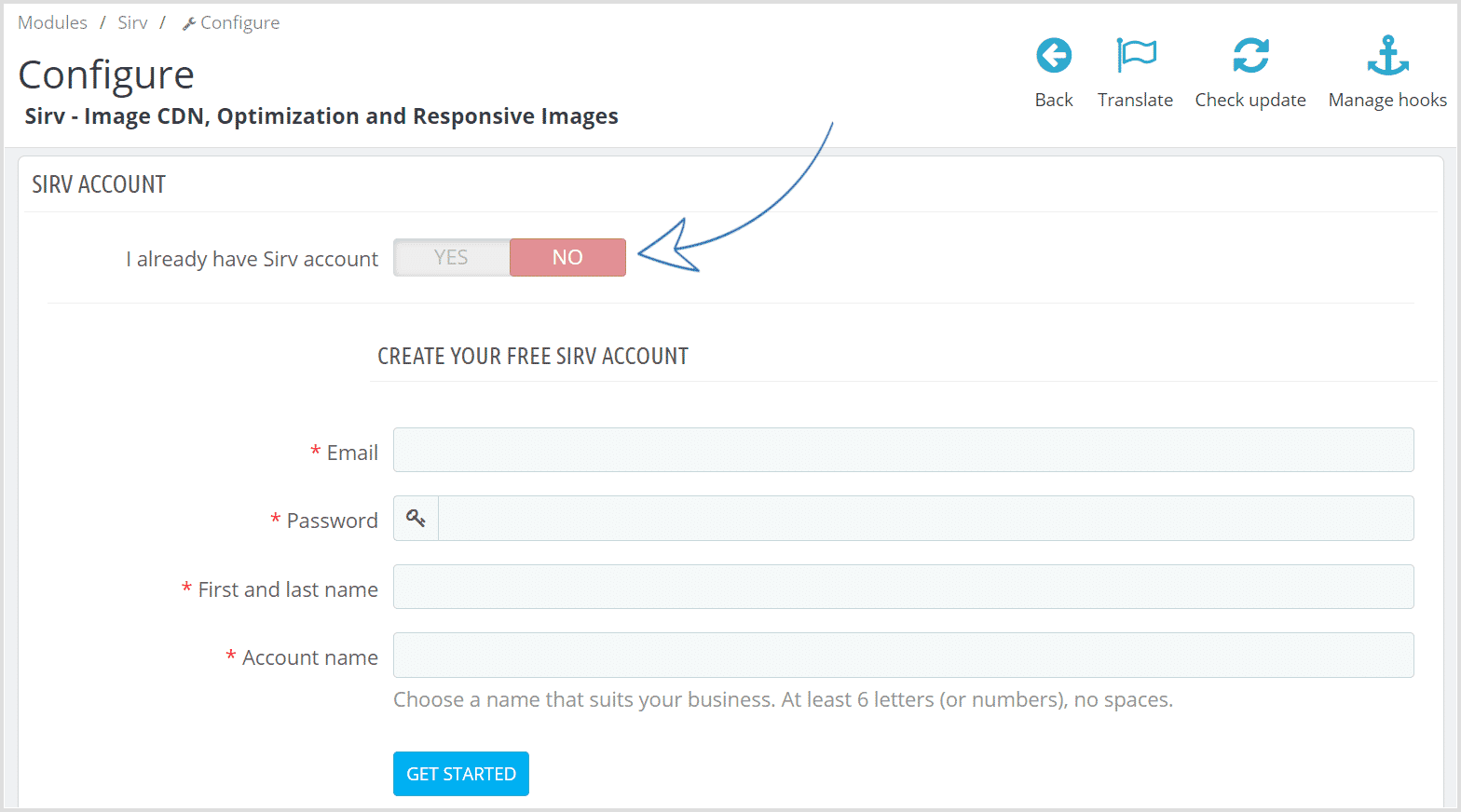
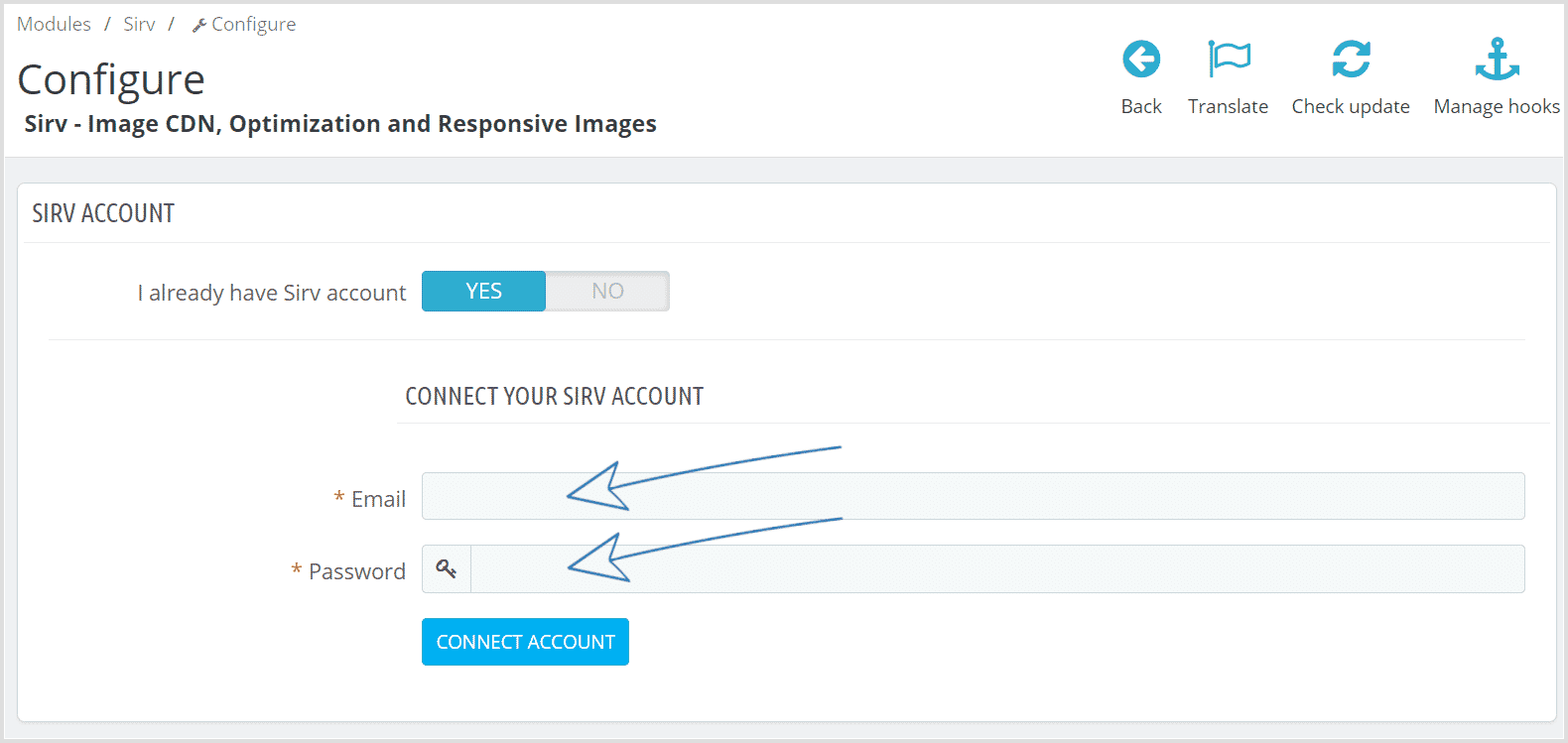
1. Purchase the official Sirv PrestaShop addon from the PrestaShop addons marketplace. 2. Install the addon, then click "Enable":
Free trial
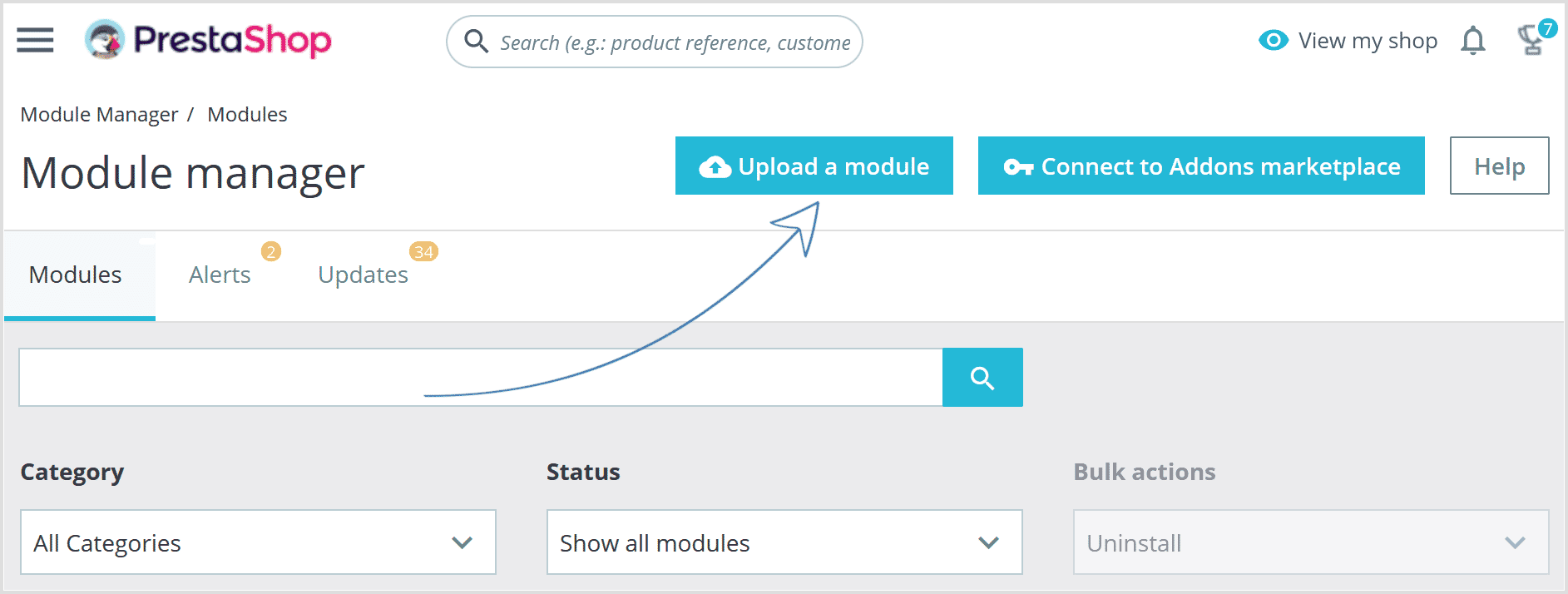
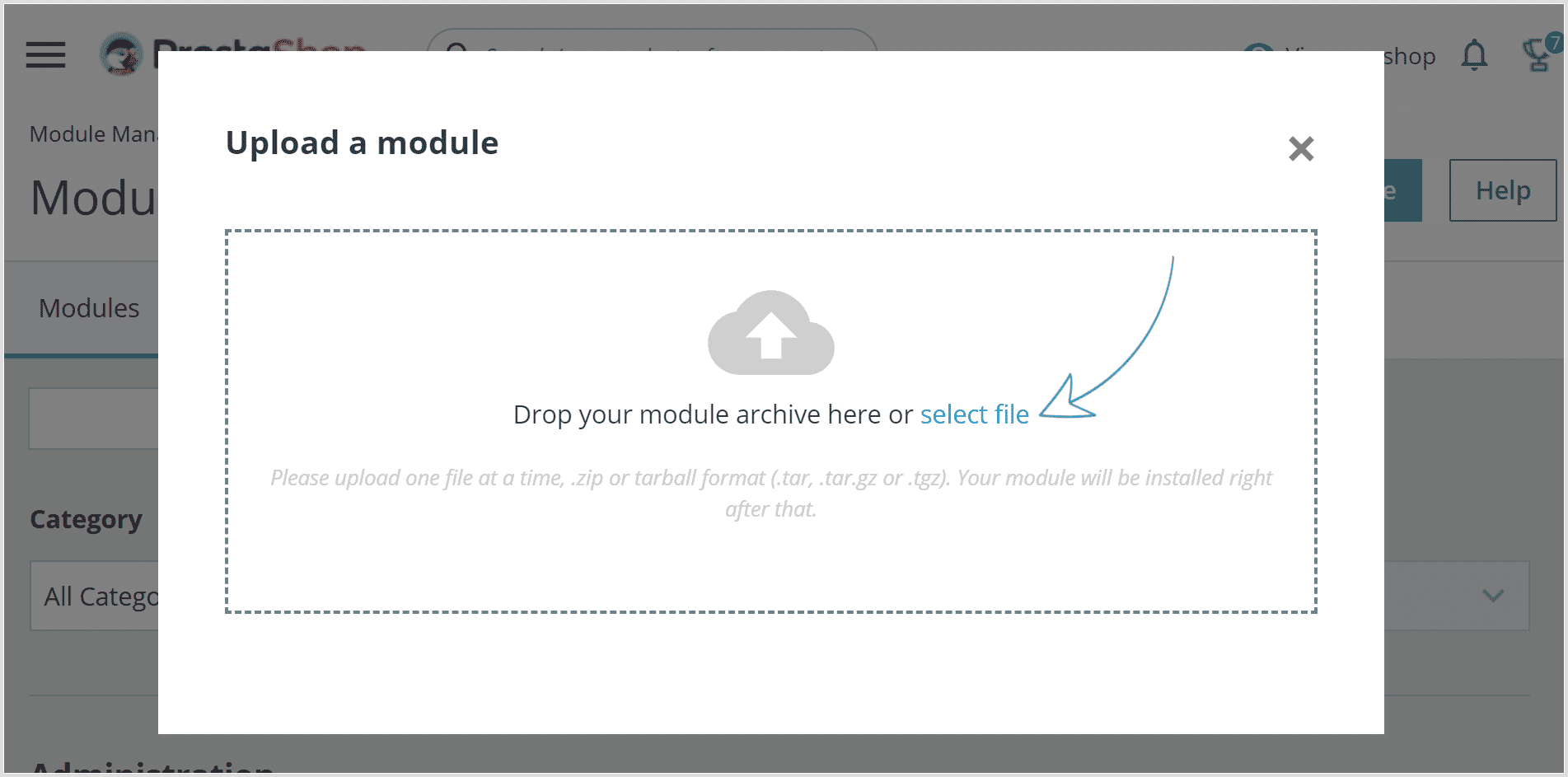
Alterantively, install the addon via a zip file: 1. Download the latest version: Sirv PrestaShop CDN addon (zip). 2. Go to "Modules > Modules Manager" in your PrestaShop admin and click "Upload a module":
Configure Sirv for the first time
The optimisation settings page looks like this:
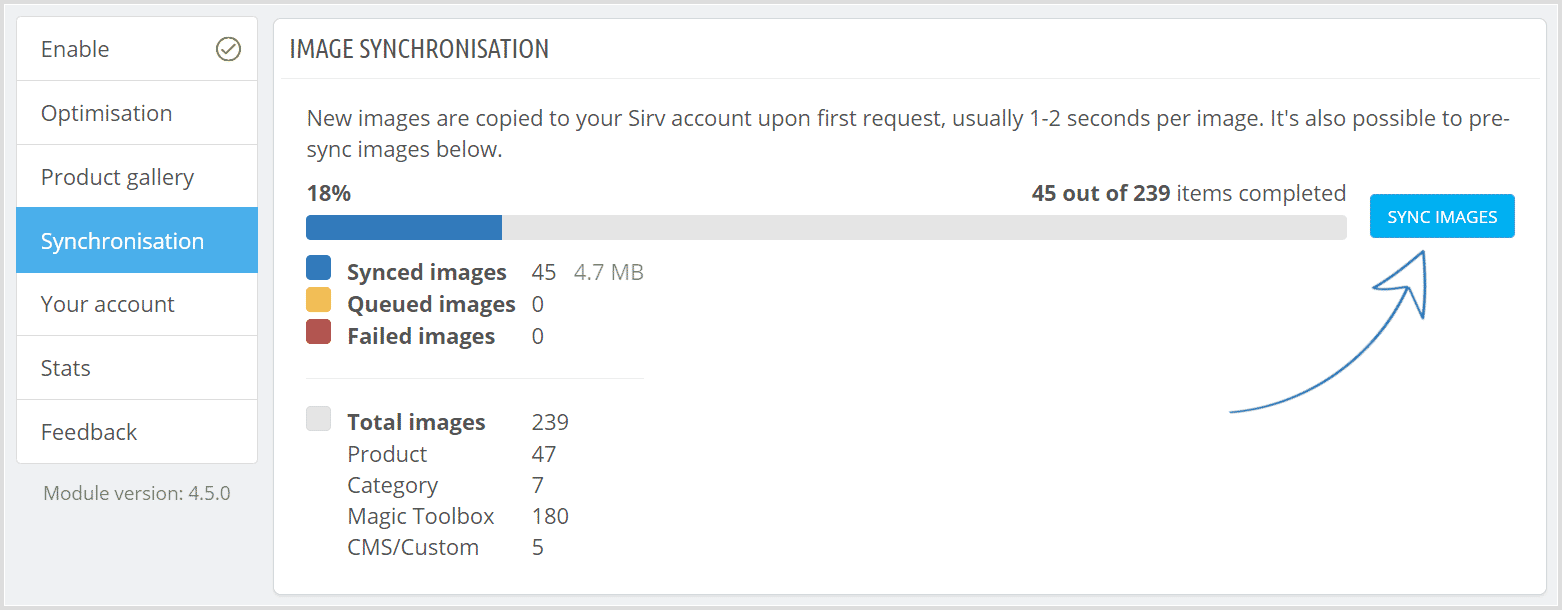
Sirv will start working immediately, by copying images from PrestaShop to your Sirv account the first time they are requested. To accelerate synchronization, perform a sync of your PrestaShop images to Sirv by clicking the "Sync images" button:
Usage
Sirv will automatically fetch images when people browse your website. It will resize, optimize and deliver those images from the Sirv CDN or direct from the Sirv primary datacentre in Germany. Newly found images are typically fetched within 1 second, then cached, ready to serve to all future visitors.
Database cache
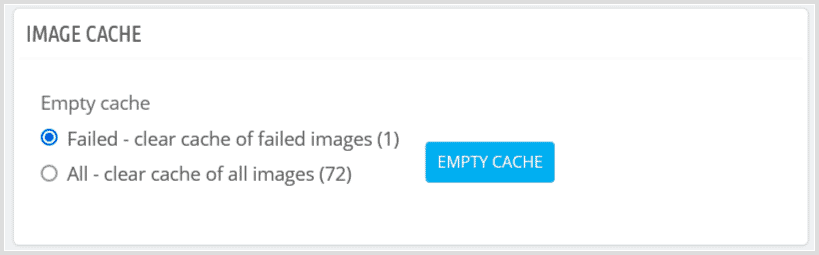
The Sirv addon keeps a database record of all synced images on PrestaShop. You can clear some or all of this log:
- Failed - try this method first. It will delete the records of any failed images, so Sirv can try to copy them again.
- All - use this method if images are not showing as expected. It can resolve images that had a connection problem; were updated programmatically; were updated by an import/sync tool; or other issues.
Sirv Media Viewer
Show 360 spins, videos and image zoom on your PDP (product display pages) with Sirv Media Viewer. Here's a live demo:
How to add zoom, 360 spins and videos to PrestaShop
1. Go to the Product gallery tab and select the source for the media to be included in your gallery. This can be PrestaShop & Sirv; or Sirv content only:
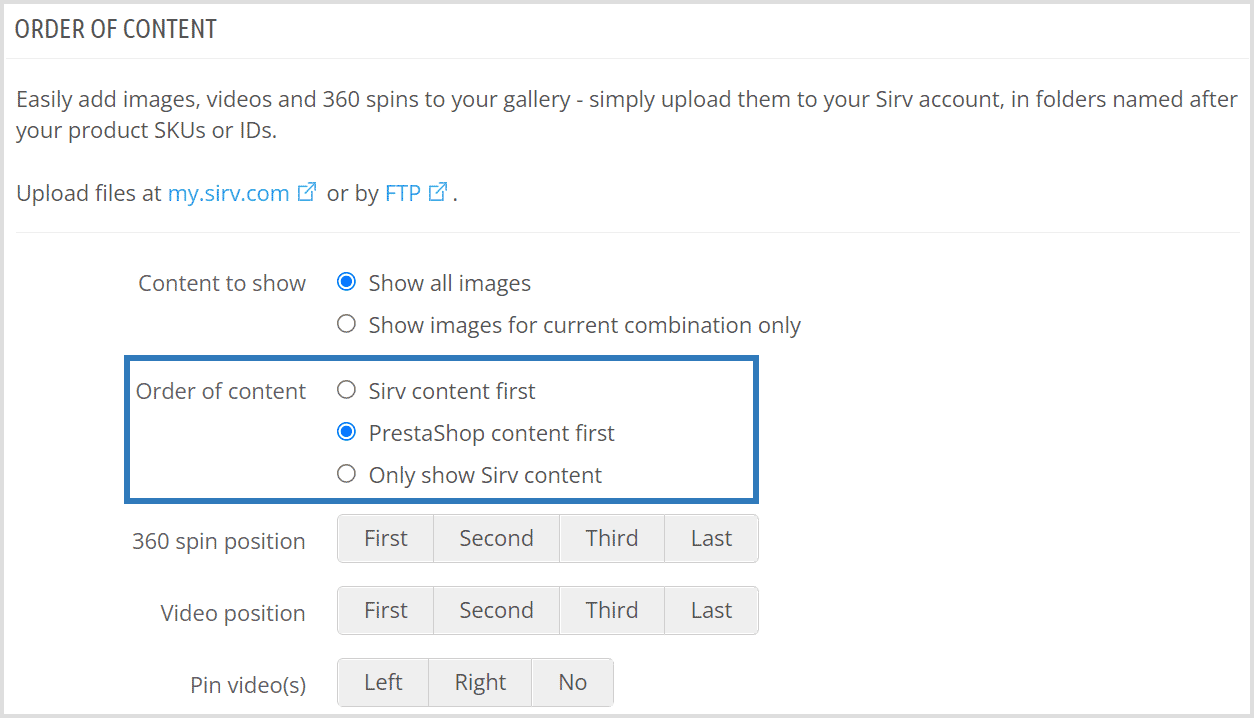
Uploading directly to Sirv is popular because it's fast and easy. Sirv supports all types of media - 360 spins, streaming videos and image zoom.
2. Select the folder naming convention that you will use to upload media directly to Sirv. Use either {product-sku}, {product-id} or {product-name} convention:
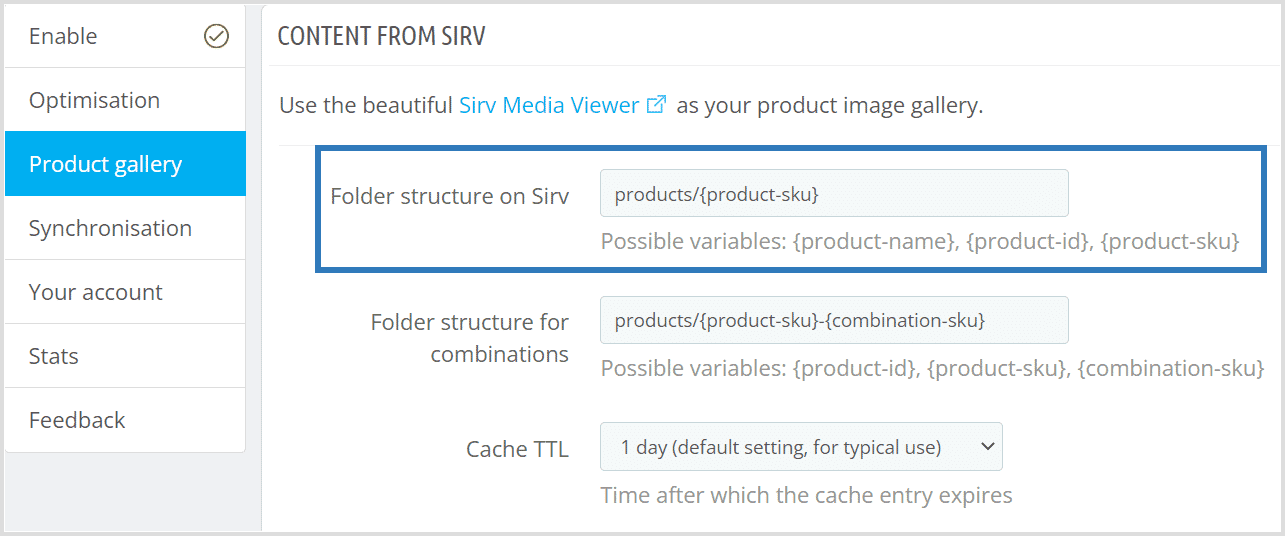
3. Create a master folder in your Sirv account, for example, a folder named 'products':
/products/
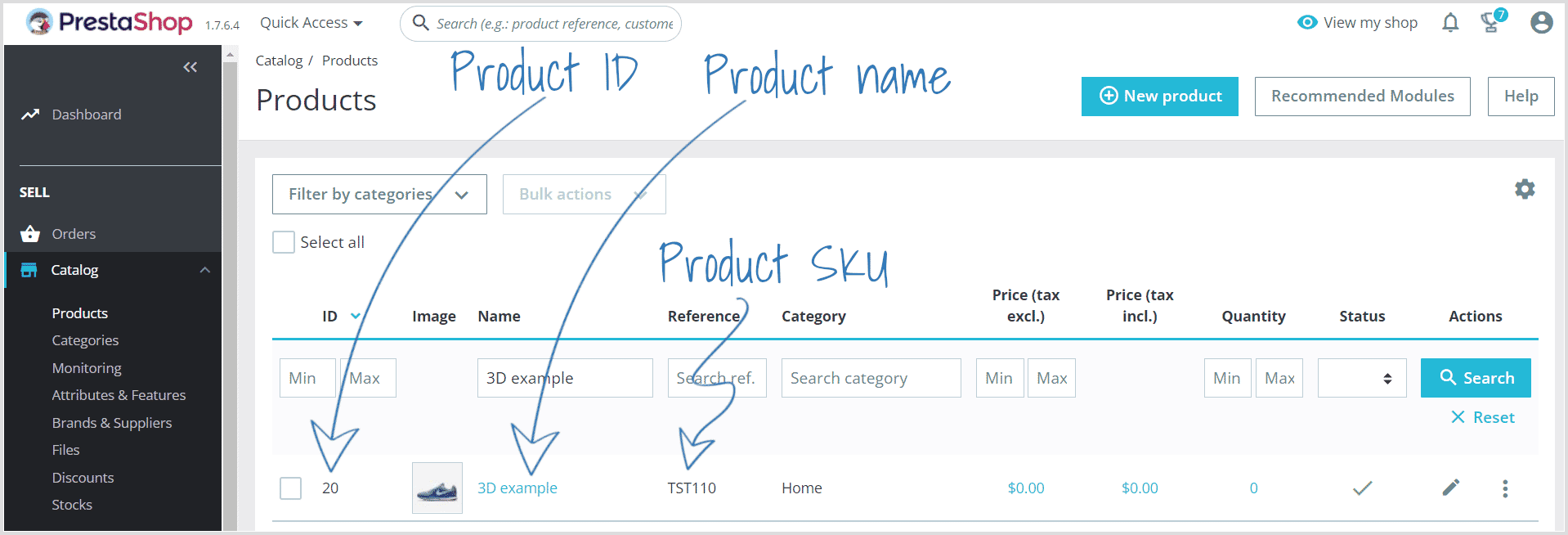
4. Then create subfolders for each product, naming each one to match your SKUs, product IDs or product names. A product with SKU TST110 would be:
/products/TST110/
Here is where you will find the product SKU, product ID and product name:
/products/TST110/an-image.jpg
/products/TST110/another-image.jpg
/products/TST110/a-video.mp4
Done!
Customization
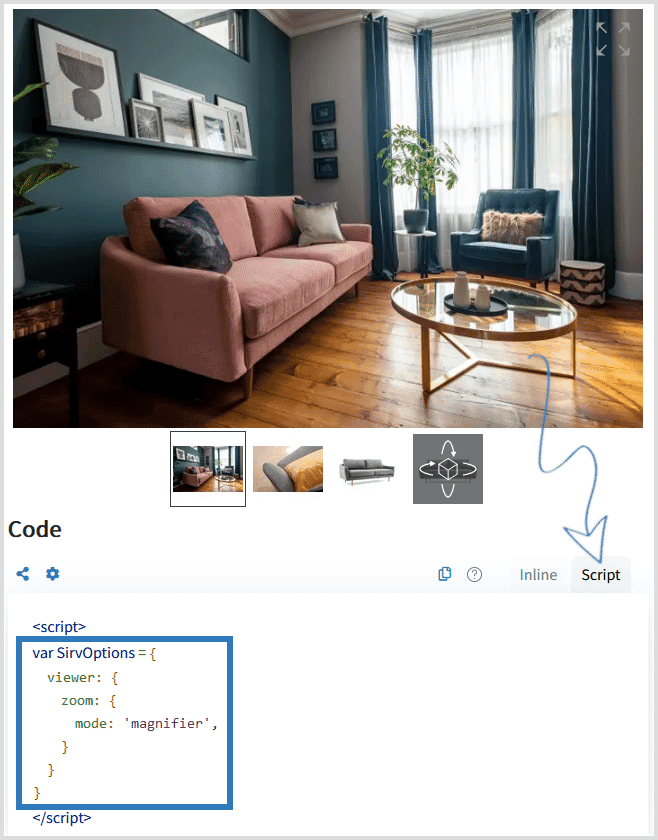
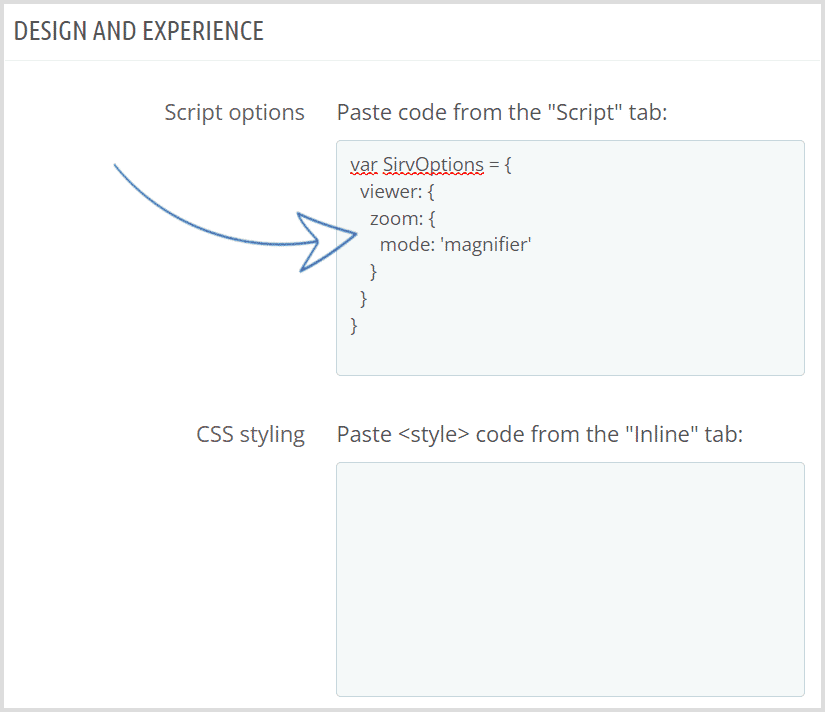
Use our live interative demo to easily customize your image zooms, 360 spins and videos with a wide range of options. Copy the code shown in the "Script" tab:
Upgrade
To upgrade to the latest version of this PrestaShop CDN addon:
- Download the latest version (zip).
- Extract the zip file to your computer.
- Upload the files to your PrestaShop server (by FTP), overwriting the old files in this folder: /modules/sirv/
- Go to the Modules page in your PrestaShop admin and click Upgrade:
If you use a version prior PrestaShop 1.7 or the "Upgrade" button isn't showing, you can download the latest addon, unzip it and upload it to your server (overwriting the old addon files). Then open the Sirv addon settings page.
PrestaShop version
This PrestaShop CDN module is frequently updated. All versions of PrestaShop from 1.6 and upwards are supported. It is an official addon, built and supported by the team at Sirv, with guaranteed support for all future PrestaShop versions. You can download this PrestaShop module from the Sirv website (see instructions above) or from the official PrestaShop addons marketplace.
FAQ
\
Changelog
[changelog platform="sirvprestashop"]
Support
Sirv experts are ready to help you with any questions. If you have a Sirv account, please use your support contact form. If you don't have an account yet, create an account or send questions via the general enquiries form.