Using Sirv on Webflow
 Webflow is an all-in-one platform for building responsive websites, visually, right from your browser. More than 100,000 websites have been built in Webflow.
Sirv lets you add 360 spins, videos and deep-zoom images to enhance your Webflow website. They can be on their own or within a Sirv gallery.
Add a gallery to Webflow
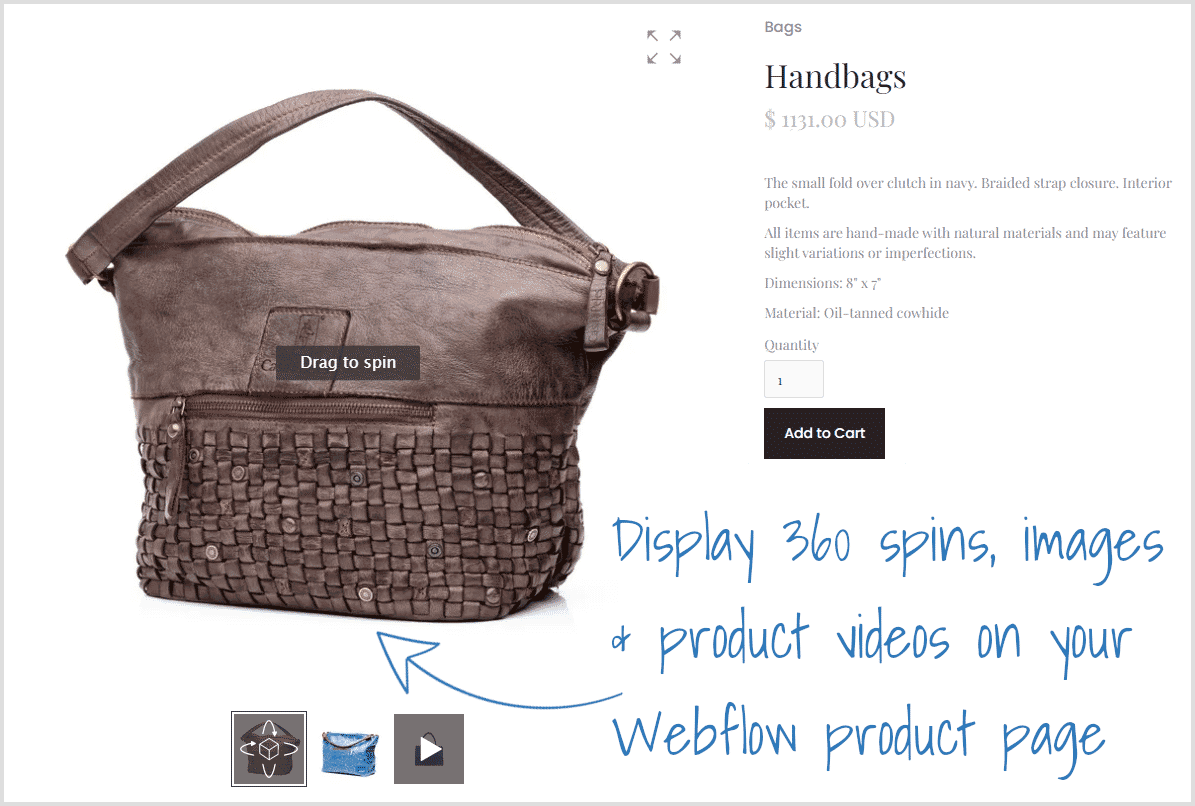
Your gallery can contain any kind of asset - images, videos, 360 spins or 3D models. Many designs are possible, such as this:
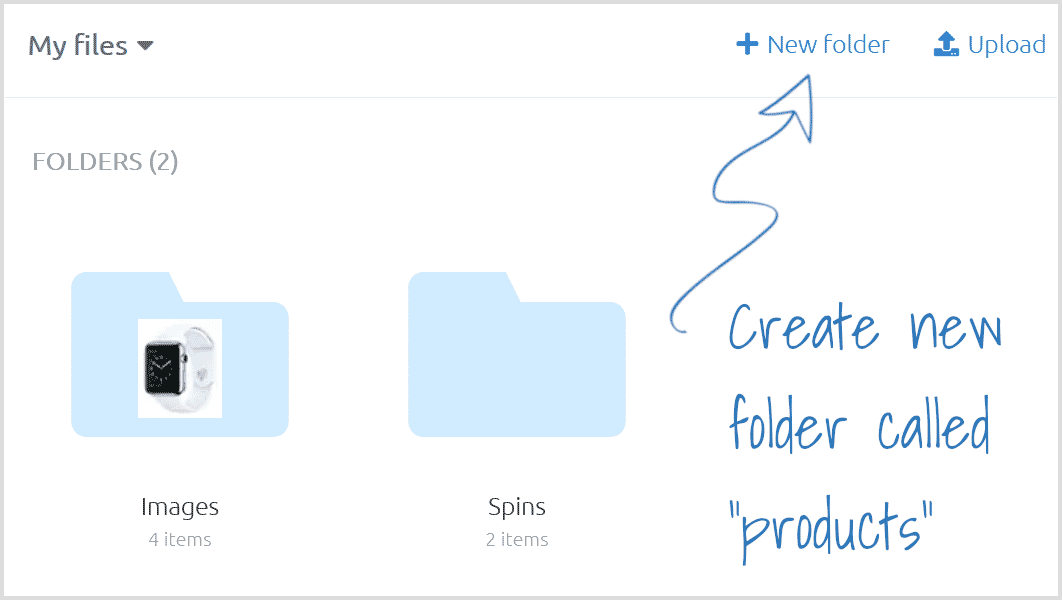
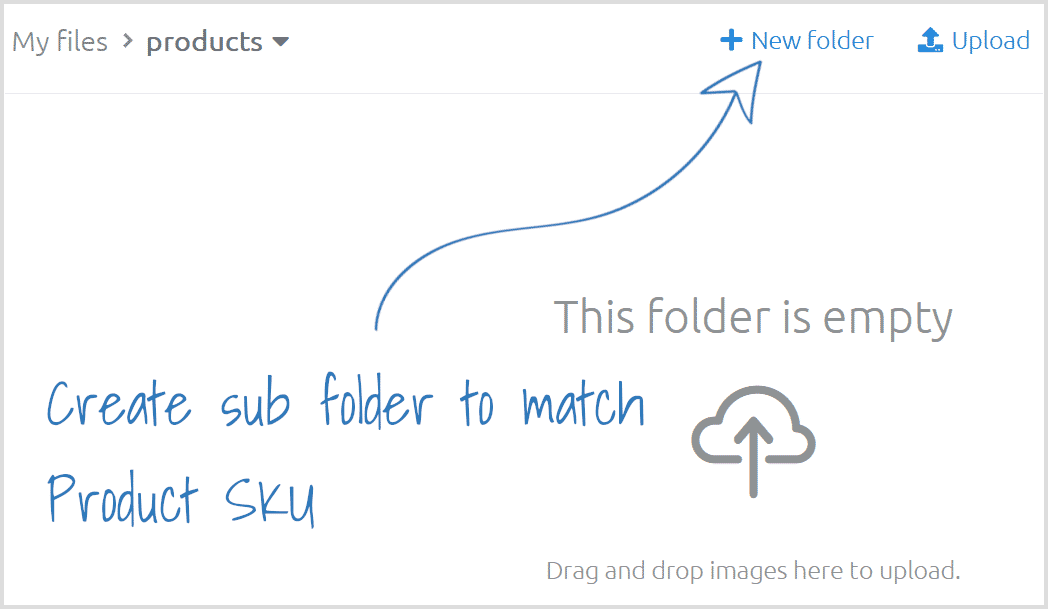
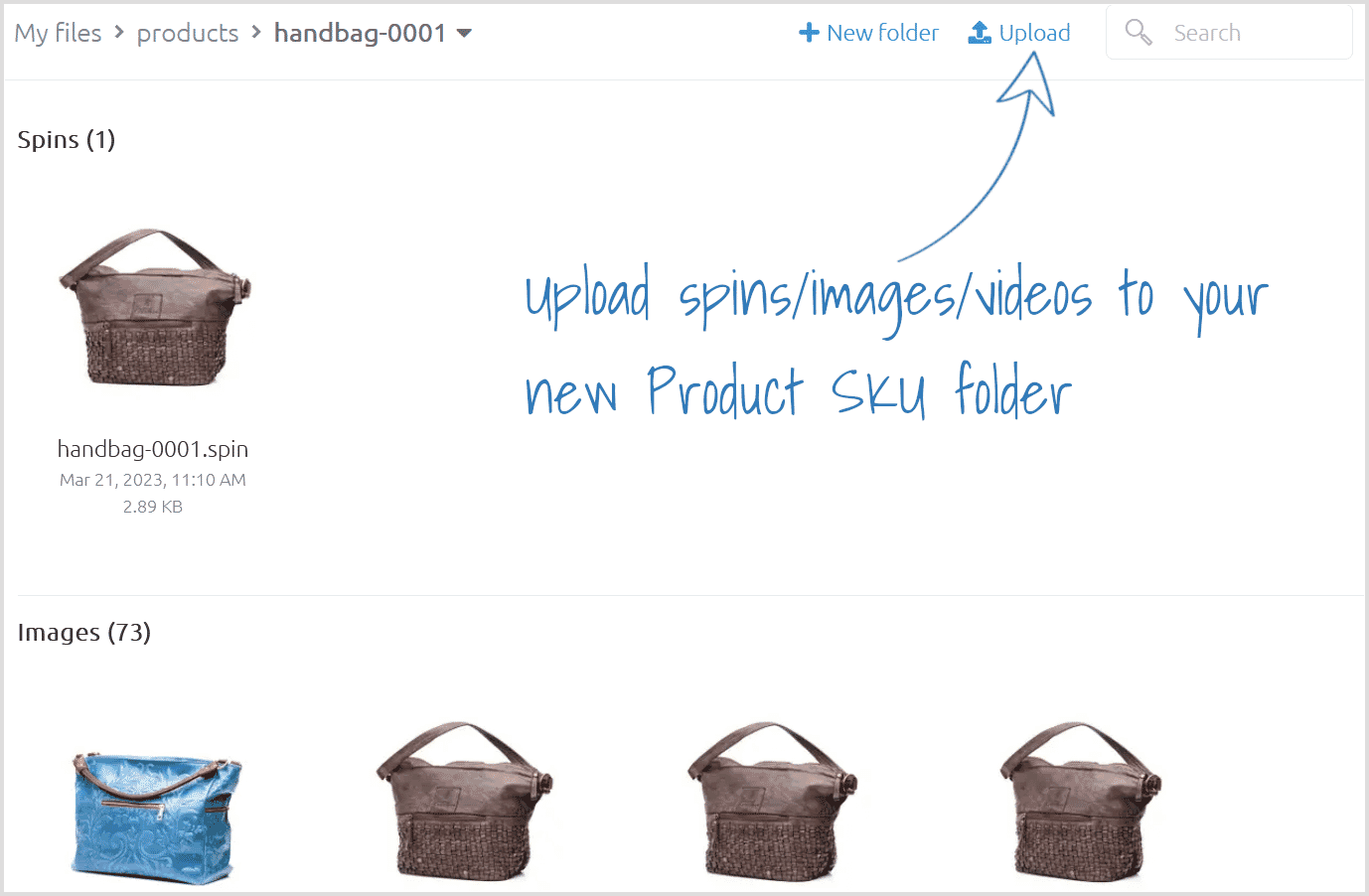
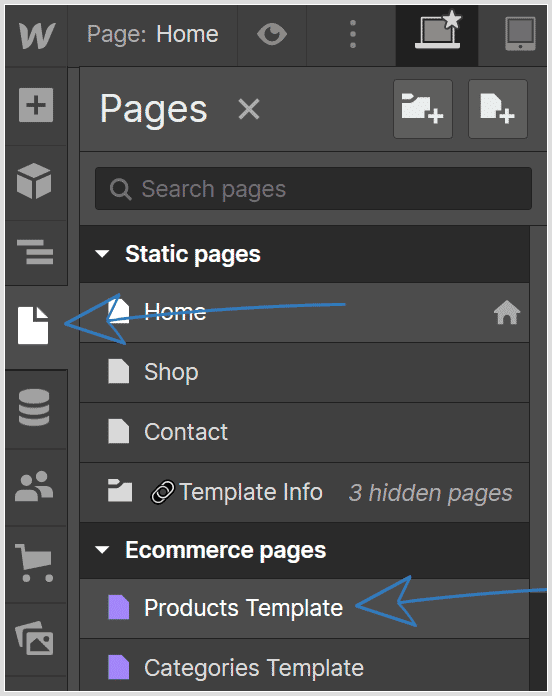 6. Click to add a Div Block:
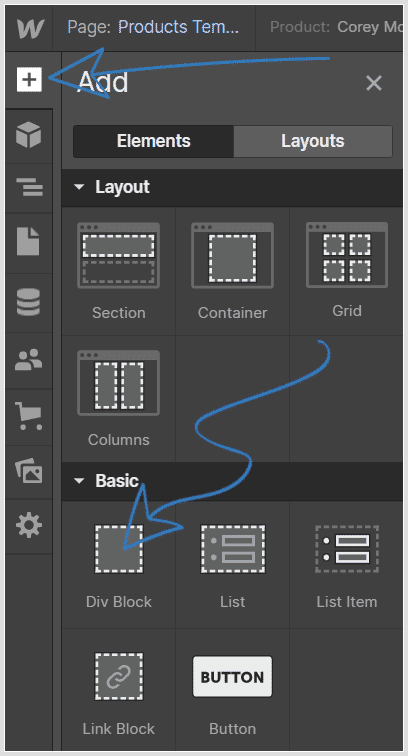 7. Add a Custom Attribute named "data-gallery" to your new Div block:
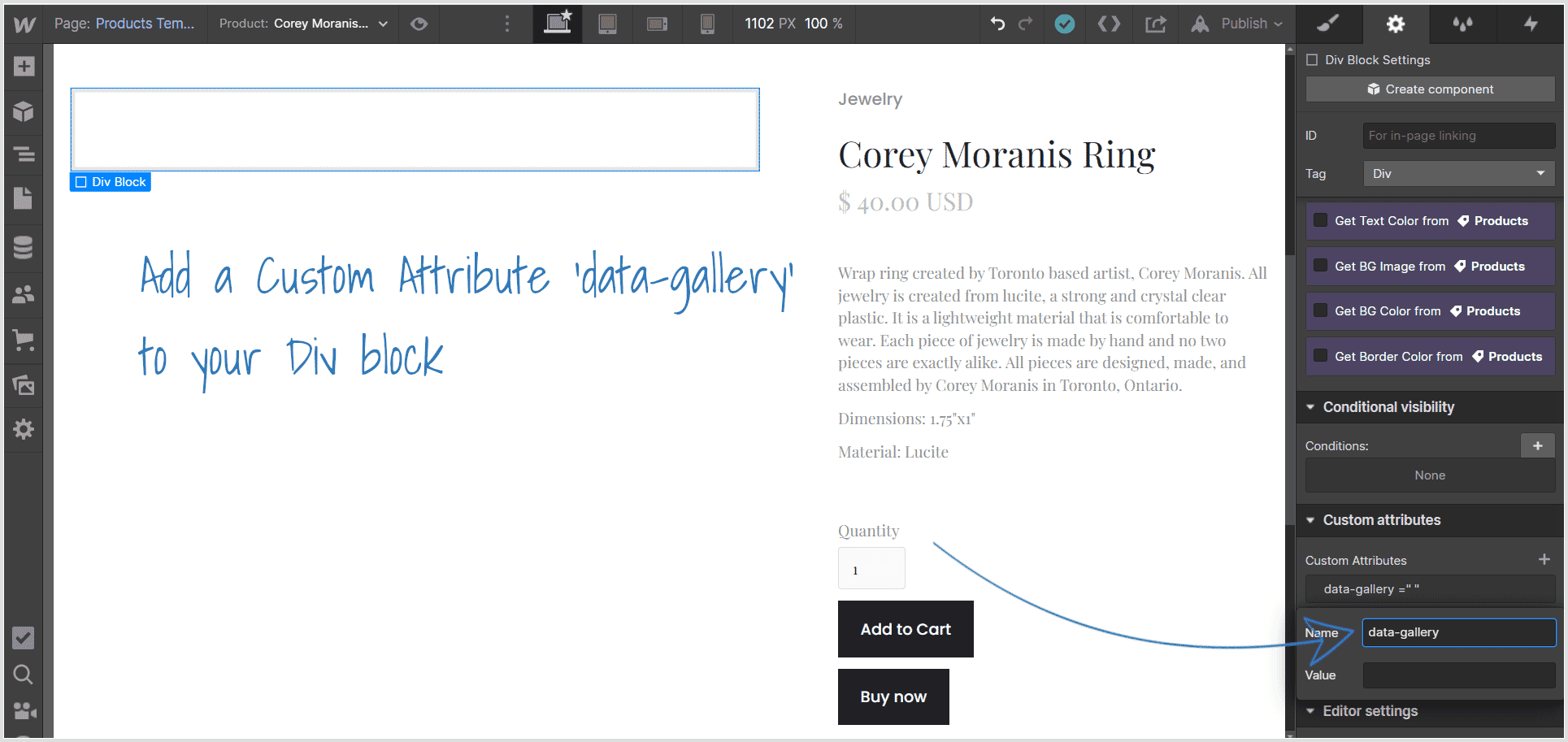
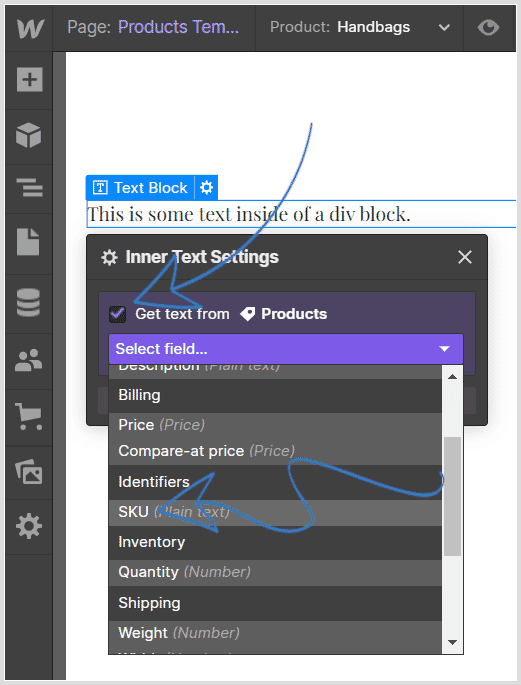
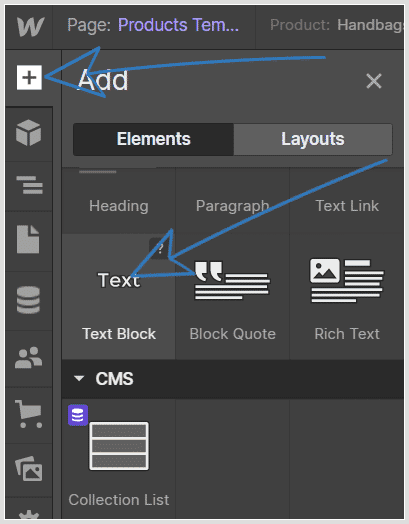 9. Tick the 'Get text from' option and select SKU from the dropdown menu:
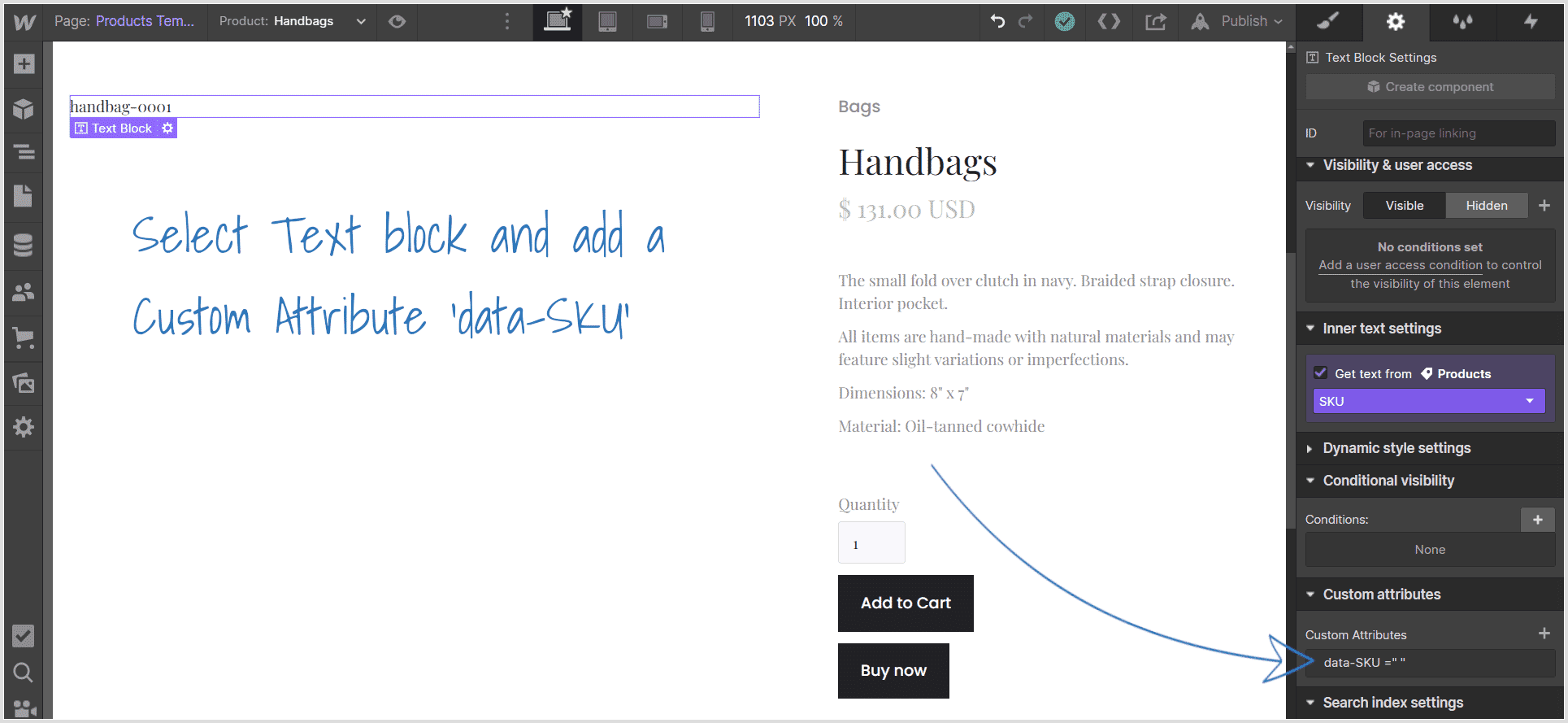
 10. Select the text block and add a Custom Attribute named 'data-SKU':
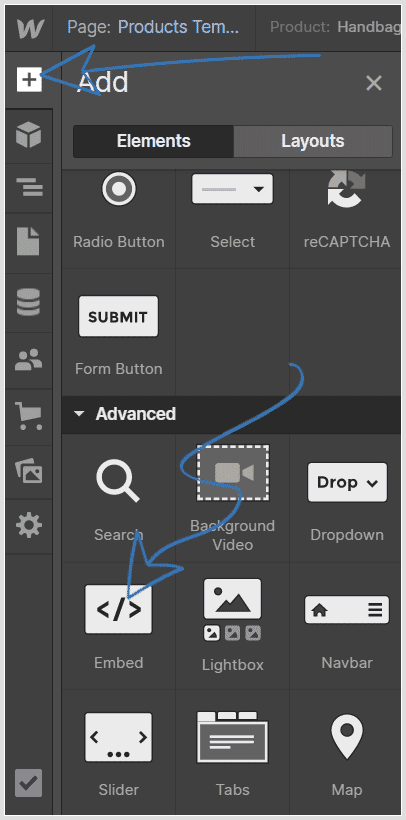 You'll see the 'HTML Embed Code Editor':
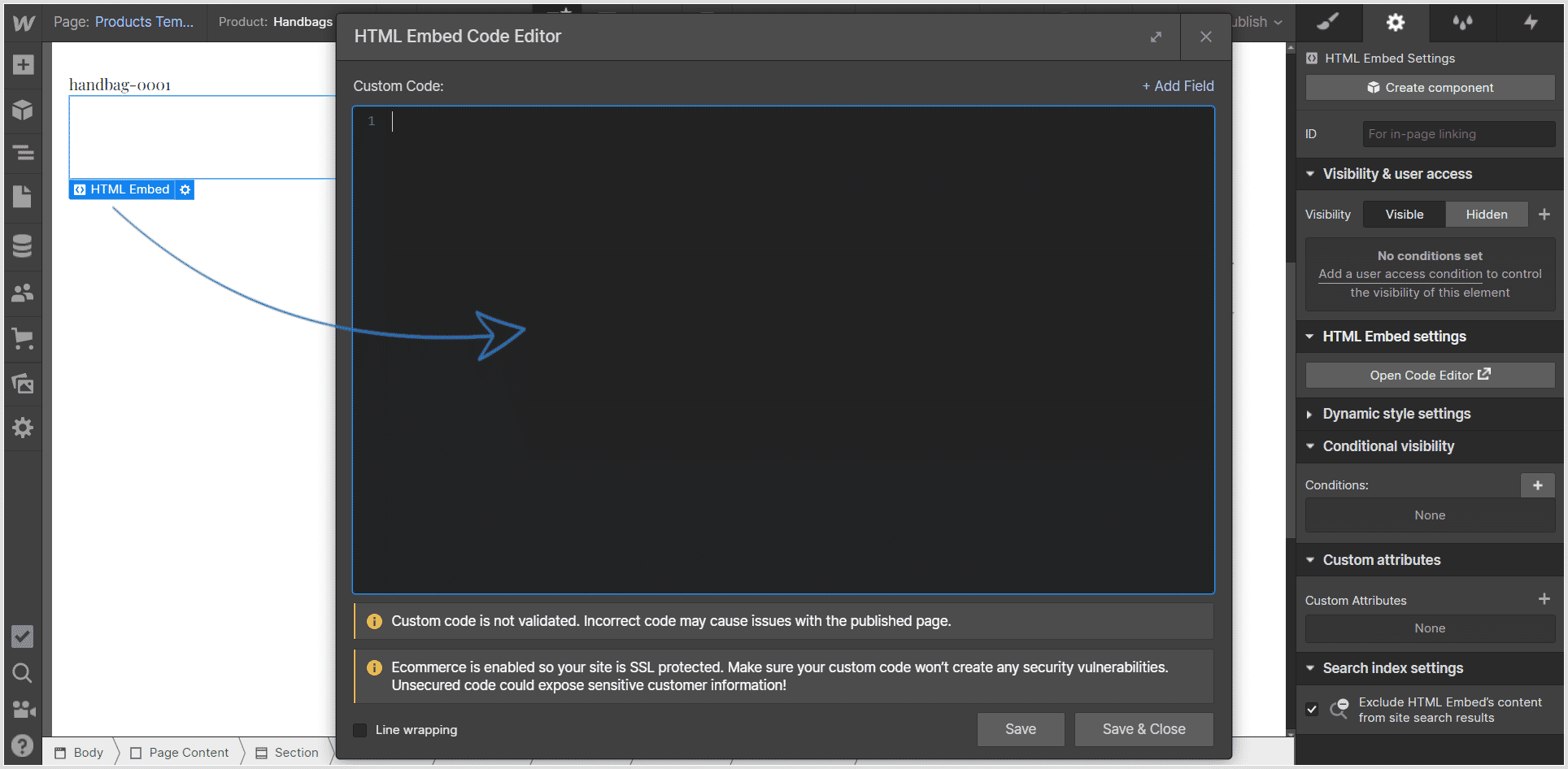
<script src="https://scripts.sirv.com/sirvjs/v3/sirv.js"></script>
<script type="text/javascript">
var $sku = document.querySelector('[data-sku]');
if ($sku) {
    $sku_text = $sku.innerHTML;
    $sku.parentNode.removeChild($sku)
    document.querySelector('[data-gallery]').innerHTML = '<div className="Sirv" data-src="https://your-sirv-account-name.sirv.com/products/' + $sku_text + '.view"></div>';
}
</script>
13. Click to 'Save & Close' and then publish your changes.
Add an image, spin or video to Webflow
It's easy to add images, videos, 3D models and spins to your other Webflow pages too. Follow these steps to add just one asset or a gallery of assets. 1. Log in to your Sirv account or create an account. 2. Upload your images, 360 spins, models or videos. 3. Right-click an asset and "Copy link". 4. Go to the Sirv Media Viewer generator and click the + icon: 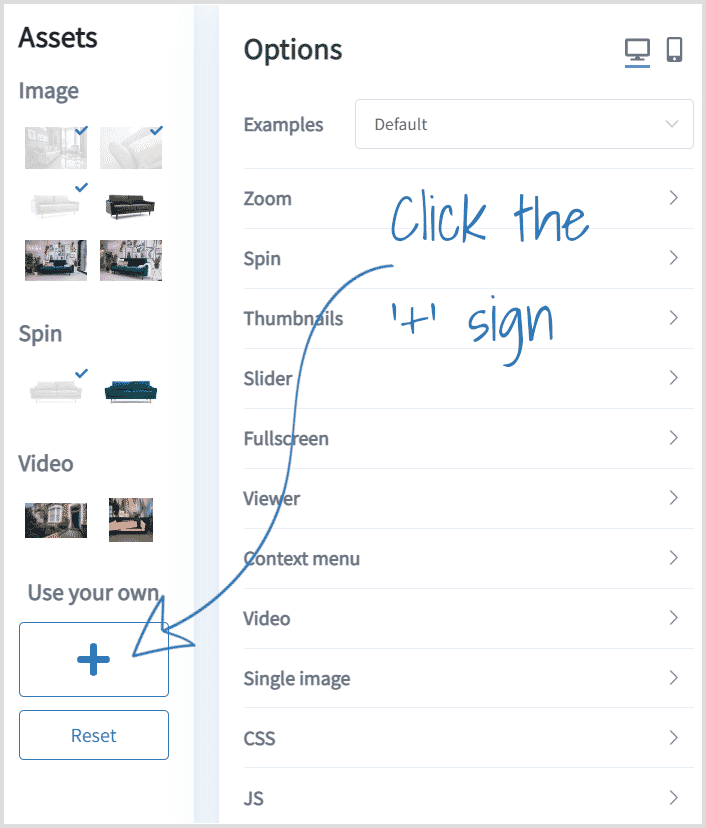 5. Paste one or more of your image/spin/video URLs:
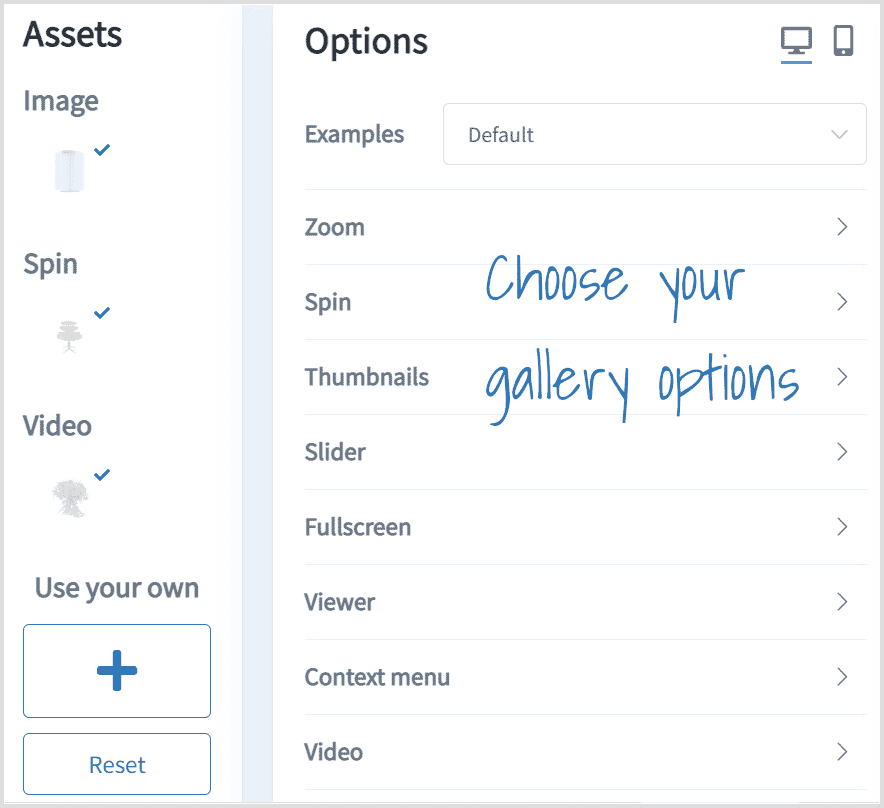
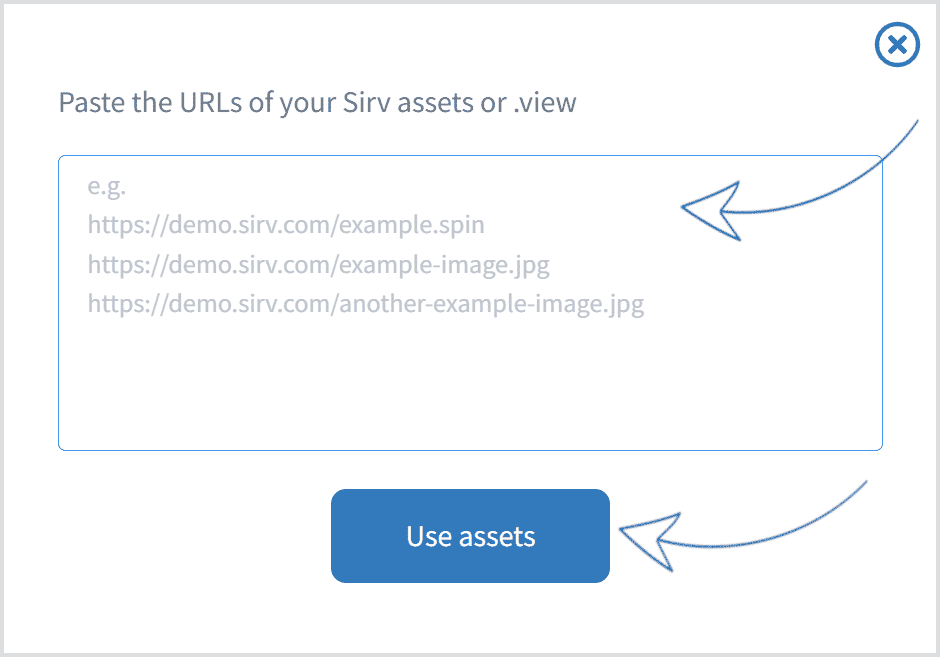 6. Change any of the options you wish to customize:
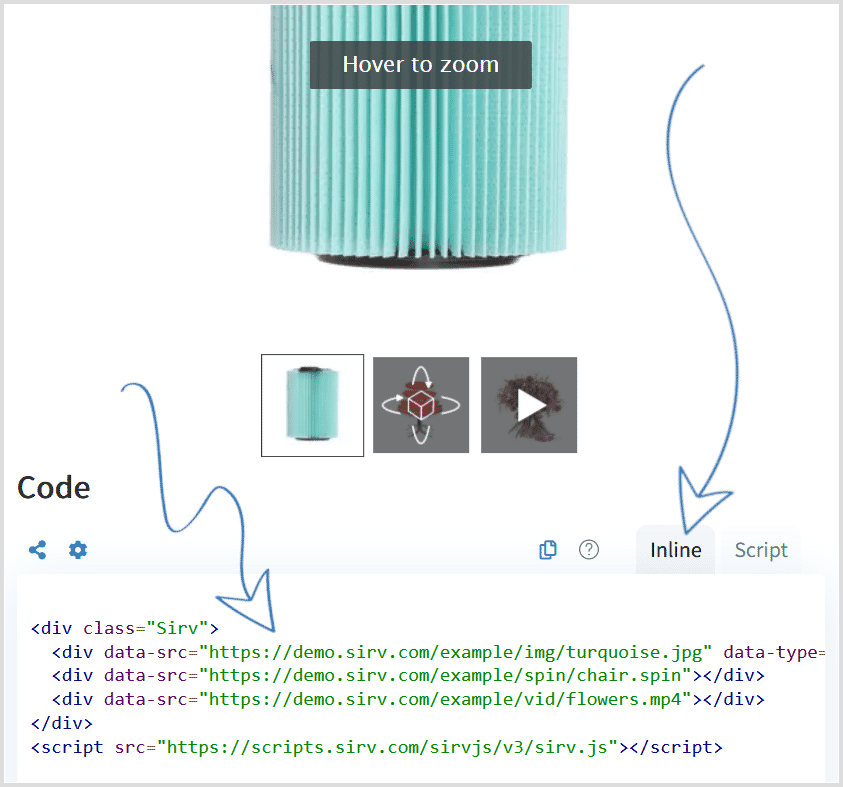
 7. Copy the code from the 'Inline' tab:
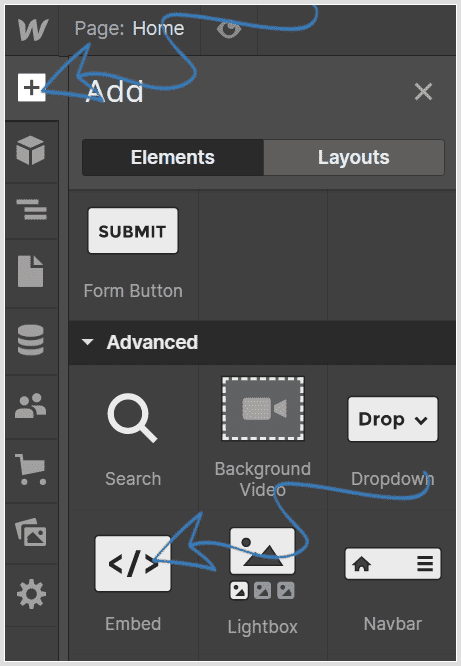
 8. In your Webflow page, click the + icon and add an Embed element:
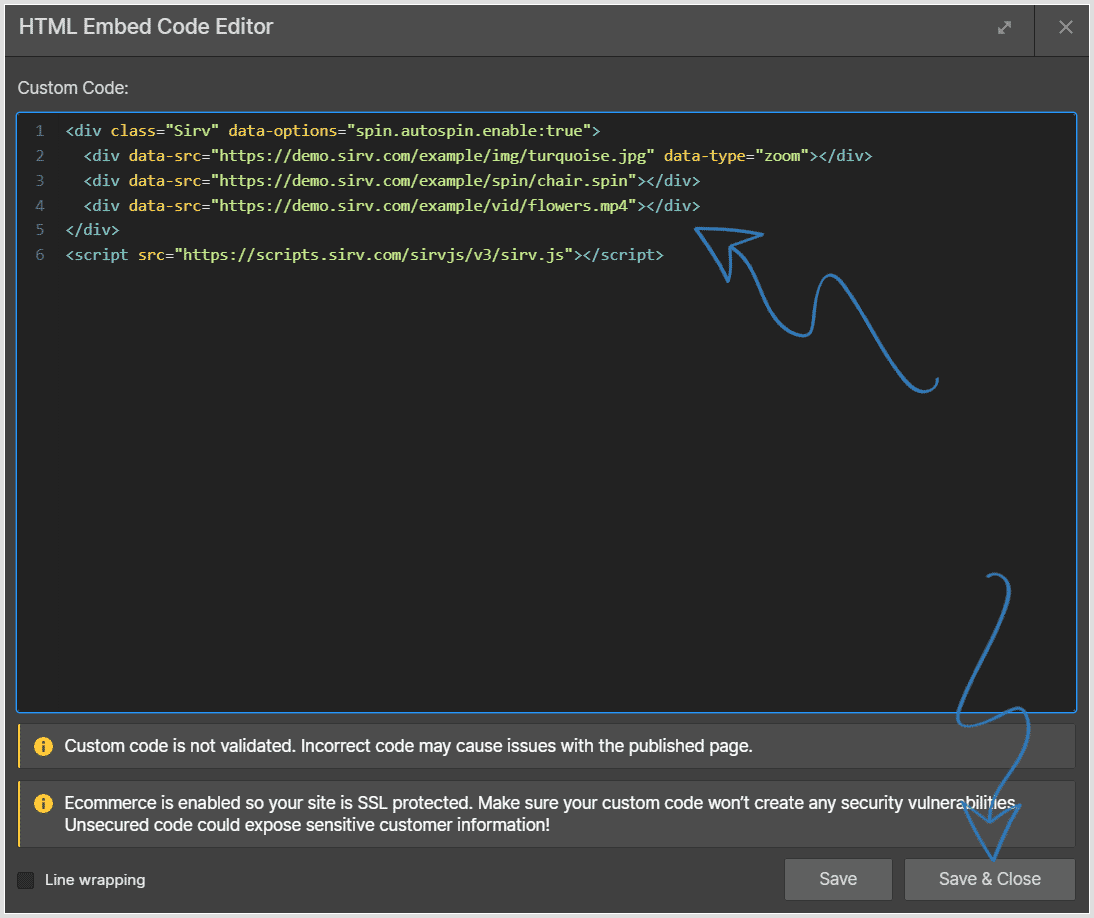
 9. Paste your Sirv code into the field, then click Save & Close:
Get help from Sirv
If you need any help adding images, videos, 360 spins or 3D models to your site, contact the Sirv customer success team. We're waiting to help!