Embed 360 spins in Editor X
WIP - EDITOR X ARTICLE Create 2 articles:
- EditorX
- Wix Studio (took over from EditorX in April 2024) INTRO TEXT & LOGO DEMO OF 360 SPIN
How to embed spins in an Editor X website
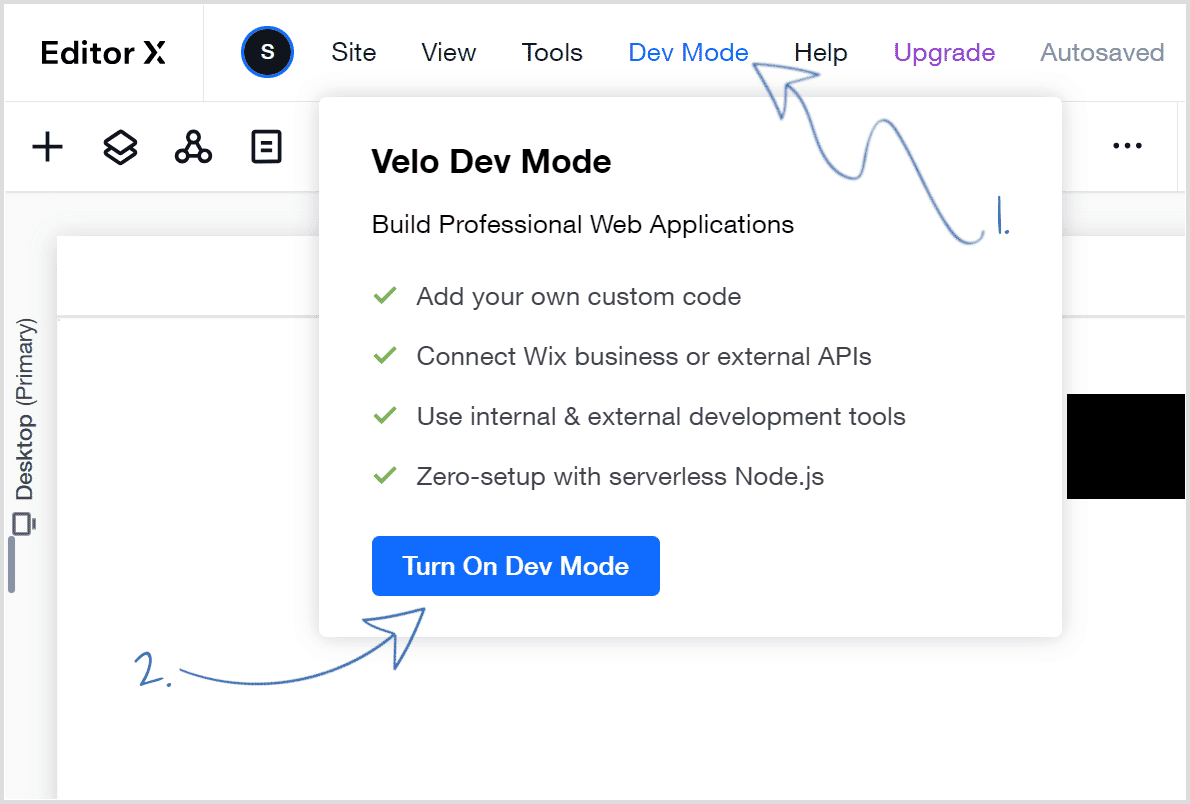
1. Open the Editor X dashboard and enable Dev Mode (Dev Mode > Turn on Dev Mode):
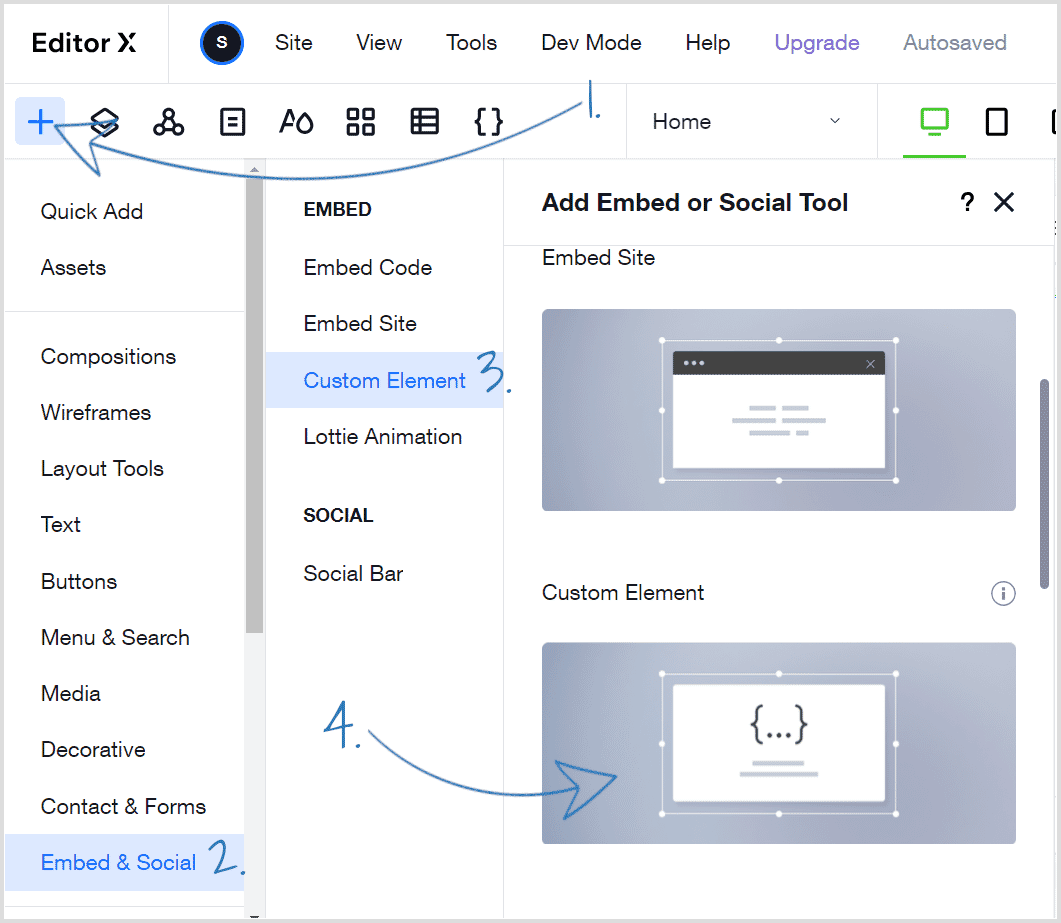
2. Click "Add Elements" (1), then click "Embed & Social" (2), then click "Custom Element" (3), then select "Custom Element" (4):
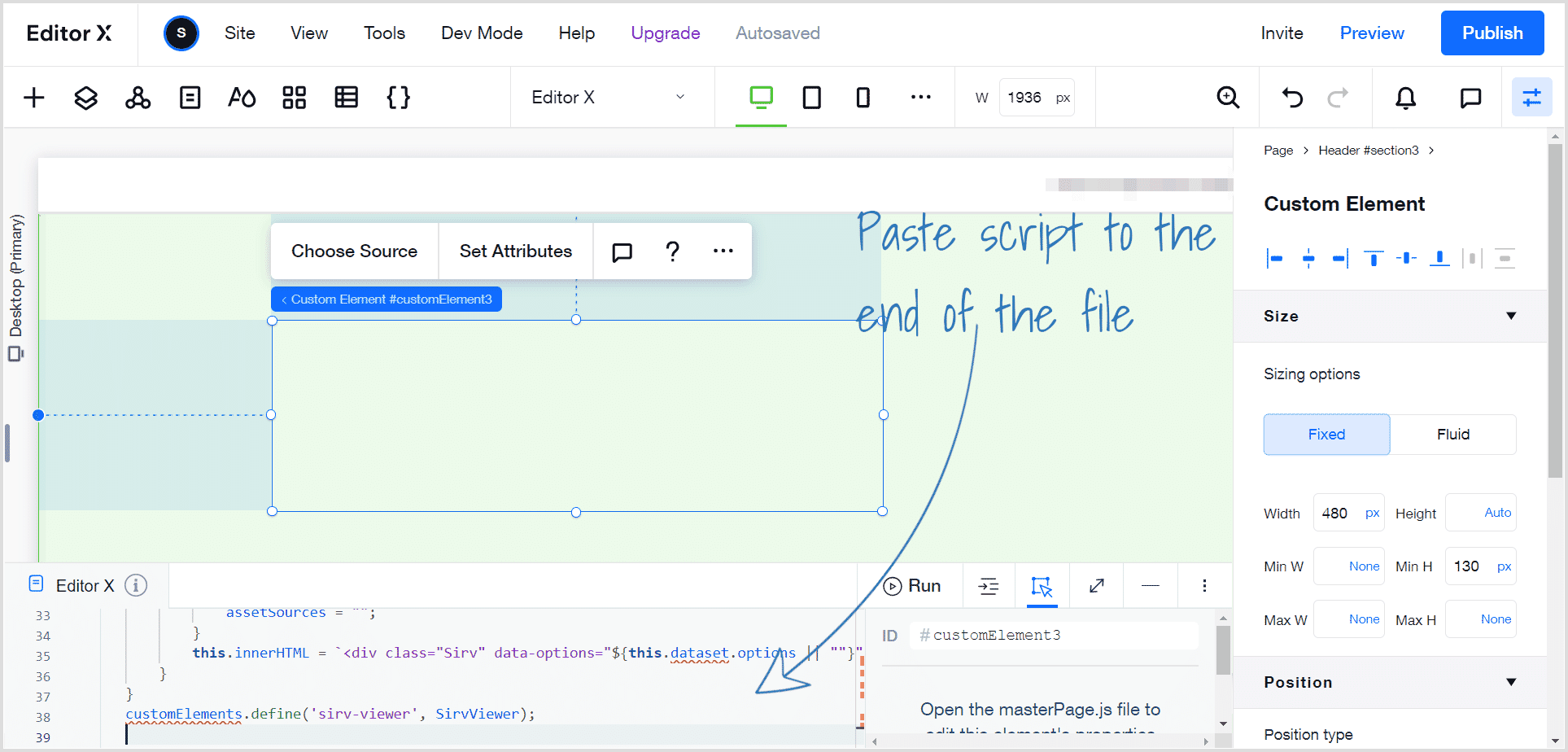
3. Paste the following Script code to the end of the file:
const createSirvScript = function createSirvScript() {
    if (!document.querySelector('#sirv-viewer-script')) {
        const sirvScript = document.createElement('script');
        sirvScript.id = 'sirv-viewer-script';
        sirvScript.src = 'https://scripts.sirv.com/sirvjs/v3/sirv.js';
        document.head.appendChild(sirvScript);
    }
};

class SirvViewer extends HTMLElement {
    connectedCallback() {
        createSirvScript();
        let assetSources = this.dataset.slides || "";
        let multipleAssetSources = "";

        if (!/<.*>/.test(assetSources)) {
            multipleAssetSources = assetSources;
            assetSources = "";
        }
        this.innerHTML = `<div className="Sirv" data-options="${this.dataset.options || ""}" data-src="${multipleAssetSources}">${assetSources}</div>`;
    }
}
customElements.define('sirv-viewer', SirvViewer);
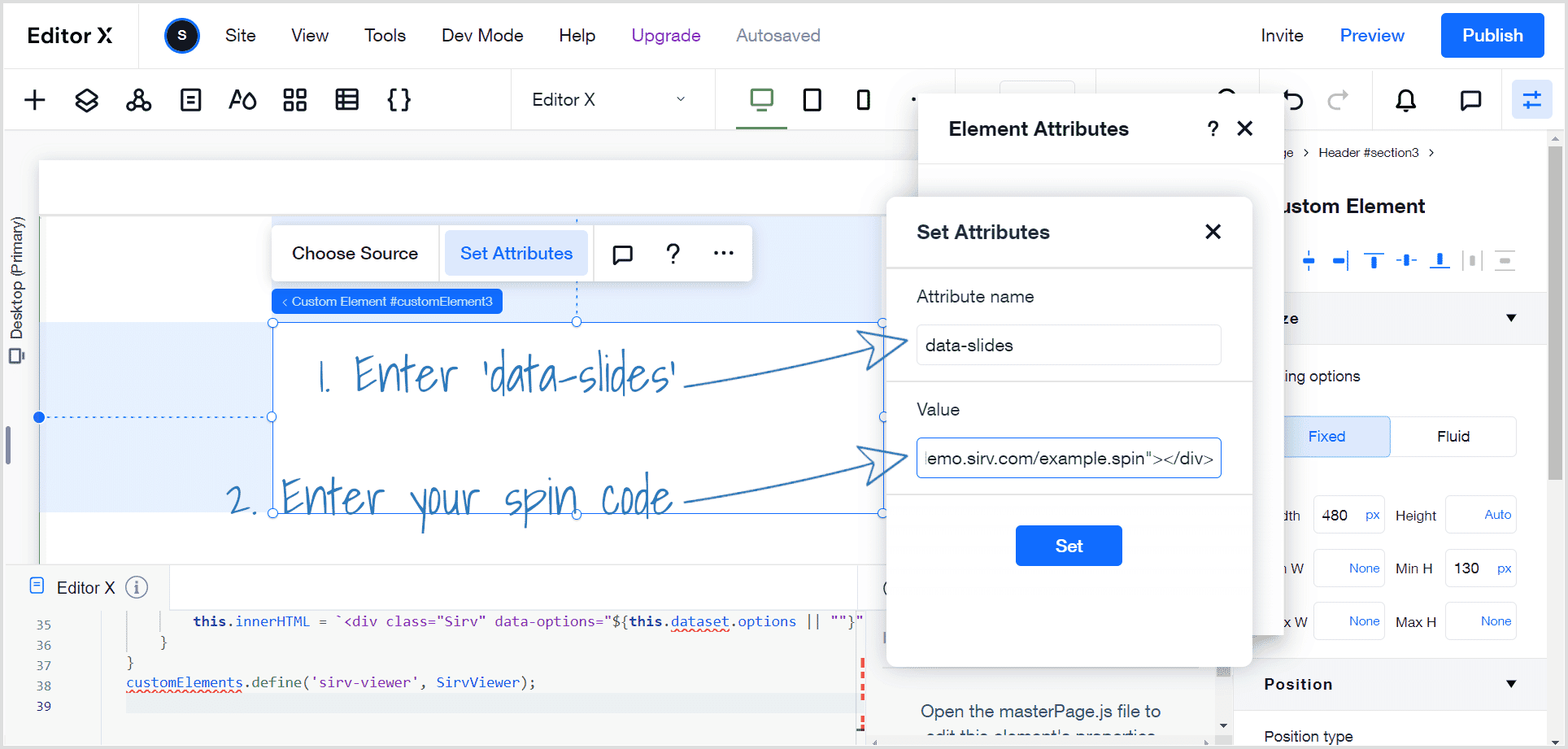
4. Click 'Set Attributes':
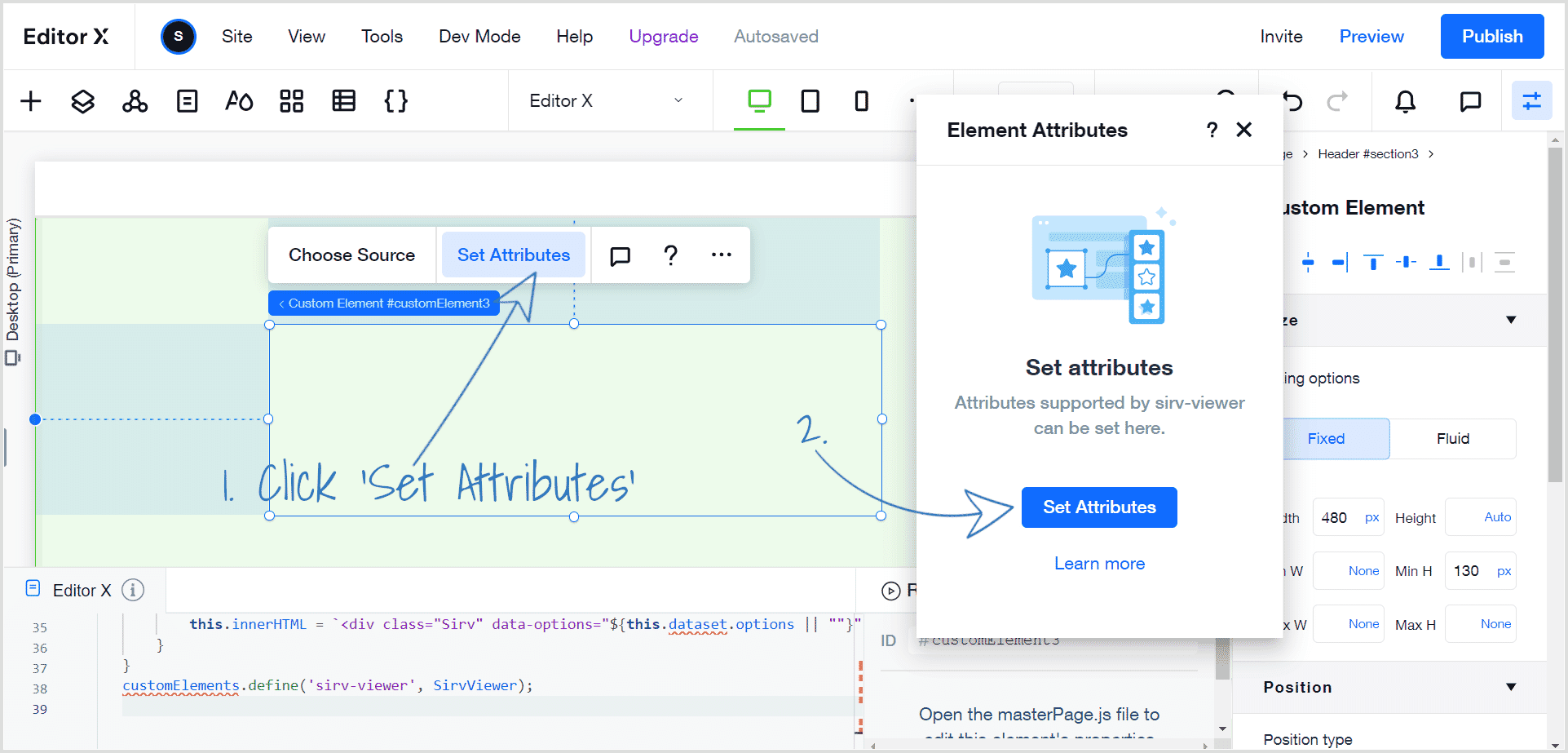
5. In the "Attribute name" field enter data-slides and in the "Value" field enter your Sirv spin code. Then click "Set". This is spin code example:
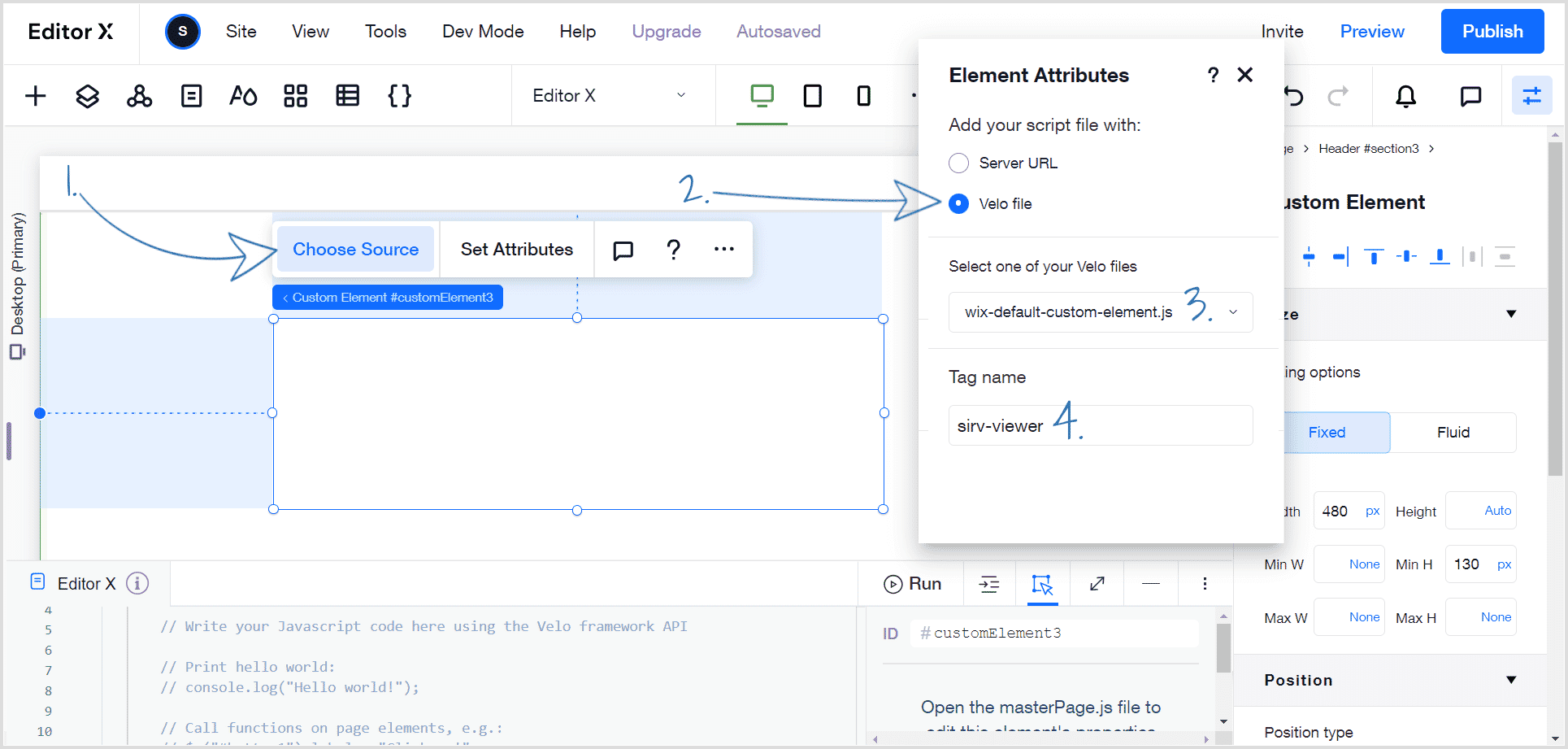
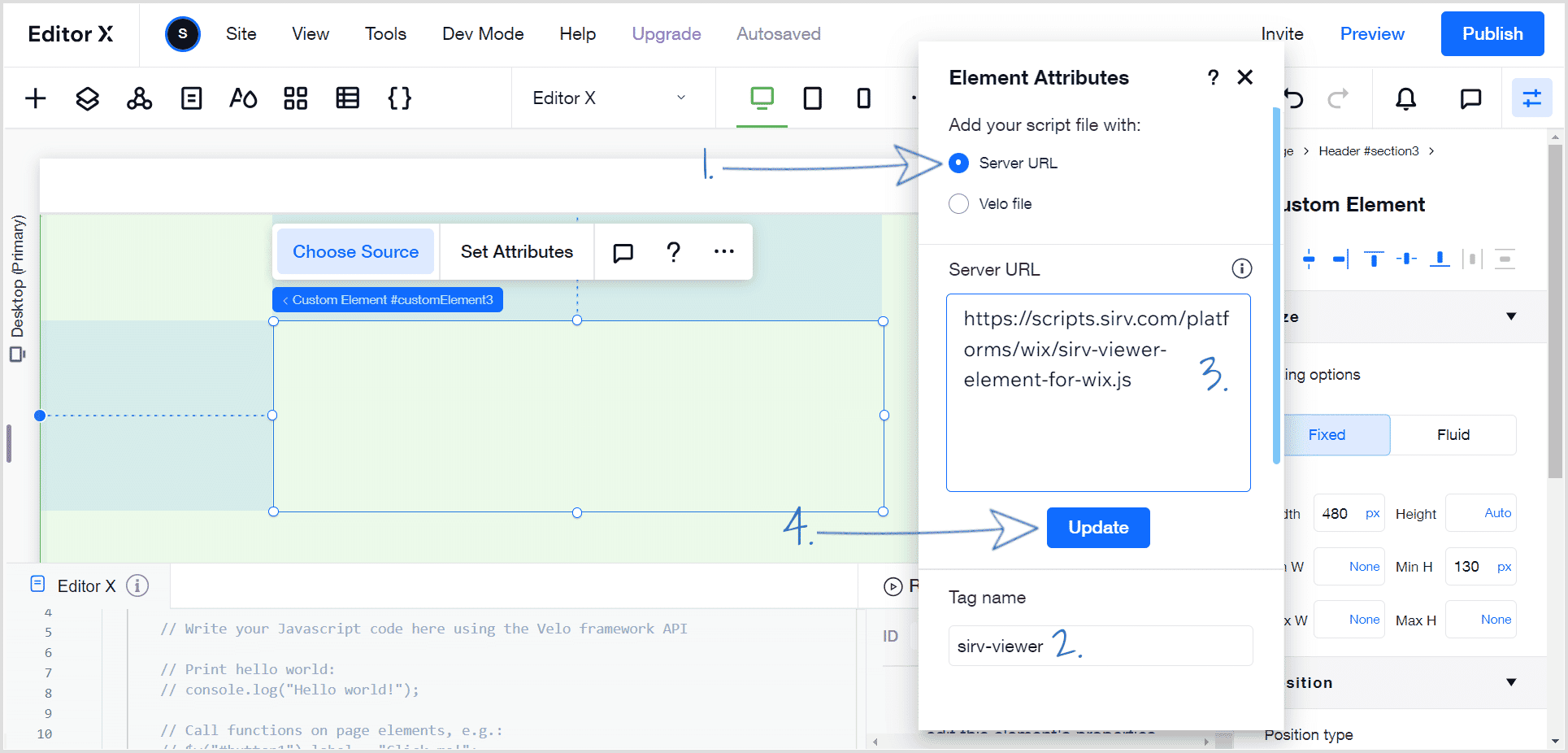
7. Update Element Attributes: Server URL Select "Server URL" (1), then enter sirv-viewer in the Tag name field (2), then reference https://scripts.sirv.com/platforms/wix/sirv-viewer-element-for-wix.js in the Server URL field (3), then select "Update" (4):
Try Sirv today
Get started now! Create your free Sirv account. You'll receive 5 GB for 30 days, after which you can choose a special $99/year Wix plan or use a free light usage ad-supported plan.