S3 API guide
Build fast, scalable imaging into your application. Sirv provides 2 APIs, depending on your needs:
- REST API - upload files, complete file management, search files, account management, user management, analytics
- S3 API - upload files, partial file management
Tip: We recommend using the REST API instead of the S3 API. The REST API has many more capabilities than the S3 API and developers find that it is faster and easier to work with.
The S3 API can be used to:
- Upload/download files
- Move/copy/rename/delete files
- Create folders
- Query a folders' contents
You can also use the REST API for all of the operations above, plus many more.
Choose an SDK
Sirv uses its own S3 compliant infrastructure (not Amazon S3), giving you the benefits of a purpose-built, independent platform, yet usage of all AWS S3 SDKs. Choose an official AWS SDK:
- JavaScript SDK for S3
- PHP SDK for S3
- .NET SDK for S3
- Java SDK for S3
- Node.js SDK for S3
- Ruby SDK for S3
- Python SDK for S3
- Mobile SDK for S3
- Go SDK for S3
Learn more about S3 in the official S3 API documentation.
Connect to your Sirv bucket
Your S3 endpoint is s3.sirv.com. Your S3 Bucket, S3 Key and S3 Secret are on your Settings page.
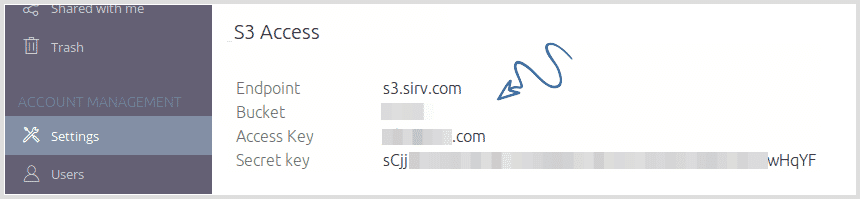 If you're using the S3cmd command line tool to connect to your Sirv account and upload/download/manage your files, use the following example. Replace the items in CAPITALS with your Sirv S3 connection details:
s3cmd --host=s3.sirv.com --host-bucket=s3.sirv.com --access_key=ENTER_YOUR_SIRV_S3_ACCESS_KEY_HERE --secret_key=ENTER_YOUR_SIRV_S3_SECRET_KEY_HERE ls s3://ENTER_YOUR_SIRV_S3_BUCKET_HERE/
Authenticate your S3 requests using either AWS Signature Version v3 or Signature Version v4.
Read directory contents
If you are using the S3 API to query the contents of a folder containing more than 1000 files, the response will be truncated after the first 1000 results. To see the next batch of results, use the continuation token called NextMarker. It will only be sent when the response is truncated. The response will also be marked with a boolean flag IsTruncated.
Use path-style URLs
Your requests should be submitted using path-style URLs - not like the default S3 URLs which use a subdomain (https://my-aaccount.s3.sirv.com/). Path-style URLs have your bucket name (account name) after the domain, for example:
https://s3.sirv.com/my-account/my-object
Example script:
// Create an S3 client with path-style access
$s3 = new S3Client([
    'version' => 'latest',
    'region'  => 'us-east-1',
    'endpoint' => 'https://s3.sirv.com',
    'use_path_style_endpoint' => true, // This forces path-style URLs
]);
S3 API limits
The S3 API permits the following frequency of requests. Business plan limits:
- Total requests per hour: 7000
- Of which PUT requests (uploads): 2000
- Of which GET requests (downloads): 3000
- Of which Delete requests: 3000
Enterprise plan limits:
- Total requests per hour: 14000
- Of which PUT requests (uploads): 4000
- Of which GET requests (downloads): 6000
- Of which Delete requests: 6000
Free plan limits:
- Total requests per hour: 1000
- Of which PUT requests (uploads): 300
- Of which GET requests (downloads): 1000
- Of which Delete requests: 300
If you make an S3 API upload, it will count towards the total limit and the PUT limit. Any other requests (e.g. head or directory listings) only count towards the total limit.
The hour starts counting from the time that the first request is received by Sirv. For example, if a request is received at 15:28:41, the API allowance will be reset at 16:28:41.
If your account exceeds the limit, you'll see a message on the Notifications page of your Sirv account, describing what happened and when the limit will be reset:
